
1. Introduction
Thank you for choosing the aigo AC240 240mm CPU Liquid Cooler. This all-in-one (AIO) water cooling system is designed to provide efficient heat dissipation for your CPU, ensuring stable performance for demanding tasks and gaming. This manual provides essential information for proper installation, operation, and maintenance of your liquid cooler. Please read it thoroughly before proceeding with installation.
2. Safety Information
- Always disconnect power from your computer before installing or performing maintenance on any components.
- Handle components with care to avoid damage. Avoid touching the copper base of the water block directly to prevent contamination.
- Ensure all connections are secure to prevent leaks.
- Keep the product away from children and pets.
- Do not attempt to open or modify the sealed liquid cooling loop. This will void the warranty and may cause damage.
- Use only the provided mounting hardware for installation.
3. Package Contents
Verify that all components listed below are present in your package:
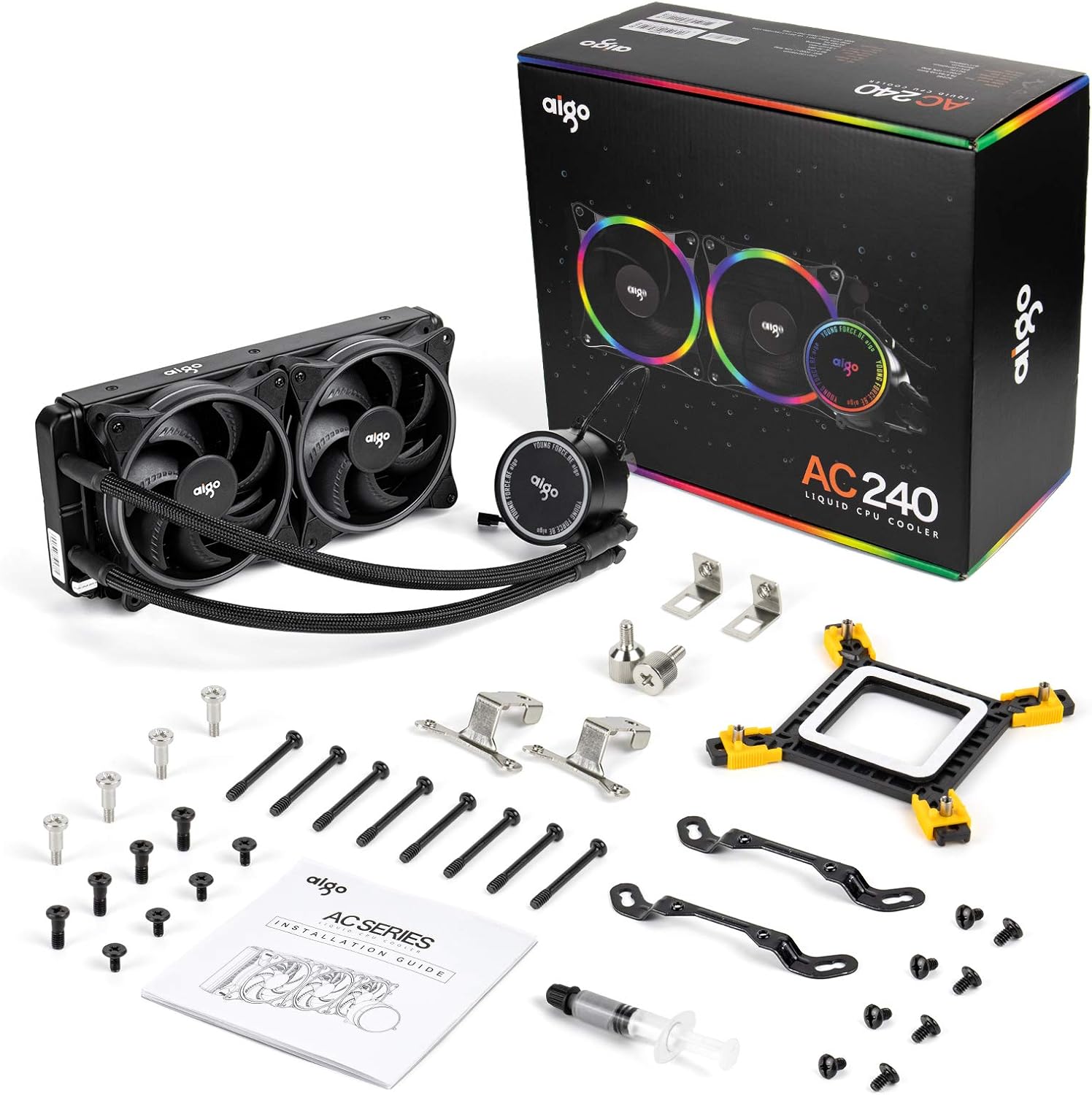
This image displays all components included in the aigo AC240 package: the 240mm radiator with pre-attached tubes and pump, two 120mm PWM fans, various mounting brackets for Intel and AMD sockets, screws, a syringe of thermal paste, and an installation guide.
- 240mm Radiator with Integrated Pump and Tubing
- 120mm PWM Fans (x2)
- Intel Mounting Bracket Kit (LGA 2066/2011V3/2011/1200/115X/1366)
- AMD Mounting Bracket Kit (AM4/AM3+/AM3/FM2+/FM2)
- Fan Screws
- Radiator Mounting Screws
- Backplate (for compatible sockets)
- Thermal Paste Syringe
- User Manual (this document)
4. Specifications
| Model | aigo AC240 |
| Cooling Method | Liquid (Water) |
| Radiator Size | 240mm (274mm overall length) |
| Fan Size | 120mm (x2) |
| Fan Speed | 800-2000 RPM ±10% |
| Noise Level | 30 Decibels (Max) |
| Power Connector | 4-Pin PWM (Fans), 4-Pin (Pump) |
| Voltage | 12 Volts (DC) |
| Wattage | 5 Watts |
| Cold Plate Material | Copper |
| Compatibility | Intel: LGA 2066/2011V3/2011/1200/115X/1366 AMD: AM4/AM3+/AM3/FM2+/FM2 |
5. Setup and Installation
Before beginning, ensure your computer is powered off and unplugged from the wall outlet. Refer to your PC case manual for radiator mounting locations and clearances.
5.1 Prepare the CPU and Motherboard
- If replacing an existing cooler, carefully remove it and clean any old thermal paste from the CPU's integrated heat spreader (IHS) using isopropyl alcohol and a lint-free cloth.
- Identify the correct mounting bracket for your CPU socket (Intel or AMD).
- Install the appropriate backplate (if required for your socket type) onto the motherboard from the rear.
5.2 Install the Radiator and Fans

This image shows the 274mm dual-fan radiator and the water block. The water block features a protective film over its copper base, which must be removed before installation. The radiator design is optimized for heat dissipation.
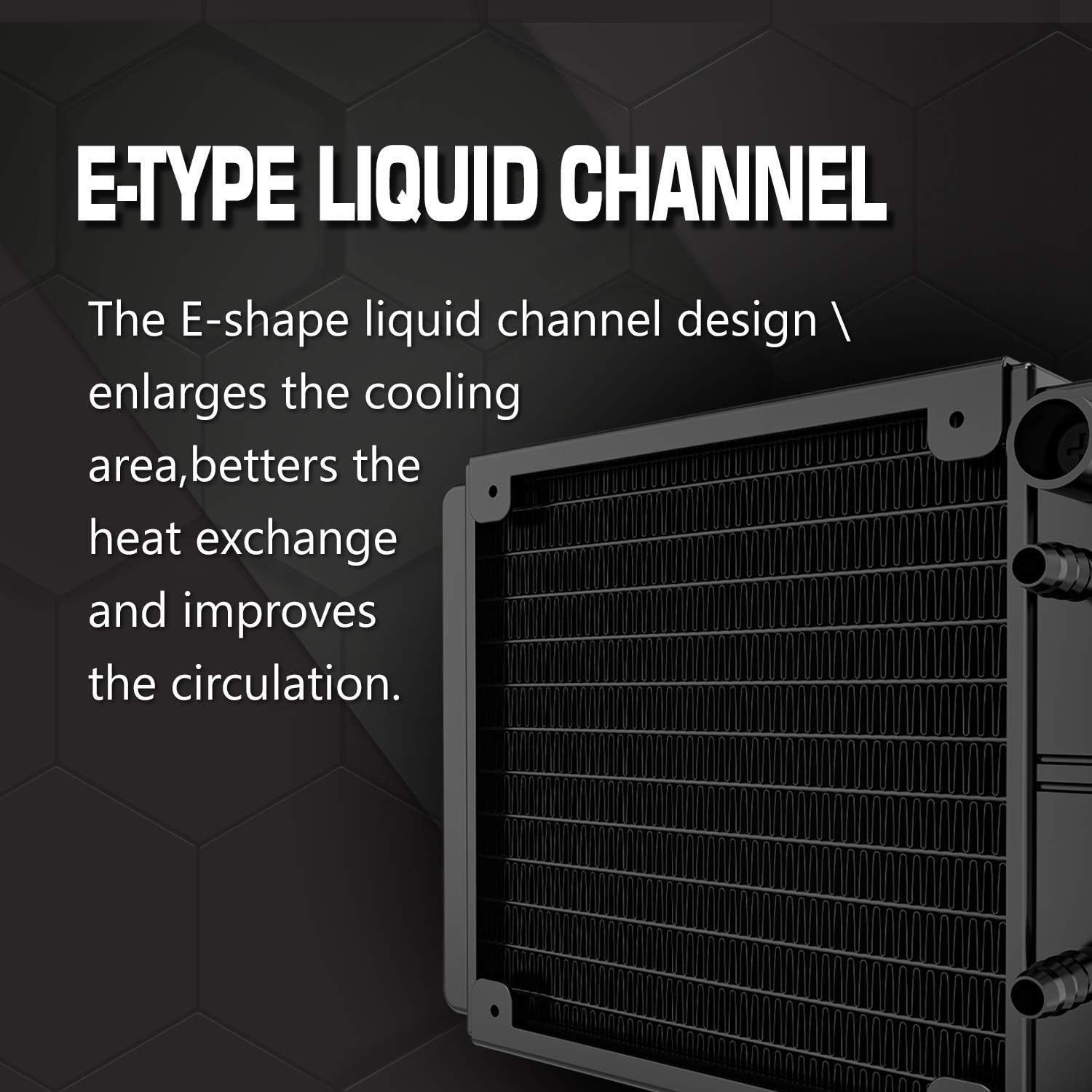
This diagram illustrates the E-Type liquid channel design within the radiator, which is engineered to enlarge the cooling area, enhance heat exchange, and improve liquid circulation efficiency.
- Attach the two 120mm PWM fans to the radiator using the provided fan screws. Ensure the fan airflow direction is appropriate for your case's cooling strategy (typically blowing air through the radiator and out of the case, or into the case).
- Mount the radiator assembly into your PC case using the appropriate radiator mounting screws. Common locations include the top or front of the case.

This image highlights the 120mm efficient fan, detailing its 800 RPM to 2000 RPM speed range and 4-pin PWM connector for precise speed control.
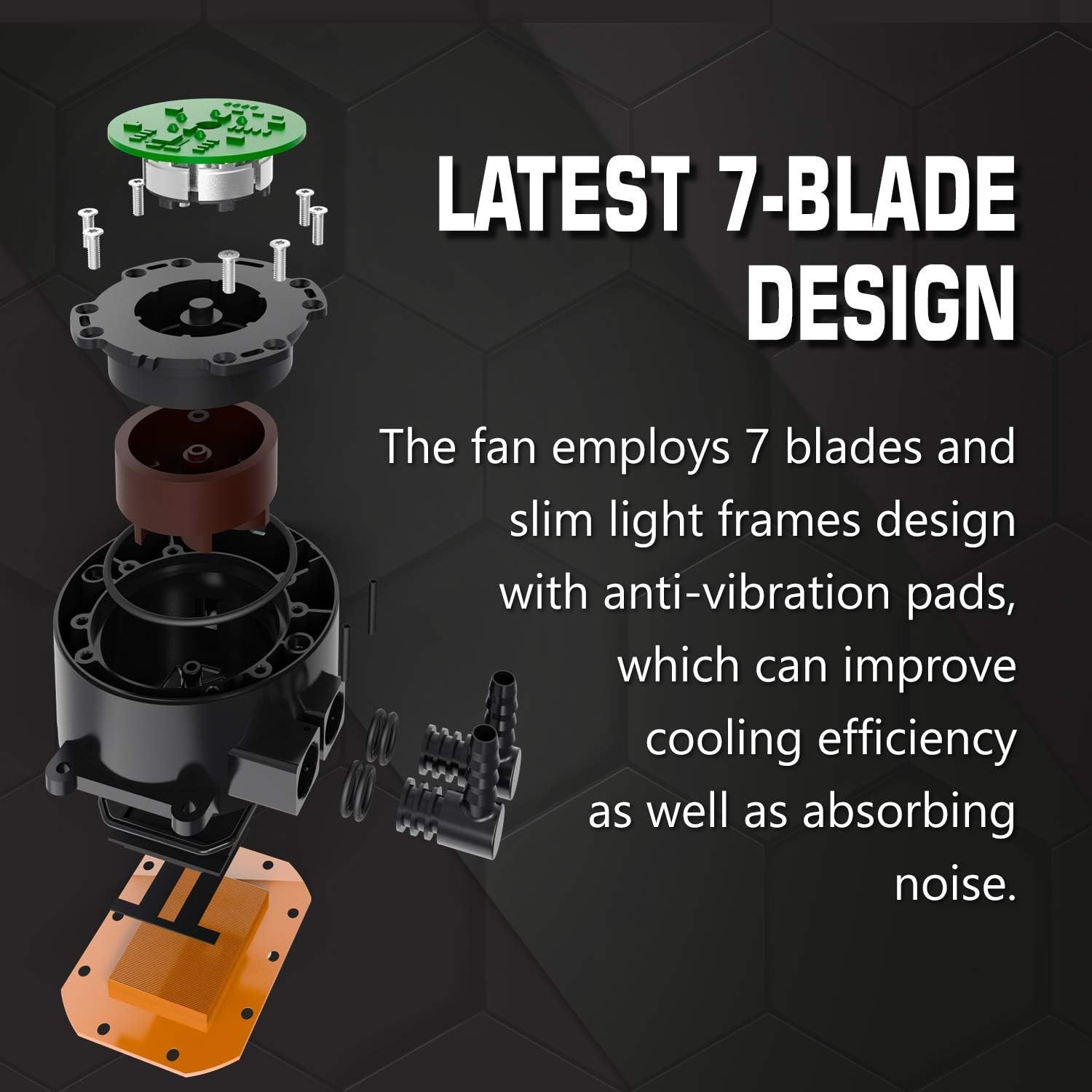
This image provides an exploded view of the fan, highlighting its 7-blade design and slim light frames with integrated anti-vibration pads. This construction aims to improve cooling efficiency and reduce operational noise.
5.3 Install the Water Block
- Apply a small amount of thermal paste (about the size of a pea) to the center of the CPU's IHS.
- Carefully remove the protective film from the copper base of the water block.
- Align the water block with the CPU and the mounting posts on the motherboard. Gently lower the water block onto the CPU.
- Secure the water block using the appropriate thumbscrews or nuts, tightening them in a diagonal pattern until snug. Do not overtighten.
5.4 Connect Cables
- Connect the 4-pin PWM fan cables to the CPU_FAN or a dedicated AIO_PUMP/FAN header on your motherboard. If your motherboard has multiple fan headers, ensure they are configured for PWM control in the BIOS.
- Connect the pump's power cable (usually a 3-pin or 4-pin connector) to a dedicated AIO_PUMP header or a SYS_FAN header on your motherboard. Ensure the pump receives full power (often by setting the header to 100% in BIOS) for optimal performance.
- If your cooler has RGB lighting, connect the RGB cable to a compatible RGB header on your motherboard or a dedicated RGB controller.
6. Operating Instructions
Once installed and all cables are connected, you can power on your computer. The aigo AC240 is designed for continuous operation.
- Initial Boot: During the first boot, monitor your CPU temperatures using motherboard monitoring software or BIOS. Ensure temperatures are within safe operating limits.
- Fan Control: The 4-pin PWM fans will automatically adjust their speed based on CPU temperature, as controlled by your motherboard's BIOS settings. You can customize fan curves in your motherboard's software or BIOS for desired performance and noise levels.
- Pump Speed: The pump should ideally run at a constant, high speed for maximum cooling efficiency. Verify its speed in your motherboard's monitoring software.
7. Maintenance
Regular maintenance helps ensure optimal performance and longevity of your liquid cooler.
- Dust Cleaning: Periodically clean dust from the radiator fins and fan blades using compressed air. Ensure the fans are held stationary while cleaning to prevent damage to the bearings.
- Cable Management: Ensure cables are neatly routed and do not obstruct airflow or fan operation.
- Leak Inspection: While the system is sealed, occasionally inspect the tubing and connections for any signs of leakage. If a leak is detected, immediately power off your system and contact support.
- Thermal Paste: Reapplying thermal paste every few years or when reinstalling the water block can help maintain optimal thermal transfer.
8. Troubleshooting
If you encounter issues with your aigo AC240 liquid cooler, refer to the following common solutions:
- High CPU Temperatures:
- Ensure the water block is securely mounted and making full contact with the CPU.
- Verify that thermal paste was applied correctly and evenly.
- Check if the pump is running. Listen for a faint hum or check RPM in monitoring software. Ensure the pump is connected to a header providing constant power.
- Confirm that fans are spinning and oriented correctly for airflow.
- Clean any dust buildup on the radiator fins.
- Excessive Noise:
- Check fan speeds in BIOS or software. Adjust fan curves to reduce noise if temperatures allow.
- Ensure no cables are interfering with fan blades.
- Verify that the pump is not vibrating excessively against the case or other components.
- No RGB Lighting:
- Ensure the RGB cable is correctly connected to a compatible header on your motherboard or controller.
- Check your motherboard's RGB software for control and settings.
9. Warranty and Support
The aigo AC240 CPU Liquid Cooler comes with a standard manufacturer's warranty. Please refer to the warranty card included in your product packaging or visit the official aigo website for detailed warranty terms and conditions.
For technical support, troubleshooting assistance, or warranty claims, please contact aigo customer service through their official website or the contact information provided with your purchase. When contacting support, please have your product model (AC240) and purchase details readily available.