
1. Introduction
This manual provides detailed instructions for the setup, operation, maintenance, and troubleshooting of your WisFox 2.4GHz Wireless Keyboard and Mouse Combo. This full-size ergonomic USB keyboard features a convenient phone holder, and the accompanying mouse offers quiet clicking for a comfortable user experience. It is designed for seamless compatibility with various computer systems.

Figure 1: WisFox Wireless Keyboard and Mouse Combo. The image displays the black full-size keyboard with an integrated phone holder slot at the top, a black wireless mouse, and a small USB receiver.
2. Setup
Follow these steps to set up your wireless keyboard and mouse combo:
- Install Batteries:
- The wireless keyboard requires 2 AAA batteries. Locate the battery compartment on the underside of the keyboard, open the cover, insert the batteries according to the polarity indicators, and close the cover.
- The wireless mouse requires 1 AA battery. Locate the battery compartment on the underside of the mouse, open the cover, insert the battery according to the polarity indicators, and close the cover.
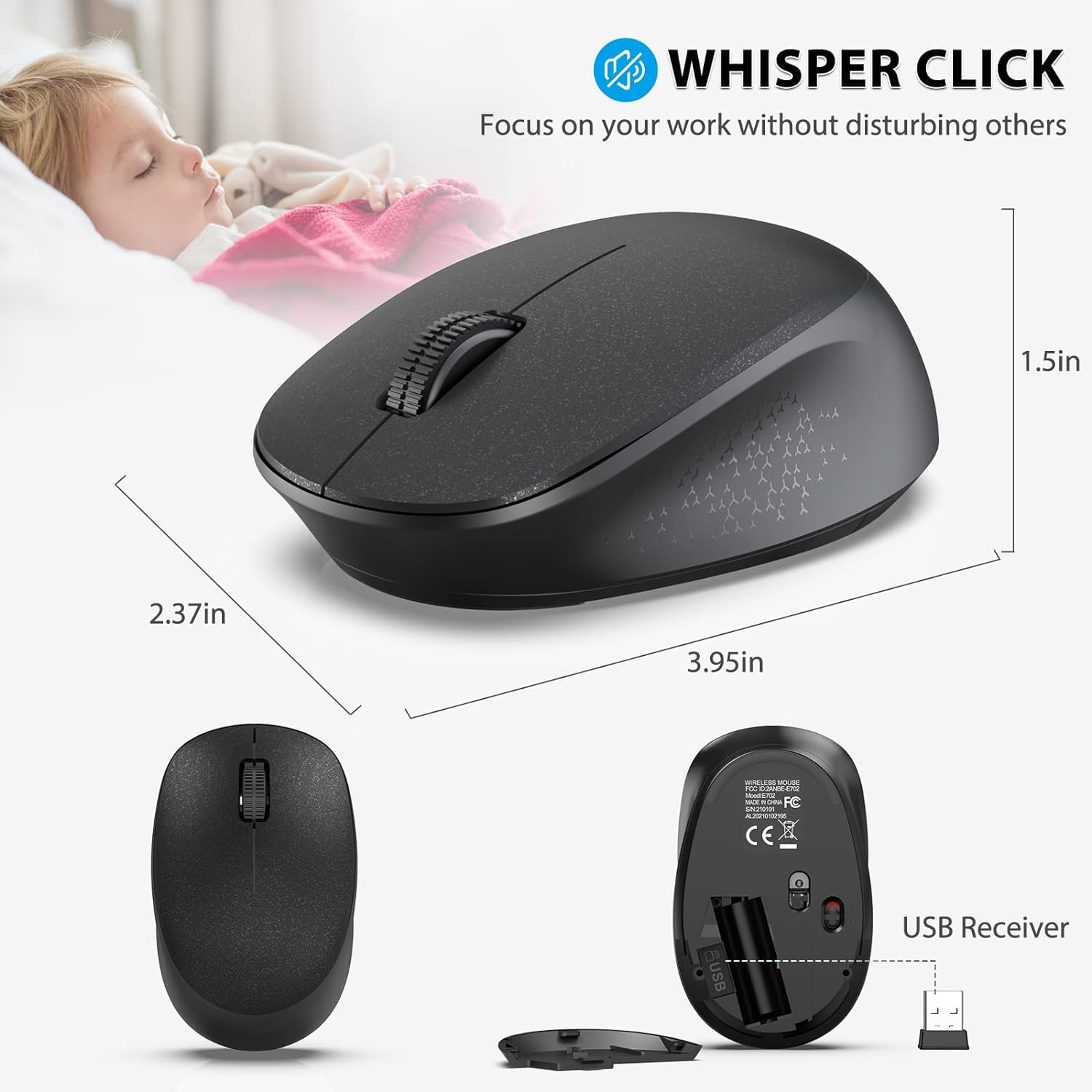
Figure 2: Battery installation for the keyboard and mouse. The image shows the underside of the keyboard with its battery compartment open, revealing two AAA batteries. The mouse's underside is also shown with its battery compartment open, revealing one AA battery. The USB receiver is stored inside the mouse's battery compartment.
- Locate the USB Receiver: The single USB receiver for both the keyboard and mouse is conveniently stored inside the mouse's battery compartment. Carefully remove it.
- Connect the Receiver: Plug the USB receiver into an available USB port on your computer, laptop, or desktop.
- Power On: Turn on the keyboard and mouse using their respective ON/OFF switches. The keyboard's switch is located near the top right of the keyboard, and the mouse's switch is on its underside.
- Automatic Connection: The keyboard and mouse should automatically connect to your device within seconds. No additional software installation is required.
Note on Videos: Official product videos from the seller were not available for embedding. The setup process is straightforward as described above.
3. Operating Instructions
3.1 Keyboard Features
- Integrated Phone Holder: The keyboard features a U-shaped holder (approximately 10 inches / 25.5 cm long) at the top. This slot is designed to securely hold smartphones, iPads, and other devices horizontally or vertically, providing a convenient viewing angle for videos, documents, or entertainment while working.
- Full-Size Layout: The keyboard has a standard US QWERTY layout with a dedicated number pad. Keys are appropriately spaced for comfortable typing.
- Multimedia & Shortcut Keys: Access 12 multimedia combination keys and 5 independent shortcut keys for efficient control over music, movies, web browsing, email, and more.
Note: Some shortcuts may not be available on Mac systems.
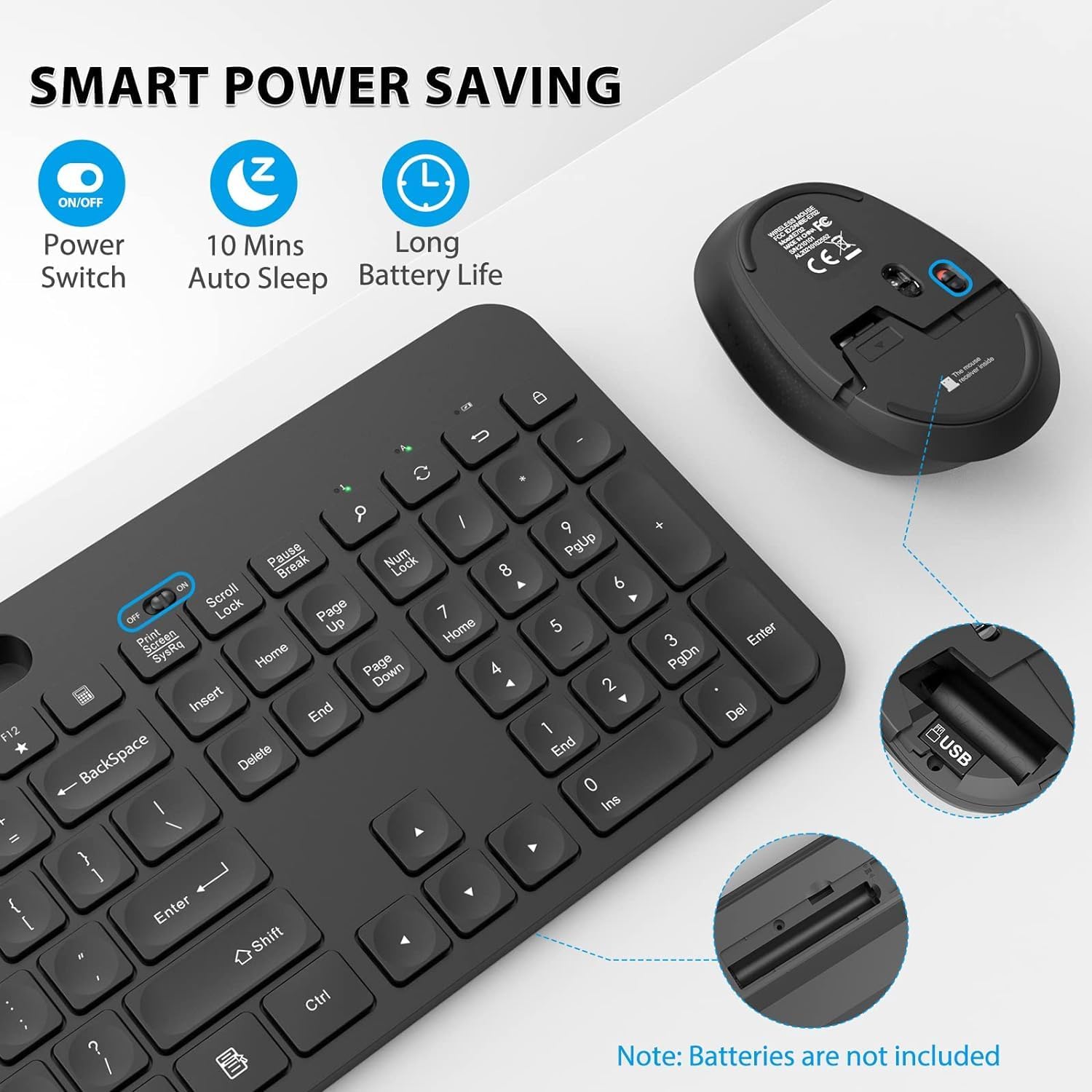
Figure 3: Detailed view of the keyboard's multimedia and shortcut keys. The image highlights the function keys (F1-F12) with their respective multimedia icons (e.g., play/pause, volume control) and dedicated shortcut keys for calculator, search, and lock screen.
3.2 Mouse Features
- Noiseless Clicking: The mouse is designed for whisper-quiet clicks, minimizing disturbance in quiet environments like libraries or during late-night work sessions.
- High Sensitivity: Features a fixed 1600 DPI for precise and responsive cursor control.
3.3 Compatibility
The WisFox Wireless Keyboard and Mouse Combo is compatible with a wide range of operating systems and devices, including:
- Windows 2000 / ME / XP / Vista / 7 / 8 / 10
- Desktops, Chromebooks, PCs, Laptops, Computers

Figure 4: A user demonstrating the keyboard and mouse combo in an office setting. The image shows the keyboard with a tablet placed in its integrated holder, connected to a desktop computer, illustrating a simplified desktop setup.
4. Maintenance
- Battery Replacement: Replace batteries when performance degrades. Ensure correct polarity when inserting new batteries.
- Cleaning: Use a soft, dry cloth to clean the surfaces of the keyboard and mouse. For stubborn dirt, a slightly damp cloth can be used, but ensure no moisture enters the internal components.
- Storage: When not in use for extended periods, turn off the keyboard and mouse using their ON/OFF switches to conserve battery life. The USB receiver can be stored inside the mouse's battery compartment to prevent loss.
- Power Saving: The devices feature smart power-saving modes, including an auto-sleep function after 10 minutes of inactivity, to extend battery life.
5. Troubleshooting
If you encounter issues with your WisFox Wireless Keyboard and Mouse Combo, try the following solutions:
- No Connection/Lag:
- Ensure both the keyboard and mouse are turned ON.
- Check if the batteries are correctly installed and have sufficient charge. Replace if necessary.
- Verify that the USB receiver is securely plugged into a working USB port on your computer. Try a different USB port if the issue persists.
- Move the keyboard and mouse closer to the USB receiver to ensure they are within the 10m (33 ft) wireless range.
- Avoid placing the receiver near other wireless devices or large metal objects that might cause interference.
- Keys Not Responding:
- Check battery levels.
- Ensure the keyboard is powered on and connected.
- Restart your computer.
- Mouse Cursor Jumps/Erratic Movement:
- Ensure the mouse is used on a clean, non-reflective surface.
- Clean the optical sensor on the underside of the mouse.
- Check battery levels.
If these steps do not resolve the issue, please refer to the Warranty & Support section for further assistance.
6. Specifications
| Feature | Detail |
|---|---|
| Brand | WisFox |
| Connectivity Technology | 2.4GHz Wireless (USB Receiver) |
| Keyboard Layout | Standard US QWERTY, Full Size with Number Pad |
| Special Features | Ergonomic design, Integrated Phone Holder, Multimedia Keys, Shortcut Keys, Noiseless Mouse Clicks, Auto-Sleep Function |
| Mouse DPI | Fixed 1600 DPI |
| Wireless Range | Up to 10m (33 ft) |
| Keyboard Power | 2 x AAA Batteries (not included) |
| Mouse Power | 1 x AA Battery (not included) |
| Compatible Devices | Laptop, Television, Personal Computer (Windows 2000 / ME/XP/Vista / 7/8/10, Chromebooks, PCs) |
| Color | Black |
| Item Weight | 2.2 pounds |
| Package Dimensions | 17 x 6 x 2.4 inches |
7. Warranty & Support
Your WisFox Wireless Keyboard and Mouse Combo is backed by a 12-month free warranty from the date of purchase.
WisFox is committed to providing superior quality products and professional after-sales support to enhance your user experience.
If you encounter any issues or have questions regarding your product, please do not hesitate to contact us directly via Amazon mail. Our professional customer service team is ready to assist you and provide faster solutions.

Figure 5: Diagram illustrating the customer support process. It shows a user with an issue contacting the seller directly for faster problem resolution, emphasizing the availability of professional customer service.