
UPERFECT MDS-156A23
Contents
UPERFECT True 4K Portable Monitor User Manual
Model: MDS-156A23
1. Introduction
Thank you for choosing the UPERFECT True 4K Portable Monitor. This manual provides essential information for setting up, operating, maintaining, and troubleshooting your new monitor. Please read it thoroughly before use to ensure optimal performance and longevity of your device.

Figure 1.1: UPERFECT True 4K Portable Monitor
2. What's in the Box
Please check the contents of your package to ensure all items are present:
- UPERFECT True 4K Portable Monitor
- Smart Protective Case (doubles as a stand)
- USB-C to USB-C Cable
- Mini HDMI to HDMI Cable
- USB-A to USB-C Power Cable
- Power Adapter
3. Product Overview
The UPERFECT True 4K Portable Monitor is designed for versatility and high-quality visual experience. Key features include a 4K IPS panel, 100% AdobeRGB color gamut, 600 nits brightness, and a slim, lightweight design.

Figure 3.1: Monitor Ports and Controls
3.1. Key Features
- True 4K IPS Panel: 3840x2160 resolution for sharp, detailed images with wide viewing angles.
- 100% AdobeRGB & 600 Nits Brightness: Superior color accuracy and high brightness for professional use and vivid visuals.
- Unique Arc Metal Frame & CNC Metal All Body Design: Durable, high-quality construction with resistance to temperature and corrosion.
- 3-Sided Border-less & Lightweight: Ultra-slim (0.15") and light (1.5 lbs) for portability and immersive viewing.
- Built-in Dual Speakers: Integrated audio for convenience.

Figure 3.2: 100% Adobe RGB Color Gamut

Figure 3.3: Leading 600 Nits Brightness

Figure 3.4: Frameless, Lightweight, and Slim Design
4. Setup Guide
Follow these steps for initial setup and connection to your devices.
4.1. Power Connection
The portable monitor requires an external power supply for stable operation. Connect the provided power adapter to a power outlet and then to one of the USB-C ports on the monitor (labeled for power input).
4.2. Connecting to Devices
Your UPERFECT monitor supports both USB-C (DisplayPort Alt Mode) and HDMI connections.
4.2.1. USB-C Connection (Single Cable Solution)
For devices with a full-featured USB-C port (supporting video output and power delivery), you can use a single USB-C to USB-C cable. Connect one end to your device's USB-C port and the other to a USB-C port on the monitor.
Note: If your device's USB-C port does not provide sufficient power (e.g., older laptops), the monitor may enter a low power mode with reduced brightness. In such cases, connect the external power adapter to the monitor first, then connect the USB-C cable to your device.
4.2.2. HDMI Connection
For devices with an HDMI output, use the provided Mini HDMI to HDMI cable. Connect the Mini HDMI end to the monitor and the standard HDMI end to your device. An additional USB-A to USB-C power cable will be required to power the monitor when using HDMI.
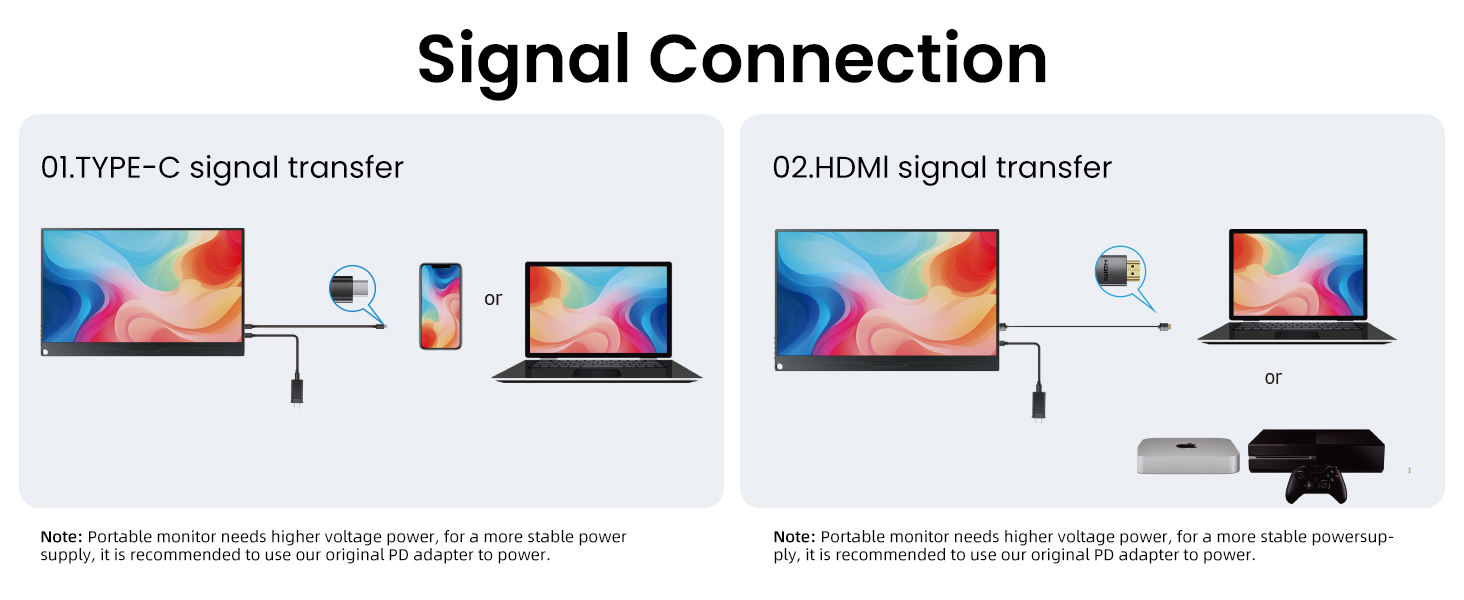
Figure 4.1: Signal Connection Methods
4.3. Using the Smart Case as a Stand
The included smart case can be folded to create a stable stand for your monitor, allowing for various viewing angles.
5. Operating Instructions
Once connected, your monitor should automatically detect the signal. You can adjust various display settings using the monitor's OSD (On-Screen Display) menu.
5.1. OSD Menu Navigation
Use the joystick/buttons on the side of the monitor to navigate the OSD menu. Typically, pressing the joystick/button will open the menu, and moving it up/down/left/right will navigate options and adjust values.
5.2. Display Settings
- Brightness & Contrast: Adjust these settings to suit your viewing environment. The monitor supports up to 600 nits brightness.
- Color Settings: Fine-tune color temperature, hue, and saturation. The 100% AdobeRGB ensures accurate color reproduction.
- HDR (High Dynamic Range): Enable HDR for enhanced contrast and color depth with compatible content.
- FreeSync: Activate FreeSync for a smoother gaming experience by synchronizing the monitor's refresh rate with your graphics card's frame rate.
- Low Blue Light & Flicker-Free: These features help reduce eye strain during prolonged use.

Figure 5.1: Eye Care and Flicker-Free Technology

Figure 5.2: FreeSync for Smooth Gaming
5.3. Audio Output
The monitor features built-in dual speakers. You can also connect headphones or external speakers via the 3.5mm audio jack.

Figure 5.3: Built-in Dual Speakers
6. Maintenance
Proper care will extend the life of your monitor.
- Cleaning the Screen: Use a soft, lint-free cloth slightly dampened with water or a screen cleaner. Do not spray liquid directly onto the screen.
- Cleaning the Body: Wipe with a soft, dry cloth. Avoid harsh chemicals or abrasive materials.
- Storage: When not in use, store the monitor in its protective case to prevent scratches and damage.
- Avoid Extreme Conditions: Do not expose the monitor to extreme temperatures, humidity, or direct sunlight.
7. Troubleshooting
If you encounter issues with your monitor, please refer to the following common problems and solutions.
| Problem | Possible Cause | Solution |
|---|---|---|
| No signal / Black screen | Incorrect cable connection; Insufficient power; Input source not selected. | Ensure cables are securely connected. Verify external power adapter is connected. Check your device's display settings. Use the OSD menu to manually select the input source. |
| Low brightness / Low power mode | Insufficient power from connected device (e.g., laptop USB-C). | Always connect the external power adapter to the monitor first, then connect the signal cable to your device. This ensures the monitor receives full power. |
| No sound from speakers | Volume too low; Muted; Incorrect audio output selected on device. | Increase monitor volume via OSD. Check if monitor is muted. Ensure your device's audio output is set to the monitor. |
| Image flickering / Unstable display | Faulty cable; Graphics driver issue; Interference. | Try a different cable. Update graphics drivers on your connected device. Ensure no strong electromagnetic interference sources are nearby. |
| 4K resolution not detected / Only 30Hz refresh rate | Device/cable limitation; Graphics card settings. | Ensure your device and cables support 4K@60Hz (e.g., HDMI 2.0 or DisplayPort 1.2 over USB-C). Adjust display settings on your computer to select 4K resolution and 60Hz refresh rate. |
8. Specifications
Detailed technical specifications for the UPERFECT True 4K Portable Monitor.
| Feature | Specification |
|---|---|
| Model Number | MDS-156A23 |
| Screen Size | 15.6 Inches |
| Panel Type | IPS |
| Resolution | 3840 x 2160 Pixels (4K UHD) |
| Brightness | 600 Candela (Nits) |
| Contrast Ratio | 1500:1 |
| Color Gamut | 100% AdobeRGB |
| Aspect Ratio | 16:9 |
| Item Weight | 1.5 pounds |
| Product Dimensions | 9.84 x 0.24 x 14.17 inches |
| Connectivity | 2x Type-C, 1x Mini HDMI, 1x Micro USB (OTG), 1x Audio Jack |
| Speakers | Built-in Dual Speakers |
| Features | HDR, FreeSync, Eye Care (Low Blue Light, Flicker-Free) |
9. Warranty and Support
UPERFECT is committed to providing excellent customer service.
- Warranty: This product comes with a 3-year service warranty.
- Customer Service: We offer 24-hour customer service. Any issues will be promptly resolved within 8 hours.
- For support, please refer to the contact information provided with your product packaging or visit the official UPERFECT website.
Documents and downloads
Ask a question about this manual
Ask about setup, troubleshooting, compatibility, parts, safety, or missing instructions. Manuals+ will review the question and use this page’s manual context to help answer it.