
1. Introduction and Overview
The WYZE Robot Vacuum is designed to provide efficient and intelligent floor cleaning. Featuring advanced LIDAR mapping technology, it accurately navigates your home, ensuring thorough coverage. With powerful suction and smart app control, it simplifies your cleaning routine.
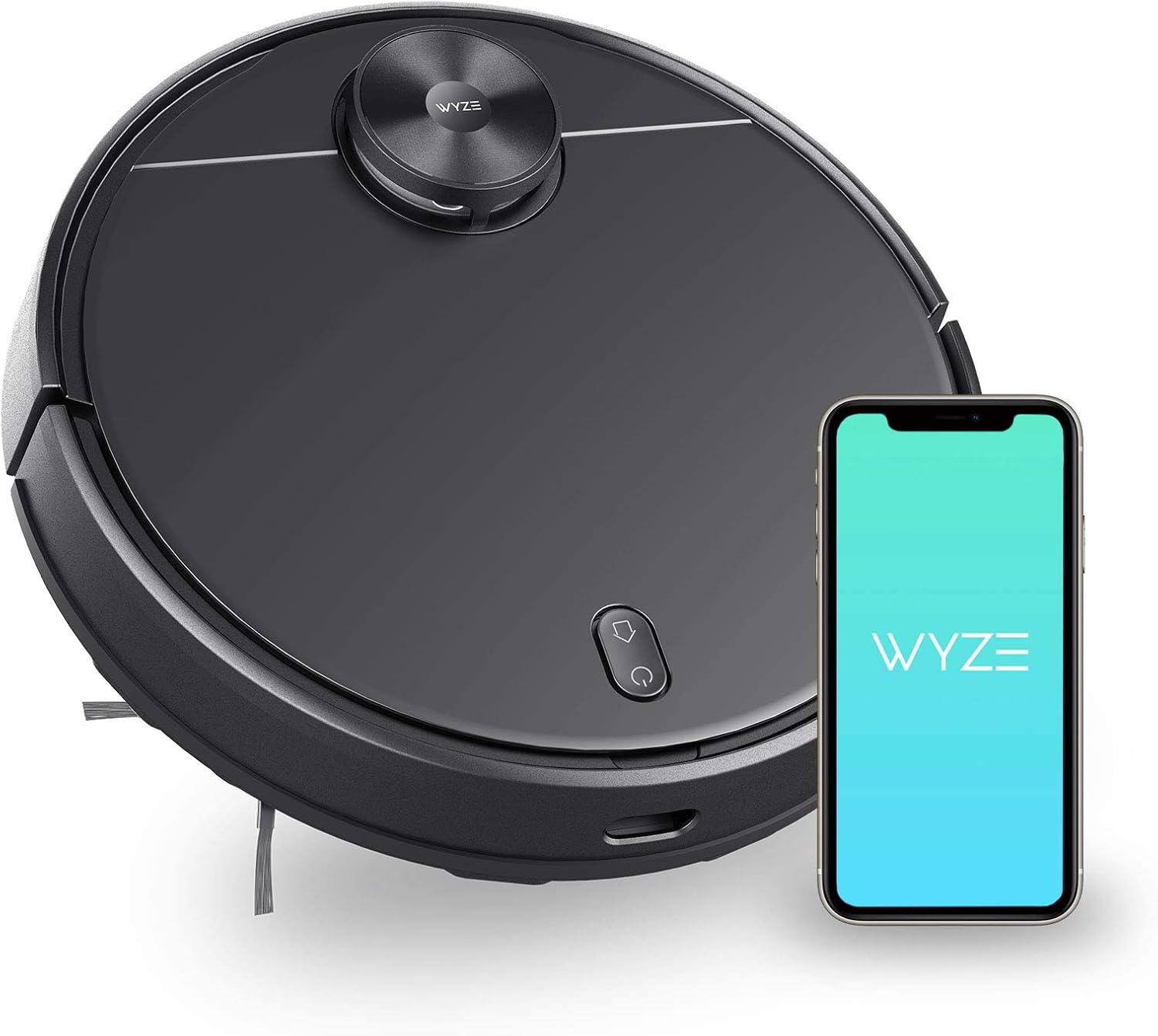
Figure 1: WYZE Robot Vacuum and companion app interface.
Key Features:
- Precision LIDAR Mapping: Scans rooms in seconds for efficient navigation and path planning.
- 2100Pa Powerful Suction: Effectively cleans embedded dust, dirt, crumbs, and pet hair from multiple surfaces.
- Smart & App Control: Manage cleaning schedules, select rooms, and define "No-go Zones" directly from your smartphone.
- Multi-Surface Cleaning: Suitable for hardwood floors and carpets, capable of crossing height gaps up to 0.8 inches (20 mm).
- Self-Charging: Automatically returns to the charging station when the battery is low or cleaning is complete.
2. Setup
2.1 Unboxing and Initial Setup
Carefully remove all components from the packaging. Ensure all included components are present: the robot vacuum, charging adapter, filter, instruction guide, and side brush.
2.2 Charging Station Placement
Place the charging station against a wall in an open area. Ensure there is at least 1.5 feet (0.5 meters) of clear space on either side and 5 feet (1.5 meters) in front of the station for optimal navigation. Connect the charging adapter to the station and a power outlet.
2.3 App Installation and Connection
Download the WYZE app from your smartphone's app store. Follow the in-app instructions to add your WYZE Robot Vacuum. This process typically involves connecting the vacuum to your home's Wi-Fi network.

Figure 2: The WYZE app provides comprehensive control over your robot vacuum.
3. Operating Instructions
3.1 LIDAR Mapping and Navigation
The robot vacuum uses LIDAR technology to create an accurate map of your home during its first cleaning cycle. This map is essential for efficient navigation, path planning, and setting up customized cleaning areas.

Figure 3: LIDAR mapping ensures precise and efficient cleaning paths.
3.2 Cleaning Modes
Select from three available suction modes via the WYZE app:
- Quiet: For light cleaning and reduced noise levels.
- Standard: The default mode for everyday cleaning.
- Strong: Provides maximum suction for deeply embedded dirt and pet hair.

Figure 4: Choose the appropriate suction mode for your cleaning needs.
3.3 Multi-Surface Vacuuming
The robot vacuum is designed to clean various floor types, including hardwood, tile, and carpets. It can seamlessly transition between surfaces and climb over obstacles up to 0.8 inches (20 mm) high.

Figure 5: The robot vacuum handles multiple floor types and small transitions.
3.4 No-Go Zones and Virtual Walls
Using the WYZE app, you can define specific areas where the robot vacuum should not go. This is useful for protecting delicate items, pet bowls, or areas with loose cables.

Figure 6: Customize cleaning areas and restrict access to specific zones.
3.5 Scheduling
Set up recurring cleaning schedules for specific times and days of the week through the WYZE app. You can also select individual rooms for impromptu cleaning sessions.
4. Maintenance
Regular maintenance ensures optimal performance and extends the lifespan of your WYZE Robot Vacuum.
4.1 Dustbin Emptying
Empty the dustbin after each cleaning cycle or when the app indicates it is full. Open the top cover of the robot vacuum, remove the dustbin, and dispose of the collected debris.
4.2 Filter Cleaning
The HEPA filter should be cleaned regularly to maintain suction efficiency. Tap the filter to remove loose dust. Replace the filter every 3-6 months, depending on usage.
4.3 Brush Roll Cleaning
Periodically remove the main brush roll and clean any tangled hair or debris using the cleaning tool provided. Ensure the brush roll is free of obstructions for effective cleaning.
4.4 Side Brush Maintenance
Check the side brush for tangled hair or debris. Remove and clean it as needed. Replace the side brush if it becomes worn or damaged.
4.5 Sensor Cleaning
Wipe the sensors (LIDAR, cliff sensors, bumper sensors) with a clean, dry cloth to ensure accurate navigation and prevent malfunctions.
5. Troubleshooting
- Robot not charging: Ensure the charging station is powered on and the robot is correctly docked. Clean the charging contacts on both the robot and the station.
- Robot gets stuck frequently: Check for obstacles like loose cables, rugs, or small objects. Define "No-go Zones" in the app for problematic areas.
- Poor suction: Empty the dustbin and clean or replace the HEPA filter. Check the main brush roll and side brush for tangles.
- Navigation issues: Clean all sensors on the robot. Ensure the LIDAR sensor is not obstructed. Reset the map in the app if necessary.
- App connectivity problems: Ensure your Wi-Fi network is stable and the robot is within range. Restart the app and the robot.
6. Specifications
| Feature | Specification |
|---|---|
| Brand | WYZE |
| Model Name | WVCR200S |
| Special Features | LiDAR Navigation, No-Go Zone, Scheduling, Smart Mapping, Variable Suction Control |
| Color | Black |
| Product Dimensions | 13.8"L x 3.7"W x 13.8"H |
| Included Components | Battery, Charging Adapter, Filter, Instruction Guide, Side Brush |
| Filter Type | HEPA |
| Battery Life | 110 minutes |
| Power Source | Battery Powered |
| Control Method | App |
| Form Factor | Robotic |
| Item Weight | 7.2 pounds |
| Surface Recommendation | Hard Floor |
7. Warranty and Support
For warranty information and customer support, please refer to the official WYZE website or the documentation included in your product packaging. You can also find FAQs and troubleshooting guides on the WYZE support page.