
1. Introduction
This manual provides detailed instructions for the setup, operation, and maintenance of the Ikan Lite-Puter CX-804 8-Channel DMX Lighting Console. The CX-804 is designed for controlling DMX512 compatible lighting fixtures, offering 8 dimming channels, 8 scene memory slots, and a chaser function for dynamic lighting effects. Please read this manual thoroughly before using the device to ensure proper and safe operation.
2. Safety Information
- Ensure the power supply voltage matches the requirements specified on the unit.
- Do not expose the unit to rain or moisture to prevent fire or electric shock.
- Do not open the casing. There are no user-serviceable parts inside. Refer all servicing to qualified personnel.
- Place the console on a stable, flat surface.
- Keep the unit away from excessive heat sources, direct sunlight, and strong vibrations.
- Disconnect power before cleaning or when not in use for extended periods.
3. Package Contents
Verify that all items are present in the package:
- Lite-Puter CX-804 DMX Lighting Console
- Power Adapter (DC 12V)
- User Manual (this document)
4. Product Overview
4.1 Front Panel Controls
The front panel provides access to all primary control functions for DMX channels, scenes, and chaser operations.
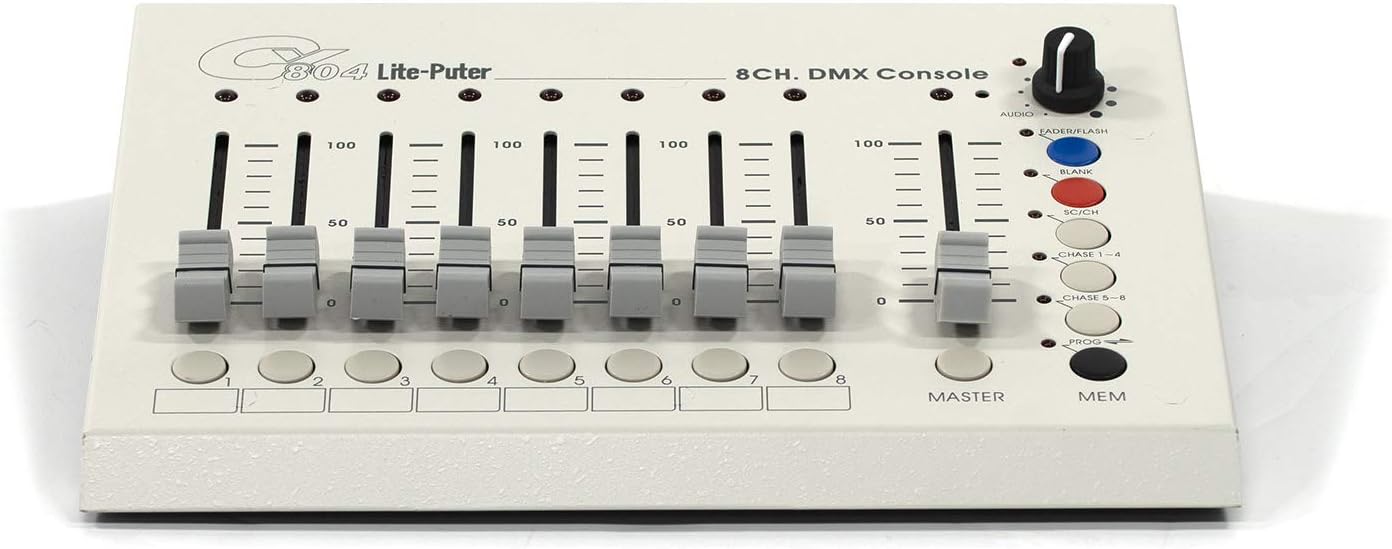
Figure 4.1: Front Panel Layout of the CX-804 Console.
- Channel Faders (1-8): Eight individual sliders to control the DMX output level (0-100%) for each of the 8 channels.
- Channel Buttons (1-8): Buttons corresponding to each channel, typically used for scene programming or selection.
- Master Fader: Controls the overall output level of all active DMX channels.
- MEM Button: Used to save or recall programmed scenes.
- PROG Button: Activates programming mode for scenes or chasers.
- CHASE 1-4 / CHASE 5-8 Buttons: Selects between different chaser patterns.
- SC/CH Button: Toggles between Scene and Channel mode.
- BLANK Button: Instantly blacks out all DMX output.
- FADERFLASH Button: Momentarily activates the current fader settings.
- AUDIO Knob: Adjusts the sensitivity of the audio input for sound-to-light functions.
4.2 Rear Panel Connections
The rear panel houses all input and output connections for power, audio, and DMX signals.

Figure 4.2: Rear Panel Connections of the CX-804 Console.
- DC 12V IN: Power input jack for the included DC 12V power adapter.
- ON/OFF Switch: Main power switch for the console.
- AUDIO IN: 1/4-inch (6.35mm) jack for connecting an audio source for sound-to-light synchronization.
- SENSES: Sensitivity adjustment for the audio input.
- DMX OUT: DMX512 output ports (XLR 3-pin and 5-pin, and RJ45) for connecting to DMX lighting fixtures.
5. Setup
5.1 Power Connection
- Ensure the console's ON/OFF switch is in the OFF position.
- Connect the provided DC 12V power adapter to the 'DC 12V IN' jack on the rear panel.
- Plug the power adapter into a suitable electrical outlet.
5.2 DMX Connection
- Connect a DMX cable (3-pin XLR, 5-pin XLR, or RJ45, depending on your fixtures) from one of the 'DMX OUT' ports on the CX-804 to the DMX IN port of your first DMX lighting fixture.
- For multiple fixtures, daisy-chain them by connecting the DMX OUT of the first fixture to the DMX IN of the next, and so on.
- Ensure the last fixture in the chain has a DMX terminator installed to prevent signal reflection.
5.3 Audio Input Connection (Optional)
- If using sound-to-light functions, connect an audio source (e.g., mixer output) to the 'AUDIO IN' jack using a 1/4-inch (6.35mm) audio cable.
- Adjust the 'SENSES' knob to fine-tune the audio input sensitivity.
6. Operating Instructions
6.1 Basic DMX Control
- Turn on the console using the ON/OFF switch.
- Ensure the SC/CH button is in Channel mode (LED off).
- Move the Master Fader to the desired overall output level.
- Adjust individual Channel Faders (1-8) to control the intensity or specific parameters of your DMX fixtures assigned to those channels.
- Press the BLANK button to momentarily black out all output. Release to restore.
- Use the FADERFLASH button to momentarily activate the current fader settings.
6.2 Programming and Recalling Scenes
The CX-804 allows you to store up to 8 scenes.
6.2.1 Programming a Scene
- Press the PROG button to enter programming mode (PROG LED will illuminate).
- Set the desired lighting levels using the Channel Faders (1-8) and the Master Fader.
- Press the MEM button.
- Press one of the Channel Buttons (1-8) to save the current lighting state to that scene number. The PROG LED will flash to confirm.
- Press PROG again to exit programming mode.
6.2.2 Recalling a Scene
- Ensure the console is not in programming mode (PROG LED off).
- Press the SC/CH button to switch to Scene mode (SC/CH LED will illuminate).
- Press the desired Channel Button (1-8) to recall the corresponding saved scene.
- Adjust the Master Fader to control the overall intensity of the recalled scene.
6.3 Chaser Function
The chaser function allows for dynamic, automated lighting sequences.
- Ensure the console is not in programming mode.
- Press the CHASE 1-4 or CHASE 5-8 button to activate a chaser pattern.
- The speed and pattern of the chaser can often be adjusted via internal settings or by the AUDIO knob if in sound-to-light mode. Refer to specific chaser programming details if available in advanced documentation.
- To deactivate the chaser, press the active CHASE button again or select a scene/channel mode.
6.4 Audio Input Control
When an audio source is connected to the 'AUDIO IN' jack, the console can synchronize lighting effects with music.
- Ensure an audio source is connected to the 'AUDIO IN' jack.
- Adjust the AUDIO knob to set the sensitivity of the audio input. Higher sensitivity will make the lights react to quieter sounds.
- The chaser function or other programmed effects may respond to the audio input, creating sound-activated lighting.
7. Maintenance
7.1 Cleaning
- Disconnect the power adapter before cleaning.
- Use a soft, dry cloth to wipe the exterior of the console.
- Do not use abrasive cleaners, solvents, or chemical sprays, as these can damage the finish and internal components.
7.2 Storage
- Store the console in a cool, dry place away from direct sunlight and extreme temperatures.
- If storing for an extended period, it is recommended to place the unit in its original packaging or a protective case.
8. Troubleshooting
| Problem | Possible Cause | Solution |
|---|---|---|
| Console does not power on. | Power adapter not connected or faulty. Power switch off. | Ensure power adapter is securely connected and plugged into a live outlet. Verify ON/OFF switch is in the ON position. Test with another compatible power adapter if available. |
| No DMX output to fixtures. | Incorrect DMX cabling. Fixtures not addressed correctly. Master fader at zero. BLANK button active. | Check DMX cable connections. Ensure fixtures are set to correct DMX addresses. Raise the Master Fader. Ensure BLANK button is not active. |
| Scenes not recalling or saving. | Incorrect mode (not in Scene mode for recall, not in PROG mode for saving). | For recall, ensure SC/CH LED is illuminated. For saving, ensure PROG LED is illuminated and follow the save procedure correctly. |
| Audio-to-light function not working. | Audio cable not connected. AUDIO knob set too low. No audio signal. | Verify audio cable connection. Increase the AUDIO knob sensitivity. Check the audio source for output. |
9. Specifications
| Feature | Detail |
|---|---|
| Model | CX-804 |
| Brand | Ikan (Manufactured by Lite-Puter) |
| Control Protocol | Standard DMX 512 |
| DMX Channels | 8 Dimming Control Sliders |
| Scenes | 8 Scenes |
| Functions | Chaser function, Audio input |
| Audio Input | Yes (1/4-inch jack) |
| Power Input | DC 12V |
| Item Weight | 3.3 Pounds |
| ASIN | B08NKC5L5J |
10. Warranty and Support
For warranty information and technical support, please refer to the documentation provided with your purchase or contact the retailer or manufacturer directly. Keep your proof of purchase for any warranty claims.

