
PD 61 Key RGB Gateron Switch Wireless Bluetooth Mechanical Gaming Keyboard
User Manual
FEKER 61 Key RGB Gateron Switch Wireless Bluetooth Mechanical Gaming Keyboard
Model: 61 Key RGB Gateron Switch | Brand: PD
Introduction
Thank you for purchasing the FEKER 61 Key RGB Gateron Switch Wireless Bluetooth Mechanical Gaming Keyboard. This manual provides detailed instructions on how to set up, operate, maintain, and troubleshoot your new keyboard. Please read this manual thoroughly before using the product to ensure optimal performance and longevity.
Package Contents

Image: The FEKER 61 Key RGB Gateron Switch Wireless Bluetooth Mechanical Gaming Keyboard, its retail box, a USB-C cable, a keycap puller, and a switch puller.
- FEKER 61 Key RGB Mechanical Keyboard
- USB-C to USB-A Cable
- Keycap Puller
- Switch Puller
- User Manual (this document)
Key Features

Image: A diagram highlighting the key features of the FEKER 01 keyboard, including fully programmable keys, compact layout, Bluetooth 5.0, 1550mAh battery, customizable RGB backlight, and Outemu mechanical switches.
- Full RGB Backlight: Each key features independent RGB backlighting, allowing for extensive customization.
- PBT Keycaps: Equipped with durable double-shot PBT keycaps, which are more resistant to shine and wear compared to ABS keycaps.
- Dual FN Keys: Includes FN1 and FN2 keys, providing enhanced possibilities for layer function customization.
- Long Endurance Time: Features a 1900mAh large capacity battery with a built-in protection circuit to prevent battery damage.
- Dual Mode Connection: Supports both Bluetooth 4.0 and Type-C USB-C wired connections for wide compatibility.
- Wide Compatibility: Compatible with multiple operating systems including iOS, Windows, Linux, and Android.
- NKRO Support: Supports N-Key Rollover (NKRO) in wired mode for precise input.

Image: An illustration displaying the four available switch options: Blue Switch, Brown Switch, Red Switch, and Black Switch, indicating the variety of mechanical switches this keyboard can be equipped with.
Specifications
| Attribute | Value |
|---|---|
| Brand | PD |
| Model | 61 Key RGB Mechanical Keyboard |
| Connectivity Technology | Bluetooth 4.0, USB-C |
| Operating System Compatibility | Android, iOS, Linux, Windows |
| Special Features | Backlit (Full RGB), Programmable Keys, PBT Keycaps |
| Battery Capacity | 1900mAh (Li-ion) |
| Voltage | 5 Volts (DC) |
| Item Weight | 3 kg |
| Color | Black |
Setup
1. Charging the Keyboard
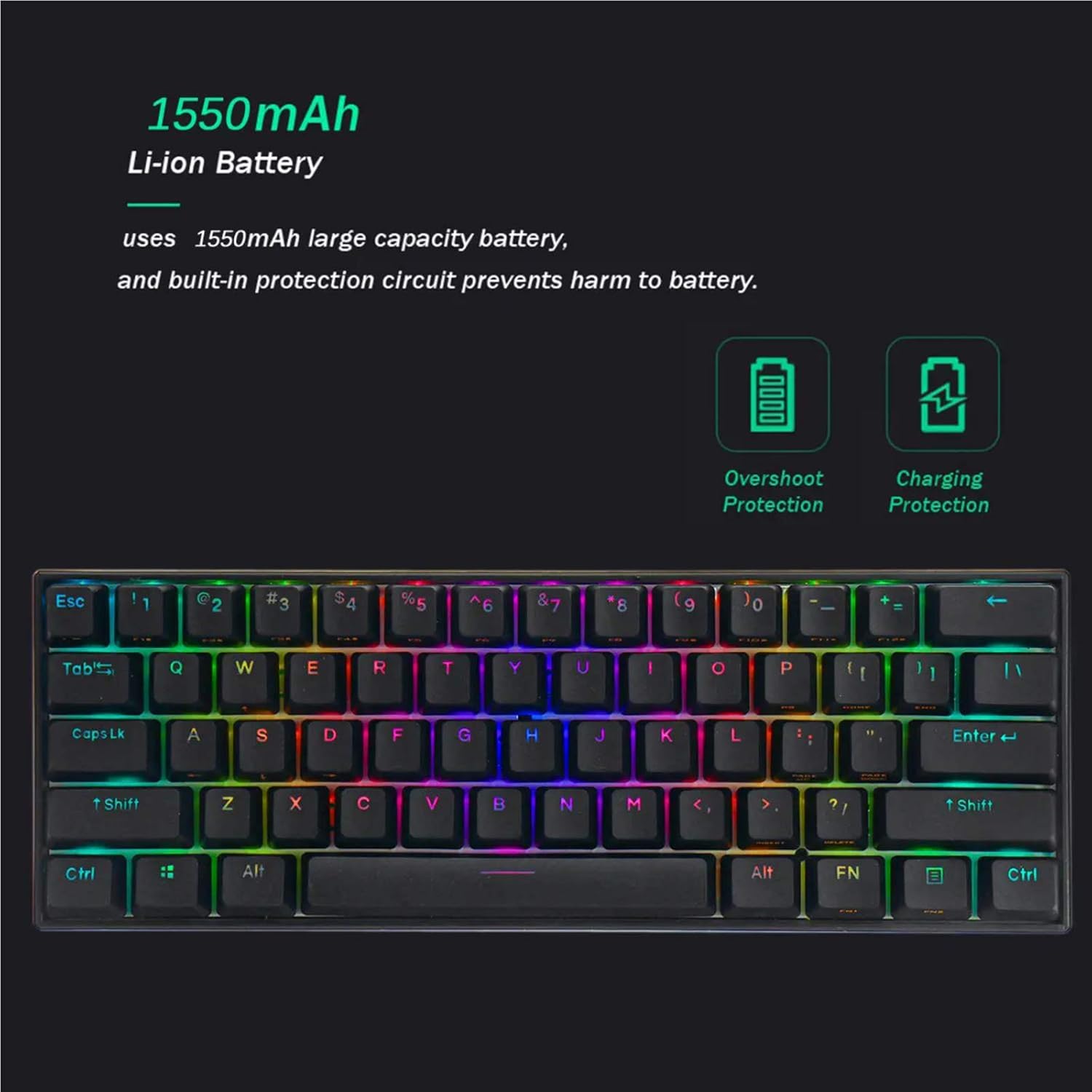
Image: A visual representation of the keyboard's 1550mAh Li-ion battery, highlighting its overshoot protection and charging protection features.
Before first use, it is recommended to fully charge the keyboard.
- Connect the provided USB-C cable to the keyboard's USB-C port.
- Connect the other end of the cable to a USB power source (e.g., computer USB port, USB wall adapter).
- The keyboard's indicator light will show charging status (refer to LED indicator section for details). A full charge typically takes a few hours.
2. Connection Modes
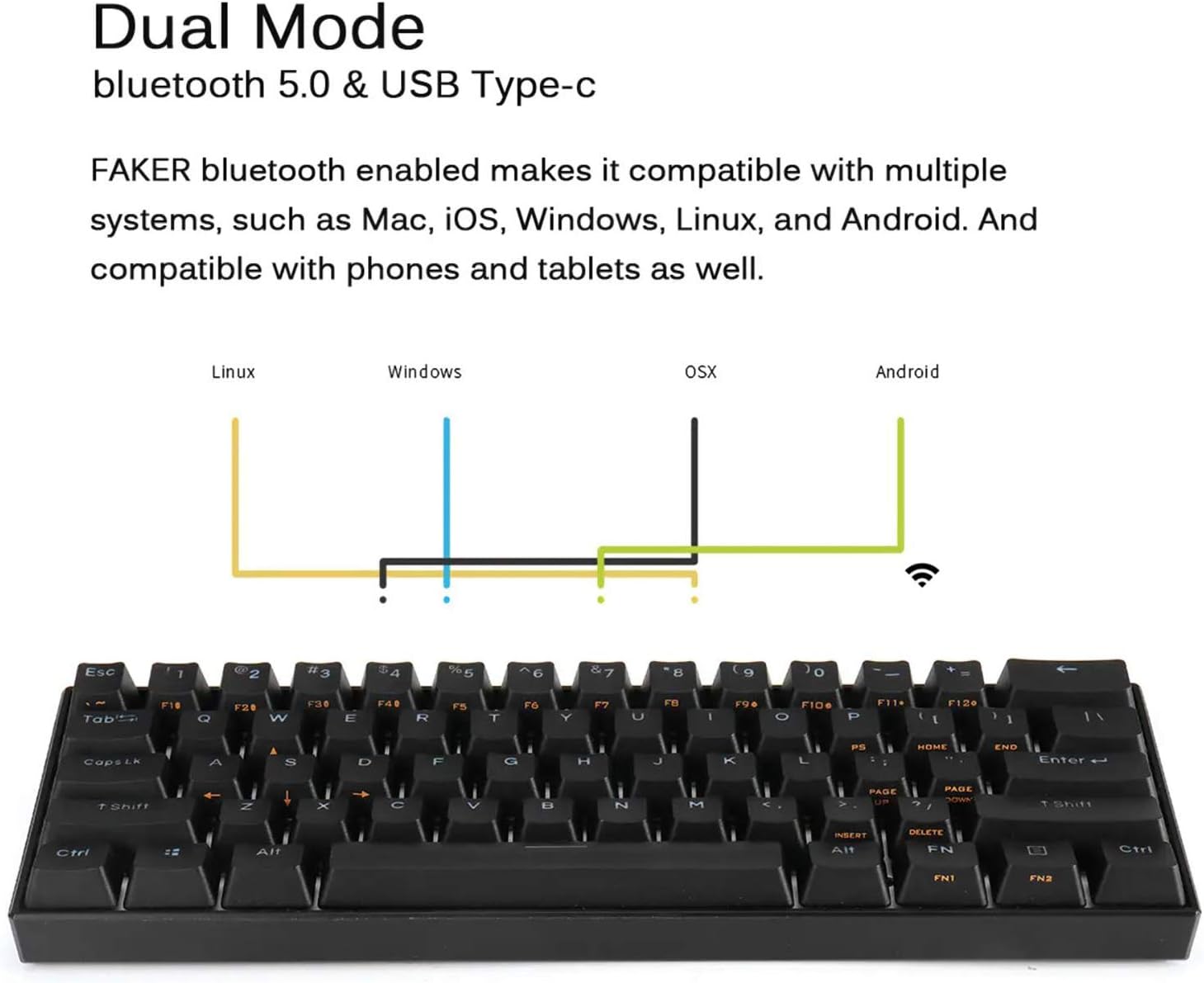
Image: A diagram showing the dual mode connection capabilities (Bluetooth 5.0 & USB Type-C) of the FEKER keyboard, along with its compatibility across Linux, Windows, OSX, and Android operating systems.
Wired Mode (USB-C)
- Connect the USB-C cable to the keyboard and your computer.
- The keyboard will automatically switch to wired mode. This mode supports NKRO.
Bluetooth Mode (Wireless)
- Ensure the keyboard is charged.
- Turn on the Bluetooth switch located on the bottom of the keyboard.
- On your device (computer, tablet, phone), enable Bluetooth and search for new devices.
- Select "FEKER Keyboard" (or similar name) from the list of available devices to pair.
- If prompted, enter the pairing code displayed on your screen using the keyboard and press Enter.
- The keyboard can store multiple Bluetooth profiles. Refer to the keyboard's specific key combinations (often FN + Q/W/E/R/T) for switching between paired devices.
Operation
1. Basic Keyboard Functions
The FEKER 61 Key keyboard features a compact layout. Many functions are accessed via the FN (Function) keys.
FN Key Combinations (Examples):
- FN + [Key]: Accesses secondary functions printed on keycaps (e.g., F1-F12, multimedia controls, arrow keys).
- FN1 / FN2: The keyboard features two FN keys (FN1 and FN2) which can be programmed to access different layers of functions, offering greater customization. Consult the software section for programming details.
- FN + Backspace: Delete (common for 60% keyboards).
- FN + P: Print Screen (example, check keycap legends).
- FN + ; / ': Home / End (example, check keycap legends).
- FN + , / .: Page Up / Page Down (example, check keycap legends).
2. RGB Backlight Control
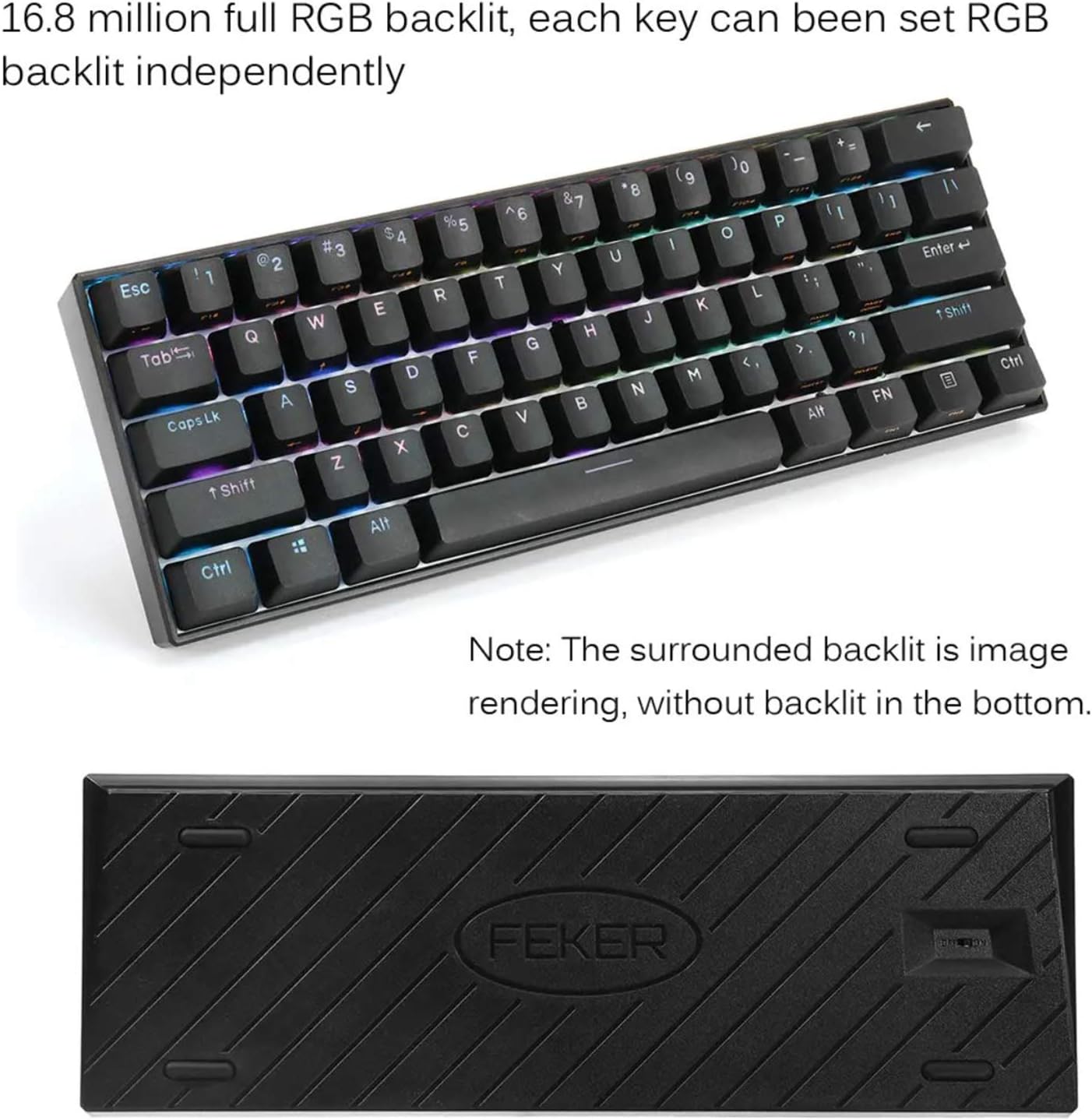
Image: The FEKER 61 Key keyboard displaying its 16.8 million full RGB backlight, with a note clarifying that the surrounding backlight in the image is a rendering and not present on the physical product's bottom.
The keyboard offers extensive RGB backlight customization.
- Changing Lighting Modes: Use FN + specific keys (often FN + \| or FN + Right Shift) to cycle through various preset lighting effects.
- Adjusting Brightness: Use FN + Up/Down Arrow keys (or similar, check keycap legends) to increase or decrease backlight brightness.
- Adjusting Speed: Use FN + Left/Right Arrow keys (or similar) to change the speed of dynamic lighting effects.
- Customizing Colors: For full color customization and per-key lighting, use the dedicated software.
3. Customization Software

Image: A screenshot of the FEKER keyboard's customization software interface, showing options for profile management, customization, lighting, gaming mode, and macros, emphasizing the ability to customize any color for every single key.
The FEKER keyboard comes with dedicated software for advanced customization of key assignments, macros, and RGB lighting.
- Downloading Software: Visit the official PD or FEKER website to download the latest version of the keyboard customization software.
- Installation: Follow the on-screen instructions to install the software on your Windows or macOS computer.
- Key Reassignment: Remap any key to a different function, macro, or multimedia control.
- Macro Recording: Create and assign complex macro sequences to any key.
- Lighting Customization:

Image: A screenshot of the "CUSTOMIZE" tab within the FEKER keyboard software, illustrating options for remapping keys and setting up profiles.

Image: A screenshot of the "LIGHTING" tab in the FEKER keyboard software, showing controls for color, direction, speed, and brightness of the RGB backlight, including various lighting effects like "Rolling".
- Choose from a wide array of preset effects.
- Create custom per-key lighting profiles.
- Adjust color, speed, and brightness for each effect.
- Profile Management: Save and load different profiles for various applications or games.
Maintenance
- Cleaning:
- Disconnect the keyboard before cleaning.
- Use a soft, lint-free cloth slightly dampened with water or a mild cleaning solution to wipe the keycaps and frame.
- For dust and debris between keys, use compressed air or a small brush.
- The included keycap puller can be used to remove keycaps for deeper cleaning.
- Battery Care:
- Avoid fully discharging the battery frequently.
- Store the keyboard in a cool, dry place if not used for extended periods.
- Do not expose the keyboard to extreme temperatures.
- Storage: When not in use, store the keyboard in a clean, dry environment away from direct sunlight and excessive dust.
Troubleshooting
- Keyboard Not Responding (Wired Mode):
- Ensure the USB-C cable is securely connected to both the keyboard and the computer.
- Try a different USB port on your computer.
- Test with a different USB-C cable if available.
- Restart your computer.
- Keyboard Not Connecting (Bluetooth Mode):
- Ensure the keyboard's Bluetooth switch is ON.
- Make sure the keyboard is charged.
- Ensure Bluetooth is enabled on your device and it's discoverable.
- Try unpairing and re-pairing the keyboard from your device's Bluetooth settings.
- Ensure no other devices are interfering with the Bluetooth signal.
- If using multiple Bluetooth profiles, ensure you are on the correct profile (e.g., FN + Q/W/E).
- Keys Not Working / Double Typing:
- Check if there's any debris under the keycap. Use the keycap puller to remove and clean.
- If it's a specific switch issue, and the keyboard is hot-swappable, consider replacing the switch using the switch puller.
- Ensure the keyboard firmware is up to date (check the manufacturer's website).
- RGB Backlight Not Working / Flickering:
- Ensure backlight brightness is not set to minimum or off.
- Check lighting settings in the customization software.
- Ensure the keyboard is sufficiently charged, as low battery can affect lighting.
- Try resetting the keyboard (refer to software or manufacturer's website for specific reset instructions).
Warranty and Support
For warranty information, technical support, or further assistance, please refer to the warranty card included with your product or visit the official PD/FEKER website.
Website: www.example.com/support (Placeholder - please refer to actual product documentation for correct URL)
Ask a question about this manual
Ask about setup, troubleshooting, compatibility, parts, safety, or missing instructions. Manuals+ will review the question and use this page’s manual context to help answer it.