
1. Introduction
The Motorola Baby Monitor Ease44Connect is designed to help you monitor your baby with ease and peace of mind. This device features a 4.3-inch display for clear viewing at home and Wi-Fi connectivity for remote monitoring via the Hubble app on your smartphone or tablet. Key functionalities include digital zoom, room temperature monitoring, two-way communication, and a selection of lullabies and audiobooks to soothe your child.
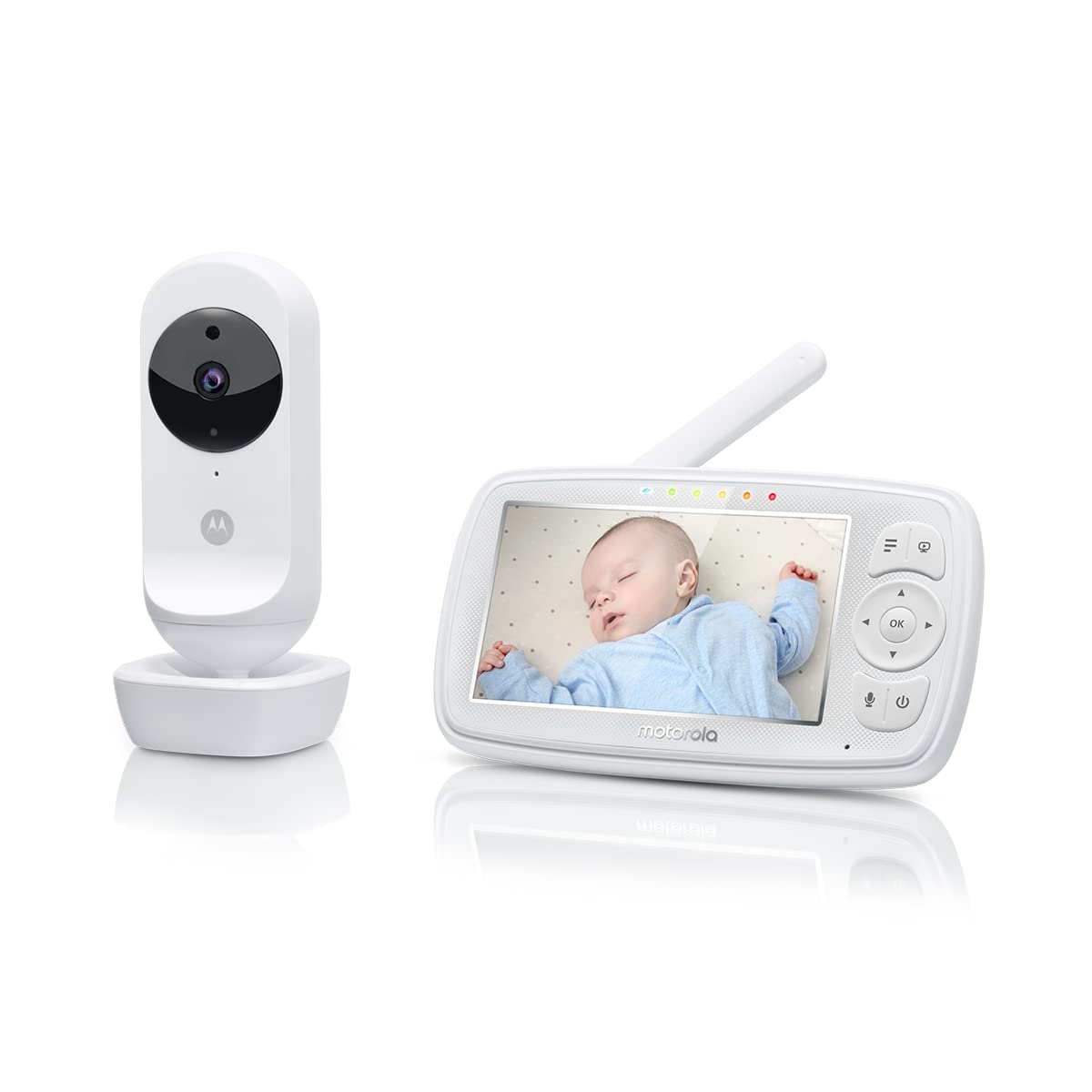
Figure 1: Motorola Baby Monitor Ease44Connect - Camera and Parent Unit.
2. Package Contents
Ensure all items are present in the package before proceeding with the setup.
- Baby Monitor (Parent Unit and Baby Unit)
- 1 Rechargeable Battery (Parent Unit)
- Power Adapter (for Parent Unit and Baby Unit)
- 1 Quick Start Guide

Figure 2: Included components of the Motorola Baby Monitor Ease44Connect.
3. Setup
3.1 Powering On the Baby Unit (Camera)
- Connect the power adapter to the Baby Unit and plug it into a power outlet.
- The Baby Unit will automatically power on. The LED indicator will light up.

Figure 3: Baby Unit (Camera) placement in a nursery.
3.2 Powering On the Parent Unit (Monitor)
- Connect the power adapter to the Parent Unit and plug it into a power outlet.
- Press and hold the Power button on the top of the monitor for 3 seconds to turn it on.
- The Parent Unit will automatically link with the Baby Unit.

Figure 4: Parent Unit (Monitor) in use.
3.3 Hubble App Setup (for Wi-Fi Connectivity)
- Download the "Hubble Connected" app from your smartphone's app store (available for iOS and Android).
- Follow the in-app instructions to create an account and connect your Ease44Connect Baby Unit to your home Wi-Fi network (2.4 GHz required).
- Once connected, you can view live HD video, receive notifications, and control camera functions remotely.
4. Operating Instructions
4.1 Parent Unit Features
- 4.3-inch LCD Display: Provides a clear view of your baby.
- Menu Navigation: Use the directional buttons and 'OK' button to navigate through settings and features.
- Volume Control: Adjust the audio level received from the Baby Unit.
- Two-Way Talk: Press and hold the microphone button to speak to your baby through the Baby Unit's speaker.
- Digital Zoom: Zoom in on the video feed for a closer look at your baby.
- LED Sound Level Indicators: Lights on the parent unit indicate the sound level detected by the Baby Unit, even when the volume is low.
- Rechargeable Battery: The parent unit has a rechargeable battery for portable use, offering up to 7 hours of continuous monitoring.
- Range: Up to 300 meters in open spaces.
4.2 Baby Unit (Camera) Features
- Night Vision: Infrared night vision allows you to see your baby clearly in low light conditions.
- Room Temperature Monitoring: The Baby Unit monitors the room temperature and displays it on the Parent Unit and Hubble app.
- Lullabies & Soothing Sounds: Play pre-loaded lullabies, soothing sounds, or audiobooks to help your baby sleep.
- Two-Way Talk: Allows you to speak to your baby from the Parent Unit or the Hubble app.
- Wi-Fi Connectivity: Secure and private connection to your home Wi-Fi (2.4 GHz) for remote access.

Figure 5: Key features of the Motorola Baby Monitor Ease44Connect.
4.3 Hubble App Features
- HD Video Streaming: View your baby in high definition from anywhere using your smartphone or tablet.
- Event Notifications: Receive alerts for motion and sound detection directly on your device.
- Personal Audio Recordings: Record your own voice or sounds and play them back through the Baby Unit.
- Voice Control: Compatible with Alexa and Google Assistant for hands-free control.
5. Maintenance
5.1 Cleaning
- Clean the monitor and camera units with a soft, dry cloth.
- Do not use cleaning sprays or liquid cleaners.
6. Troubleshooting
If you experience issues with your Motorola Baby Monitor Ease44Connect, try the following steps:
- No Power: Ensure both units are properly connected to their power adapters and outlets. Check if the Parent Unit's battery is charged.
- No Signal/Poor Connection:
- Ensure the Baby Unit and Parent Unit are within range (up to 300 meters in open spaces).
- Move the units closer to each other.
- Avoid placing units near other electronic devices that may cause interference.
- Ensure your Wi-Fi router is operating on a 2.4 GHz frequency for app connectivity.
- No Audio/Poor Audio: Adjust the volume level on the Parent Unit. Ensure there are no obstructions blocking the microphone or speaker on either unit.
- Camera Not Responding: Try restarting both the Baby Unit and Parent Unit. If using the app, ensure your internet connection is stable.
If problems persist, consult the full user manual or contact Motorola customer support.
7. Specifications
| Feature | Detail |
|---|---|
| Color | White |
| Number of Items | 1 |
| Item Dimensions (L x W x H) | 22 x 10 x 16 cm |
| Model Number | EASE44CONNECT |
| Vertical Screen Size | 4.3 Inches |
| Screen Type | LCD |
| Connectivity Technology | Wireless |
| Indoor/Outdoor Use | Indoor |
| Connectivity Protocol | Wi-Fi |
| Manufacturer | Binatone |
8. Warranty and Support
The Motorola Baby Monitor Ease44Connect is manufactured by Binatone. For warranty information, technical support, or service inquiries, please refer to the contact details provided in your Quick Start Guide or visit the official Motorola Nursery website.
It is recommended to keep your proof of purchase for warranty claims.


