
1. Introduction
Welcome to the Inseego MiFi 8000 user manual. This guide provides comprehensive instructions for setting up, operating, and maintaining your new mobile hotspot. The MiFi 8000 is designed to provide fast, reliable internet access on the go, supporting multiple devices simultaneously with advanced features like universal charging and a user-friendly touchscreen interface.

Figure 1: Inseego MiFi 8000 Mobile Hotspot
2. What's in the Box
Upon unboxing your Inseego MiFi 8000, please ensure all the following components are present:
- Inseego MiFi 8000 Mobile Hotspot Device
- 4400 mAh Li-Ion battery with Quick Charge technology
- USB-C cable for universal charging and MiFi Share file sharing support
- Quick Start Guide (may be included separately)
3. Key Features
The Inseego MiFi 8000 offers a range of powerful features:
- Brilliant Color Touchscreen Display: A full-color, 2.4-inch touch screen provides intuitive navigation and on-screen help.
- Super Powerful and Remarkably Efficient: Up to 24 hours of battery life on a single charge, with QuickCharge technology allowing 0 to 100% charge in just over 3 hours. Standby mode conserves battery for days.
- Fast and Global Connectivity: Achieves ultimate download speeds with Category 18 and 5x carrier aggregation. Real simultaneous dual-band Wi-Fi allows up to 15 Wi-Fi clients to connect in 2.4GHz or 5GHz bands simultaneously, improving link quality and speed, and reducing network congestion.
- Security for All – Always: Features hacker prevention, encryption, enterprise-grade protection, VPN pass-through, latest Wi-Fi security protocols, password protection, and Guest Wi-Fi network. IT administrators can customize settings on the Admin portal.
- Universal Charging: Use the MiFi 8000 to boost your smartphone or tablet battery without compromising its performance.
- MiFi Hotspot Share: Share files with connected devices on the local, secure Wi-Fi network via a USB memory stick.
4. Setup
Follow these steps to set up your Inseego MiFi 8000:
- Charge the Device: Connect the MiFi 8000 to a power source using the provided USB-C cable. Allow it to charge fully before first use. The screen will indicate charging status.
- Insert SIM Card: Locate the SIM card slot, typically under the battery cover. Carefully insert your activated 4G LTE SIM card into the slot until it clicks into place. Ensure the device is powered off before inserting or removing the SIM card.
- Install Battery: Place the 4400 mAh Li-Ion battery into its compartment, ensuring proper alignment of the contacts. Replace the battery cover securely.
- Power On: Press and hold the power button (usually located on the side or top) until the Inseego logo appears on the screen. The device will boot up and begin searching for a network connection.
- Initial Configuration: Follow the on-screen prompts to complete any initial setup, such as setting up Wi-Fi name (SSID) and password.
5. Operation
Operating your MiFi 8000 is straightforward:
5.1 Connecting Devices to Wi-Fi
- Turn on Wi-Fi: Ensure Wi-Fi is enabled on your MiFi 8000 via the touchscreen menu (Menu > Wi-Fi Settings > Wi-Fi toggle).
- Find Network: On your device (smartphone, tablet, laptop), search for available Wi-Fi networks.
- Select MiFi Network: Select the Wi-Fi network name (SSID) displayed on your MiFi 8000's screen.
- Enter Password: Enter the Wi-Fi password (key) shown on your MiFi 8000's screen.
- Connect: Your device should now be connected to the MiFi 8000's network.

Figure 2: The MiFi 8000 supports multiple users simultaneously.
5.2 Checking Device Status
The 2.4-inch touchscreen provides real-time information:
- Signal Strength: Displays the strength of the 4G LTE signal.
- Battery Level: Shows the current battery percentage.
- Data Usage: Monitors your data consumption.
- Connected Devices: Indicates how many devices are currently connected.

Figure 3: Enjoy 4G Mobile Broadband with LTE for travel.
5.3 Universal Charging
The MiFi 8000 can act as a power bank for other devices:
- Connect your smartphone or tablet to the MiFi 8000 using a compatible USB cable.
- The MiFi 8000 will begin charging the connected device. Charging will stop when the MiFi's battery is below 25%.
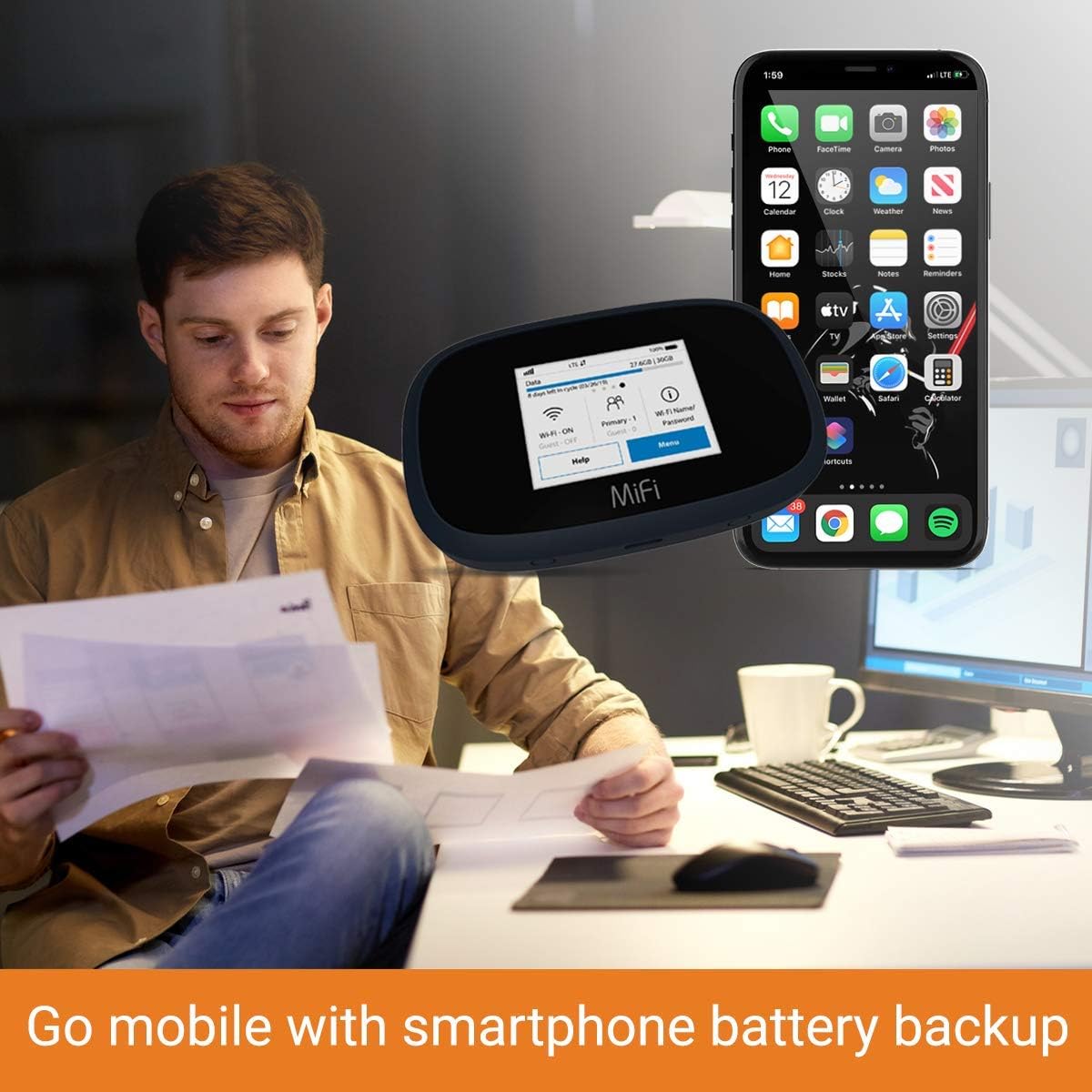
Figure 4: The MiFi 8000 offers smartphone battery backup.
6. Maintenance
Proper maintenance ensures the longevity and optimal performance of your MiFi 8000:
- Battery Care: To maximize battery life, avoid extreme temperatures. Charge the device regularly and avoid letting the battery completely drain for extended periods.
- Cleaning: Use a soft, dry cloth to clean the device. Avoid abrasive cleaners or solvents.
- Storage: If storing the device for an extended period, charge the battery to about 50% and store it in a cool, dry place.
- Software Updates: Periodically check for firmware updates through the device's menu or the Inseego support website to ensure optimal performance and security.
7. Troubleshooting
Here are solutions to common issues you might encounter:
| Problem | Possible Cause | Solution |
|---|---|---|
| No Data Connection / No Service | SIM card not properly inserted, no active data plan, poor signal area, network issue. | Ensure SIM card is correctly inserted. Verify your data plan is active with your carrier. Move to an area with better signal. Restart the device. |
| Battery Drains Quickly / Device Turns Off Unexpectedly | Battery degradation, excessive usage, background processes, faulty battery. | Reduce the number of connected devices. Ensure Wi-Fi is turned off when not in use. Consider replacing the battery if it's old or shows signs of swelling. If the device turns off even with a reported high battery percentage, the battery may be defective and require replacement. |
| Cannot Connect to Wi-Fi | Incorrect Wi-Fi password, Wi-Fi turned off on MiFi, device too far from hotspot. | Double-check the Wi-Fi name and password. Ensure Wi-Fi is enabled on the MiFi 8000. Move your connecting device closer to the hotspot. |
| Slow Internet Speed | Poor signal, network congestion, too many connected devices, data plan limitations. | Check signal strength on the MiFi screen. Reduce the number of connected devices. Contact your carrier to check for network issues or data plan limits. |

Figure 5: The MiFi 8000 provides a reliable wireless solution for various activities.
8. Specifications
| Feature | Detail |
|---|---|
| Model Name | MiFi 8000 |
| Product Dimensions | 4.45 x 2.8 x 0.75 inches |
| Item Weight | 15 ounces |
| Display | 2.4-inch Color Touchscreen |
| Battery Capacity | 4400 mAh Li-Ion (with Quick Charge technology) |
| Wireless Communication Standard | 802.11ac, 5 GHz Radio Frequency, 2.4 GHz Radio Frequency |
| Frequency Band Class | Dual-Band |
| Max Connected Devices | Up to 15 Wi-Fi clients |
| Connectivity Technology | Wi-Fi |
| Universal Charging Support | Yes |
| Manufacturer | Inseego |
9. Warranty & Support
For warranty information and technical support, please refer to the documentation included with your Inseego MiFi 8000 or visit the official Inseego website. Keep your proof of purchase for any warranty claims.
Protection plans may be available for extended coverage. Please check with your retailer or service provider for details on available protection plans.