
Introduction
This manual provides essential information for setting up, operating, and maintaining your Lenovo ThinkStation P330 Tiny desktop. Please read these instructions carefully to ensure proper use and to maximize the lifespan of your device. The ThinkStation P330 Tiny is a compact and powerful workstation designed for professional use, offering robust performance in a small form factor.
Package Contents
Verify that all items are present in the package:
- Lenovo ThinkStation P330 Tiny Desktop
- Power Adapter and Cable
- Webcam
- Documentation (Quick Start Guide, Safety Information)
- Note: Additional accessories such as keyboard, mouse, and monitor are typically sold separately.
Product Overview
Familiarize yourself with the physical components and ports of your ThinkStation P330 Tiny.

Figure 1: General view of the Lenovo ThinkStation P330 Tiny desktop. This image shows the compact size and overall design of the workstation.
Front Panel

Figure 2: Front panel of the ThinkStation P330 Tiny. This view highlights the accessible front ports, including the power button, audio jacks, and USB ports for convenient peripheral connection.
- Power Button: Used to turn the system on or off.
- Headphone/Microphone Combo Jack: For connecting headsets.
- USB 3.1 Gen 1 Type-C Port: For high-speed data transfer and connecting compatible devices.
- USB 3.1 Gen 1 Type-A Ports (x2): For connecting USB devices such as keyboards, mice, and external drives.
Rear Panel
The rear panel contains the primary connectivity ports for your workstation.
- Power Connector: For connecting the power adapter.
- DisplayPort (x2): For connecting monitors.
- HDMI Port (x1): For connecting monitors or other display devices.
- USB 3.1 Gen 1 Type-A Ports (x3): For connecting additional USB devices.
- Ethernet (RJ-45) Port: For wired network connection.
- Antenna Connectors: For Wi-Fi and Bluetooth antennas (if applicable).
Setup
- Unpack the System: Carefully remove the ThinkStation P330 Tiny and all accessories from its packaging.
- Position the Desktop: Place the desktop on a stable, flat surface with adequate ventilation. Ensure no vents are obstructed. The compact design allows for various placements, including vertical with an optional stand.
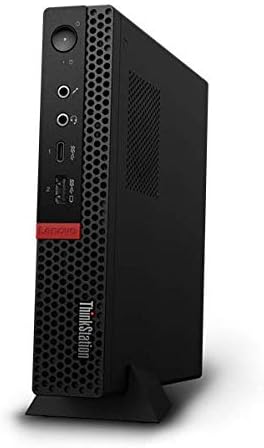
Figure 3: ThinkStation P330 Tiny in a vertical orientation with an optional stand. This demonstrates a space-saving setup option.
- Connect Peripherals:
- Connect your monitor(s) to the DisplayPort or HDMI ports on the rear panel.
- Connect your keyboard and mouse to the available USB ports (front or rear).
- If using a wired network, connect an Ethernet cable to the RJ-45 port.
- If using external speakers or a headset, connect them to the audio jacks.
- Connect Power: Plug the power adapter into the power connector on the rear of the desktop, then plug the power cable into a wall outlet.
- First Boot: Press the power button on the front panel. The system will boot up. Follow the on-screen instructions to complete the Windows 10 Pro setup, including language, region, network connection, and user account creation.
Operating Instructions
Power On/Off
- To Power On: Press the power button on the front panel.
- To Power Off: Click the Start button in Windows, then select Power > Shut down. Alternatively, press and hold the power button for 4 seconds to force a shutdown (use only when necessary).
- Sleep Mode: Click the Start button in Windows, then select Power > Sleep.
Network Connectivity
- Wired Connection: Ensure an Ethernet cable is connected to the RJ-45 port. Windows will typically detect and connect automatically.
- Wireless Connection (Wi-Fi):
- Click the Wi-Fi icon in the system tray (bottom-right corner of the screen).
- Select your desired Wi-Fi network from the list.
- Enter the network security key (password) if prompted, then click Connect.
Connecting Displays
The ThinkStation P330 Tiny supports multiple displays. Connect your monitor(s) using the DisplayPort or HDMI ports. Ensure your monitor is powered on and set to the correct input source.
Maintenance
- Cleaning:
- Use a soft, lint-free cloth to clean the exterior of the desktop.
- For stubborn marks, slightly dampen the cloth with water or a mild, non-abrasive cleaner.
- Regularly clean dust from ventilation grilles using compressed air to ensure optimal airflow and prevent overheating.
- Software Updates: Regularly check for and install operating system updates (Windows Update) and driver updates from the Lenovo support website to ensure system stability and security.
- Data Backup: Periodically back up important data to an external drive or cloud storage to prevent data loss.
Troubleshooting
This section addresses common issues you might encounter.
- No Power:
- Ensure the power cable is securely connected to both the desktop and the wall outlet.
- Verify the wall outlet is functional by plugging in another device.
- Check the power adapter for any damage.
- No Display on Monitor:
- Ensure the monitor is powered on and its power indicator light is active.
- Verify the video cable (HDMI/DisplayPort) is securely connected to both the desktop and the monitor.
- Check the monitor's input source setting to ensure it matches the connected port (e.g., HDMI 1, DisplayPort 2).
- Try connecting the monitor to a different video port on the desktop if available.
- No Internet Connection:
- For wired connections, ensure the Ethernet cable is properly connected and your router/modem is working.
- For Wi-Fi, ensure Wi-Fi is enabled in Windows settings and you are connected to the correct network with the correct password.
- Restart your router/modem and the desktop.
- System is Slow or Unresponsive:
- Close unnecessary applications.
- Check Task Manager (Ctrl+Shift+Esc) for processes consuming high CPU, RAM, or disk resources.
- Ensure Windows and drivers are up to date.
- Run a system scan for malware.
Specifications
Key technical specifications for the Lenovo ThinkStation P330 Tiny desktop:
| Feature | Detail |
|---|---|
| Processor | Intel Core i7-8700T (6-Core, 2.4 GHz) |
| RAM | 64 GB DDR4 SDRAM |
| Storage | 4 TB PCIe SSD (RAID 0 configuration) |
| Graphics | NVIDIA Quadro P620 (2 GB Dedicated) |
| Operating System | Windows 10 Pro |
| Wireless Connectivity | Wi-Fi (2.4 GHz, 5 GHz, 802.11ab), Bluetooth |
| Ports (Front) | USB 3.1 Gen 1 Type-C (x1), USB 3.1 Gen 1 Type-A (x2), Headphone/Mic Combo |
| Ports (Rear) | USB 3.1 Gen 1 Type-A (x3), HDMI (x1), DisplayPort (x2), Ethernet (RJ-45) |
| Color | Black |
| Hardware Platform | PC |
Warranty Information
As this product is listed as "Renewed," specific warranty terms may vary. Please refer to the seller, TekBoost Certified, or the Amazon Renewed program documentation for detailed warranty information and coverage periods. Typically, renewed products come with a limited warranty provided by the seller or Amazon Renewed.
Support
For technical assistance, driver downloads, or further product information:
- Lenovo Support: Visit the official Lenovo support website for the ThinkStation P330 Tiny model. You can find drivers, manuals, and troubleshooting guides.
- Seller Support: For issues related to your renewed product purchase, contact TekBoost Certified directly through your Amazon order history.
- Amazon Renewed Support: For general inquiries about the Amazon Renewed program, refer to Amazon's customer service.