1. Introduction
This manual provides essential information for the safe and effective operation of your ORDRO HDR-AC5 4K Livestream Camcorder. Please read it thoroughly before using the device and retain it for future reference.
2. Safety Information
- Battery Safety: Ensure batteries are charged for 3 hours before first use and installed correctly. Use only specified NP-120 3.7V 1700mAh lithium batteries.
- Memory Card: Format the memory card and restore default camera settings before initial video recording.
- Stability: For high-quality video recording, it is recommended to install the camera on a handheld stabilizer or tripod.
- Water/Moisture: Keep the camcorder away from water and moisture to prevent damage.
- Temperature: Avoid exposing the camcorder to extreme temperatures.
3. Package Contents
Verify that all items are present in your package:
- ORDRO HDR-AC5 4K Livestream Camcorder
- NP-120 3.7V 1700mAh Lithium Battery (x2)
- Battery Charger
- 6.5ft Mini USB Livestreaming Cable
- 64GB C10 Memory Card
- Mini Card Reader
- Remote Control
- 1 to 2 USB/MIC Cable
- HDMI/USB Cable
- Lens Cover
- User Manual
- Packing Box

4. Product Overview
The ORDRO HDR-AC5 is a compact 4K camcorder designed for high-quality video recording and live streaming. It features a 3.1-inch IPS touchscreen and 12x optical zoom.

5. Setup
5.1 Battery Installation and Charging
- Insert the NP-120 battery into the battery compartment, ensuring correct orientation.
- Charge the battery for 3 hours before first use using the provided charger.
- The camcorder supports recording while charging; connect a USB cable to an external power bank if needed.
5.2 Memory Card Installation and Formatting
- Insert the 64GB C10 Memory Card into the designated slot.
- Before first use, format the memory card via the camera's menu.
- Restore the default settings of the camera after formatting.
5.3 Attaching Accessories
- Tripod/Stabilizer: Use the tripod mount on the bottom of the camera to attach it to a tripod or handheld stabilizer for improved stability.
- External Microphone/Light: The top slider allows for attachment of an external microphone or LED video light (accessories not included unless specified in package contents).
6. Operating Instructions
6.1 Powering On/Off
Open the 3.1-inch IPS touchscreen to power on the camcorder. Close the screen to power off.
6.2 Recording Video
- The camcorder supports UHD (2880*2160@24fps) and FHD (1920*1080p@60fps) video resolutions.
- Ensure the focus distance is above 6.5ft for optimal auto-focus performance.
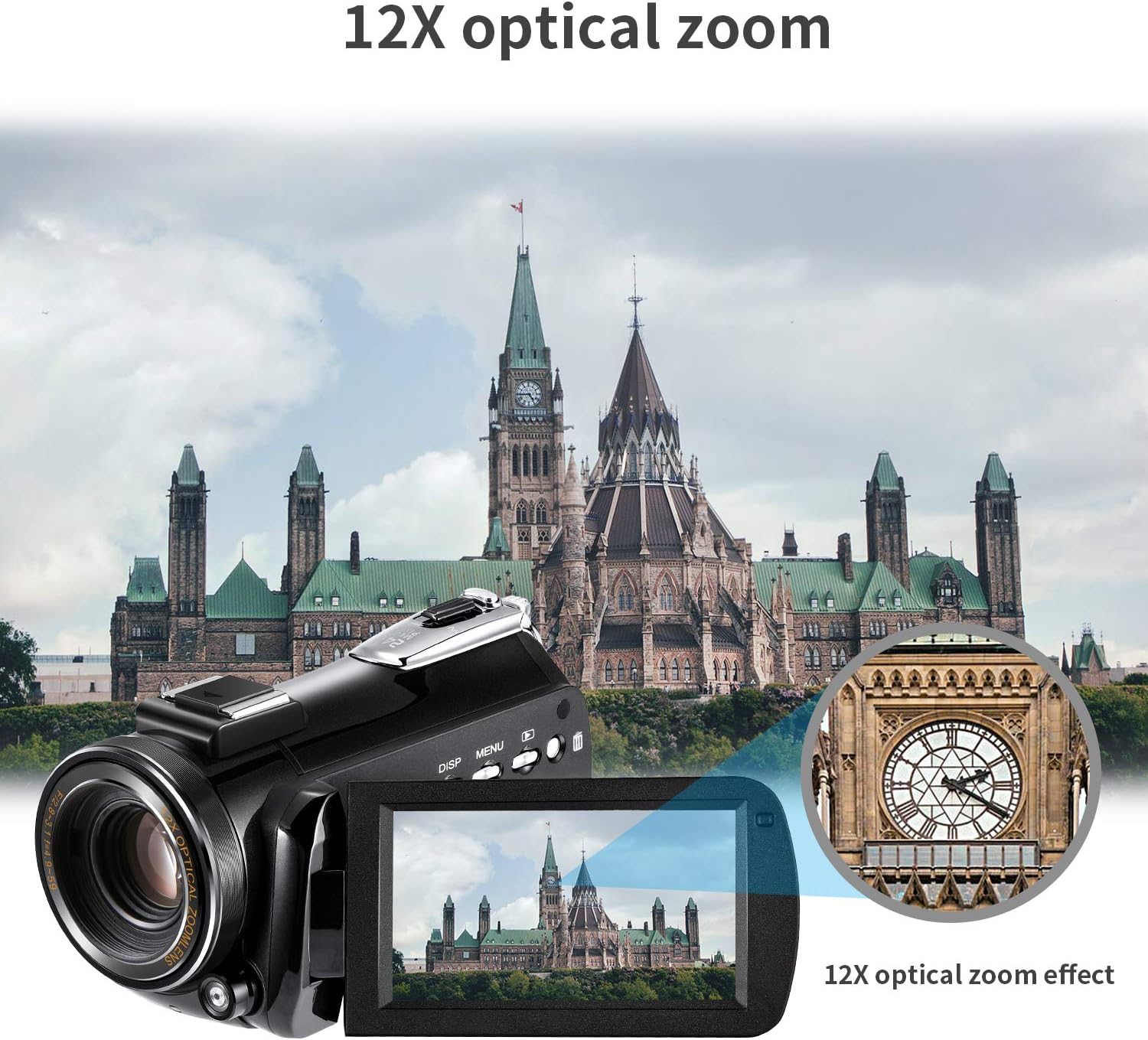
- Use the zoom controls to utilize the 12x optical zoom for clear distant shots without pixel loss.
6.3 Live Streaming
Connect the camcorder to your PC using the provided 6.5ft mini USB cable. This enables real-time streaming to platforms like Facebook and YouTube.

6.4 Wi-Fi Connection and Remote Control
- Download the "D Video" app on your smartphone (Android or iOS).
- Connect your smartphone to the camcorder via Wi-Fi (within 9.8 feet) to control video and photo functions and share content.
- Use the included remote control to operate the camcorder from a distance (within 16 feet). Remember to remove the plastic sheet from the remote's battery compartment before use.

6.5 Webcam Functionality
Connect the camcorder to your computer via USB. Press the "PHOTO" button on the camcorder to activate webcam mode for use with your PC.

6.6 Playback
You can directly plug the mini card reader (with the memory card inserted) into a TV or computer to watch high-quality video. Alternatively, use the camcorder's playback function via the touchscreen.
6.7 Time-Lapse Photography
The camcorder supports time-lapse photography. Refer to the on-screen menu for specific settings and options.

6.8 Motion Detection
The camcorder includes a motion detection feature. Consult the menu settings to enable and configure this function.
7. Maintenance
- Cleaning: Use a soft, dry cloth to clean the camera body and lens. Avoid abrasive cleaners or solvents.
- Storage: Store the camcorder in a cool, dry place away from direct sunlight and extreme temperatures.
- Battery Care: Remove batteries if the camera will not be used for an extended period.
8. Troubleshooting
- Camera Not Powering On: Ensure the battery is fully charged and correctly installed.
- Focus Issues: Verify that the subject is at least 6.5ft away for proper auto-focus.
- Wi-Fi App Connectivity: Ensure the "D Video" app is installed and the smartphone is within range.
- Video Quality: For the best uncompressed video effect, connect the camera to a computer or TV.
9. Specifications
| Feature | Specification |
|---|---|
| Brand | ORDRO |
| Model Number | HDR-AC5 |
| Item Weight | 10.9 ounces |
| Color | Black |
| Photo Sensor Technology | CMOS (5.0 Megapixel high-sensitivity) |
| Video Capture Resolution | 4K UHD (2880*2160@24fps), FHD (1920*1080p@60fps) |
| Optical Zoom | 12x |
| Screen Size | 3.1 Inches IPS Capacitive Touchscreen |
| Flash Memory Type | SD (supports up to 128GB) |
| Connectivity Technology | HDMI, USB, Wi-Fi |
| Supported Audio Format | AAC |
| Special Features | Time Lapse, Face Detection, Date Stamp, Motion Detection |
10. Official Product Videos
Optical Zoom Camera Demonstration
This video demonstrates the optical zoom capabilities of the ORDRO camcorder, showcasing its ability to zoom in on subjects without compromising image quality.
Super Clarity and Features Overview
A brief overview highlighting the super clarity and various features of the ORDRO HDR-AC5 camcorder, including its image stabilization (post-production) and overall functionality.
11. Warranty and Support
If the product is damaged or accessories are missing upon arrival, please contact customer support for assistance and compensation.


