
1. Product Overview
The YQSAVIOR 10.1" Android Tablet (Model ZB30) is designed for versatile use, offering a powerful octa-core processor, ample memory, and expandable storage. It features a vibrant IPS display, dual cameras, and robust connectivity options including 5G WiFi6 and Bluetooth 5.0, making it suitable for entertainment, browsing, and productivity tasks.

Figure 1: YQSAVIOR 10.1" Android Tablet (Model ZB30)
2. What's in the Box
Upon unboxing your YQSAVIOR Tablet, please ensure all the following items are present:
- YQSAVIOR 10.1" Android Tablet (Model ZB30)
- USB Type-C Charging Cable
- User Manual (this document)
3. Setup
3.1 Initial Charging
Before first use, fully charge your tablet using the provided USB Type-C cable and a compatible power adapter (not included). The 6000mAh battery provides 8-10 hours of mixed use.
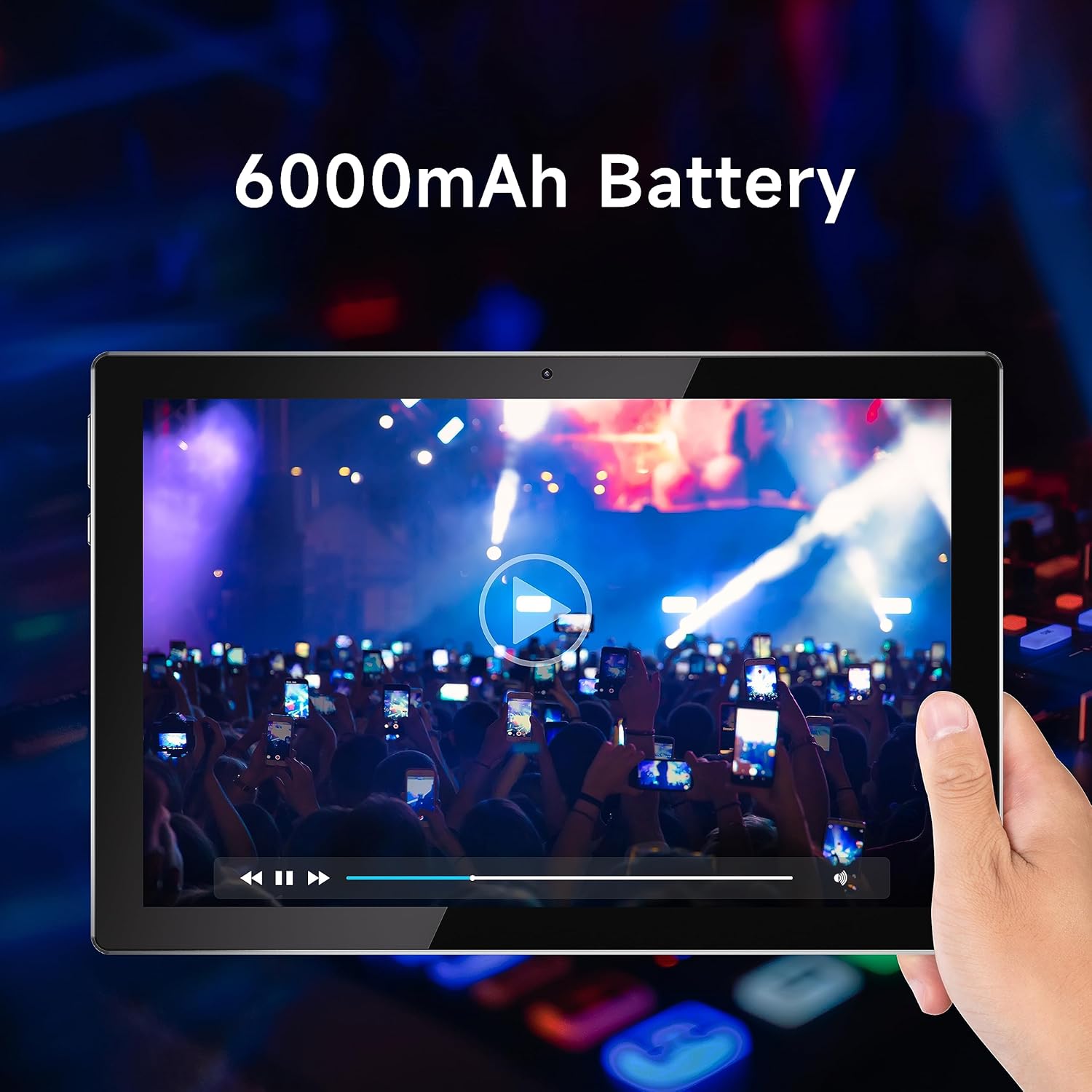
Figure 2: Tablet display emphasizing battery life.
3.2 Power On/Off
To power on, press and hold the power button located on the side of the tablet until the YQSAVIOR logo appears. To power off, press and hold the power button, then select "Power off" from the on-screen options.
3.3 Initial Configuration
Follow the on-screen prompts to complete the initial setup. This includes selecting your language, connecting to a Wi-Fi network, and signing in with your Google account. A Google account is required to download applications from the Google Play Store.

Figure 3: Accessing Google Play Store for applications.
3.4 Expandable Storage
The tablet supports expandable storage up to 1TB via a microSD card (not included). Locate the microSD card slot on the side of the tablet and gently insert the card until it clicks into place. You may need to format the card through the tablet's settings before use.
4. Operating Instructions
4.1 Navigation and Interface
The YQSAVIOR Tablet runs on the Android operating system. Navigate the interface using touch gestures: tap to select, swipe to scroll, pinch to zoom, and long-press for additional options. The home screen provides quick access to frequently used applications and widgets.
4.2 Wi-Fi Connectivity
To connect to Wi-Fi, go to Settings > Network & internet > Wi-Fi. Turn Wi-Fi on and select your desired network from the list. Enter the password if prompted. The tablet supports 5G WiFi6 for high-speed and stable connections.
4.3 Bluetooth Connectivity
To pair with Bluetooth devices, go to Settings > Connected devices > Bluetooth. Turn Bluetooth on and select "Pair new device." Choose your device from the list and follow any on-screen instructions. Bluetooth 5.0 provides faster transfer speeds and communication distances.
4.4 Display Quality
The tablet is equipped with a 10.1" IPS display with a resolution of 1280x800 pixels, offering vivid colors and wide viewing angles for an optimal viewing experience when watching movies or playing games.

Figure 4: Tablet display quality for media consumption.
4.5 Camera Usage
The tablet is equipped with a 2.0 MP front camera and an 8.0 MP rear camera. Open the Camera application to capture photos and videos. You can switch between front and rear cameras within the app interface.
4.6 Audio Output
The tablet features dual speakers for enhanced audio experience. Adjust volume using the physical volume buttons on the side of the device or through the on-screen volume controls.
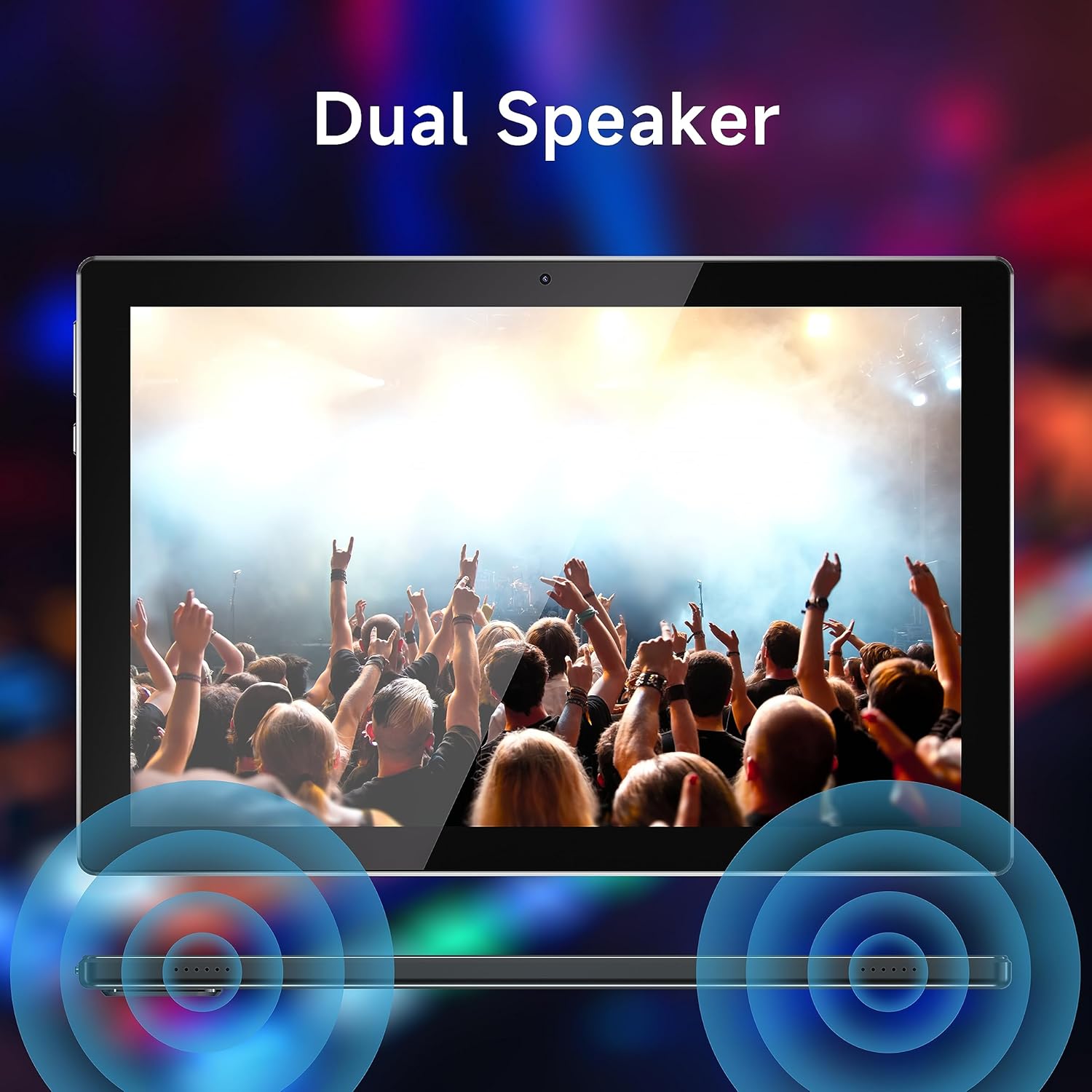
Figure 5: Dual speaker system for immersive sound.
5. Maintenance
5.1 Battery Care
To maximize battery life, avoid extreme temperatures. Charge the tablet regularly and avoid completely draining the battery frequently.
5.2 Cleaning
Use a soft, lint-free cloth to clean the screen and body of the tablet. Do not use abrasive cleaners or solvents, as these can damage the surfaces.
5.3 Software Updates
Periodically check for system updates to ensure optimal performance and security. Go to Settings > System > System update to check for and install available updates.
5.4 Storage Management
Regularly manage your tablet's storage by deleting unnecessary files, uninstalling unused applications, and moving large media files to external storage (microSD card) if applicable. This helps maintain device speed and responsiveness.
6. Troubleshooting
| Problem | Possible Cause / Solution |
|---|---|
| Tablet does not power on | Ensure the battery is charged. Connect the tablet to a power source and allow it to charge for at least 30 minutes before attempting to power on again. |
| Slow performance / Apps crashing | Close unused applications. Clear app caches (Settings > Apps > [App Name] > Storage > Clear cache). Free up storage space. Restart the tablet. |
| Wi-Fi connection issues | Ensure Wi-Fi is enabled. Restart your Wi-Fi router. Forget the network and reconnect. Check if other devices can connect to the same network. |
| Touchscreen unresponsive | Restart the tablet. If the issue persists, a factory reset might be necessary (backup data first). |
| Tablet stuck in Fastboot mode | This can occur due to software issues. Try holding the power button for an extended period (10-15 seconds) to force a restart. If it remains stuck, professional assistance or a factory reset may be required. |
| Slow charging | Ensure you are using the original charging cable. Try a different power adapter. Avoid using the tablet while it is charging, as this can slow down the process. |
If problems persist after attempting these solutions, please contact YQSAVIOR customer support for further assistance.
7. Specifications
| Feature | Detail |
|---|---|
| Brand | YQSAVIOR |
| Model Name | ZB30 |
| Operating System | Android |
| Screen Size | 10.1 Inches |
| Screen Resolution | 1280 x 800 pixels (IPS) |
| Processor | MTK Octa-core (2.2 GHz) |
| RAM | 10GB (4GB+6GB Expand) LPDDR3_SDRAM |
| Internal Storage | 64 GB Flash Memory |
| Expandable Storage | Up to 1TB (MicroSD) |
| Rear Camera | 8.0 MP |
| Front Camera | 2.0 MP |
| Battery Capacity | 6000mAh (Lithium Polymer) |
| Average Battery Life | 10 Hours |
| Wireless Type | 802.11ac (5G WiFi6) |
| Bluetooth | Bluetooth 5.0 |
| Item Weight | 1.65 pounds |
| Product Dimensions | 10 x 5 x 0.3 inches |
8. Warranty and Support
Your YQSAVIOR Tablet is covered by a manufacturer's warranty. Please refer to the warranty information provided with your purchase for specific terms and conditions. For technical support, troubleshooting assistance beyond this manual, or warranty claims, please contact YQSAVIOR customer service.
Additionally, protection plans may be available for extended coverage. For details on purchasing a 2-Year Protection Plan, please refer to your retailer or product page.