
1. Introduction and Overview
The Tera 1100C 1D Mini CCD Wireless Barcode Scanner is a compact, portable, and highly versatile device designed for efficient barcode data collection. Featuring 3-in-1 connectivity (Bluetooth, 2.4G Wireless, and USB Wired), an IP66 waterproof and dustproof rating, and the ability to read 1D barcodes from both digital screens and printed materials, this scanner is suitable for a wide range of applications.

Figure 1.1: Tera 1100C Mini CCD Barcode Scanner in use.

Figure 1.2: Key features of the Tera 1100C scanner.
Video 1.1: Official product overview of the Tera 1100C Mini Portable 1D CCD Barcode Scanner, demonstrating its features and portability.
2. Package Contents
Upon opening your Tera 1100C Barcode Scanner package, please verify that all the following items are included:
- Barcode Scanner (x1)
- USB Cable (x1)
- 2.4G USB Dongle (x1)
- User Manual (x1)
3. Product Features
3.1. IP66 Water-proof & Dust-proof Design
The Tera 1100C scanner boasts an IP66 rating, ensuring it is highly resistant to both water and dust ingress. This makes it suitable for use in various demanding environments.
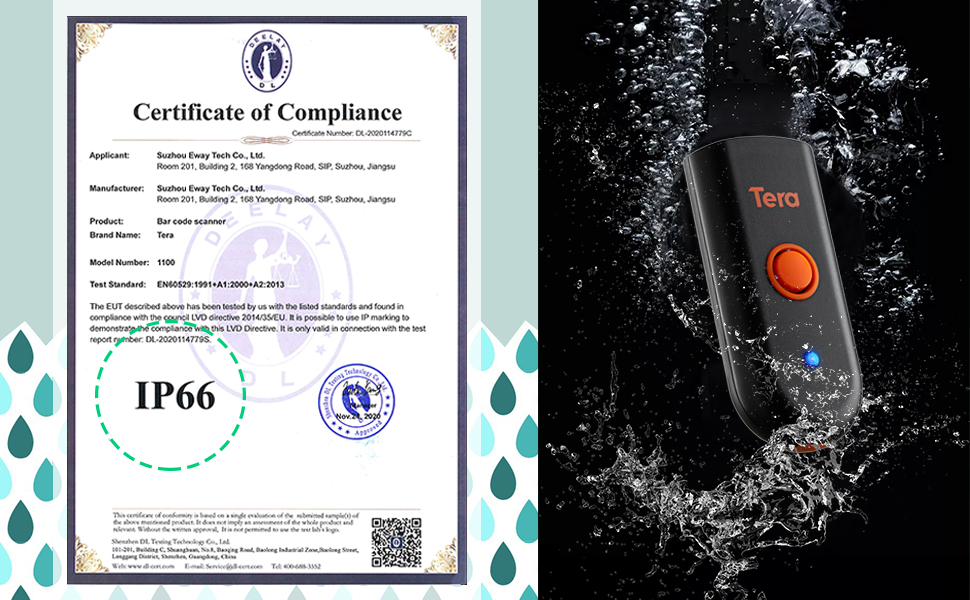
Figure 3.1: IP66 Certification and waterproof demonstration.
3.2. 1D Barcode Reading Capability
This scanner is specifically designed to read 1D barcodes. It supports both digital (on-screen) and printed 1D barcode symbologies, including Codabar, Code 11, Code93, MSI, Code 128, UCC/EAN-128, Code 39, EAN-8, EAN-13, UPC-A, ISBN, Industrial 25, Interleaved 25, Standard 25, and 2/5 Matrix.

Figure 3.2: Scanning 1D barcodes from screens and printed materials.
3.3. Vibration Alert
For environments requiring quiet operation, the scanner features a vibration alert function. When the audible volume is turned off, the vibration will confirm a successful barcode scan.
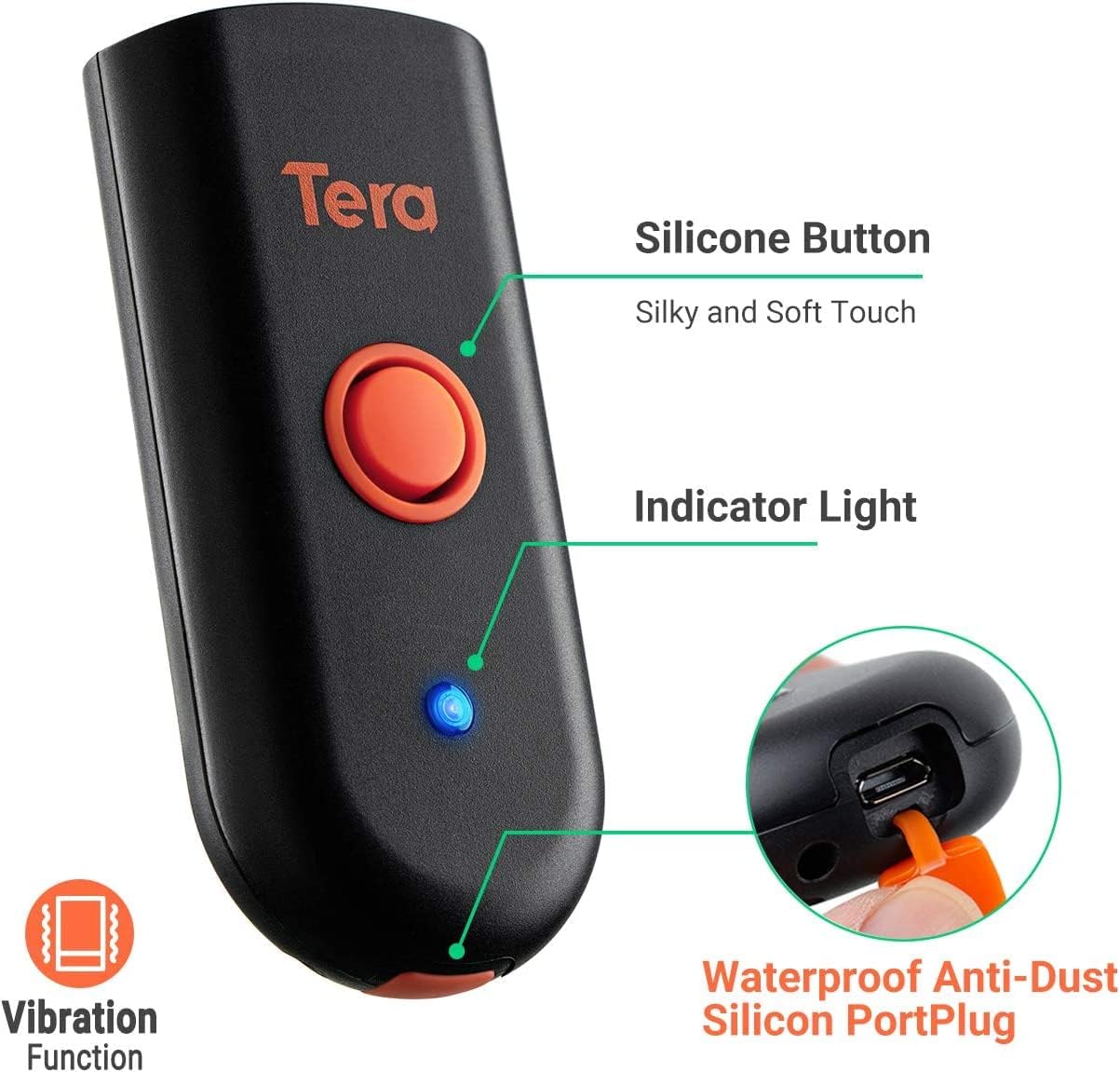
Figure 3.3: Scanner features including vibration alert.
4. Getting Started
4.1. Charging the Scanner
Before first use, fully charge the scanner. Use the provided USB cable. It is recommended to use a 5V/1A charging adapter. Do not use USB Power Delivery (USB PD) standard power adapters or cables, as this scanner does not support that standard.

Figure 4.1: Charging recommendations for the scanner.
4.2. Connection Ways
The Tera 1100C offers three versatile connection methods:
- Bluetooth: Connect wirelessly to devices like smartphones, tablets, and laptops.
- 2.4GHz Wireless: Use the included USB dongle for wireless connection to computers. This mode offers a transmission distance of up to 656ft in barrier-free environments and 98ft with obstacles.
- USB 2.0 Wired: Connect directly to your device via the USB cable for a stable wired connection.

Figure 4.2: Three-in-one connection modes.
4.3. Compatible Devices and Systems
The scanner is compatible with a wide range of devices and operating systems:
- Devices: PC, Laptop, iPad, iPhone, Smartphone, Tablet.
- Systems: Windows, iOS, Android, Linux, Mac OS.
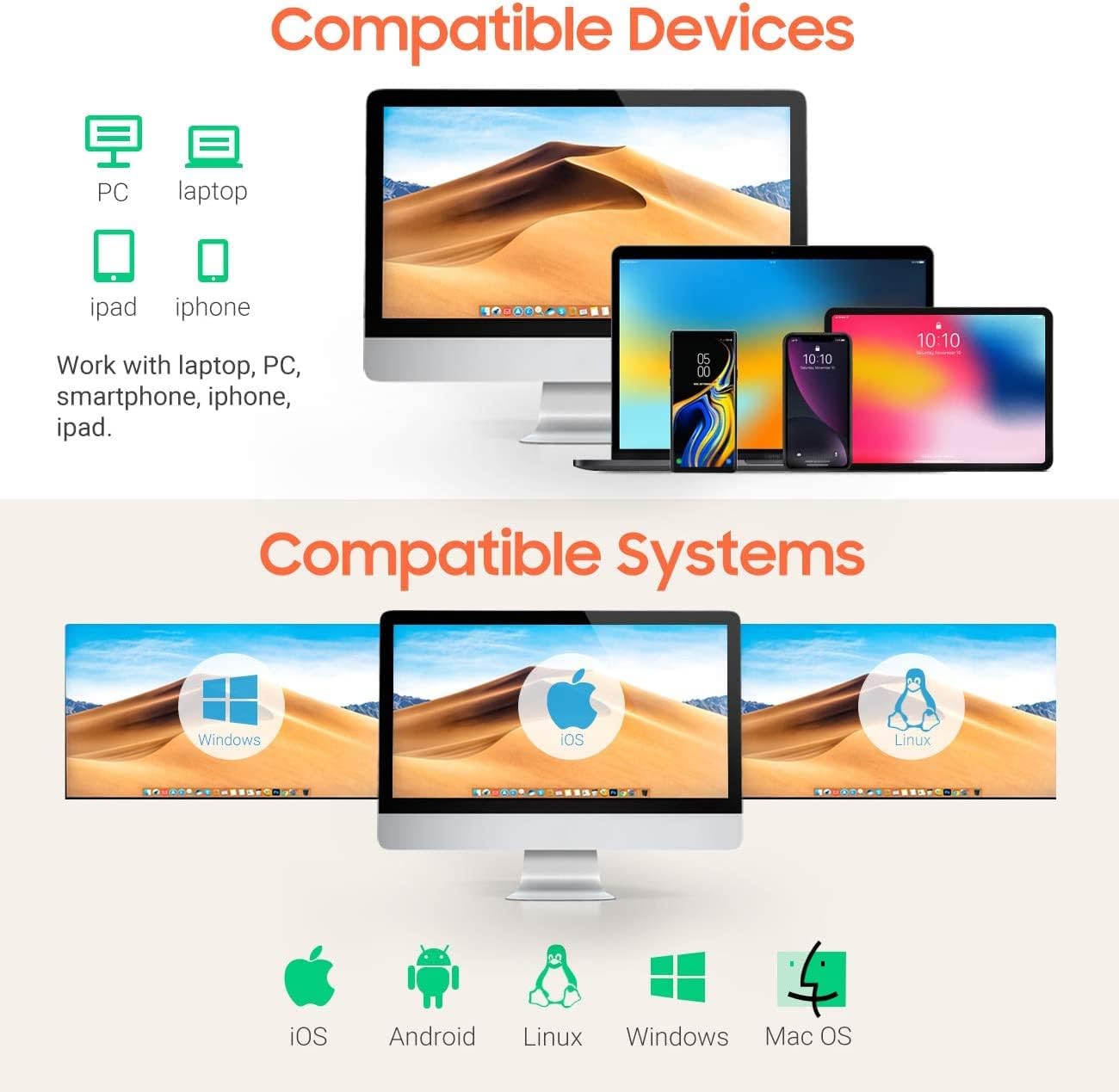
Figure 4.3: Compatible devices and operating systems.
5. Operating Instructions
5.1. Scanning Barcodes
To scan a barcode, point the scanner's reading window at the barcode and press the trigger button. Ensure the barcode is within the scanner's field of view for optimal reading.
5.2. Two Scanning Modes
The scanner supports two primary scanning modes:
- Key Trigger Mode: Press the trigger button for each scan.
- Continuous Mode: The scanner continuously reads barcodes without needing to press the trigger for each scan. This mode is ideal for high-volume scanning.
Figure 5.1: Key Trigger Mode vs. Continuous Mode.
5.3. Data Upload Modes
The scanner offers two data upload modes to suit your workflow:
- Instant Upload Mode: Barcodes are uploaded directly to your connected device immediately after scanning.
- Storage Mode: Scan and store up to 50,000 barcodes in the scanner's built-in memory. All stored data can then be uploaded to your device when needed.

Figure 5.2: Instant Upload Mode and Storage Mode.
5.4. Adding Time Prefix/Suffix
The scanner supports adding time prefixes or suffixes to scanned barcode data, which can be useful for timestamping inventory or tracking. Refer to the full user manual (PDF) for detailed instructions on configuring this feature.

Figure 5.3: Scanner supporting time prefix/suffix.
5.5. Multi-Language Support
The scanner supports various language settings, allowing for broader compatibility and ease of use in different regions. Supported languages include English, Spanish, German, Japanese, French, and Italian.

Figure 5.4: Multi-language support.
6. Maintenance
To ensure the longevity and optimal performance of your Tera 1100C Barcode Scanner, follow these maintenance guidelines:
- Cleaning: Use a soft, dry cloth to clean the scanner's exterior. For the scanning window, use a lint-free cloth and a mild glass cleaner if necessary. Avoid abrasive materials or harsh chemicals.
- Storage: Store the scanner in a cool, dry place away from direct sunlight and extreme temperatures.
- Port Plug: Always ensure the waterproof anti-dust silicon port plug is securely in place when the USB port is not in use to maintain the IP66 rating.
- Battery Care: Avoid fully discharging the battery frequently. For long-term storage, charge the battery to about 50% and store in a cool place.
7. Troubleshooting
If you encounter issues with your Tera 1100C Barcode Scanner, please refer to the following common troubleshooting steps:
| Problem | Possible Cause | Solution |
|---|---|---|
| Scanner not turning on | Low battery; Power button not pressed correctly | Charge the scanner fully; Press and hold the power button until indicator light appears. |
| Cannot connect via Bluetooth/2.4G | Out of range; Incorrect pairing mode; Interference | Ensure scanner is within range; Re-enter pairing mode (refer to full manual); Move away from other wireless devices. |
| Cannot scan barcodes | Barcode damaged/unreadable; Incorrect scanning mode; Scanner lens dirty | Try scanning a different barcode; Switch scanning modes (e.g., Key Trigger); Clean the scanning lens. |
| Scanned data incorrect/missing | Incorrect data format settings; Connection issue | Check scanner configuration for prefixes/suffixes; Re-establish connection. |
For more detailed troubleshooting steps or persistent issues, please consult the comprehensive User Manual PDF provided with your product or visit the Tera official website for support.
8. Specifications
| Feature | Detail |
|---|---|
| Model | 1100C 1D Mini CCD |
| Product Dimensions | 0.78 x 1.57 x 3.4 inches (0.78"D x 1.57"W x 3.4"H) |
| Item Weight | 4.9 ounces |
| Connectivity Technology | Bluetooth, 2.4G Wireless, USB Cable |
| Power Source | Corded Electric (Internal Rechargeable Battery) |
| Compatible Devices | Laptop, Desktop, Tablet, Smartphone |
| Manufacturer | Tera |
| Decode Capability (1D) | Codabar, Code 11, Code93, MSI, Code 128, UCC/EAN-128, Code 39, EAN-8, EAN-13, UPC-A, ISBN, Industrial 25, Interleaved 25, Standard 25, 2/5 Matrix etc. |
| IP Rating | IP66 (Water-proof, Dust-proof) |
| Battery Capacity | 650mAh (approx. 12 hours normal use time) |
| Storage Capacity | Up to 50,000 barcodes |
9. Warranty and Support
For information regarding product warranty, technical support, and service, please refer to the warranty card included in your product packaging or visit the official Tera website. The full User Manual (PDF) is also available for download from the Tera website for detailed instructions and advanced configurations.
User Manual (PDF): Download Here


