1. Introduction
Thank you for choosing the Portronics Brillo II POR-1178 Lamp with Wireless Charging. This versatile device combines an adjustable LED desk lamp with a convenient wireless charging pad and a pen holder, designed to enhance your workspace efficiency. Please read this manual carefully to ensure proper use and maintenance of your product.
2. Product Overview
The Portronics Brillo II is an innovative desk accessory featuring:
- Adjustable LED Lamp: Offers three brightness levels (Warm, Cool, Dim) for various lighting needs.
- Flexible Neck: Allows for easy adjustment of the light direction.
- 10W Wireless Charging: Provides efficient charging for compatible smartphones.
- Integrated Pen Holder: Keeps your desk organized.
- Touch Control: Simple and intuitive operation.
- Micro USB Input: For powering the device.

Figure 2.1: Overall view of the Portronics Brillo II Lamp.
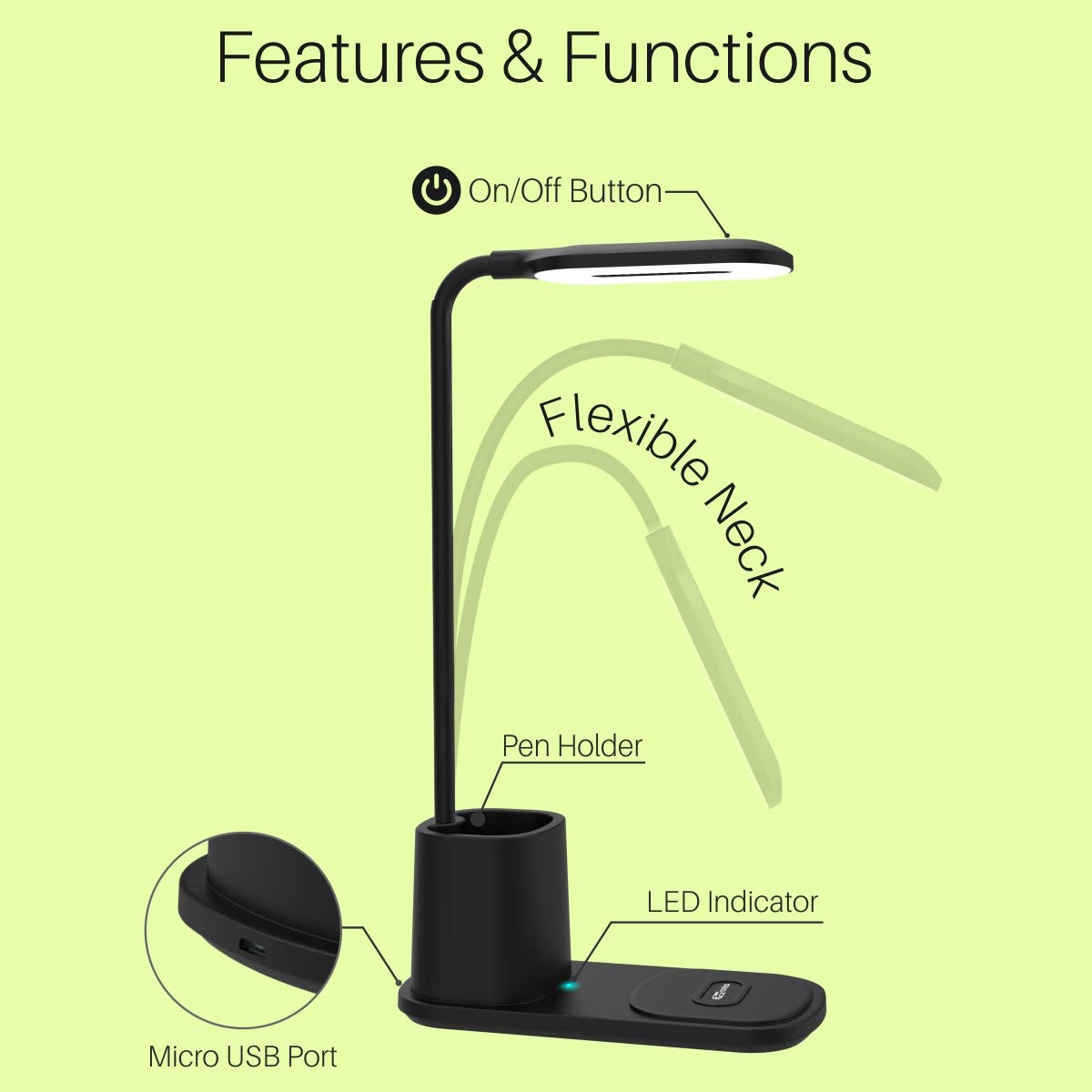
Figure 2.2: Key features and components of the Brillo II.
3. Setup
- Unpack the Device: Carefully remove the lamp from its packaging. Ensure all components, including the lamp unit and the Micro USB cable, are present.
- Connect Power: Insert the Micro USB connector into the Micro USB port located at the back of the lamp base. Connect the other end of the USB cable to a compatible USB power adapter (not included) or a USB port on your computer. For optimal wireless charging performance, a QC 3.0 power adapter is recommended.
- Placement: Place the lamp on a stable, flat surface. Adjust the flexible neck to your desired position.

Figure 3.1: Lamp connected and a phone placed on the wireless charging pad.
4. Operating Instructions
4.1. LED Lamp Operation
- Power On/Off: Lightly touch the power button icon located on the lamp head to turn the LED lamp on or off.
- Adjust Brightness: With the lamp on, repeatedly touch the power button icon to cycle through the three brightness modes: Warm, Cool, and Dim.
- Adjust Light Angle: Use the flexible neck to bend and position the lamp head to direct light as needed.

Figure 4.1: The lamp offers three adjustable brightness levels.
4.2. Wireless Charging
- Compatibility: The wireless charging pad supports Qi-enabled devices with 5W, 7.5W, and 10W output.
- Charging: Place your compatible smartphone directly onto the wireless charging pad located on the base of the lamp. Ensure the phone is centered on the pad for optimal charging.
- Charging Indicator: The LED indicator on the base will illuminate to show that wireless charging is active.
4.3. Pen Holder
- The integrated pen holder provides a convenient storage space for pens, pencils, and other small desk items.

Figure 4.2: The lamp features a built-in pen holder for organization.
5. Maintenance
- Cleaning: Use a soft, dry cloth to clean the lamp. Do not use abrasive cleaners or solvents.
- Storage: When not in use for extended periods, disconnect the power cable and store the lamp in a cool, dry place.
- Handling: Avoid dropping or subjecting the lamp to strong impacts. Do not attempt to disassemble the unit.
6. Troubleshooting
If you encounter issues with your Portronics Brillo II, please refer to the following common problems and solutions:
- Lamp does not turn on:
- Ensure the Micro USB cable is securely connected to both the lamp and the power source.
- Verify that the power adapter is functioning correctly and providing power.
- Try using a different USB cable or power adapter.
- Wireless charging is not working:
- Confirm your smartphone is Qi-enabled and supports wireless charging.
- Ensure the phone is correctly centered on the charging pad.
- Remove any thick phone cases that might interfere with wireless charging.
- Ensure the lamp is powered by a QC 3.0 adapter for optimal wireless charging.
- Lamp light turns off unexpectedly:
- Check for stable power supply. Fluctuations can cause unexpected shutdowns.
- Ensure the lamp is not overheating. Allow it to cool down if it feels excessively warm.
7. Specifications
| Feature | Detail |
|---|---|
| Brand | Portronics |
| Model Number | POR-1178 |
| Colour | Black |
| Material | Acrylonitrile Butadiene Styrene, Polycarbonate |
| Item Weight | 170 g |
| Item Dimensions (LxWxH) | 16 x 8 x 37 Centimeters |
| Input Voltage | 5 Volts |
| Wireless Charging Output | 5W, 7.5W, 10W |
| Lamp Brightness Levels | 3 (Warm, Cool, Dim) |
| Connector Type | USB (Micro USB Input) |
| Included Components | Cable |
8. Warranty and Support
Portronics products are designed for reliability and performance. For warranty information and customer support, please refer to the warranty card included with your product or visit the official Portronics website. Keep your purchase receipt as proof of purchase for any warranty claims.
For further assistance, you may contact Portronics customer service through their official channels.


