
MOES WS-US-RF (2 Gang White, Neutral Wire Required)
Contents
MOES 2.4GHz WiFi Wall Touch Smart Switch User Manual
Model: WS-US-RF (2 Gang White, Neutral Wire Required)
Introduction
This manual provides comprehensive instructions for the installation, operation, and maintenance of your MOES 2.4GHz WiFi Wall Touch Smart Switch. Please read this manual carefully before installation and use to ensure proper functionality and safety.
Safety Information
- Neutral Wire Required: This smart switch requires a neutral wire in your switch box for correct operation. Installation without a neutral wire is not supported.
- 2.4GHz Wi-Fi Only: The switch only supports 2.4 GHz Wi-Fi networks. It is not compatible with 5 GHz networks.
- Not a Dimmer Switch: This product is an ON/OFF switch and does not support dimming functionality.
- Not for Traditional 3-Way Wiring: This switch cannot be used as a traditional 3-way switch where two physical switches directly control one light. For 3-way control, use the Multi-Control Association feature via the Smart Life/Tuya App.
- Power Off Before Installation: Always turn off power at the circuit breaker before installing or servicing the switch to prevent electrical shock.
- Professional Installation Recommended: If you are unsure about electrical wiring, consult a qualified electrician.

Figure 1: Key installation considerations including Wi-Fi frequency, neutral wire requirement, and non-dimming/non-traditional 3-way functionality.
Package Contents
- MOES 2.4GHz WiFi Wall Touch Smart Switch (2 Gang White)
- User Manual
- Mounting Screws

Figure 2: The MOES Smart Switch and its packaging, illustrating typical package contents.
Product Overview
The MOES Smart Switch features a sleek glass panel with touch-sensitive buttons. It includes integrated Wi-Fi and RF433 modules for versatile control options. The rear of the switch provides terminals for electrical connections.

Figure 3: Front view of the MOES 2 Gang White Smart Switch.

Figure 4: Rear view of the MOES Smart Switch with terminal labels (N, L, L1, L2, L3, L4).
Setup
Pre-installation Checklist
- Confirm your existing switch box has a neutral wire.
- Ensure your Wi-Fi network is 2.4GHz.
- Turn off power at the circuit breaker before proceeding.
Wiring Instructions
- Turn off power at the main circuit breaker.
- Remove your old switch from the wall box.
- Identify the Live (L), Neutral (N), and Load (L1, L2) wires.
- Connect the wires to the corresponding terminals on the MOES Smart Switch as shown in the diagram below. For a 2-gang switch, L1 and L2 are for the two separate loads.
- Secure the switch into the wall box and attach the faceplate.
- Restore power at the circuit breaker.
Figure 5: Wiring diagram for the MOES 2 Gang Smart Switch.
App Installation and Pairing
- Download the "Smart Life" or "Tuya Smart" app from your mobile device's app store (iOS or Android).
- Register or log in to your account.
- Ensure your phone is connected to a 2.4GHz Wi-Fi network.
- To enter pairing mode, press and hold one of the switch buttons for approximately 5-10 seconds until the Wi-Fi indicator light on the switch blinks rapidly.
- In the app, tap "+" to add a device, then select "Electrical Switch" or "Light Switch (Wi-Fi)".
- Follow the on-screen instructions to connect the switch to your Wi-Fi network.
Multi-Control Association (for 3-Way Functionality)
This feature allows two or more smart switches to control the same light without traditional 3-way wiring. This is ideal for hallways or large rooms.
- Ensure both smart switches are installed and successfully paired with the Smart Life/Tuya app.
- In the app, select the primary switch you wish to associate.
- Navigate to its settings and look for "Multi-Control Association" or a similar option.
- Follow the prompts to select the other smart switch(es) you want to link for multi-control.
- Once associated, controlling one switch will affect the light connected to the other associated switch(es).

Figure 6: Setting up Multi-Control Association in the Smart Life App.
Operating
Multiple Control Modes
Your MOES Smart Switch offers several ways to control your lights:
- Touch Control: Directly tap the touch-sensitive buttons on the glass panel to turn lights ON/OFF.
- Smart Life/Tuya App Control: Control your lights remotely from anywhere using the app on your smartphone.
- Voice Control: Integrate with Amazon Alexa or Google Home for hands-free voice commands.
- RF433 Remote Control: The switch has a built-in RF433 frequency receiver, allowing control via a compatible RF remote control switch (encoding 1527, remote not included).
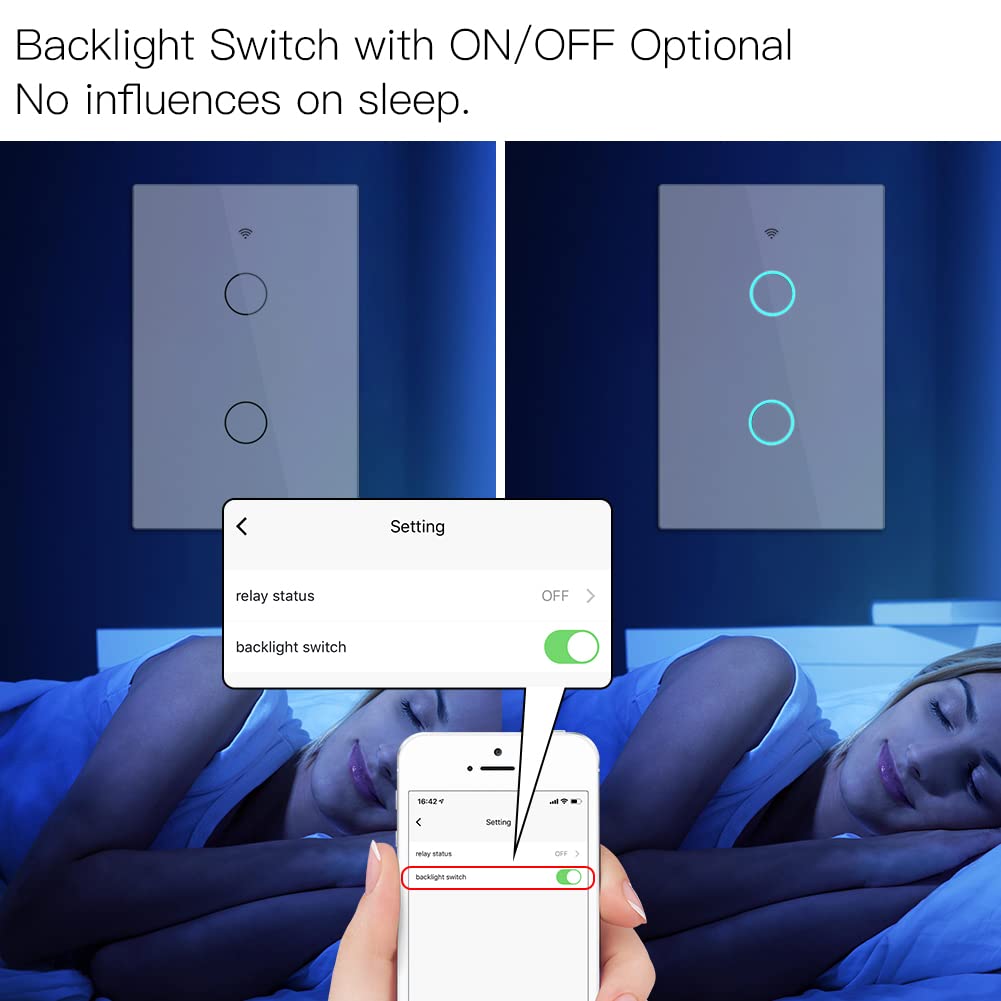
Figure 7: Overview of multiple non-interfering control modes.
App Features
- ON/OFF Relay Status: In the app settings, you can configure the switch to remember its last status (ON/OFF) when power is restored after an outage.
- Backlight Switch Setting: The backlight of the touch buttons can be turned ON or OFF via the app settings, preventing light disturbance during sleep.
- Schedules and Timers: Create custom schedules and countdown timers (e.g., 1/5/30 minutes, 1 hour) to automate your lights.
- Device Sharing: Share control of the smart switch with family members through the app.

Figure 8: Backlight switch setting in the Smart Life App.

Figure 9: ON/OFF Relay Status setting in the Smart Life App.
Maintenance
To maintain the appearance and functionality of your MOES Smart Switch:
- Clean the glass panel with a soft, damp cloth. Avoid abrasive cleaners or solvents.
- Ensure the switch is free from dust and debris, especially around the touch areas.
- Do not attempt to disassemble or repair the switch yourself. Contact customer support if issues arise.
Troubleshooting
| Problem | Possible Cause | Solution |
|---|---|---|
| Switch not responding to touch. | No power; loose wiring; switch malfunction. | Check circuit breaker. Verify wiring connections. If problem persists, contact support. |
| Cannot connect to Wi-Fi / Frequent disconnections. | Incorrect Wi-Fi band (5GHz); weak Wi-Fi signal; incorrect password; network congestion. | Ensure you are on a 2.4GHz Wi-Fi network. Move router closer or use a Wi-Fi extender. Re-enter Wi-Fi password carefully. Restart router. |
| Lights flicker or do not turn off completely. | No neutral wire connected; incompatible load (e.g., very low wattage LED). | Verify neutral wire connection. Ensure load meets minimum requirements (if any). This switch is not a dimmer. |
| Multi-Control Association not working. | Switches not properly paired to app; incorrect association setup. | Ensure both switches are online in the app. Re-do the multi-control association steps carefully. |
| Voice control not working. | Incorrect integration with Alexa/Google Home; device offline in app. | Ensure Smart Life/Tuya skill is enabled and linked in your voice assistant app. Check if the switch is online in the Smart Life/Tuya app. |
Specifications
- Model: WS-US-RF
- Operation Mode: On/Off Smart Switch
- Current Rating: 10 Amps
- Operating Voltage: 90-250VAC
- Wireless Protocol: Wi-Fi 2.4GHz & RF433MHz
- Contact Type: Normally Open
- Connector Type: Wireless
- Terminal: Screw
- Circuit Type: 3-way (via Multi-Control Association)
- Actuator Type: Touch
- Contact Material: Metal
- Dimensions: 120mm x 74mm x 47mm (approx. 4.72 x 2.91 x 1.85 inches)
Warranty Information
MOES products are designed and manufactured to the highest quality standards. This product is covered by a limited warranty from the date of purchase. Please refer to the product packaging or contact MOES customer support for specific warranty terms and conditions.
Customer Support
For technical assistance, troubleshooting, or warranty inquiries, please contact MOES customer support:
- Website: Visit the MOES Store on Amazon
- Email: Refer to your product packaging or the MOES official website for the most current contact information.
Ask a question about this manual
Ask about setup, troubleshooting, compatibility, parts, safety, or missing instructions. Manuals+ will review the question and use this page’s manual context to help answer it.