
1. Introduction
The Honeywell Voyager Extreme Performance (XP) 1470g is a high-performance barcode scanner designed for retail environments. It is capable of accurately reading 1D, 2D, PDF, and DotCode symbologies from both traditional printed labels and digital screens, even if the codes are damaged or difficult to read. This manual provides essential information for setting up, operating, maintaining, and troubleshooting your scanner to ensure optimal performance.
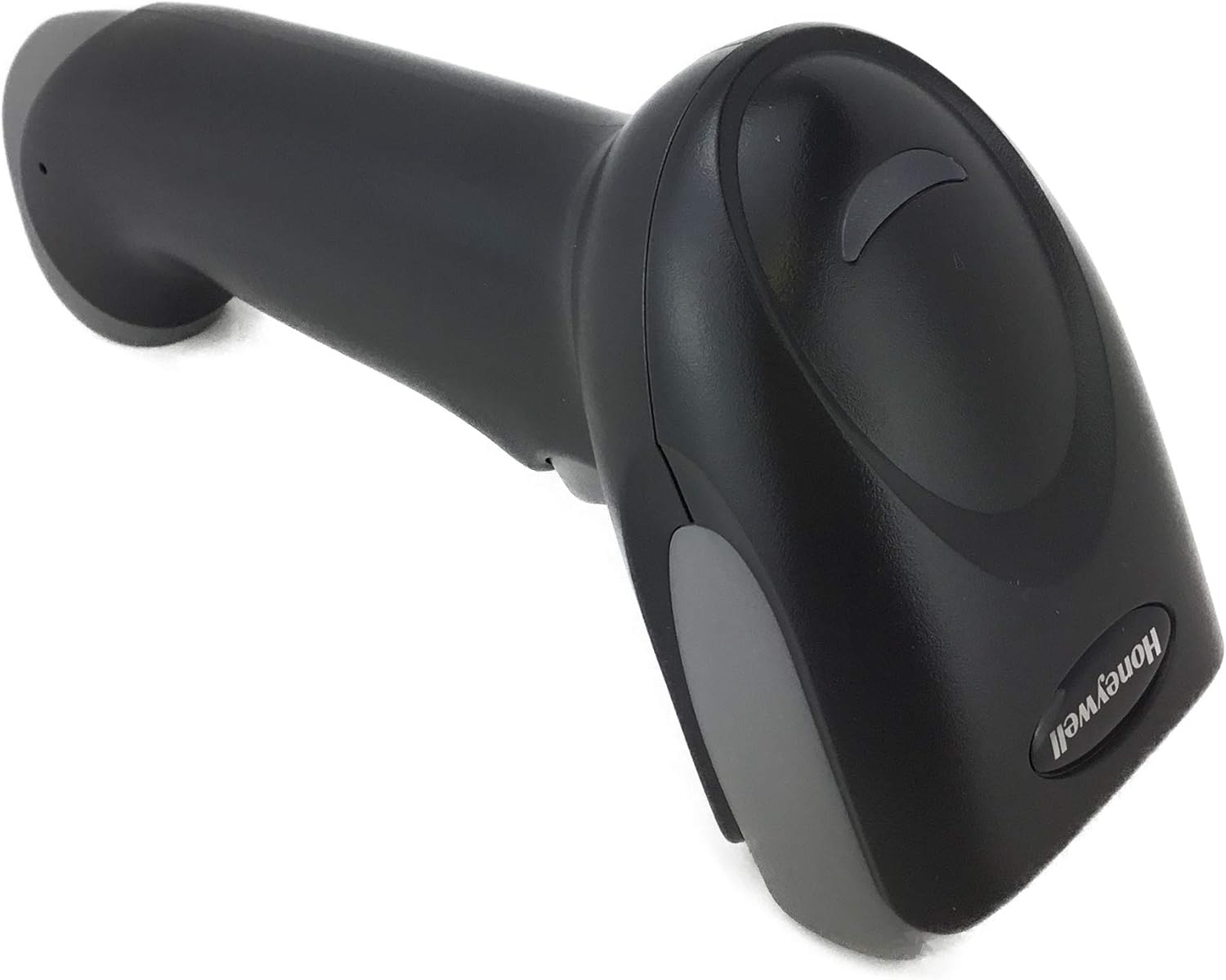
Figure 1: Honeywell Voyager XP 1470g Barcode Scanner (Angled View)
2. Package Contents
Verify that all items are present in your package. If any items are missing or damaged, please contact your vendor.
- Honeywell Voyager XP 1470g Barcode Scanner
- USB Cable
- User Manual (this document)
3. Safety Information
Please read the following safety precautions before using your scanner.
- Laser Safety: This device uses a low-power laser. Do not stare directly into the scanner's light aperture or point the beam at others.
- Power Source: Use only the provided USB cable for power. Do not use damaged cables or power adapters.
- Environment: Avoid exposing the scanner to extreme temperatures, humidity, or direct sunlight. Do not immerse the scanner in liquids.
- Disassembly: Do not attempt to open or disassemble the scanner. This will void the warranty and may cause damage.
4. Setup
Follow these steps to set up your Honeywell Voyager XP 1470g scanner.
- Connect the USB Cable: Insert the small end of the USB cable into the port at the base of the scanner. Ensure it is securely connected.

Figure 2: Connecting the USB Cable to the Scanner
- Connect to Host Device: Plug the larger USB connector into an available USB port on your computer or point-of-sale (POS) system.
- Driver Installation: The scanner is typically plug-and-play. Your operating system should automatically detect and install the necessary drivers. Wait for the installation to complete.
- Initial Test: Open a text editor (e.g., Notepad) or a compatible application. Scan a known good barcode. The scanned data should appear in the application.
- Configuration (Optional): For advanced settings or specific symbology enablement, refer to the comprehensive programming guide available on the Honeywell support website. This typically involves scanning a series of configuration barcodes.
5. Operating Instructions
The Voyager XP 1470g scanner is designed for intuitive operation.
- Power On: The scanner powers on automatically when connected to a host device via USB. A successful power-on is indicated by a short beep and a green LED light.
- Scanning a Barcode:
- Point the scanner's window at the barcode you wish to scan.
- Press and hold the trigger button. An aiming beam will appear.
- Center the aiming beam over the barcode. The scanner will emit a successful read beep and the LED will flash green upon a successful scan.
- Release the trigger. The scanned data will be transmitted to your host device.
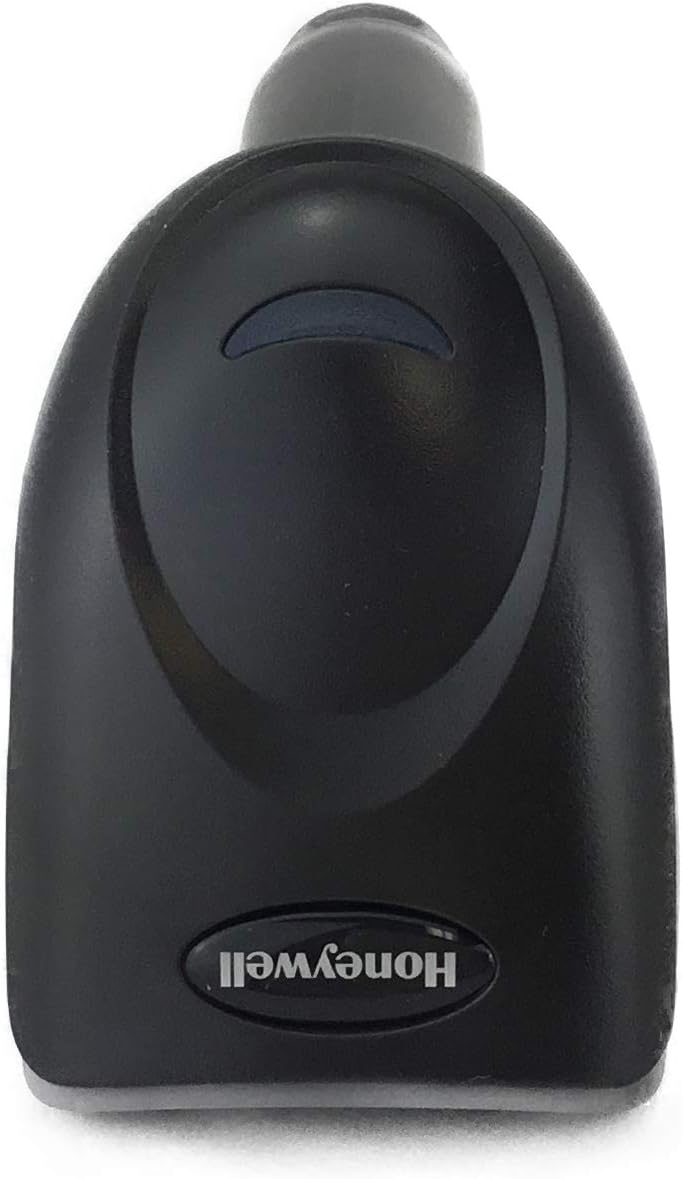
Figure 3: Front View of Scanner with Scanning Window
- Scanning Damaged or Poor-Quality Barcodes: The Voyager XP 1470g is optimized for challenging barcodes. Try scanning from different angles or distances if the first attempt is unsuccessful.
- Scanning from Digital Screens: The scanner can read barcodes displayed on smartphone screens or monitors. Ensure the screen brightness is adequate and avoid glare.
6. Maintenance
Proper maintenance ensures the longevity and performance of your scanner.
- Cleaning the Scanner:
- Ensure the scanner is disconnected from its power source before cleaning.
- Use a soft, clean cloth dampened with water or a mild cleaning solution. Do not use abrasive cleaners or solvents.
- Gently wipe the exterior of the scanner, especially the scanning window, to remove dust and smudges.
- Storage: Store the scanner in a clean, dry environment away from direct sunlight and extreme temperatures when not in use.
- Cable Care: Avoid bending or twisting the USB cable excessively to prevent internal damage.
7. Troubleshooting
If you encounter issues with your scanner, refer to the following common problems and solutions.
| Problem | Possible Cause | Solution |
|---|---|---|
| Scanner does not power on. | USB cable not connected or faulty. | Ensure USB cable is securely connected to both the scanner and the host device. Try a different USB port or cable. |
| Scanner does not read barcodes. | Barcode is damaged, poorly printed, or not supported. Scanner settings incorrect. | Try scanning a different, known good barcode. Ensure the aiming beam is centered. Check scanner configuration (refer to programming guide). Clean the scanning window. |
| Scanned data is incorrect or incomplete. | Incorrect symbology settings. Data formatting issues. | Verify that the required barcode symbology is enabled in the scanner's configuration. Check the host application's input settings. |
| No data appears in the application after scanning. | Host device not recognizing scanner. Application not in focus. | Ensure the scanner is recognized by the operating system (check Device Manager). Make sure the target application window is active and ready for input. |
For further assistance, please contact Honeywell support or refer to the detailed programming guide.
8. Specifications
Key technical specifications for the Honeywell Voyager XP 1470g Barcode Scanner:
| Feature | Detail |
|---|---|
| Model | 1470G2D |
| Dimensions (L x W x H) | 62 mm x 169 mm x 82 mm (2.4” x 6.6” x 3.2”) |
| Weight | 130g (4.6 oz) |
| Scan Angle | Horizontal 39.2°, Vertical 27.4° |
| Decode Capabilities | 1D, PDF, 2D, and DotCode symbologies |
| Host System Interface | USB, Keyboard Wedge, RS-232, RS485 (for IBM 46xx) |
| Operating Temperature | 0°C to 50°C (32°F to 122°F) |
| Drop Resistance | Engineered to withstand 30 drops from 1.8 m (6 ft) to concrete |
| Power Source | Corded Electric (via USB) |
9. Warranty and Support
The Honeywell Voyager XP 1470g Barcode Scanner comes with a 5-year factory warranty. This warranty covers defects in materials and workmanship under normal use.
For warranty claims, technical support, or additional product information, please visit the official Honeywell website or contact your authorized reseller. Ensure you have your product model number (1470G2D) and purchase details available when seeking support.
Online Resources:
- For detailed programming guides and software downloads, visit the Honeywell Safety and Productivity Solutions website.
- Frequently Asked Questions (FAQs) and troubleshooting tips may also be available online.


