
Introduction
Welcome to the H2O Audio Sonar IPX8 Underwater Headphones user manual. These headphones are designed for aquatic activities, featuring bone conduction technology, an integrated MP3 player, and Bluetooth connectivity. This manual provides essential information to help you set up, operate, maintain, and troubleshoot your device, ensuring a seamless and enjoyable audio experience in and out of the water.
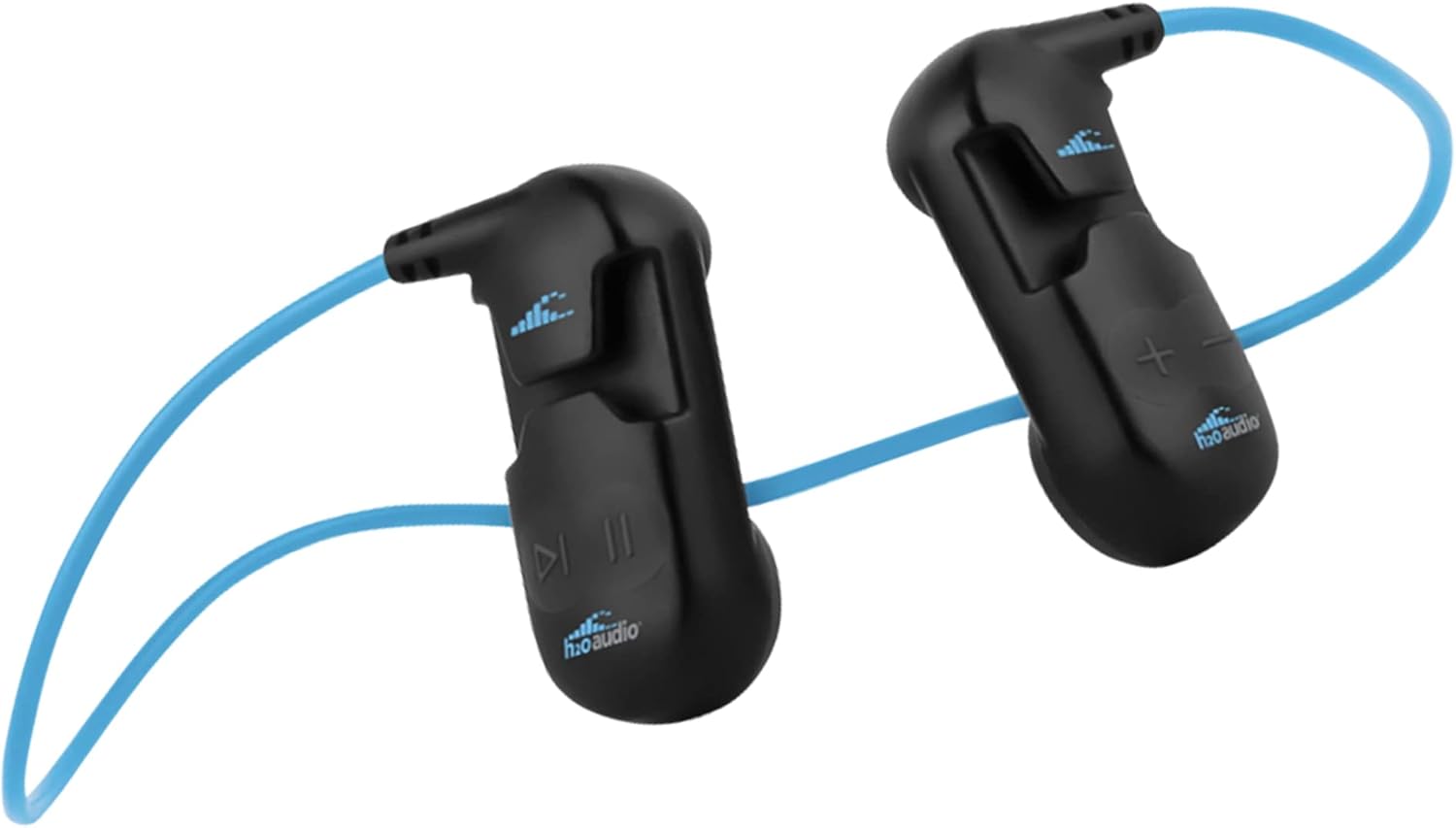
The H2O Audio Sonar IPX8 Underwater Headphones, featuring a black body with a blue connecting band.
What's in the Box
- H2O Audio Sonar Bone Conduction Headphones with MP3 Player
- Earplugs
- Clips for Goggles
- USB Charging/Data Cable

An overview of the H2O Audio Sonar headphones and compatible accessories, including the smartwatch clip and wired MP3 player.
Setup Guide
1. Charging the Battery
Before initial use or if the battery is low, ensure your Sonar headphones are fully charged. A low battery can prevent proper USB connection to a computer.
- Connect the USB charging cable to a USB wall charger or a powered USB port on your computer.
- Attach the magnetic connector of the cable to the charging port on the right side speaker of the Sonar headphones.
- A red light will illuminate, indicating that the device is charging.
- The red light will turn off once the battery is fully charged. Charge for at least 30 minutes for optimal performance.

The H2O Audio Sonar headphones with the magnetic charging cable attached.
2. Connecting to a Computer
To transfer music to the built-in MP3 player, connect the Sonar headphones to your computer.
- Ensure your computer is fully booted up.
- Connect the USB cable to your computer's USB port and then to the Sonar headphones (as described in the charging section).
- Allow a few moments for your computer to recognize the device. The Sonar will appear as a USB memory device (e.g., H2O SONAR).
- Important: Do not bump or move the cable while connected, as this can disrupt the connection and cause errors.

The H2O Audio Sonar headphones are compatible with both Mac and PC for music transfer.
3. Attaching to Goggles
The Sonar headphones are designed to attach securely to your swimming goggles for optimal fit and sound delivery.
- Locate the small holes on the Sonar headphone units.
- Thread your goggle straps through these holes.
- Adjust the headphones so they sit comfortably on your temples, allowing the bone conduction speakers to rest against your cheekbones.
- Ensure the fit is snug to maintain sound quality during movement.

A swimmer demonstrating the proper placement of the H2O Audio Sonar headphones, attached to goggles for a secure fit.
Operating Instructions
1. Downloading Music to MP3 Player (8GB Internal Memory)
The Sonar headphones feature an 8GB internal MP3 player, allowing you to store thousands of songs directly on the device.
- Connect the Sonar headphones to your computer as described in the Setup section.
- Open your computer's file explorer (Finder on Mac, File Explorer on Windows).
- Locate the 'H2O SONAR' drive.
- Drag and drop your compatible music files (e.g., MP3s from purchased music or converted CDs) into the 'H2O SONAR' drive.
- Ensure the music files are not protected by DRM (Digital Rights Management), as streaming service files are typically not compatible.
- Once transfer is complete, safely eject the 'H2O SONAR' drive from your computer before disconnecting the cable.

The H2O Audio Sonar headphones are shown on a pool deck, highlighting compatibility with Mac, PC, and smartwatches for music transfer.
2. Bluetooth Connectivity
For streaming music or connecting to a smartwatch, use the Bluetooth feature. Note that Bluetooth range is limited underwater (approx. 3 feet).
- Ensure your smartwatch or Bluetooth device is charged and has music downloaded.
- Clip your smartwatch to your goggles using the provided clips, or place it under your swim cap, to maintain close proximity for Bluetooth signal.
- Pair the Sonar headphones with your device via Bluetooth settings.
- Adjust volume and playback directly from your connected device or using the controls on the Sonar headphones.

A swimmer demonstrating the use of a smartwatch clipped to goggles, connected to the H2O Audio Sonar headphones for Bluetooth audio.
3. Using in Water
The Sonar headphones are IPX8 waterproof, designed for submersion up to 12 feet (3.6 meters).
- For enhanced underwater sound, use the included earplugs.
- Ensure the headphones are securely attached to your goggles to prevent dislodgement during swimming.
- Bone conduction technology delivers clear audio by transmitting sound vibrations through your cheekbones directly to your inner ear, bypassing the eardrum.

The H2O Audio Sonar headphones are shown partially submerged in water, illustrating their IPX8 waterproof rating.
Maintenance
- After each use in chlorinated or saltwater, rinse the headphones thoroughly with fresh water.
- Gently wipe the charging contacts dry to prevent corrosion and ensure proper connection.
- Store the headphones in a cool, dry place, ideally in the hard shell protective carrying case (if purchased separately), to prevent damage.
- Avoid exposing the device to extreme temperatures.
Troubleshooting
If you encounter issues with your H2O Audio Sonar headphones, try the following steps:
Common Issues & Solutions:
- Computer Not Recognizing Device:
- Ensure the battery is sufficiently charged (at least 30 minutes).
- Restart your computer and try connecting again.
- Try a different USB port on your computer.
- Ensure the magnetic charging cable is fully engaged and the connection points are dry and clean.
- No Sound or Intermittent Sound:
- Check the volume levels on both the headphones and the connected device (if using Bluetooth).
- Ensure the headphones are securely positioned on your temples for optimal bone conduction.
- If using Bluetooth, ensure the connected device is within the 3-foot range, especially underwater.
- Verify that the music files are compatible and not DRM-protected.
- Device Not Turning On/Off:
- Ensure the battery is charged.
- Perform a device reset (see below).
Resetting the Sonar Headphones:
If issues persist, a reset may resolve them.
- Ensure the Sonar battery is fully charged.
- Simultaneously press and hold the Play and M buttons for 15 seconds.
- After the reset, power the headphones off and then on again.
Official H2O Audio video demonstrating how to download music to the Sonar headphones and providing troubleshooting tips for common connection issues.
Specifications
| Model Name | SONAR Underwater Headphones |
| Connectivity Technology | Bluetooth |
| Water Resistance Level | IPX8 (Submersible up to 12 feet / 3.6 meters) |
| Internal Storage | 8GB (for MP3 Player) |
| Battery Life | Up to 7 hours |
| Charging Time | Approximately 7 hours (full charge) |
| Audio Driver Type | Bone Conduction Driver |
| Ear Placement | Open Ear |
| Compatible Devices | iPhone, Android, Smart Watch, Apple Watch, Garmin, Fitbit, Samsung |
| Item Weight | 5 ounces |
Warranty and Support
H2O Audio offers a "Go Beyond" promise for their products.
- Standard Warranty: One-year coverage for defects in materials or workmanship.
- Extended Warranty: Register your product to receive an additional year of warranty coverage, extending it up to 2 years.
For customer support, please refer to the contact information provided by H2O Audio:
- Toll-Free Number (USA): 858 771 4410
- Email ID: support@h2oaudio.com

H2O Audio customer support details, including phone number and email address.


