
Product Overview
The HID Signo Reader 20 is a foundational component of the Signo platform, offering a dynamic approach to secure electronic access control. Designed for versatility, power, and future connectivity, the HID Signo Reader 20 is ideal for door applications requiring a narrow card reader. It supports a wide range of credential technologies, including various form factors such as cards, fobs, and mobile devices.
Key Features
- Pigtail Wiring Option: Provides flexible installation choices.
- Highly Versatile: Supports a broad spectrum of credential technologies, including HID Mobile Access via native Bluetooth and Near Field Communication (NFC) capabilities. It also features Apple’s Enhanced Contactless Polling (ECP) for credentials in Apple Wallet.
- Unparalleled Performance: Ensures ultra-secure storage of cryptographic keys on certified secure element hardware. Includes a surface detection feature for automatic recalibration and optimized read range performance.
- Connected to the Future: All readers come with out-of-the-box support for Open Supervised Device Protocol (OSDP) for secure bidirectional communication. Designed for remote connection and management, eliminating the need for physical interaction.
Setup Guide
This section provides general guidelines for installing your HID Signo 20 Smart Card Reader. For detailed wiring diagrams and specific installation requirements, please refer to the comprehensive installation manual provided with your product or consult a qualified technician.
- Mounting: Select a suitable indoor or outdoor location for mounting the reader. Ensure the surface is stable and allows for proper cable routing. The compact design is suitable for narrow door applications.
- Wiring: Utilize the pigtail wiring option for connecting the reader to your access control panel. Ensure all connections are secure and follow local electrical codes. Proper power supply and data line connections are crucial for optimal performance.
- Configuration: After physical installation, configure the reader with your access control system. This may involve setting up credential types, communication protocols (like OSDP), and integrating with mobile access solutions.
- Testing: Test the reader with various supported credentials (cards, fobs, mobile devices) to ensure proper functionality and read range. Verify that access grants and denials are correctly processed by your system.
Operation Instructions
Operating the HID Signo 20 Smart Card Reader is straightforward, designed for quick and efficient access.
- Card/Fob Presentation: Hold your authorized smart card or fob within close proximity to the reader's surface. The reader will typically emit an audible beep and/or change its LED indicator color (e.g., from red to green) to confirm a successful read.
- Mobile Device Access: For mobile credentials, ensure your mobile device has HID Mobile Access enabled and Bluetooth/NFC is active. Present your mobile device near the reader. The reader will communicate with your device to verify credentials.
- Access Grant/Denial: Upon successful credential verification, the access control system will grant or deny access, typically indicated by a door unlock or a visual/audible signal from the reader.
Maintenance
The HID Signo 20 Smart Card Reader is designed for durability and requires minimal maintenance. Regular care ensures continued optimal performance.
- Cleaning: Periodically wipe the reader's surface with a soft, damp cloth to remove dust and grime. Avoid using abrasive cleaners or solvents, as these can damage the housing.
- Inspection: Regularly inspect the reader and its wiring for any signs of physical damage, loose connections, or environmental wear, especially if installed outdoors.
- Firmware Updates: Keep the reader's firmware updated as recommended by HID Global to ensure compatibility with new credential technologies and to benefit from performance enhancements and security patches. Remote management capabilities facilitate these updates.
Troubleshooting
If you encounter issues with your HID Signo 20 Smart Card Reader, refer to the following common troubleshooting steps:
- Reader Not Responding: Check the power supply and wiring connections. Ensure the reader is receiving adequate power and that data lines are correctly connected to the access control panel.
- Credential Not Reading: Verify that the credential (card, fob, mobile device) is authorized and active within your access control system. Ensure the credential is presented correctly and within the reader's optimal read range.
- Intermittent Reads: This could be due to environmental interference or issues with the credential itself. Try testing with a different, known-good credential. Check for any physical obstructions or electromagnetic interference near the reader.
- LED Indicator Issues: Consult your system's documentation for the meaning of specific LED patterns. If the LED is not functioning as expected, it may indicate a power or communication problem.
- Mobile Access Problems: Ensure Bluetooth/NFC is enabled on the mobile device and that the HID Mobile Access application is correctly configured and running. Check for any app updates.
If problems persist after attempting these steps, contact HID Global technical support or your system integrator for further assistance.
Technical Specifications
| Feature | Detail |
|---|---|
| Brand | HID |
| Model Number | 20NKS-00-000000 |
| Connectivity Technology | Bluetooth |
| Special Feature | Compact |
| Compatible Devices | Access Control Systems, Mobile Devices (via Bluetooth/NFC) |
| Hardware Interface | Bluetooth |
| Additional Features | Compact Design, Multi-Technology Support, OSDP, ECP |
| Item Weight | 0.35 Pounds |
| Manufacturer | HID Global |
| GTIN / UPC | 639399027536 |
Product Visuals
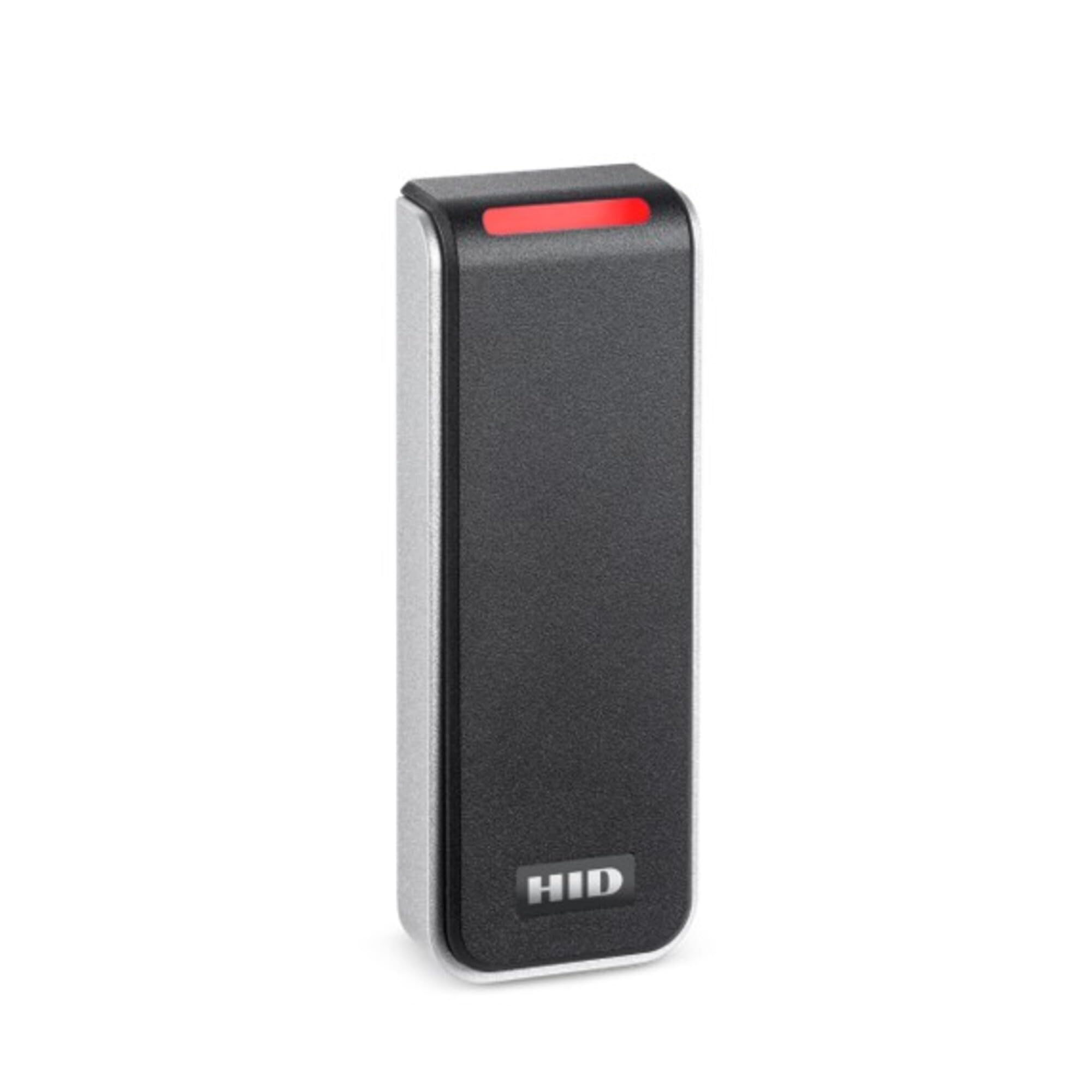
Image: The HID Signo 20 Smart Card Reader, a black and grey rectangular device, is shown mounted on a dark wooden wall. A red indicator light is visible at the top, signifying its status. The 'HID' logo is clearly visible at the bottom of the device.
Official Product Videos
No official seller-provided product videos are available for embedding at this time. Please refer to the manufacturer's website for any available video resources.
Warranty and Support
For information regarding product warranty, technical support, or service, please contact HID Global directly through their official website or customer service channels. Ensure you have your product model number (20NKS-00-000000) and any purchase details available when seeking support.


