
1. Introduction
The DELUX M618DB is an ergonomic wireless vertical mouse designed to provide a more natural and comfortable hand position, reducing wrist and arm strain during prolonged use. This mouse offers dual connectivity modes (2.4G USB receiver and Bluetooth) and features a rechargeable battery for convenience. This manual provides detailed instructions for setting up, operating, maintaining, and troubleshooting your DELUX M618DB mouse.
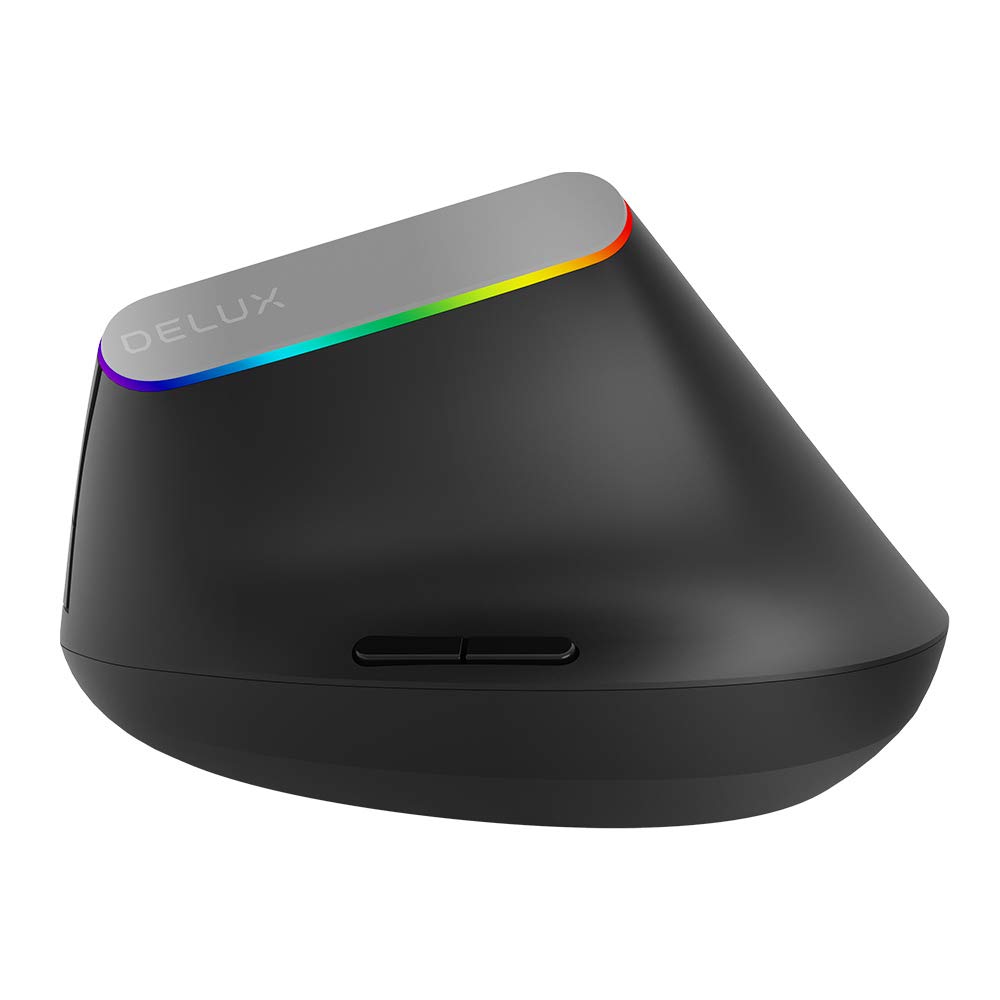
Image 1.1: Front view of the DELUX M618DB Wireless Vertical Mouse.
2. Product Features
- Ergonomic Vertical Design: Promotes a natural handshake position to alleviate wrist and arm discomfort.
- Dual Connectivity: Supports both 2.4G wireless (via USB receiver) and Bluetooth connections.
- Rechargeable Battery: Equipped with a built-in 500mA Lithium Polymer battery.
- Six Buttons: Includes Left Click, Right Click, Scroll Wheel, DPI Cycle Button, Forward, and Backward buttons for enhanced productivity.
- Adjustable DPI: Allows for customization of cursor sensitivity.
- LED Indicator: Multicolor LED lighting indicates power status and connectivity.

Image 2.1: Illustration demonstrating the ergonomic vertical design for comfortable hand posture.
3. Package Contents
Please check the package contents to ensure all items are present:
- 1 x DELUX M618DB Wireless Vertical Mouse
- 1 x USB Nano Receiver (stored in the mouse base)
- 1 x USB-A to USB-C Charging Cable
- 1 x User Manual (this document)
4. Setup Instructions
4.1 Charging the Mouse
Before first use, it is recommended to fully charge the mouse. Connect the provided USB-A to USB-C charging cable to the USB-C port on the front of the mouse and plug the USB-A end into a computer's USB port or a USB wall charger (not included). The charging indicator light (a small pinhole light) will illuminate during charging and turn off when fully charged.

Image 4.1: Side view of the mouse, highlighting the USB-C charging port and the storage compartment for the USB receiver.
4.2 Power On/Off
Locate the power switch on the bottom of the mouse. Slide it to the 'ON' position to power on the mouse. Slide it to 'OFF' when not in use to conserve battery life.
4.3 Connecting the Mouse
The M618DB offers two connection methods:
4.3.1 2.4G Wireless Connection (USB Receiver)
- Remove the USB Nano receiver from its storage slot on the bottom of the mouse.
- Plug the USB Nano receiver into an available USB port on your computer.
- Turn on the mouse using the power switch. The mouse should automatically connect to your computer. No additional drivers are typically required.
4.3.2 Bluetooth Connection
- Ensure the mouse is powered on.
- On your computer, navigate to Bluetooth settings.
- Initiate the pairing process on your computer to search for new Bluetooth devices.
- Select 'DELUX M618DB' (or similar name) from the list of available devices and follow any on-screen prompts to complete the pairing.
5. Operating Instructions
The DELUX M618DB mouse features six programmable buttons and a scroll wheel for various functions:

Image 5.1: Diagram illustrating the button layout of the DELUX M618DB mouse.
- Left Click Button: Standard primary click function.
- Right Click Button: Standard secondary click function.
- Scroll Wheel: Used for vertical scrolling. Can also be pressed for middle-click functionality.
- DPI Cycle Button: Located behind the scroll wheel, this button allows you to cycle through different DPI (Dots Per Inch) settings to adjust cursor sensitivity.
- Forward Button: Navigates forward in web browsers or file explorers.
- Backward Button: Navigates backward in web browsers or file explorers.
5.1 LED Indicator Behavior
The multicolor LED light around the DELUX logo provides visual feedback:
- When the mouse is turned on or a button is pressed without a connected receiver, the LED will illuminate.
- When the USB Nano receiver is connected and the mouse is moved, the multicolor LED will stay on.
- The light will turn off after a few seconds of inactivity to conserve power.
6. Maintenance
6.1 Battery Management
The 500mA rechargeable battery provides extended usage. Battery life varies depending on usage patterns and whether the mouse is turned off when not in use. Recharge the mouse when the cursor becomes erratic or the LED indicator shows signs of low power.
6.2 Cleaning
To clean the mouse, use a soft, dry cloth. For stubborn dirt, a slightly damp cloth can be used, ensuring no moisture enters the device. Avoid using harsh chemicals or abrasive materials.
7. Troubleshooting
| Problem | Possible Cause | Solution |
|---|---|---|
| Mouse not responding or erratic cursor movement | Low battery; connectivity issue; USB receiver not properly connected. | 1. Charge the mouse fully. 2. Ensure the USB receiver is securely plugged into a working USB port. 3. For Bluetooth, ensure the mouse is paired and selected in your device's Bluetooth settings. 4. Try a different USB port or restart your computer. |
| Cannot connect via Bluetooth | Mouse not in pairing mode; Bluetooth on computer is off; interference. | 1. Ensure the mouse is powered on. 2. Verify Bluetooth is enabled on your computer. 3. Remove any previous pairings and attempt to re-pair. 4. Move closer to the computer to reduce interference. |
| LED indicator not lighting up | Mouse is off; low battery. | 1. Ensure the mouse is powered on. 2. Charge the mouse. |
8. Specifications
| Feature | Detail |
|---|---|
| Model | M618DB |
| Brand | DELUX |
| Connectivity Technology | 2.4G Wireless (USB Receiver), Bluetooth |
| Number of Buttons | 6 (Left, Right, Scroll Wheel, DPI, Forward, Backward) |
| Battery Type | Lithium Polymer |
| Battery Capacity | 500mA |
| Charging Port | USB-C |
| ASIN | B08NB9KXTK |
| First Available Date | November 12, 2020 |
9. Warranty and Support
Specific warranty information is not available in the provided product details. For warranty claims, technical support, or further assistance, please refer to the official DELUX website or contact the retailer from whom you purchased the product. Keep your purchase receipt as proof of purchase.


