
Introduction
This manual provides detailed instructions for the setup, operation, and maintenance of your Avolusion PRO-5X Series 8TB USB 3.0 External Gaming Hard Drive. This external hard drive is designed to expand the storage capacity of your PlayStation 4 console (Original, Slim, and Pro models) and is pre-formatted for immediate use with the PS4 file system.

Figure 1: Avolusion PRO-5X Series 8TB External Gaming Hard Drive.
What's in the Box
Verify that all components are present in the package:
- Avolusion PRO-5X 8TB External Gaming Storage
- USB 3.0 Cable
- Power Adapter
- User Manual (this document)

Figure 2: Package contents including the external drive, USB 3.0 cable, power adapter, and user manual.
Setup Instructions
- Connect the Power Adapter: Plug the power adapter into the "Power Input" port on the rear of the Avolusion PRO-5X external hard drive. Connect the other end of the power adapter to a wall outlet.
- Connect the USB 3.0 Cable: Plug one end of the included USB 3.0 cable into the "USB 3.0 port" on the rear of the Avolusion PRO-5X external hard drive. Connect the other end of the USB 3.0 cable to an available USB port on your PlayStation 4 console.
- Power On the Drive: Ensure the On/Off switch on the rear of the external hard drive is in the "On" position.
- Power On Your PS4: Turn on your PlayStation 4 console. The console should detect the new external storage device.
- Format the Drive (if prompted): Your PS4 console may prompt you to format the external hard drive for use as extended storage. Follow the on-screen instructions to complete the formatting process. This will prepare the drive for storing games and applications.
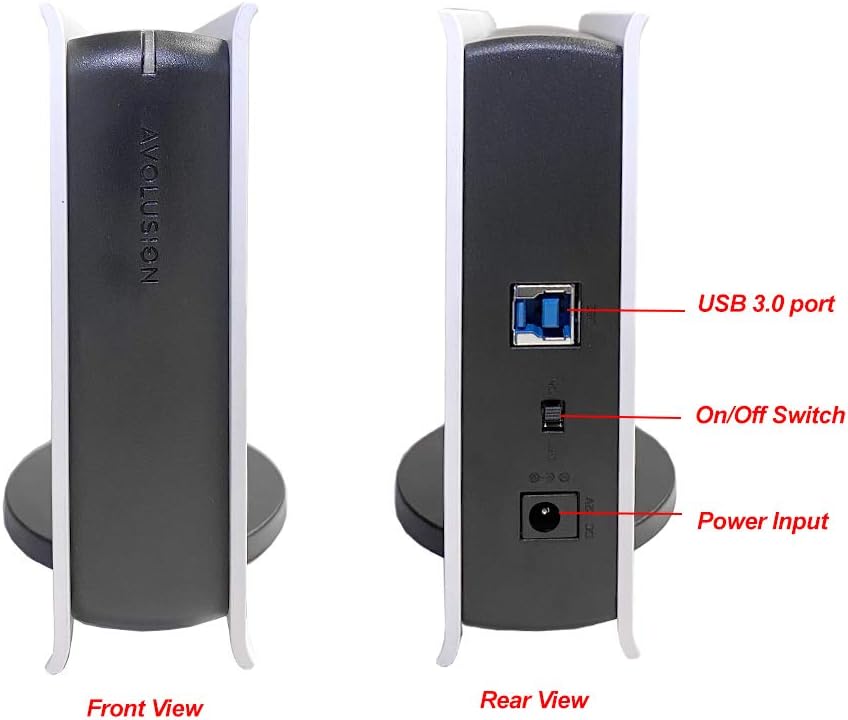
Figure 3: Rear view of the drive with USB 3.0 port, On/Off switch, and Power Input labeled.

Figure 4: The external drive connected to a PS4 console.
Operating Instructions
Moving Games and Apps to Extended Storage (PS4)
- From the PS4 home screen, navigate to Settings.
- Select Storage.
- Choose Console Storage.
- Select Applications.
- Press the OPTIONS button on your controller.
- Select Move to Extended Storage.
- Select the games and applications you wish to move, then select Move.
Moving Games and Apps from Extended Storage to Console Storage (PS4)
- From the PS4 home screen, navigate to Settings.
- Select Storage.
- Choose USB Extended Storage.
- Select Applications.
- Press the OPTIONS button on your controller.
- Select Move to Console Storage.
- Select the games and applications you wish to move, then select Move.
Video Guides for Moving Games (PS5 examples, similar process for PS4)
Video 1: How to move PS5 games to an Avolusion USB Gaming Hard Drive. This demonstrates the process of transferring games from the console's internal storage to the external drive.
Video 2: How to move PS5 games from a USB HDD back to the PS5 console. This video illustrates the reverse process of transferring games from the external drive back to the console's internal storage.
Maintenance
- Safe Removal: Always safely remove the USB extended storage drive from your PS4 console before disconnecting it. Go to Settings > Storage > USB Extended Storage, then select Safely Remove from PS5 (or PS4 equivalent).
- Cleaning: Use a soft, dry cloth to clean the exterior of the hard drive. Avoid liquid cleaners or abrasive materials.
- Placement: Place the hard drive on a stable, flat surface with adequate ventilation. Avoid placing it in direct sunlight or near heat sources.
Troubleshooting
- Drive Not Detected:
- Ensure the power adapter is securely connected to both the drive and a working power outlet.
- Verify the USB 3.0 cable is securely connected to both the drive and the PS4 console.
- Try connecting the drive to a different USB port on your PS4.
- Ensure the On/Off switch on the drive is in the "On" position.
- Restart your PS4 console.
- Games Not Launching from External Drive:
- Ensure the external drive is properly connected and recognized by the PS4.
- Verify that the game is fully installed on the extended storage.
- Some games may require specific data to be on the console's internal storage. If a game fails to launch, try moving it to console storage.
- Slow Performance:
- Ensure you are using the provided USB 3.0 cable and connecting to a USB 3.0 port on your PS4 for optimal speed.
- Avoid placing the drive in an enclosed space that could lead to overheating.
- Formatting Issues:
- If the PS4 fails to format the drive, try restarting the console and the drive, then attempt formatting again.
- Ensure no other USB devices are interfering with the connection during formatting.
Specifications
| Digital Storage Capacity | 8 TB |
| Hard Disk Interface | USB 3.0 |
| Connectivity Technology | USB |
| Brand | Avolusion |
| Special Feature | Portable |
| Hard Disk Form Factor | 3.5 Inches |
| Hard Disk Description | Mechanical Hard Disk |
| Compatible Devices | Gaming Console (PS4 Original, Slim, Pro) |
| Installation Type | Plug In |
| Color | White |
| Specific Uses For Product | Gaming |
| Media Speed | 80-160 MB/s |
| Data Transfer Rate | 5 Gigabits Per Second |
| Hardware Platform | PlayStation 4 |
| Item Weight | 2 Pounds |
| Item Dimensions (L x W x H) | 8" x 5" x 1.6" |
| Model Number | HDDGU3-PRO5X-WH-8TB-PS |
| Enclosure Material | Plastic/PVC |

Figure 5: Product dimensions for the Avolusion PRO-5X Series External Gaming Hard Drive.
Warranty and Support
The Avolusion PRO-5X Series External Gaming Hard Drive comes with a 2 Years Warranty from Reseller. For technical support, warranty claims, or further assistance, please contact the reseller or manufacturer directly. Refer to your purchase documentation for specific contact information.


