1. Introduction
This manual provides instructions for the proper setup, operation, and maintenance of your Xtrike Me GH-509 Wired Stereo Gaming Headset. Please read this manual thoroughly before using the product to ensure optimal performance and longevity.
2. Product Overview
The Xtrike Me GH-509 is a wired stereo gaming headset designed for immersive audio experiences across multiple platforms. It features a comfortable design, integrated microphone, and RGB backlight.
2.1 Components
- Headband: Self-adjusting for a comfortable fit.
- Earcups: Soft cushioned leather earcups with closed on-ear design for sound isolation.
- Microphone: Adjustable, omnidirectional microphone.
- Volume Control: Integrated on-ear volume control.
- Connectivity: 2x 3.5mm jack (audio/mic) and USB for LED power.

Figure 1: Xtrike Me GH-509 Gaming Headset. This image displays the overall design of the headset, including the earcups, microphone, and headband.

Figure 2: Integrated Volume Control. This image shows a close-up of the volume roller located on the earcup, allowing for easy audio adjustment.
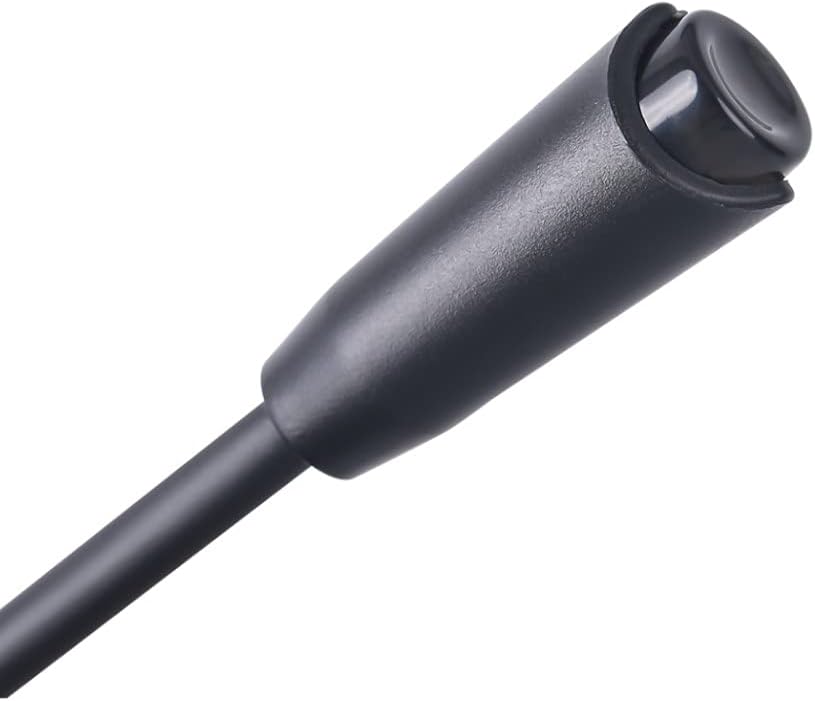
Figure 3: Adjustable Microphone. A detailed view of the flexible, omnidirectional microphone attached to the headset.
3. Setup Instructions
The GH-509 headset offers broad compatibility with various gaming platforms and devices.
3.1 Connecting to PC
- Connect the green 3.5mm jack to your PC's audio output port (headphone jack).
- Connect the pink 3.5mm jack to your PC's microphone input port (mic jack).
- Plug the USB connector into an available USB port on your PC to power the RGB backlight.
- Adjust audio settings in your operating system to ensure the headset is selected as the default playback and recording device.
3.2 Connecting to PS4 / Xbox One / Smartphone
- For devices with a single 3.5mm combo jack, use the included Y-splitter adapter (if provided) to combine the audio and microphone jacks into a single 3.5mm plug.
- Plug the 3.5mm jack (or combined jack) into the controller or device's audio port.
- The USB connector is only for RGB lighting and is not required for audio/microphone functionality on these devices.
- Adjust audio settings on your console or smartphone as needed.
4. Operating Instructions
4.1 Volume Control
Use the integrated volume roller located on the left earcup to adjust the audio output level. Roll it up to increase volume and down to decrease volume.
4.2 Microphone Usage
The flexible microphone can be positioned closer to your mouth for clear voice capture. Ensure the microphone is enabled in your device's audio settings.
4.3 RGB Backlight
The headset features an RGB backlight on the earcups. This lighting is powered via the USB connection. There is no separate control for the RGB lighting; it activates automatically when the USB is connected.
5. Maintenance
Proper care will extend the life of your headset.
- Cleaning: Use a soft, dry cloth to clean the headset. For earcups, a slightly damp cloth can be used, but avoid excessive moisture. Do not use harsh chemicals or abrasive cleaners.
- Storage: Store the headset in a cool, dry place away from direct sunlight and extreme temperatures.
- Cable Care: Avoid sharp bends or excessive pulling on the cable to prevent damage.
6. Troubleshooting
6.1 No Sound from Headset
- Ensure the 3.5mm audio jack is fully inserted into the correct port.
- Check the volume control on the headset and your device; ensure it is not muted or set to minimum.
- Verify that the headset is selected as the default audio output device in your computer's sound settings or console's audio options.
- Test the headset on another device to rule out a device-specific issue.
6.2 Microphone Not Working
- Ensure the 3.5mm microphone jack (pink) is fully inserted into the correct port.
- Check that the microphone is not muted in your device's settings or application.
- Verify that the headset microphone is selected as the default input device in your computer's sound settings or console's audio options.
- Test the microphone on another device.
6.3 RGB Backlight Not Illuminating
- Ensure the USB connector is securely plugged into a powered USB port.
- Try a different USB port.
7. Specifications

Figure 4: Technical Specifications. This infographic provides a summary of the headset's key technical details.
| Feature | Specification |
|---|---|
| Sound | Stereo |
| Frequency Response | 20 Hz - 20 KHz |
| Speaker Size | 50 mm |
| Speaker Sensitivity | 109 dB ± 3 dB |
| Speaker Impedance | 21 Ω |
| Microphone Type | Omnidirectional |
| Microphone Size | 4.0 x 1.5 mm |
| Microphone Sensitivity | -42 dB ± 3 dB |
| Backlight | RGB |
| Connectors | 2x 3.5 mm Jack, USB (for LED light) |
| Cable Length | 2.1 m |
| OS Support | Windows 7 or newer |
| Weight | 300 Grams |
| Material | Leather (earcups) |
8. Warranty and Support
For warranty information and technical support, please refer to the documentation included with your purchase or visit the official Xtrike Me website. Keep your proof of purchase for warranty claims.


