
Introduction
This manual provides essential information for the safe and efficient operation of your MEDION P64145 All-in-One Audio System. Please read it thoroughly before using the device and keep it for future reference.
Important Safety Information
Always follow basic safety precautions when using this product to reduce the risk of fire, electric shock, and injury to persons. Keep this manual handy for future reference.
- Do not expose the device to rain or moisture.
- Do not block any ventilation openings.
- Use only attachments/accessories specified by the manufacturer.
- Refer all servicing to qualified service personnel.
Package Contents
Ensure all items are present and in good condition upon unpacking:
- MEDION Life MD44125 P64145 AiO Audio System
- Remote control (incl. battery)
- Power cord
- User manual
Setup
1. Unpacking and Placement
Carefully remove the audio system from its packaging. Place the unit on a stable, flat surface away from direct sunlight, heat sources, and excessive dust or moisture. Ensure adequate ventilation around the unit.
2. Connecting the Power and Antenna
Connect the provided power cord to the AC IN socket on the rear of the audio system, then plug the other end into a wall outlet. Extend the telescopic antenna on the rear of the unit for optimal FM and DAB+ radio reception. Adjust its position for the best signal quality.
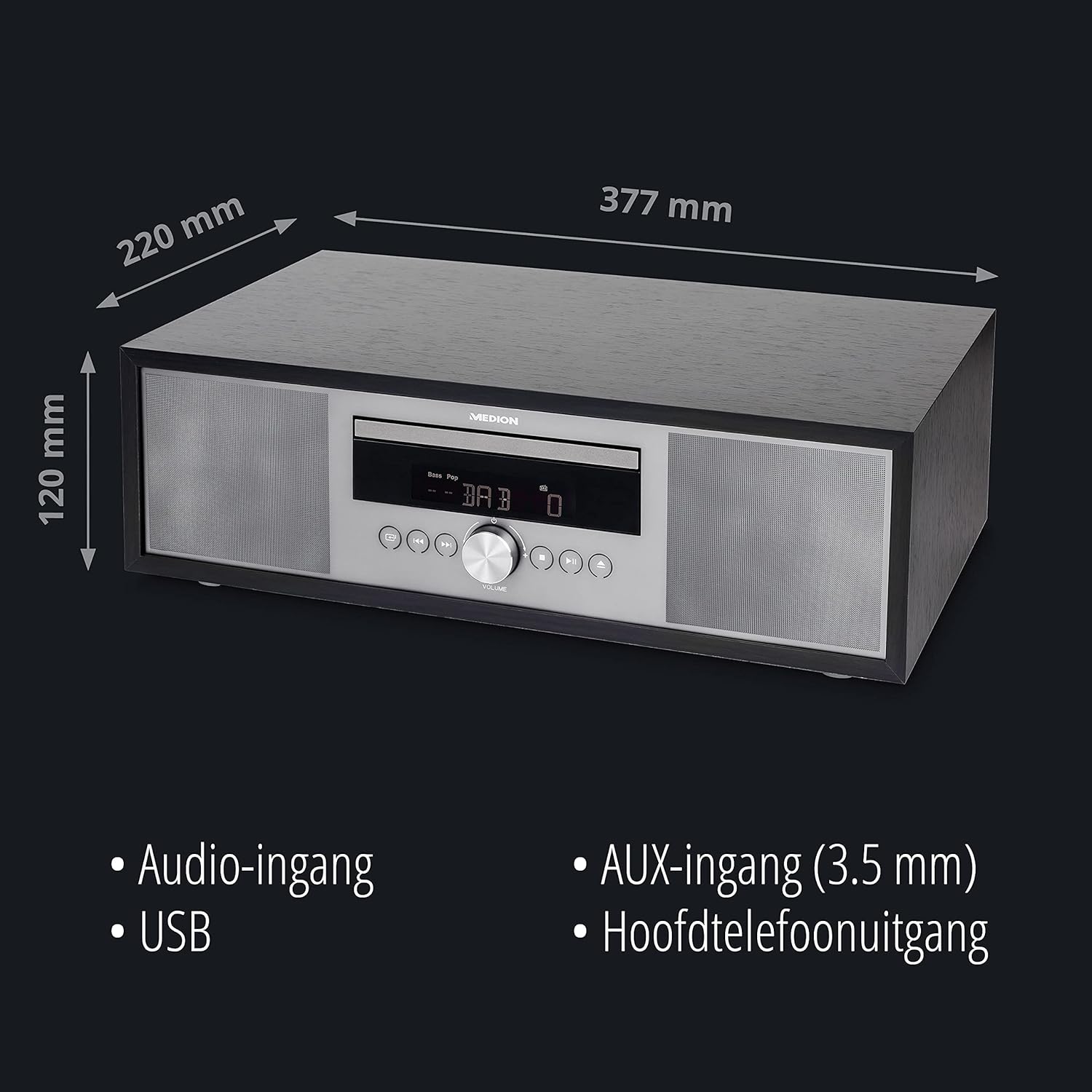
Image: Rear view of the MEDION P64145 audio system with the power cord connected and the telescopic antenna extended. This image demonstrates how to properly connect power and set up the antenna for improved radio signal reception.
3. Remote Control Battery Installation
Open the battery compartment on the remote control and insert the provided battery, observing the correct polarity.
Operating Instructions
1. Power On/Off
Press the POWER button on the unit or remote control to turn the system on or off.
2. Source Selection
Press the SOURCE button repeatedly to cycle through available input sources: DAB+, FM, CD, USB, Bluetooth, AUX-in.
3. DAB+ Radio Operation
- Select DAB+ mode.
- The system will automatically scan for available DAB+ stations.
- Use the TUNE +/- buttons or rotary knob to navigate through stations.
- Press OK to select a station.
- To save a station, press and hold a preset number button (1-30).
Video: This video demonstrates selecting DAB+ radio, adjusting volume, and other functions on a similar MEDION micro audio system. It illustrates the user interface and controls for various audio modes.
4. FM Radio Operation
- Select FM mode.
- Use the TUNE +/- buttons to manually tune or press and hold to auto-scan for the next available station.
- To save a station, press and hold a preset number button (1-30).
5. CD Playback
- Select CD mode.
- Insert a CD (audio CD or MP3 CD) into the CD slot.
- The system will automatically begin playback.
- Use PLAY/PAUSE, STOP, SKIP +/- buttons for control.

Image: Front view of the audio system highlighting the integrated CD player. This image shows where to insert CDs for playback.
6. USB Playback
- Insert a USB flash drive containing MP3 files into the USB port.
- Select USB mode.
- Use the navigation buttons to browse and select tracks.
7. Bluetooth Streaming
- Select Bluetooth mode. The display will show "Pairing".
- On your smartphone or tablet, enable Bluetooth and search for "MEDION P64145".
- Select the device to pair. Once connected, you can stream audio wirelessly.

Image: A smartphone displaying a music app connected via Bluetooth to the MEDION audio system. This image demonstrates wireless music streaming capability.
8. AUX-in Connection
Connect an external audio device (e.g., MP3 player) to the AUX-in port using a 3.5mm audio cable. Select AUX-in mode to play audio from the connected device.
9. Alarm and Sleep Timer
The system features an alarm function (wake via radio, alarm sound, CD, or USB) and a sleep timer. Refer to the detailed instructions in the full user manual for setting these features.
10. Sound Settings
Adjust the sound profile using the equalizer settings. The system offers five selectable sound settings (Pop, Rock, Jazz, Classic, Flat) to optimize your listening experience.

Image: Icons representing different sound equalizer presets (Pop, Rock, Jazz, Classic, Flat) available on the audio system. This image highlights the customizable sound options.
Maintenance
- Cleaning: Use a soft, dry cloth to clean the unit. Do not use liquid cleaners or aerosol sprays.
- CD Care: Handle CDs by their edges. Keep them clean and free of scratches.
- Storage: If not in use for an extended period, unplug the unit and store it in a cool, dry place.
Troubleshooting
| Problem | Possible Cause | Solution |
|---|---|---|
| No power | Power cord not connected properly; Power outlet not working. | Check power cord connection; Try a different outlet. |
| No sound | Volume too low; Mute function active; Incorrect source selected. | Increase volume; Deactivate mute; Select correct source. |
| Poor radio reception | Antenna not extended or positioned correctly; Interference. | Extend and adjust antenna; Move unit away from other electronic devices. |
| Bluetooth pairing issues | Device not in pairing mode; Bluetooth disabled on external device. | Ensure system is in Bluetooth pairing mode; Enable Bluetooth on external device and retry pairing. |
Specifications
- Model: MEDION P64145 (MD44125)
- Audio Output Power: 15 Watt
- Radio Tuner: DAB+, PLL-FM Stereo (30 presets each)
- CD Player: Supports Audio CD, MP3-CD
- Connectivity: Bluetooth, USB, AUX-in
- Special Features: Alarm function, Sleep timer, Color display
- Dimensions (approx.): 41.8 x 27.3 x 15.5 cm
- Weight (approx.): 3.95 kg

Image: The MEDION P64145 audio system with its dimensions indicated. This image provides a visual representation of the product's size.
Warranty and Support
For warranty information, technical support, or service inquiries, please refer to the warranty card included in your package or visit the official MEDION website. Keep your proof of purchase for warranty claims.


