
NETVUE Netvue-Vigil-W1
Contents
Netvue Security Camera User Manual
Model: Netvue-Vigil-W1
1. Introduction
This user manual provides comprehensive instructions for the installation, operation, and maintenance of your Netvue Outdoor Security Camera. Designed for reliable surveillance, this camera offers 1080P full HD video, night vision, two-way audio, motion detection, and seamless integration with the Netvue app and Alexa. Please read this manual thoroughly before using the product to ensure proper setup and functionality.
2. Product Overview
The Netvue Outdoor Security Camera (Model: Netvue-Vigil-W1) is a robust surveillance solution built for both indoor and outdoor environments. Key features include:
- 1080P Full HD Video: Capture clear and detailed footage.
- Enhanced Night Vision: Monitor your property even in complete darkness with advanced infrared LEDs, offering a night vision range of up to 65 feet.
- IP66 Weatherproof Design: Built to withstand various weather conditions, including rain, sun, cold, and dust.
- Two-Way Audio: Communicate with visitors or deter intruders using the built-in microphone and speaker.
- Smart Motion Detection: Receive real-time alerts on your smartphone when motion is detected, with customizable detection zones and sensitivity.
- Flexible Storage Options: Store recordings continuously to a Micro SD card (up to 128GB, not included) or via AWS Cloud storage.
- Alexa Compatibility: Integrate with Amazon Alexa for convenient voice control and viewing.
- 2.4GHz Wi-Fi Connectivity: Easy wireless connection to your home network.

Figure 2.1: Netvue Outdoor Security Camera and its live view on a smartphone.

Figure 2.2: Overview of Netvue Vigil Camera features.
3. Package Contents
Please check the package contents upon unboxing. If any items are missing or damaged, contact Netvue customer support.
- Netvue Outdoor Security Camera (Model: Netvue-Vigil-W1)
- Power Adapter
- Mounting Screws and Anchors
- User Manual (this document)
4. Setup and Installation
4.1 Powering the Camera
The Netvue camera requires a continuous power supply. Connect the provided power adapter to the camera's power input port and plug it into a standard electrical outlet.

Figure 4.1: Camera power connection and Wi-Fi setup overview.
4.2 Downloading the Netvue App
To control and monitor your camera, download the official Netvue app. It is available for both iOS and Android devices.
- Search for "Netvue" in the Apple App Store (for iOS) or Google Play Store (for Android).
- Download and install the app on your smartphone or tablet.
- Register for a new account or log in if you already have one.
4.3 Connecting the Camera to Wi-Fi
Follow the in-app instructions to connect your camera to your 2.4GHz Wi-Fi network. Ensure your camera is within range of your Wi-Fi router for a stable connection.
- Open the Netvue app and tap the "+" icon to add a new device.
- Select your camera model from the list.
- Follow the on-screen prompts, which typically involve scanning a QR code displayed on your phone with the camera's lens.
- Once connected, the camera's status indicator will change, and you will see the live view in the app.
4.4 Mounting the Camera
The camera is designed for wall mounting. Choose a location that provides the desired viewing angle and is within reach of a power outlet.
- Identify a suitable mounting surface (e.g., wall, eaves).
- Use the provided mounting template (if included) or mark the drill holes using the camera's base as a guide.
- Drill pilot holes and insert wall anchors if mounting into drywall or masonry.
- Secure the camera's mounting base to the surface using the provided screws.
- Adjust the camera's angle to cover the desired area.

Figure 4.2: Examples of camera installation locations.
5. Operating the Camera
5.1 Live View and Playback
Once connected, you can access the live video feed from your camera anytime, anywhere via the Netvue app. You can also review recorded footage.
- Open the Netvue app and select your camera from the device list to view the live feed.
- Use the timeline or event list within the app to play back recorded videos.
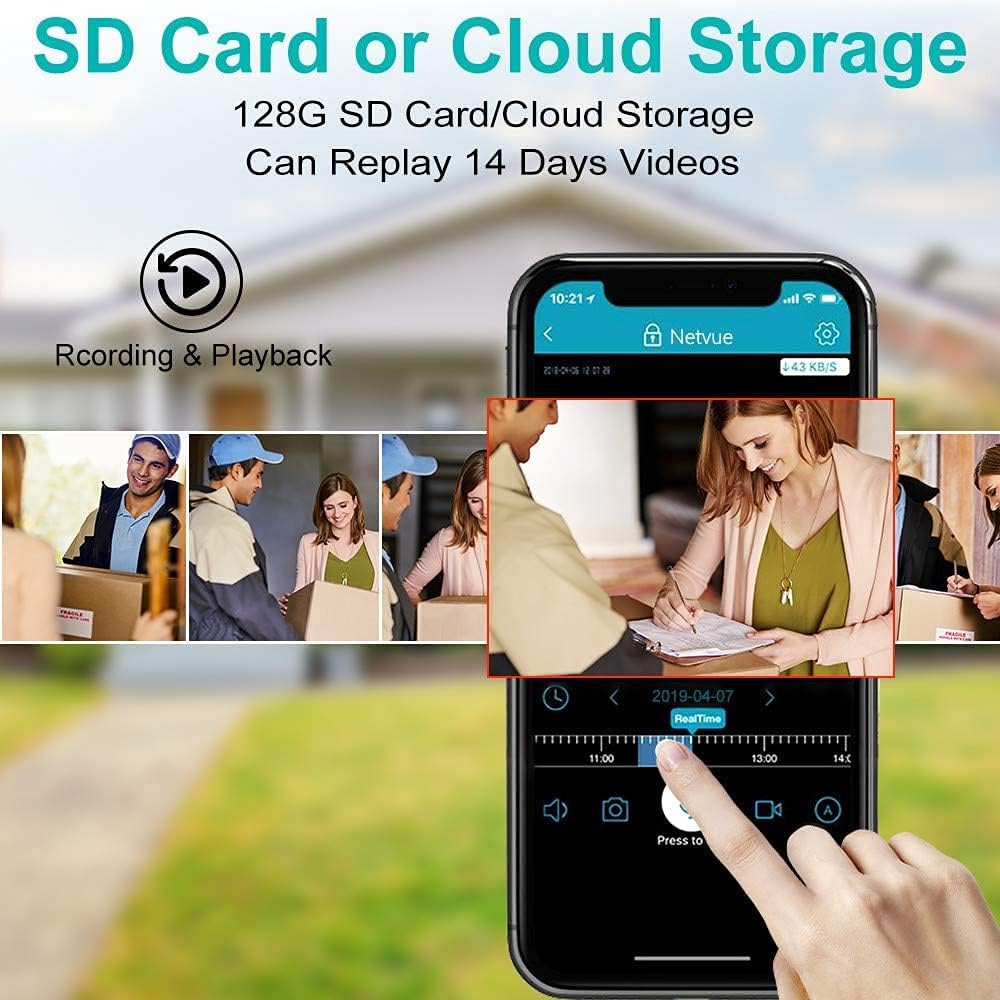
Figure 5.1: Live view and playback interface.
5.2 Two-Way Audio
The camera features a built-in microphone and speaker, enabling two-way communication.
- While in live view, tap the microphone icon in the app to speak through the camera's speaker.
- Tap the speaker icon to listen to audio from the camera's location.

Figure 5.2: Two-way audio functionality.
5.3 Motion Detection and Alerts
The camera can detect motion and send real-time alerts to your phone. You can customize detection settings to minimize false alarms.
- Navigate to the camera settings in the Netvue app.
- Enable "Motion Detection" and adjust the sensitivity level as needed.
- Set up "Motion Zones" to define specific areas where you want motion to be detected, ignoring other areas.
- You will receive push notifications on your phone when motion is detected.

Figure 5.3: AI Human Detection in action.

Figure 5.4: Customizing motion detection settings in the Netvue app.
5.4 Night Vision
The camera automatically switches to night vision mode in low-light conditions, providing clear black-and-white video.
- The camera's infrared LEDs illuminate the area for night vision.
- Ensure there are no obstructions blocking the infrared lights for optimal performance.

Figure 5.5: Day and Night Vision comparison.
5.5 Storage Options (SD Card / Cloud)
Your Netvue camera supports two storage methods for recorded footage:
- Micro SD Card: Insert a Micro SD card (up to 128GB, not included) into the camera's designated slot for local continuous recording.
- Cloud Storage: Subscribe to Netvue's AWS Cloud service for secure, off-site storage of your video recordings. This allows access to footage even if the camera is tampered with.

Figure 5.6: Dual storage options.
5.6 Alexa Compatibility
Integrate your Netvue camera with Amazon Alexa for convenient voice control and viewing on compatible devices (e.g., Echo Show).
- Ensure your Alexa device is set up and connected to the same Wi-Fi network as your camera.
- Open the Alexa app, search for the "Netvue" skill, and enable it.
- Link your Netvue account with your Alexa account.
- You can then use voice commands like, "Alexa, show me the backyard camera" to view the live feed.

Figure 5.7: Alexa integration for live viewing.
6. Maintenance
To ensure optimal performance and longevity of your Netvue camera, follow these maintenance guidelines:
- Cleaning: Gently wipe the camera lens and body with a soft, damp cloth. Avoid using harsh chemicals or abrasive materials that could scratch the lens.
- Firmware Updates: Regularly check the Netvue app for available firmware updates. Keeping your camera's firmware up-to-date ensures the latest features, security patches, and performance improvements.
- Power Supply: Ensure the power adapter and cable are not damaged or exposed to extreme conditions.
- Wi-Fi Signal: Periodically check the Wi-Fi signal strength in the app to ensure a stable connection, especially after any changes to your network setup.
- Physical Inspection: Occasionally inspect the camera's mounting and physical condition to ensure it remains securely attached and undamaged.
7. Troubleshooting
If you encounter issues with your Netvue camera, refer to the following common troubleshooting steps:
| Problem | Possible Cause | Solution |
|---|---|---|
| Camera offline in app | No power; Wi-Fi disconnected; Weak Wi-Fi signal. | Check power connection. Restart camera and router. Move camera closer to router or use a Wi-Fi extender. |
| Poor video quality | Weak Wi-Fi signal; Dirty lens; Insufficient lighting. | Improve Wi-Fi signal. Clean the camera lens. Ensure adequate lighting for day vision; check night vision settings. |
| Motion alerts not received | Motion detection disabled; Incorrect sensitivity/zone settings; App notification settings. | Enable motion detection in app. Adjust sensitivity and motion zones. Check phone's notification settings for the Netvue app. |
| Two-way audio not working | Microphone/speaker muted in app; Network latency. | Ensure microphone and speaker icons are enabled in the app. Check network stability. |
| SD card not recording | SD card full; Corrupted SD card; Incorrect formatting. | Check SD card capacity. Reformat the SD card via the app (this will erase data). Try a new SD card. |
If these steps do not resolve the issue, please contact Netvue customer support for further assistance.
8. Specifications
| Feature | Detail |
|---|---|
| Model Name | Netvue-Vigil-W1 (NI-1901) |
| Video Resolution | 1080p Full HD |
| Viewing Angle | 120 Degrees |
| Night Vision Range | Up to 65 Feet |
| Connectivity | 2.4GHz Wi-Fi, Ethernet |
| Audio | 2-Way Audio (Built-in Mic & Speaker) |
| Weatherproof Rating | IP66 |
| Storage Options | Micro SD Card (up to 128GB), Cloud Storage (Subscription required) |
| Power Source | Corded Electric |
| Material | Metal |
| Dimensions (L x W x H) | 6.71 x 6.71 x 19.43 cm |
| Weight | 358.34 g |
| Compatible Devices | Smartphone, Tablet (iOS & Android) |
| Mounting Type | Wall Mount |
9. Warranty and Support
Netvue provides a limited warranty for its products. For detailed warranty information, product registration, or technical support, please visit the official Netvue website or contact their customer service team.
Official Website: www.netvue.com
For the most up-to-date support resources, FAQs, and contact information, please refer to the Netvue app or their official website.
Documents and downloads
Ask a question about this manual
Ask about setup, troubleshooting, compatibility, parts, safety, or missing instructions. Manuals+ will review the question and use this page’s manual context to help answer it.