
1. Introduction
This manual provides detailed instructions for the setup, operation, maintenance, and troubleshooting of your MOFII Wireless Keyboard and Mouse Combo. Please read this manual thoroughly before using the product to ensure optimal performance and longevity.

Image 1.1: MOFII Wireless Keyboard and Mouse Combo (Black Colorful variant). The image displays the full-size keyboard with round, multi-colored keycaps and the accompanying black wireless mouse with a red accent.
2. Setup Instructions
2.1 Package Contents
- MOFII Wireless Keyboard
- MOFII Wireless Mouse
- USB 2-in-1 Receiver (stored in the mouse battery compartment)
- User Manual (this document)
2.2 Battery Installation
- Locate the battery compartment on the underside of both the keyboard and the mouse.
- Open the battery compartment covers.
- Insert one AA battery into the keyboard and one AA battery into the mouse, ensuring correct polarity (+/-). Batteries are not included.
- Close the battery compartment covers securely.
2.3 Connecting the Device
The MOFII Wireless Keyboard and Mouse Combo uses a single USB 2-in-1 receiver for both devices.
- Remove the USB receiver from its storage slot in the mouse battery compartment.
- Plug the USB receiver into an available USB port on your computer (Laptop, PC, Desktop).
- The keyboard and mouse should automatically connect to your computer. No additional drivers or software installation is required.

Image 2.1: Plug and Play Setup. This image illustrates the USB receiver being plugged into a laptop, demonstrating the simple connection process for both the keyboard and mouse.

Image 2.2: 2.4GHz Wireless Technology. This image shows the keyboard and mouse wirelessly connected to a laptop via the USB receiver, highlighting the stable 35ft connection range.
3. Operating Instructions
3.1 Keyboard Usage
The keyboard features a 104-key full-size layout with round keycaps designed for comfortable typing. It includes a numeric keypad and convenient multimedia keys.
Multimedia Hotkeys
The keyboard is equipped with 13 hotkey functions, typically accessed by pressing the 'Fn' key in combination with the F1-F12 keys or other designated keys. These functions allow for quick access to media controls, volume adjustments, and other system shortcuts.

Image 3.1: Keyboard with 13 Hotkey Functions. This image highlights the F-keys and their associated multimedia functions, indicating how they can be used for both work and entertainment.
3.2 Mouse Usage
The optical mouse provides precise control for navigation. Its ergonomic design is intended for comfortable use over extended periods.
3.3 Power Saving Features
Both the keyboard and mouse are designed with intelligent power-saving functionality. After 5 minutes of inactivity, the devices will automatically enter sleep mode to conserve battery life. To wake them up, simply press any key on the keyboard or move/click the mouse.

Image 3.2: Intelligent Auto-Sleep Feature. This image shows the keyboard and mouse on a desk in a dimly lit room, with an icon indicating the auto-sleep function to save battery life.
3.4 Ergonomic Design
The keyboard features an ergonomic design with foldable stands on the underside, allowing users to adjust the typing angle to reduce wrist pressure and enhance comfort during use.

Image 3.3: Ergonomic Design with Foldable Stands. This image highlights the underside of the keyboard, showing the foldable stands and silicone non-slip pads designed to improve typing posture and stability.
4. Maintenance
4.1 Cleaning the Keyboard
The keyboard features detachable keycaps, allowing for thorough cleaning. A brush is included to assist with deep cleaning.
- Gently remove the keycaps. Use a keycap puller if available, or carefully pry them off.
- Use the provided brush or a soft, dry cloth to remove dust and debris from the keyboard base.
- Clean the keycaps with a damp cloth and mild soap if necessary, then dry them completely before reattaching.
- Ensure all keycaps are securely reattached to their correct positions.

Image 4.1: Detachable Keycaps for Cleaning. This image shows several keycaps removed from the keyboard, alongside a small cleaning brush, demonstrating the ease of cleaning the keyboard.
4.2 Battery Replacement
When the devices stop responding or exhibit intermittent connectivity, it may be time to replace the batteries.
- Open the battery compartment on the underside of the keyboard and mouse.
- Remove the old AA batteries.
- Insert new AA batteries, observing correct polarity.
- Close the battery compartment covers.
5. Troubleshooting
If you encounter issues with your MOFII Wireless Keyboard and Mouse Combo, please refer to the following common solutions:
- No Response from Keyboard/Mouse:
- Ensure batteries are correctly installed and not depleted. Replace with new batteries if necessary.
- Verify the USB receiver is securely plugged into a working USB port on your computer. Try a different USB port.
- Ensure the keyboard and mouse are within the 35ft operating range of the USB receiver.
- Turn off and on the devices (if they have a power switch) or remove and reinsert the batteries to reset the connection.
- Lagging or Intermittent Mouse Movement:
- Move the mouse closer to the USB receiver.
- Ensure there are no large metal objects or other wireless devices (e.g., Wi-Fi routers, cordless phones) causing interference between the mouse and the receiver.
- Clean the optical sensor on the underside of the mouse.
- Replace the mouse battery.
- Keys Not Registering or Sticking:
- Clean under the keycaps as described in the Maintenance section.
- Ensure the keycaps are properly seated.
- Replace keyboard batteries.
- Compatibility Issues:
- The combo is compatible with Windows 98/Me/2000/XP/Vista/7/8/10/11 or later operating systems. Ensure your system meets these requirements.
6. Specifications
| Feature | Detail |
|---|---|
| Brand | MOFII |
| Model | B08N6HCKMP |
| Color | Black Colorful |
| Connectivity Technology | 2.4GHz Wireless (USB Receiver) |
| Operating Range | Up to 35 feet (10 meters) |
| Keyboard Layout | Full-size, 104 keys with numeric keypad |
| Keycap Style | Round, Detachable |
| Mouse Type | Optical |
| Special Feature | Ergonomic Design, Auto-Sleep Function |
| Compatible Devices | Laptop, PC, Desktop, Computer (Windows XP/Vista/7/8/10/11) |
| Power Source | 1 x AA battery for Keyboard, 1 x AA battery for Mouse (not included) |
| Product Dimensions (Keyboard) | 17.52 x 5.35 x 1.38 inches (44.5 x 13.6 x 3.5 cm) |
| Item Weight | 1.98 pounds (0.9 kg) |
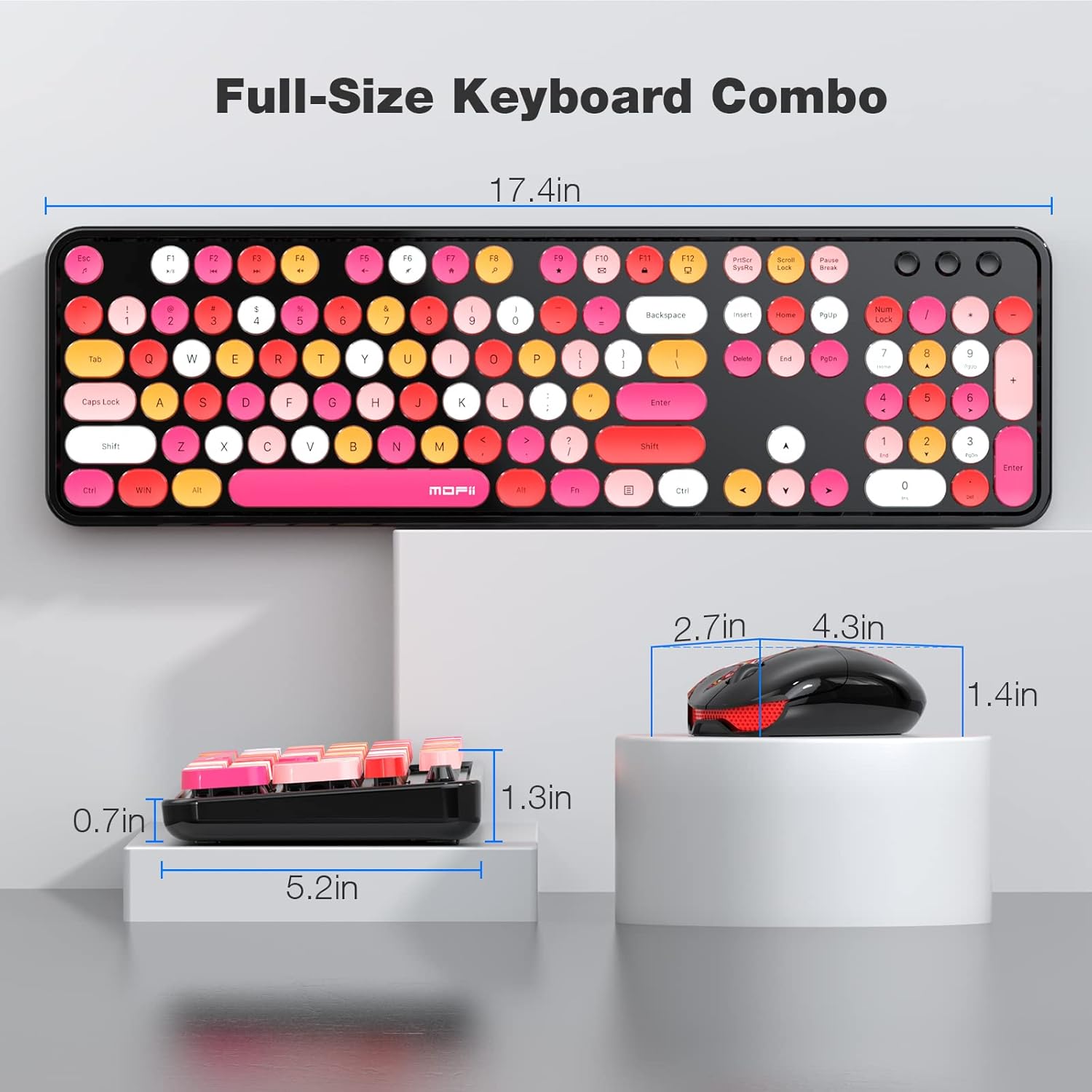
Image 6.1: Keyboard and Mouse Dimensions. This image provides a visual representation of the physical dimensions of both the full-size keyboard and the mouse.
7. Warranty and Support
7.1 Warranty Information
For specific warranty details, please refer to the product packaging or contact MOFII customer support directly. Warranty terms may vary by region and retailer.
7.2 Customer Support
If you require further assistance or have questions not covered in this manual, please contact MOFII customer support. You can typically find contact information on the MOFII official website or through your product retailer.
For additional resources, you may also refer to the official PDF user manual available online: MOFII Wireless Keyboard and Mouse Combo PDF Manual


