
1. Setup
1.1 Unboxing Your Keyboard
Carefully remove the Corsair K60 RGB Pro SE Mechanical Gaming Keyboard from its packaging. Ensure all components listed in the 'What's in the Box' section are present.
- K60 RGB Pro SE Mechanical Gaming Keyboard - Cherry Viola - Black
- Detachable Magnetic Cushioned Leatherette Palm Rest
- Quick Start Guide
- Safety Leaflet
- Warranty Card

Image: Corsair K60 RGB Pro SE Mechanical Gaming Keyboard in its retail box.
1.2 Connecting the Keyboard
Connect the keyboard to your PC using the integrated USB cable. The keyboard is plug-and-play, but for full functionality and customization, software installation is recommended.
1.3 Attaching the Palm Rest
The magnetic, detachable soft-textured leatherette palm rest can be easily attached to the front edge of the keyboard for enhanced comfort during extended use. Align the magnetic connectors and gently push until it snaps into place.

Image: Corsair K60 RGB Pro SE Mechanical Gaming Keyboard with its detachable magnetic palm rest.
1.4 Software Installation (iCUE)
For dynamic RGB lighting control, key remapping, custom macro programming, and full-system lighting synchronization, download and install the CORSAIR iCUE software from the official Corsair website. This software unlocks the full potential of your keyboard.
2. Operating Instructions
2.1 Key Features
- CHERRY VIOLA Mechanical Keyswitches: Experience smooth linear travel with fast and precise inputs, designed for gaming performance.
- Durable Aluminum Frame: A sturdy brushed aluminum frame with black anodization provides a stylish look and long-lasting durability.
- PBT Double-Shot Keycaps: Precision-molded keycaps resist wear, fading, and shine, offering rigid stability and enhanced durability.
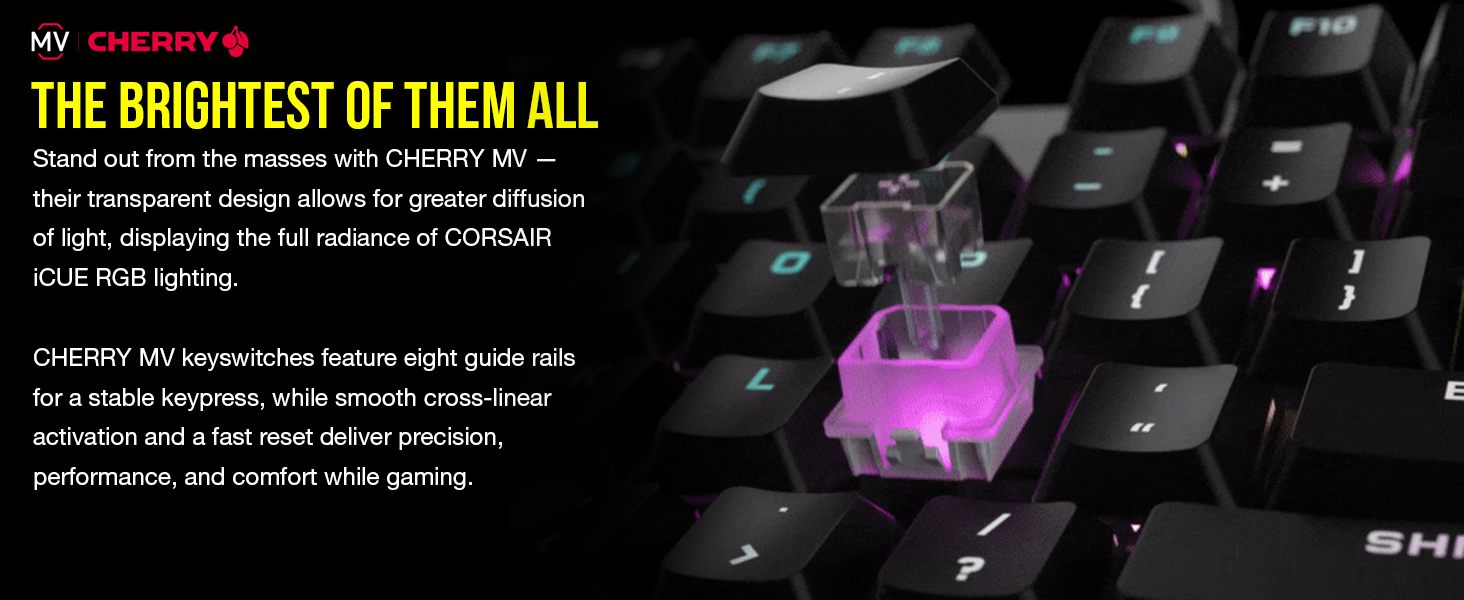
Image: Close-up view of the Cherry MV mechanical keyswitches, highlighting their transparent design for optimal RGB light diffusion.
2.2 RGB Backlighting Control
The keyboard features dynamic, per-key RGB backlighting. You can customize lighting effects and colors using the CORSAIR iCUE software. Keyswitches are designed to enhance the ultra-bright underglow.
2.3 Keyboard Shortcuts
Utilize convenient keyboard shortcuts for on-the-fly control of media playback, volume, and onboard lighting. Refer to the Quick Start Guide for specific key combinations.
2.4 Gaming Features
- Windows Key Lock Mode: Activate this mode to prevent accidental interruptions during gameplay.
- Full N-Key Rollover (NKRO) with 100% Anti-Ghosting: Ensures every keypress registers accurately, regardless of how fast you play.
2.5 Official Product Video
3. Maintenance
3.1 General Cleaning
To maintain your keyboard's appearance and functionality, regularly clean the keycaps and the keyboard frame. Use a soft, lint-free cloth, slightly dampened with water or a mild cleaning solution. Avoid harsh chemicals.
3.2 Keycap Care
The PBT double-shot keycaps are designed for durability and resistance to wear. If necessary, keycaps can be carefully removed for deeper cleaning or replacement. Use a keycap puller to avoid damage. Ensure the keyboard is unplugged before removing keycaps.
3.3 Palm Rest Care
Wipe the leatherette palm rest with a damp cloth to remove any dirt or oils. Avoid excessive moisture.
4. Troubleshooting
4.1 Keyboard Not Responding
- Ensure the USB cable is securely connected to both the keyboard and your PC.
- Try connecting the keyboard to a different USB port on your PC.
- Restart your computer.
4.2 RGB Lighting Issues
- Verify that the CORSAIR iCUE software is installed and up to date.
- Check iCUE settings to ensure desired lighting effects are enabled and configured correctly.
- Perform a soft reset of the keyboard (refer to the iCUE software or Corsair support for instructions).
4.3 Keys Registering Incorrectly or Not at All
- Ensure no debris is lodged under the keycaps. Carefully remove and re-seat affected keycaps.
- Update your keyboard's firmware via the CORSAIR iCUE software.
- If the issue persists, contact Corsair Support.
5. Specifications
| Feature | Detail |
|---|---|
| Brand | Corsair |
| Model Name | K60 RGB Pro SE |
| Model Number | CH-910D119-NA |
| Connectivity Technology | Wired |
| Switch Type | CHERRY VIOLA Mechanical (Linear) |
| Keyboard Layout | QWERTY |
| Number of Keys | 104 |
| Keyboard Backlighting | Per-key RGB |
| Frame Material | Brushed Aluminum |
| Keycap Material | PBT Double-Shot |
| Dimensions (L x W x H) | 18.2"L x 7.4"W x 3.2"H |
| Item Weight | 1.94 Pounds |
| Compatible Devices | PC (Windows) |
6. Warranty & Support
6.1 Manufacturer's Warranty
The Corsair K60 RGB Pro SE Mechanical Gaming Keyboard comes with a 2-year manufacturer's warranty. This warranty covers defects in materials and workmanship under normal use. Please retain your proof of purchase for warranty claims.
6.2 Technical Support
For further assistance, technical support, or warranty inquiries, please visit the official Corsair support website or refer to the contact information provided in your product's Safety Leaflet and Warranty Card.
Corsair Support Website: www.corsair.com/support


