
Introduction
This manual provides detailed instructions for setting up, operating, and maintaining your MOFII Wireless Keyboard and Mouse Combo. This retro-styled full-size keyboard and precision mouse offer a reliable 2.4GHz wireless connection, designed for comfort and efficiency.

The MOFII Wireless Keyboard and Mouse Combo, featuring a full-size keyboard with round, colorful keycaps and a matching ergonomic mouse.
Setup
Package Contents
- MOFII Wireless Keyboard
- MOFII Wireless Mouse
- USB Receiver (often stored inside the mouse)
- User Manual (this document)
Battery Installation
Both the keyboard and mouse require batteries for operation. Please ensure you have the correct battery types (e.g., AA or AAA) as specified in the product packaging.
For the mouse: Locate the battery compartment on the underside of the mouse. Open the cover, insert the required batteries according to the polarity markings, and close the cover. The USB receiver is typically stored within this compartment for convenience.
For the keyboard: Locate the battery compartment on the back of the keyboard. Open the cover, insert the required batteries according to the polarity markings, and close the cover.
Connecting the Devices (Plug and Play)
The MOFII Wireless Keyboard and Mouse Combo utilizes a single USB receiver for both devices, simplifying the connection process.
- Locate the USB receiver. It is usually stored in the battery compartment of the mouse for safekeeping during transport.
- Insert the USB receiver into an available USB port on your computer (PC, laptop, Mac).
- Ensure both the keyboard and mouse have fresh batteries installed and are powered on (if they have an on/off switch).
- The devices should automatically connect to your computer within a few seconds. No additional drivers are typically required for basic functionality.

This image illustrates the simple plug-and-play setup, where a single USB receiver connects both the keyboard and mouse to your computer, providing a stable 2.4GHz wireless connection up to 35 feet.
Operating Instructions
Keyboard Features
The full-size keyboard features 104 round keycaps designed for comfortable and efficient typing. It includes a numeric keypad for fast data entry.
The keyboard is equipped with 13 multimedia hotkeys for instant access to functions like internet browsing, email, media playback controls (play/pause, volume), and more. Refer to the key labels for specific functions.

The keyboard features dedicated multimedia hotkeys (F1-F12) for quick access to common functions, enhancing productivity and entertainment control.

The ergonomic design of the keyboard, with its comfortable round keycaps, allows for extended typing sessions, reducing wrist pressure.
Mouse Features
The accompanying mouse is designed for precision and comfort. It features an intelligent auto-sleep function to conserve battery life.
The mouse will enter sleep mode automatically when not in use and will wake up with a click or movement, ensuring efficient power consumption.

The intelligent auto-sleep feature automatically puts the keyboard and mouse into sleep mode when idle, significantly extending battery life and reducing the need for frequent battery replacements.
Maintenance
Cleaning
To clean your keyboard, you can detach the keycaps for a thorough cleaning. Use the included brush (if applicable) or a soft, dry cloth to remove dust and debris. For stubborn dirt, a slightly damp cloth can be used, ensuring no liquid enters the keyboard.
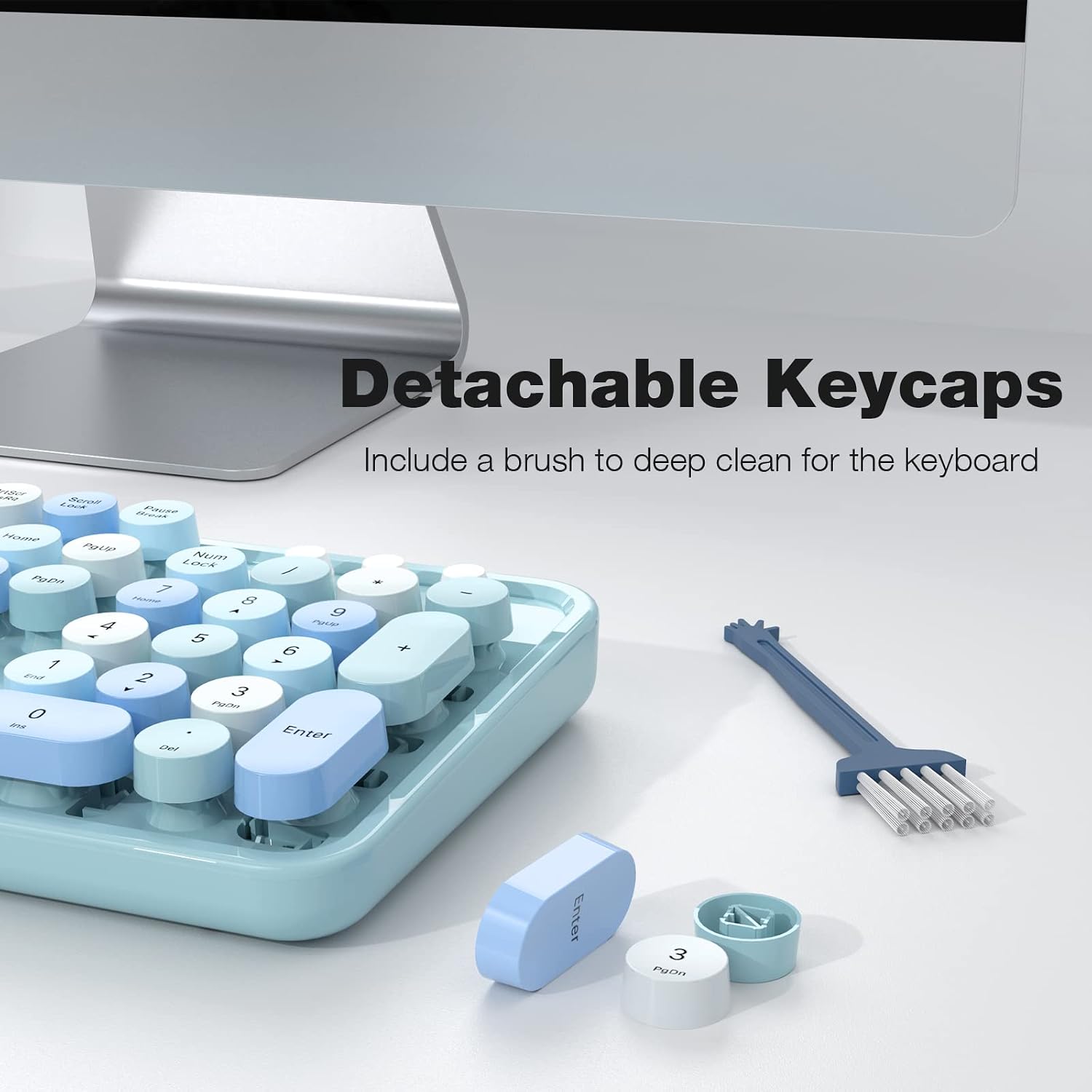
The keyboard features detachable keycaps, making it easy to clean dust and debris from underneath the keys with the provided cleaning brush.
Battery Replacement
When the devices stop responding or the connection becomes unstable, it may be time to replace the batteries. Follow the battery installation steps outlined in the "Setup" section.
Troubleshooting
No Connection / Device Not Responding
- Check Batteries: Ensure both the keyboard and mouse have fresh batteries and are correctly installed.
- USB Receiver: Verify that the USB receiver is securely plugged into a working USB port on your computer. Try a different USB port.
- Power Switch: Make sure the power switch on both the keyboard and mouse (if present) is in the "ON" position.
- Re-pairing: In rare cases, you might need to re-pair the devices. Consult the manufacturer's website or support for specific re-pairing instructions if the standard plug-and-play does not work.
Lagging or Intermittent Connection
- Distance: Ensure the devices are within the effective wireless range (up to 33ft/10m) of the USB receiver.
- Interference: Move the devices away from other wireless devices (e.g., Wi-Fi routers, cordless phones) that might cause interference.
- Surface: For the mouse, ensure you are using it on a suitable surface.
Keys Sticking or Not Registering
- Cleaning: Dust or debris under the keycaps can cause sticking. Refer to the "Cleaning" section for instructions on how to clean the keyboard.
- Physical Damage: Inspect for any physical damage to the keycaps or keyboard mechanism.
Specifications
| Feature | Detail |
|---|---|
| Brand | MOFII |
| Model | B08N4B8Z1J |
| Color | Blue Colorful-B |
| Connectivity Technology | Radio Frequency (2.4GHz) |
| Compatible Devices | Laptop, Personal Computer (Windows 98 / Me / 2000 / XP / Vista / Win 7 / Win8 / Win10/Vista Mac OS or latest) |
| Product Dimensions | 17.5 x 5.35 x 1.38 inches |
| Item Weight | 1.45 pounds |
| Special Feature | Round Key |
| Manufacturer | MJ |
| Date First Available | April 2, 2021 |

Detailed dimensions of the full-size keyboard and mouse, providing precise measurements for compatibility and desk space planning.

The MOFII Wireless Keyboard and Mouse Combo offers wide compatibility with various operating systems, including Windows 98/Me/2000/XP/Vista/7/8/10 and Mac OS.
Warranty and Support
Warranty Information
This product comes with a standard manufacturer's warranty. For specific warranty terms, duration, and claim procedures, please refer to the warranty card included in your product packaging or visit the official MOFII website.
Customer Support
If you encounter any issues or have questions not covered in this manual, please contact MOFII customer support.
You can find contact information on the official MOFII website: MOFII Store on Amazon.


