
1. Introduction
The ProForm Carbon T7 Smart Treadmill is designed to provide an effective and engaging cardiovascular workout experience in your home. Featuring a 7-inch HD touchscreen and integration with iFIT, this treadmill offers a variety of interactive training options. This manual provides essential information for the safe assembly, operation, maintenance, and troubleshooting of your Carbon T7 treadmill.

This image shows the ProForm Carbon T7 Smart Treadmill from a front-side angle, highlighting its console with a 7-inch HD touchscreen, the running deck, and the sturdy frame.
2. Important Safety Information
Before operating the ProForm Carbon T7 Smart Treadmill, please read all instructions carefully. Keep this manual for future reference. Failure to follow these instructions could result in injury or damage to the product.
- Always consult with a physician before beginning any exercise program.
- Place the treadmill on a level surface with at least 2 meters (6.5 feet) of clear space behind it and 0.5 meters (1.6 feet) on each side.
- Keep children and pets away from the treadmill during operation.
- Do not operate the treadmill if it has a damaged power cord or plug, or if it is not working properly.
- Wear appropriate exercise clothing and athletic shoes. Avoid loose clothing that could get caught in moving parts.
- Always use the safety key. Attach the clip to your clothing before starting the treadmill.
- Do not step on or off the treadmill while the belt is moving.
- Do not attempt to adjust or repair the treadmill yourself. Contact qualified service personnel.
3. Assembly
The ProForm Carbon T7 Treadmill requires assembly. For detailed, step-by-step 3D instructions, download the free Bilt app on your smartphone or tablet. Ensure all parts are present before beginning assembly. It is recommended to have two people for assembly due to the weight and size of the components.
- Unpack all components and place them on a clear, flat surface.
- Follow the instructions provided in the Bilt app or the included assembly guide.
- Ensure all bolts, nuts, and screws are securely tightened before use.

The ProForm Carbon T7 Smart Treadmill is shown in its upright, folded configuration, illustrating its SpaceSaver design for compact storage when not in use.
4. Operation
4.1 Getting Started
- Power Connection: Plug the power cord into a grounded outlet.
- Safety Key: Attach the safety key clip to your clothing and insert the safety key into the console. The treadmill will not operate without the safety key in place.
- Standing on the Treadmill: Stand on the foot rails, not the running belt, before starting your workout.
- Starting a Workout: Press the 'Start' button on the console. The belt will begin to move at a low speed.
4.2 Using the Console and 7" HD Touchscreen
The Carbon T7 features a 7-inch HD interactive touchscreen display that allows you to stream iFIT workouts directly. The console also includes physical buttons for quick adjustments.
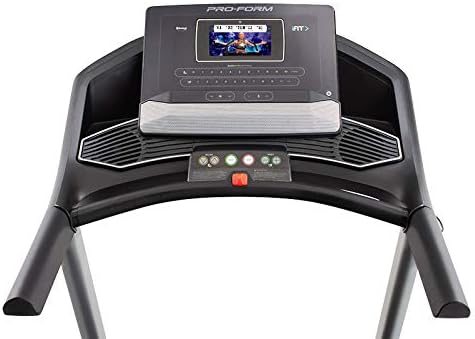
A detailed view of the treadmill's console, featuring the 7-inch HD touchscreen display, control buttons for speed and incline, and integrated speakers.
- Touchscreen Navigation: Use the touchscreen to browse iFIT workouts, adjust settings, and view workout metrics.
- QuickSpeed Controls: Use the 'Speed' buttons or quick-select buttons on the console to adjust the running belt speed from 0 to 10 MPH.
- Quick Incline Controls: Use the 'Incline' buttons or quick-select buttons to adjust the incline from 0% to 10%.
- Stopping a Workout: Press the 'Stop' button to pause or end your workout. Remove the safety key to fully power off the treadmill.
4.3 iFIT Integration
Your ProForm Carbon T7 Treadmill includes a 30-Day iFIT Family Membership. iFIT provides access to live workouts, studio classes, and global workouts led by expert personal trainers. With iFIT, your trainer can auto-adjust your treadmill's speed and incline for an optimized and immersive exercise experience.
- Activating iFIT: Follow the on-screen prompts on the 7-inch HD touchscreen to activate your iFIT membership.
- Workout Selection: Browse the iFIT library for a wide range of workouts, including running, walking, and cross-training.
- Trainer Control: During iFIT workouts, the treadmill's speed and incline may automatically adjust according to the trainer's program. You can override these adjustments manually if needed.

A woman is shown actively running on the ProForm Carbon T7 Smart Treadmill, demonstrating its use in a typical home environment. The treadmill's running deck and console are visible.
5. Maintenance
Regular maintenance ensures the longevity and optimal performance of your ProForm Carbon T7 Treadmill.
- Cleaning: Regularly wipe down the treadmill surfaces with a damp cloth. Avoid using abrasive cleaners or solvents.
- Belt Cleaning: Periodically clean the running belt and the area beneath it to prevent debris buildup.
- Belt Lubrication: The running belt is pre-lubricated. Refer to the full product manual for specific lubrication instructions and frequency, typically required after a certain number of hours of use.
- Belt Alignment and Tension: Check the running belt for proper alignment and tension. Adjust as needed according to the detailed instructions in the full product manual.
- Power Cord Inspection: Inspect the power cord for any damage. If damaged, discontinue use and contact customer support.
6. Troubleshooting
If you encounter issues with your ProForm Carbon T7 Treadmill, refer to the table below for common problems and solutions.
| Problem | Possible Cause | Solution |
|---|---|---|
| Treadmill does not power on. | Power cord not plugged in; circuit breaker tripped; safety key not inserted. | Ensure power cord is securely plugged in. Check household circuit breaker. Insert safety key fully into the console. |
| Running belt does not move. | Safety key not inserted; 'Start' button not pressed; motor overload. | Insert safety key. Press 'Start'. If motor overload, reduce load and try again. |
| Belt slips or hesitates. | Belt tension too loose; belt requires lubrication. | Adjust belt tension according to the full manual. Lubricate the belt if necessary. |
| Console display is blank or unresponsive. | Power issue; software glitch. | Ensure power is connected. Try unplugging the treadmill for 60 seconds and plugging it back in. If issue persists, contact customer support. |
7. Specifications
Key technical specifications for the ProForm Carbon T7 Smart Treadmill:
| Feature | Detail |
|---|---|
| Model Number | PFTL87720 |
| Product Dimensions (L x W x H) | 186.69 cm x 89.41 cm x 146.05 cm (73.5" x 35.2" x 57.5") |
| Item Weight | 97.98 kg (216 lbs) |
| Motor Horsepower | 2.6 CHP (Continuous Horsepower) |
| Speed Range | 0-10 MPH (0-16 KPH) |
| Incline Range | 0-10% Digital Quick Incline |
| Tread Belt Size | 20" x 55" (51 cm x 140 cm) |
| Display | 7" HD Interactive Touchscreen |
| Weight Capacity | 300 lbs (136 kg) |
| Frame Material | Alloy Steel |
| Power Source | Corded Electric |
| Special Features | SpaceSaver Design, ISO Flex Deck Cushioning |
8. Warranty and Customer Support
Your ProForm Carbon T7 Smart Treadmill is backed by a comprehensive warranty to ensure your peace of mind.
- Frame Warranty: 10 years
- Parts & Labor Warranty: 1 year
For warranty claims, technical assistance, or to order replacement parts, please contact ProForm customer support. Refer to the contact information provided in your product packaging or on the official ProForm website.


