1. Introduction
This manual provides comprehensive instructions for the installation, operation, maintenance, and troubleshooting of your SuppliesMAX Compatible Imaging Drum Unit. This unit is designed as a replacement for Konica Minolta bizhub 4050 and bizhub 4750 series printers.
Please read this manual thoroughly before using the product to ensure proper function and longevity.
2. Safety Information
- Keep the drum unit out of reach of children.
- Do not expose the drum unit to direct sunlight or strong light sources.
- Avoid touching the surface of the drum unit, as fingerprints can affect print quality.
- Store the unit in a cool, dry place, away from extreme temperatures.
- Dispose of used drum units according to local regulations.
3. Product Compatibility
This SuppliesMAX Imaging Drum Unit (IUP-21 / A6VM03W / KNMA6VM03W) is compatible with the following Konica Minolta printer models:
- Konica Minolta bizhub 4050
- Konica Minolta bizhub 4750
Page Yield: Approximately 60,000 pages at 5% coverage.
4. Setup and Installation
Follow these steps to install the new imaging drum unit into your printer.
- Unpack the New Drum Unit: Carefully remove the new SuppliesMAX imaging drum unit from its packaging. Avoid touching the green drum surface.
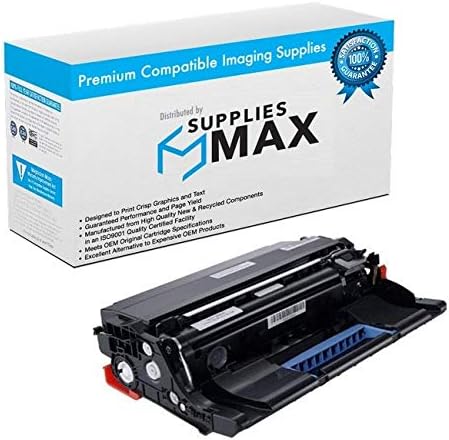
Image: The SuppliesMAX imaging drum unit shown with its retail packaging. The unit is black with red and blue accents, and the box is white and blue with "Premium Compatible Imaging Supplies" text.
- Prepare the Printer: Turn off the printer and unplug it from the power outlet. Open the front cover or access panel of your Konica Minolta bizhub printer.
- Remove the Old Drum Unit: Carefully pull out the old drum unit assembly from the printer. Place it on a clean, flat surface, preferably covered with paper to catch any residual toner.

Image: A close-up view of the SuppliesMAX imaging drum unit, highlighting its black casing and internal components, ready for installation.
- Install the New Drum Unit: Align the new SuppliesMAX drum unit with the guides inside the printer and gently push it in until it clicks into place. Ensure it is securely seated.
- Close Printer Covers: Close the front cover or access panel of the printer.
- Power On: Plug the printer back into the power outlet and turn it on. The printer may perform a self-test or calibration after installation.
5. Operating Instructions
Once the drum unit is installed, the printer is ready for normal operation. The drum unit works in conjunction with the toner cartridge to produce prints.
- Printing: Send print jobs from your computer as usual. The printer will automatically utilize the newly installed drum unit.
- Monitoring: Monitor the drum unit's life through your printer's control panel or printer driver software. The printer will typically alert you when the drum unit is nearing the end of its life.
6. Maintenance
The imaging drum unit is a consumable part that requires replacement after a certain number of pages. Regular maintenance of the printer itself can help optimize the drum unit's performance.
- Cleaning: Do not attempt to clean the drum unit surface with abrasive materials or solvents. If necessary, gently wipe with a dry, lint-free cloth.
- Replacement: Replace the drum unit when the printer indicates it is low or empty, or when print quality degrades significantly (e.g., faded prints, streaks, spots).
7. Troubleshooting
If you encounter issues after installing the SuppliesMAX imaging drum unit, refer to the following common problems and solutions:
| Problem | Possible Cause | Solution |
|---|---|---|
| Poor Print Quality (streaks, spots, faded prints) |
|
|
| Printer does not recognize drum unit |
|
|
| Error message on printer display |
|
|
8. Specifications
- Product Type: Compatible Imaging Drum Unit
- Brand: SuppliesMAX
- Model Numbers: IUP-21, A6VM03W, KNMA6VM03W, SPB-KNMA6VM03W-C
- Compatible Printer Models: Konica Minolta bizhub 4050, Konica Minolta bizhub 4750
- Page Yield: 60,000 pages (at 5% coverage)
- Color: Black (for monochrome printing)
- ASIN: B08N2HFPC7
9. Warranty Information
SuppliesMAX products are manufactured to meet or exceed OEM specifications. Our compatible products are manufactured with new and recycled components in an ISO-9001, ISO-9002, ISO-14001 quality certified factory.
The use of SuppliesMAX compatible supplies does not void your machine's warranty. For specific warranty details or claims, please contact SuppliesMAX customer service.

Image: A circular logo indicating "SuppliesMAX 100% Satisfaction Guarantee" with a blue and black design.
10. Customer Support
If you require further assistance or have questions regarding your SuppliesMAX Imaging Drum Unit, please contact our customer support team.
- Online Support: Visit the SuppliesMAX website for FAQs and support resources.
- Contact Information: Refer to your product packaging or the SuppliesMAX official website for current contact details.

Image: An infographic titled "RISK-FREE! AS GOOD AS ORIGINAL." detailing benefits like Great Quality, Award Winning Customer Service, Securely Packed, Great Value, Environmental Aware, and Great Usability, with the SuppliesMAX logo at the bottom.


