
WOOX R4785
Contents
WOOX Smart Plug User Manual
Model: R4785
1. Introduction
This user manual provides comprehensive instructions for the installation, operation, and maintenance of your WOOX Smart Plug. Please read this manual carefully before using the product to ensure proper function and safety. The WOOX Smart Plug allows you to control your home appliances remotely, monitor energy consumption, and automate your home with smart scenes.

Image: Four WOOX Smart Plugs alongside a smartphone showing the energy monitoring interface of the companion application.
2. Product Features
- Smarter Customizable Scene Control: Unique scene control capabilities with Alexa/Google device voice control and APP remote control. Advanced smart control based on environmental factors like weather, humidity, temperature, air quality, wind speed, and location. For example, automatically activate air conditioning when the temperature exceeds a set threshold before you arrive home.
- Energy Monitoring: View real-time power consumption of connected devices and track usage trends through graphical displays via the mobile application. This feature helps identify high-energy consuming devices and adjust usage habits to save on electricity bills.
- Cost Savings: The energy monitoring function helps reduce electricity bills by tracking and measuring power consumption. Users can set timers to turn devices on/off at specific times, preventing unnecessary energy waste.
- Multi-Protection Design: Equipped with Overload Protection, Surge Protection, and Short-circuit Protection to safeguard appliances. Constructed with 750℃ fire-retardant material and high-standard electrical components. Supports a maximum load of 13A, 240V, 3120W, suitable for most household devices. CE / RoHS approved. Its compact size ensures it does not interfere with adjacent switches or block other sockets. Includes child safety shutter protection with a sliding safety cover design.
- Easy Setup: Works with 2.4GHz Wi-Fi (not 5GHz) and requires no hub or bridge. Setup is facilitated via Bluetooth for a faster and more stable connection. The process involves three simple steps: plug in, download the Woox app, and add devices.
3. Setup Guide
3.1 Initial Setup
- Download the App: Download the free "WOOX Security" or "Woox home" app from the Google Play Store or Apple App Store.
- Plug In: Insert the WOOX Smart Plug (Model R-4785) into a standard UK 3-pin wall socket.
- Add Device: Open the WOOX app and follow the on-screen guide to add your new smart plug. Ensure your mobile device is connected to a 2.4GHz Wi-Fi network during setup.

Image: Visual guide illustrating the three-step setup process for the WOOX Smart Plug.
3.2 Wi-Fi Connection
The WOOX Smart Plug operates exclusively on 2.4GHz Wi-Fi networks. If your router broadcasts both 2.4GHz and 5GHz networks, ensure your smartphone is connected to the 2.4GHz network during the initial pairing process. Bluetooth is used for a faster and more stable connection during setup.


Image: A WOOX Smart Plug connected to a wall socket, with a Wi-Fi router in the background, illustrating the wireless connection setup.
4. Operating Instructions
4.1 Remote Control
Once connected to your Wi-Fi network, you can control the smart plug from anywhere using the WOOX app on your smartphone. This allows you to turn connected devices on or off remotely.

Image: A hand holding a smartphone, demonstrating remote control of a smart plug connected to a television set.
4.2 Voice Control
The WOOX Smart Plug is compatible with Amazon Alexa and Google Assistant. Link your WOOX account to your voice assistant app to enable voice commands for controlling your devices.
- "Alexa, turn on the [device name]."
- "Hey Google, turn off the [device name]."
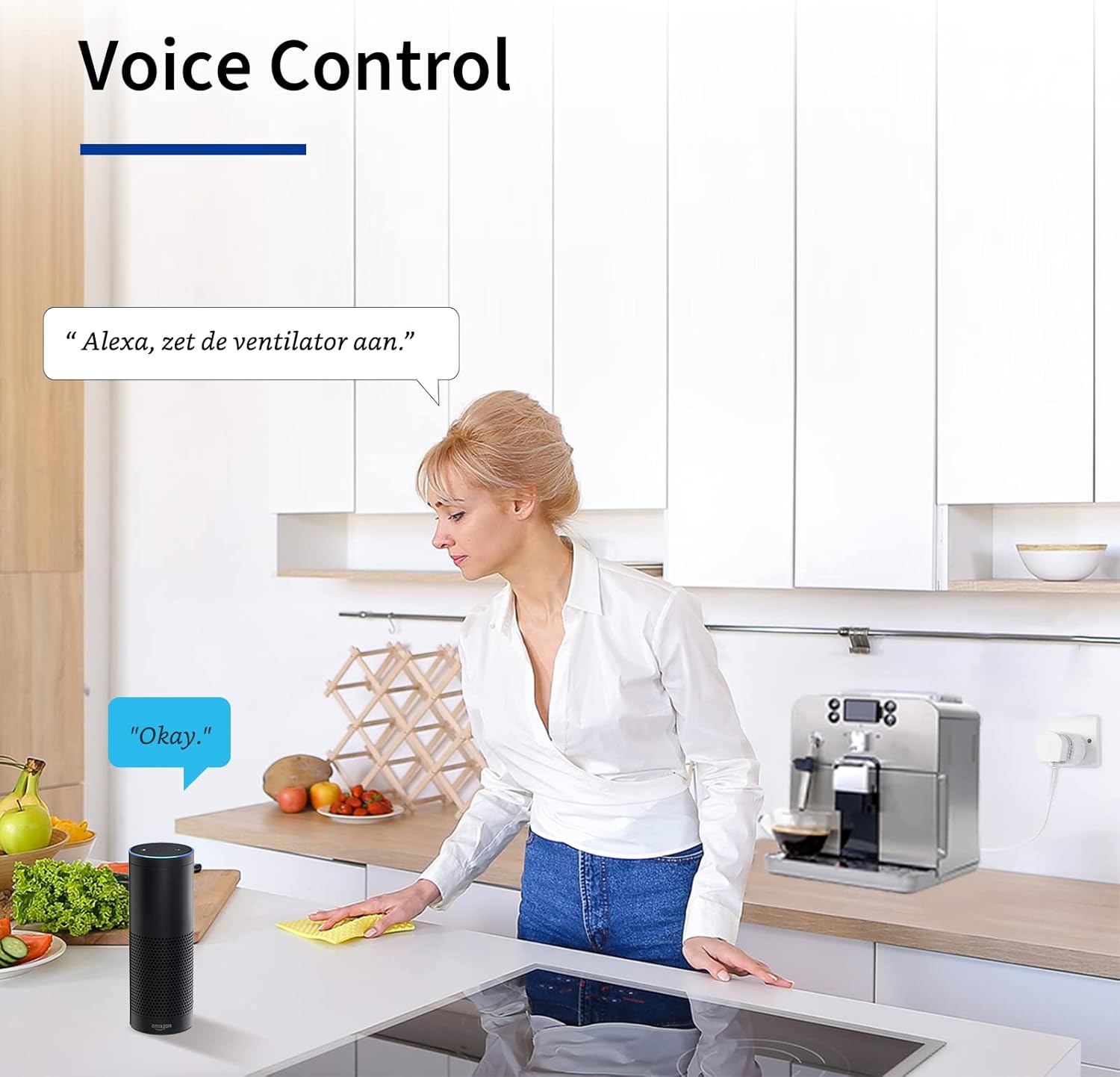
Image: A woman in a kitchen interacting with an Amazon Echo device, demonstrating voice control functionality for the smart plug.
4.3 Energy Monitoring
Utilize the energy monitoring feature within the WOOX app to track the power consumption of connected appliances. This data is presented graphically, helping you understand and manage your energy usage effectively.

Image: A graph illustrating energy consumption trends over several days, with a WOOX Smart Plug connected to a table lamp in the foreground.
4.4 Timer and Schedule Control
Set up schedules and timers within the WOOX app to automate the on/off cycles of your devices. This can be used for daily routines, security, or energy saving.

Image: A WOOX Smart Plug connected to a lamp, with visual indicators showing scheduled on and off times.
4.5 Scene Automation
Create custom scenes based on various conditions such as time of day, weather, or your location. This allows for advanced automation of your smart home devices.

Image: A couple relaxing in a living room, with an air conditioner unit visible, demonstrating how smart scene control can automate climate settings.
5. Maintenance
The WOOX Smart Plug requires minimal maintenance. Follow these guidelines to ensure its longevity:
- Keep the device clean and dry. Use a soft, dry cloth to wipe the surface.
- Avoid exposing the plug to extreme temperatures, humidity, or direct sunlight.
- Do not disassemble or attempt to repair the device yourself. This will void the warranty and may pose safety risks.
- Ensure the plug is securely inserted into the wall socket and that connected appliances do not exceed the maximum load capacity (13A, 3120W).
6. Troubleshooting
If you encounter issues with your WOOX Smart Plug, refer to the following common problems and solutions:
| Problem | Possible Cause | Solution |
|---|---|---|
| Device offline in app | Wi-Fi signal weak or disconnected; Router settings changed; Power outage. | Check Wi-Fi signal strength near the plug. Restart your router. Unplug and re-plug the smart plug. If issues persist, re-pair the device in the app. |
| Cannot connect to Wi-Fi | Incorrect Wi-Fi password; Connecting to 5GHz network; Router too far. | Ensure correct 2.4GHz Wi-Fi password. Connect your phone to 2.4GHz Wi-Fi during setup. Move the plug closer to the router. |
| Voice control not working | WOOX account not linked; Incorrect device name; Voice assistant issue. | Verify WOOX account is linked in Alexa/Google Home app. Use the exact device name. Check your voice assistant's internet connection. |
| Plug not responding | Overload; Internal fault. | Unplug the appliance and check if it exceeds 3120W. Try plugging the smart plug into a different socket. If the issue persists, contact customer support. |
7. Product Specifications
| Specification | Detail |
|---|---|
| Model Number | R4785 |
| Brand | WOOX |
| Voltage | 240 Volts |
| Max Load | 13A, 3120W |
| Product Dimensions | 5.94 x 5.94 x 6.32 cm |
| Item Weight | 360 g |
| Connector Type | UK 3-pin plug |
| Certification | CE, RoHS |
| Wi-Fi Frequency | 2.4GHz (not 5GHz) |
| Number of Items | 4 (for this variant) |

Image: A WOOX Smart Plug illustrating its compact dimensions of 58mm x 58mm.
8. Warranty and Support
8.1 Warranty Information
WOOX products are designed and manufactured to the highest quality standards. For specific warranty details, please refer to the documentation included with your purchase or visit the official WOOX website. Generally, products are covered against defects in materials and workmanship under normal use.
8.2 Customer Support
For technical assistance, troubleshooting, or any inquiries regarding your WOOX Smart Plug, please contact WOOX customer support. As a UK-based company, WOOX offers email and phone support to assist with setup and installation.

Image: A customer support representative with the WOOX logo and a UK flag, signifying UK-based customer support services.
WOOX ensures all products meet correct and up-to-date safety certifications.
Ask a question about this manual
Ask about setup, troubleshooting, compatibility, parts, safety, or missing instructions. Manuals+ will review the question and use this page’s manual context to help answer it.