
TOPDON AL500
TOPDON AL500 OBD2 Diagnostic Tool User Manual
Model: AL500 | Brand: TOPDON
1. Introduction
The TOPDON AL500 is a powerful and user-friendly OBD2 diagnostic tool designed to help vehicle owners and technicians quickly identify and resolve engine-related issues. This device supports all 10 modes of OBDII test for a complete diagnosis. It is an essential tool for checking engine light status, reading and clearing diagnostic trouble codes (DTCs), and performing I/M readiness tests.
Key Features:
- Reads and clears Diagnostic Trouble Codes (DTCs).
- Performs I/M Readiness Test for emission checks.
- Views Freeze Frame Data.
- Retrieves Vehicle Information (VIN, CIN, CVN).
- Supports multiple languages.
- Lifetime free updates.
2. Product Overview
Familiarize yourself with the components of your TOPDON AL500 device.

Figure 2.1: Front view of the TOPDON AL500 diagnostic tool, showing the display screen, navigation buttons (OK, Up, Down, Left, Right), and the I/M readiness hotkey. The OBDII connector cable is visible.
Device Components:
- LCD Display: Shows test results, menus, and operating status.
- I/M Button: Quick access to I/M Readiness status.
- OK Button: Confirms selection or action.
- Navigation Buttons (Up/Down/Left/Right): Navigates through menus and options.
- Return Button: Returns to the previous screen or cancels an operation.
- OBDII Connector: Connects the tool to the vehicle's OBDII port.
3. Setup and Initial Use
Follow these steps to set up and begin using your TOPDON AL500.
- Locate the OBDII Port: The OBDII port is typically located under the dashboard on the driver's side. Refer to your vehicle's owner's manual if you cannot find it.
- Connect the Tool: Plug the OBDII connector of the AL500 into the vehicle's OBDII port. The device will power on automatically.
- Turn On Ignition: Turn the vehicle's ignition to the "ON" position (engine off). Do not start the engine unless instructed by a specific test procedure.
- Language Selection: If this is your first time using the device, you may need to select your preferred language from the settings menu. Navigate to SETUP > LANGUAGE and select English.

Figure 3.1: The TOPDON AL500 connected to a vehicle's OBD2 port, illustrating the plug-and-play connection. The device draws power directly from the vehicle.
4. Operating Instructions
4.1. Reading and Clearing DTCs
This function allows you to read current, pending, and permanent Diagnostic Trouble Codes and clear them.
- From the main menu, select OBD II/EOBD.
- The tool will automatically link to the vehicle's ECU.
- Select Read Codes to view detected DTCs.
- To clear codes, select Erase Codes. Confirm the action when prompted. Note: Clearing codes will also turn off the Check Engine Light (MIL) and reset I/M readiness monitors. Ensure the underlying issue is resolved before clearing codes.

Figure 4.1: The TOPDON AL500 screen showing various OBD2 diagnostic functions, including Read DTCs, Clear DTCs, Display Live Data, Freeze Frame Data, I/M Readiness, O2 Sensor Test, Vehicle Info, Evap Test, On-Board Monitor Test, DTC Look Up, and Data Review.
4.2. I/M Readiness Test
The I/M Readiness function is used to check the operations of the Emission System on OBDII compliant vehicles. It is an excellent function to use prior to having a vehicle inspected for compliance to a state emission program.
- From the main menu, select I/M or press the dedicated I/M button.
- The tool will display the status of various emission-related monitors (e.g., Misfire Monitor, Fuel System Monitor, O2 Sensor Monitor).
- A "OK" or "Complete" status indicates the monitor has run and passed. "INC" or "Incomplete" means the monitor has not yet run its diagnostic cycle.
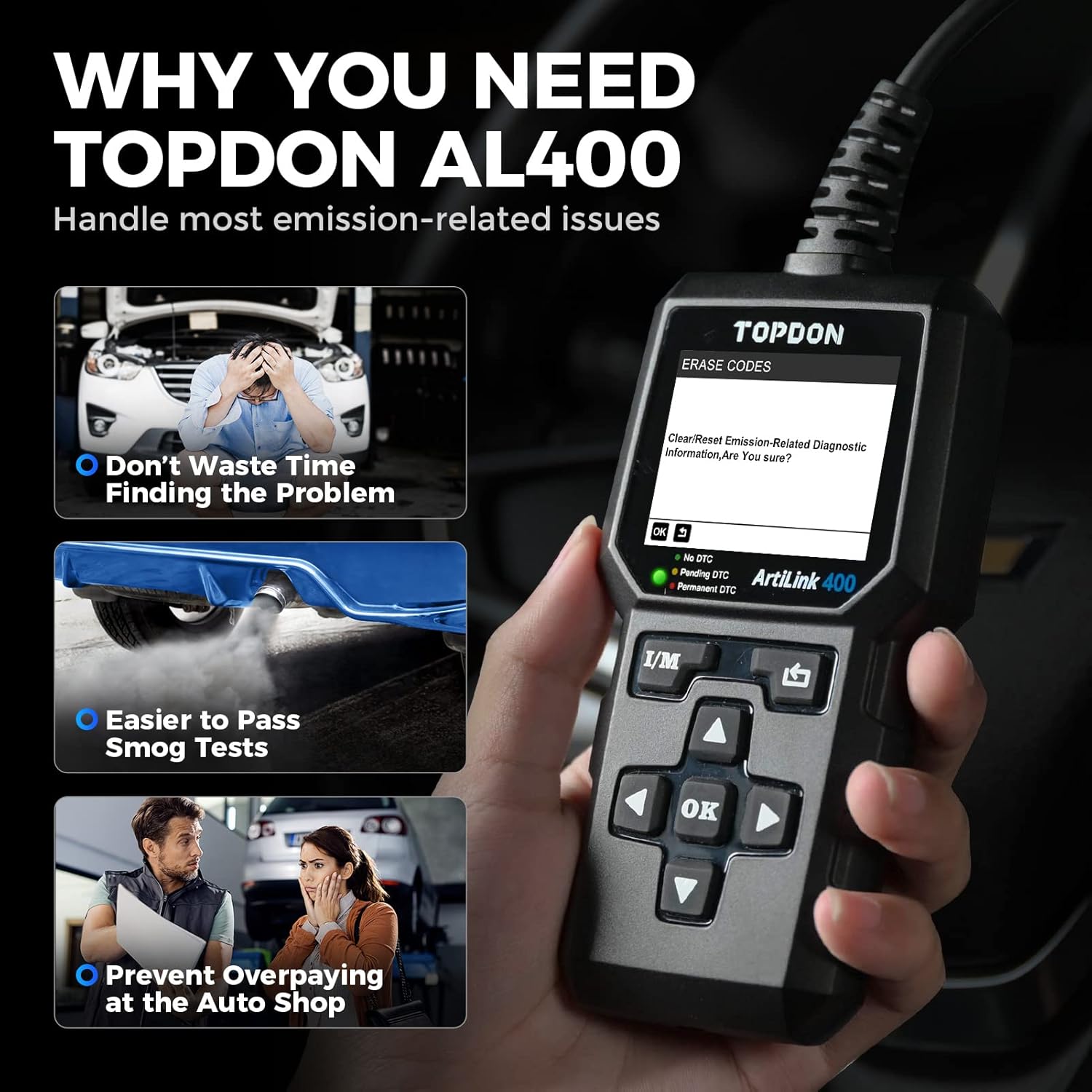
Figure 4.2: The TOPDON AL500 demonstrating the one-click smog checker feature, which provides instant I/M results to help pass emission tests.
4.3. Live Data Stream
View real-time operational data from the vehicle's sensors and components.
- From the OBD II/EOBD menu, select Data Stream.
- You can view all data items or select specific items to monitor.
- The data will be displayed numerically.
4.4. DTC Lookup
This feature allows you to look up the definition of a Diagnostic Trouble Code (DTC).
- From the main menu, select DTC LOOKUP.
- Enter the 5-digit code using the navigation buttons.
- Press OK to view the definition.

Figure 4.3: Examples of professional car scan tool features on the TOPDON AL500, including Check Engine Light indication, live data stream graph, DTC display (e.g., P2122), and the Check Engine Light turning off after clearing codes. The image also shows language options for the device interface.
5. Maintenance and Updates
5.1. Device Care
- Keep the device clean and dry. Use a soft, damp cloth for cleaning.
- Avoid exposing the device to extreme temperatures, humidity, or direct sunlight.
- Do not drop or subject the device to strong impacts.
- Store the device in a safe place when not in use.

Figure 5.1: The TOPDON AL500 OBDII Code Reader shown in different usage scenarios, emphasizing its ease of portability and operation. It highlights features like durability, plug-and-play connection, 2.4" TFT color screen, and lifetime free updates.
5.2. Software Updates
The TOPDON AL500 offers lifetime free software updates to ensure compatibility with newer vehicles and to add new features. To update the device:
- Visit the official TOPDON website (www.topdon.com).
- Download the update tool and the latest software package for the AL500.
- Connect the AL500 to your computer using the provided USB cable.
- Follow the on-screen instructions of the update tool to complete the process.
6. Troubleshooting
If you encounter issues while using your TOPDON AL500, refer to the following common problems and solutions:
| Problem | Possible Cause | Solution |
|---|---|---|
| Device fails to power on. | Loose connection; vehicle's OBDII port not supplying power; vehicle battery low. | Ensure the OBDII cable is securely connected. Check vehicle's battery. Test on another vehicle if possible. |
| Communication error with vehicle. | Ignition not on; non-OBDII compliant vehicle; faulty connection. | Turn ignition to "ON" position. Verify vehicle is OBDII compliant (most vehicles 1996 and newer). Reconnect the cable. |
| Cannot clear codes. | Underlying fault still present; ignition not on. | Ensure the fault causing the DTC is repaired. Turn ignition to "ON". |
| Screen frozen or unresponsive. | Software glitch. | Disconnect the device from the vehicle, then reconnect. If issue persists, perform a software update. |
7. Specifications
- Display: 2.4-inch TFT color display (160x128 resolution)
- Operating Voltage: 9-18V DC (from vehicle OBDII port)
- Operating Temperature: 0°C to 50°C (32°F to 122°F)
- Storage Temperature: -20°C to 70°C (-4°F to 158°F)
- Dimensions: Approximately 18.6 cm x 9.5 cm x 3.4 cm (7.32" x 3.74" x 1.34")
- Weight: Approximately 420g (0.93 lbs)
- Connectivity: Standard 16-pin OBDII connector, USB for updates
- Supported Protocols: J1850 PWM, J1850 VPW, ISO9141, KWP2000, CAN
8. Warranty and Support
TOPDON products come with a limited warranty. For specific warranty terms and conditions, please refer to the warranty card included with your product or visit the official TOPDON website.
For technical support, product inquiries, or warranty claims, please contact TOPDON customer service through their official website or the contact information provided in your product packaging.
Official Website: www.topdon.com
Related documentsAL500


Ask a question about this manual
Ask about setup, troubleshooting, compatibility, parts, safety, or missing instructions. Manuals+ will review the question and use this page’s manual context to help answer it.