
1. Introduction
Thank you for choosing the Symcode 2-in-1 Wireless CCD Barcode Scanner. This device offers both 2.4GHz wireless and USB wired connectivity, providing flexibility for various applications. It is designed for efficient and accurate scanning of 1D barcodes from both printed materials and digital screens. This manual provides detailed instructions on setting up, operating, maintaining, and troubleshooting your barcode scanner.
2. Product Overview
2.1 Package Contents
Upon unpacking, please verify that all items listed below are present and in good condition:
- 1 x Symcode CCD Barcode Scanner
- 1 x USB Cable
- 1 x 2.4GHz Wireless Dongle
- 1 x English User Manual

Figure 2.1: Package Contents of the Symcode Barcode Scanner.
2.2 Scanner Components
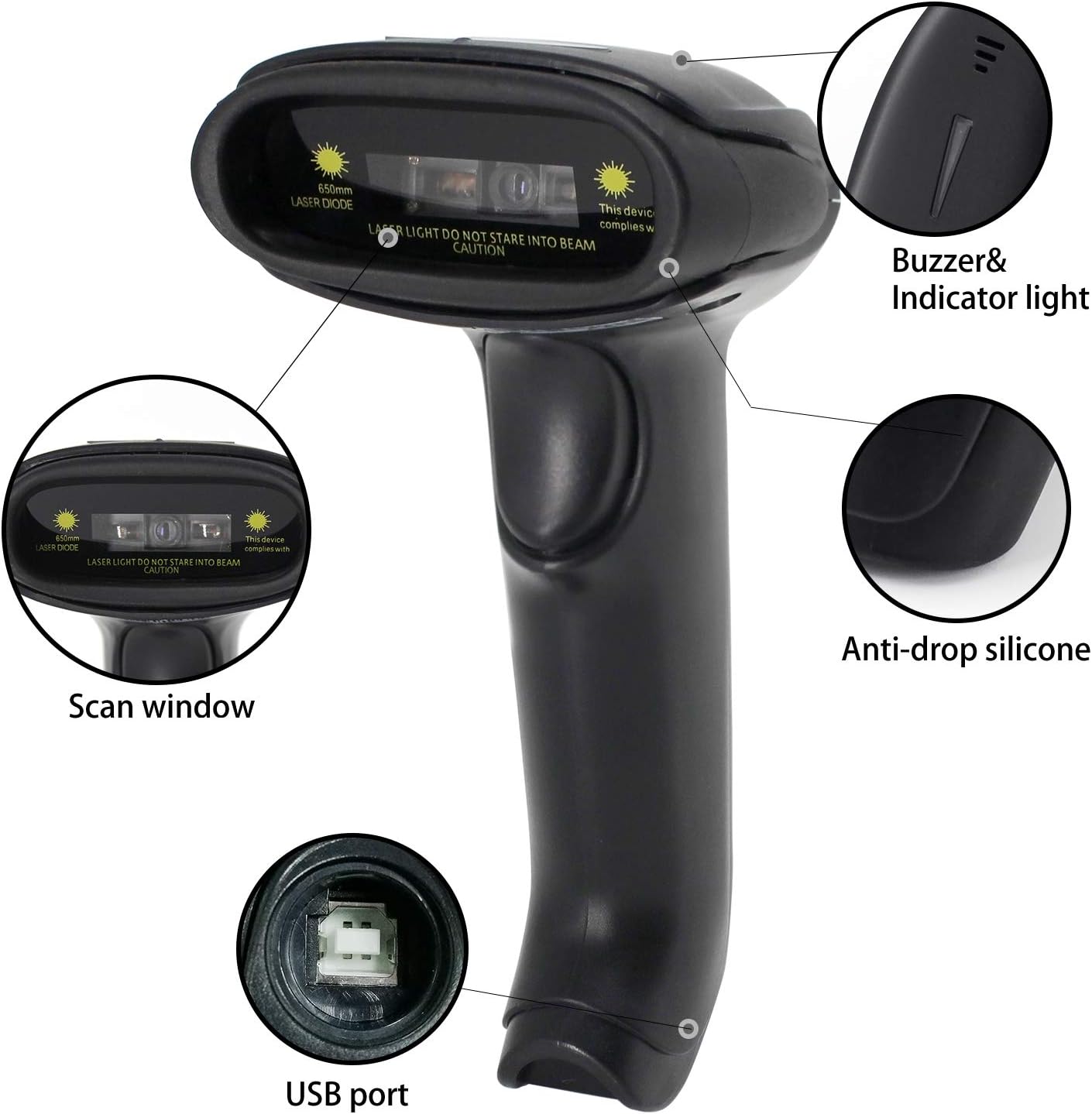
Figure 2.2: Key Components of the Symcode Barcode Scanner.
- Scan Window: Area through which the barcode is read.
- Buzzer & Indicator Light: Provides audio and visual feedback for successful scans and status.
- USB Port: For wired connection and charging.
- Anti-drop Silicone: Provides protection against accidental drops.
2.3 Product Dimensions
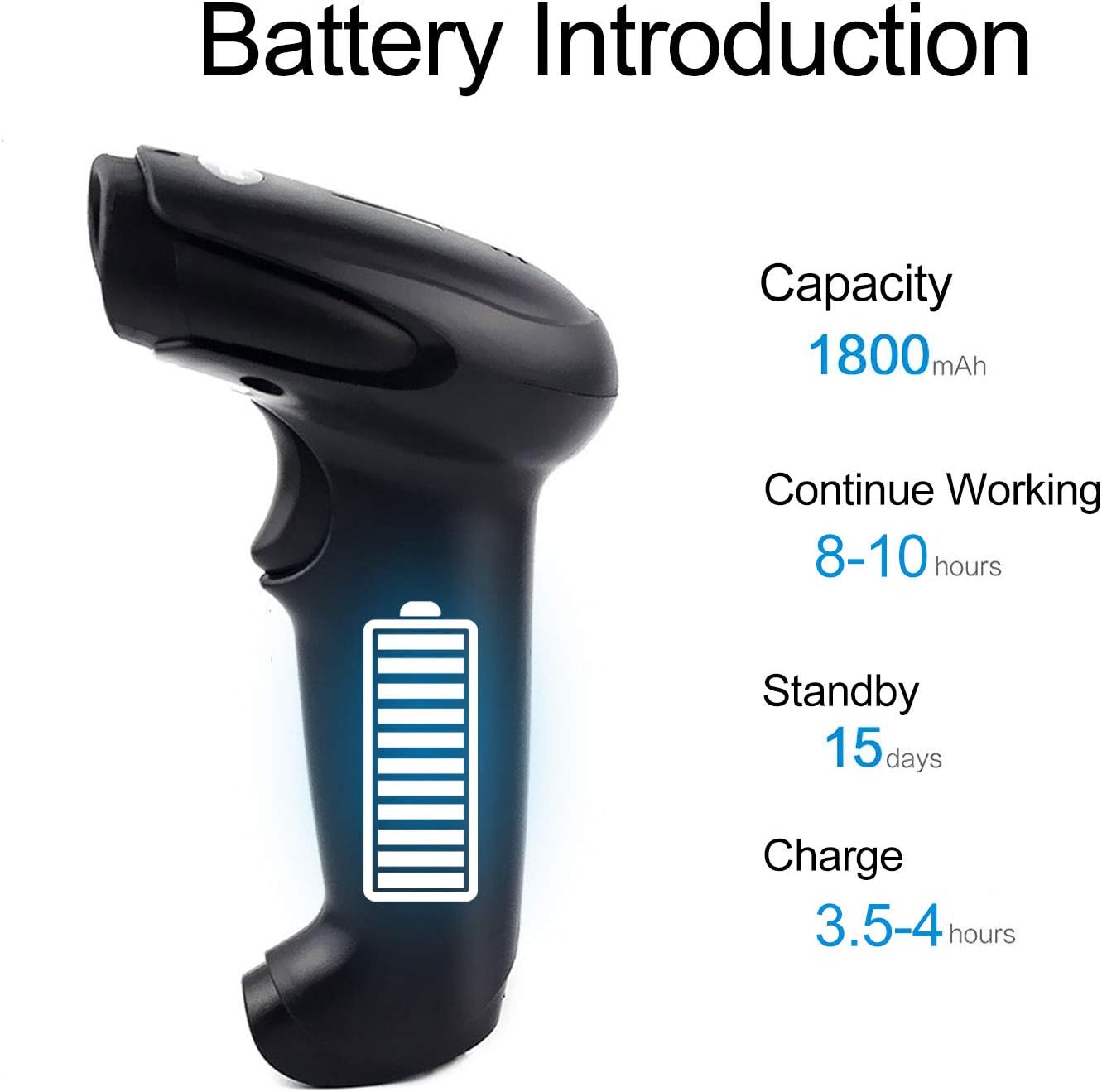
Figure 2.3: Dimensions of the Symcode Barcode Scanner.
3. Setup
3.1 Wired Connection (USB)
- Connect the USB cable to the scanner's USB port.
- Plug the other end of the USB cable into an available USB port on your computer, laptop, or POS machine.
- The scanner is plug-and-play; no additional drivers are required. It will be recognized automatically by Windows, Mac, Android, and Linux systems.
3.2 Wireless Connection (2.4GHz Dongle)
- Insert the 2.4GHz wireless dongle into an available USB port on your computer, laptop, or POS machine.
- Turn on the barcode scanner. It will automatically pair with the dongle.
- The scanner is plug-and-play; no additional drivers are required. It will be recognized automatically by Windows, Mac, Android, and Linux systems.
4. Operating Instructions
4.1 Basic Scanning Procedure
- Ensure the scanner is powered on and connected (wired or wireless).
- Point the scan window at the barcode you wish to scan.
- Press the trigger button (if in trigger mode) or position the scanner over the barcode (if in auto-sense or continuous mode).
- A successful scan will be indicated by a beep and a flash of the indicator light. The barcode data will be transmitted to your connected device.
4.2 Scanning Modes
The scanner supports three scanning modes:
- Trigger Scan: Press the trigger button to activate the scan beam.
- Auto-sense Scan: The scanner automatically detects a barcode in its field of view and activates the scan beam.
- Continuous Scan: The scan beam remains continuously active, allowing for rapid scanning without pressing the trigger.
Refer to the included user manual (physical copy) for instructions on how to switch between these scanning modes. If you encounter difficulties, please contact Symcode customer support.
4.3 Supported Barcode Types
This CCD barcode scanner is designed to read 1D barcodes, whether printed on paper or displayed on digital screens. It does not support 2D barcodes (e.g., QR codes).
Supported 1D barcode symbologies include: EAN-8, EAN-13, Codabar, CODE11, CODE 39, CODE 93, CODE128, China Post, GS1-128, GS1 Limited, GS1 Omnidirectional, UPC-A, UPC-E, ISBN/ISSN, ISBT, Interleaved 2 of 5, Matrix 2 of 5, Industrial 2 of 5, 2 of 5, MSI, Plessey, ITF14.

Figure 4.1: Scanning a barcode from a digital screen.
5. Battery Information
The Symcode barcode scanner is equipped with a high-capacity rechargeable battery for extended operation.

Figure 5.1: Battery Specifications.
- Capacity: 1800 mAh
- Continuous Working Time: 8 to 10 hours
- Standby Time: 15 days
- Charge Time: 3.5 to 4 hours
To charge the scanner, connect it to a USB power source using the provided USB cable. The indicator light will show charging status.
6. Wireless Connectivity
The 2.4GHz wireless connection provides reliable data transmission over a significant range.
- Transmission Distance (Indoor): 15-30 meters (in crowded indoor environments)
- Transmission Distance (Outdoor): 30-100 meters (in open outdoor environments)

Figure 6.1: Wireless Transmission Range.
6.1 Operating Modes
The scanner supports two primary operating modes for data handling:
- Normal Mode: Data is transferred immediately after each scan.
- Storage Mode: Barcode data is stored internally in the scanner's 16MB memory (capable of storing over 50,000 barcode entries). Data can then be uploaded to the connected device by scanning a specific setting code. This mode is useful for inventory taking or when out of wireless range.
7. Barcode Programming
The Symcode barcode scanner is programmable, allowing customization of its output and behavior. These settings are typically configured by scanning specific programming barcodes found in the full user manual.
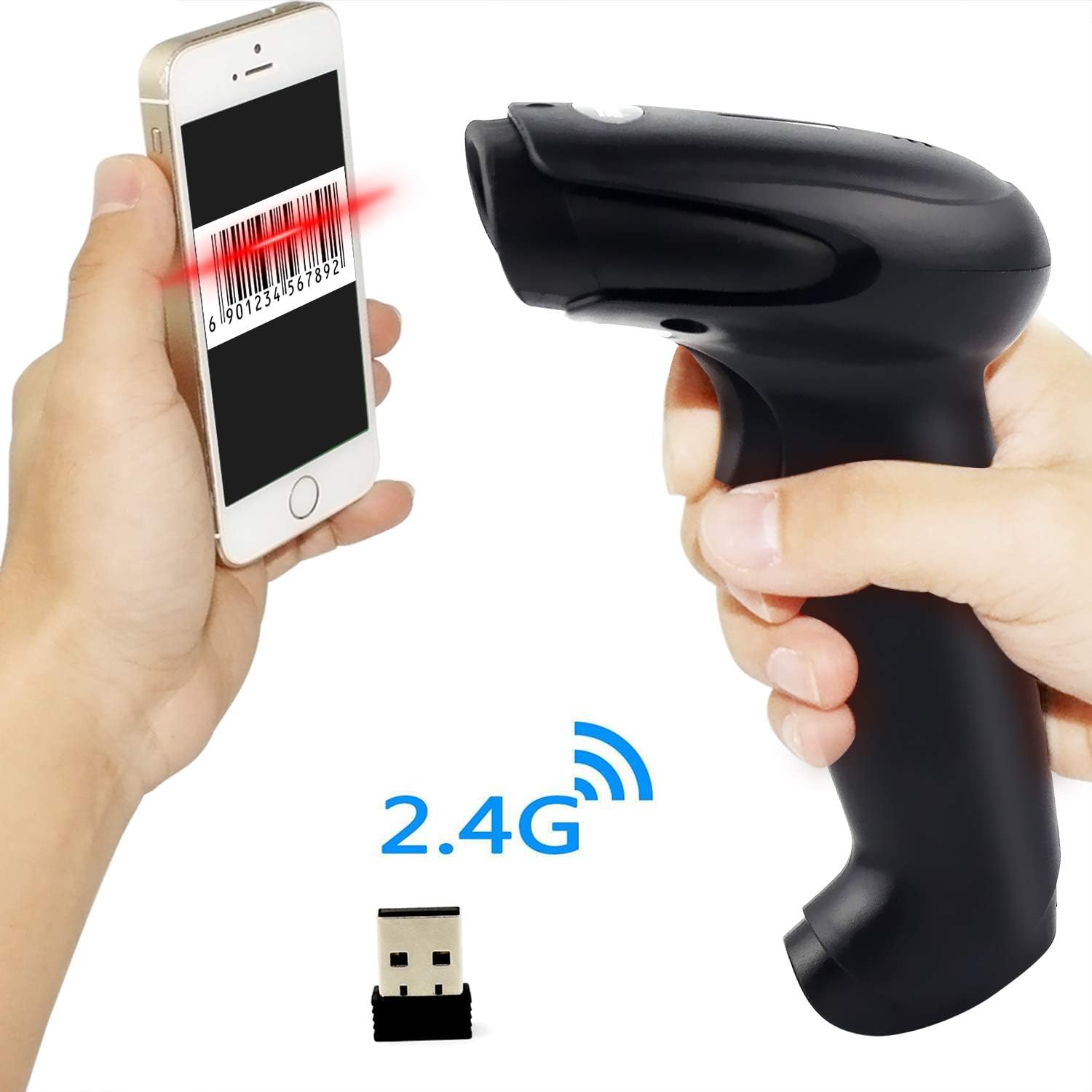
Figure 7.1: Barcode Programming Capabilities.
Programmable features include:
- Case Conversion: Adjusting output to uppercase or lowercase.
- Volume Adjustment: Changing the sound level of the buzzer.
- Terminator Setting: Adding a specific character (e.g., Enter, Tab) after each scanned barcode.
- Prefix or Suffix Setting: Adding custom characters before or after the scanned data.
- Character Manipulation: Adding or masking specific characters within the barcode data.
For detailed programming instructions, please refer to the comprehensive programming guide included with your scanner or contact Symcode support.
8. Maintenance
Proper maintenance ensures the longevity and optimal performance of your scanner.
- Cleaning: Use a soft, dry cloth to clean the scanner's exterior. For the scan window, use a lint-free cloth lightly dampened with a non-abrasive cleaner. Avoid harsh chemicals or abrasive materials.
- Storage: Store the scanner in a cool, dry place, away from direct sunlight and extreme temperatures.
- Battery Care: Avoid fully discharging the battery frequently. If storing for a long period, charge the battery to about 50% and recharge every few months.
9. Troubleshooting
If you encounter issues with your scanner, please refer to the following common problems and solutions:
| Problem | Possible Cause / Solution |
|---|---|
| Scanner does not power on. | Battery is low or depleted. Charge the scanner for 3.5-4 hours. |
| Scanner does not scan barcodes. |
|
| No data transmitted to computer. |
|
| Scanner beeps continuously or behaves erratically. | The scanner might be in an incorrect setting mode. Refer to the full user manual for factory reset instructions or contact support. |
If the problem persists after trying these solutions, please contact Symcode customer support for further assistance.
10. Specifications
| Parameter | Value |
|---|---|
| Light Source | 632nm Visible LED Light |
| Scan Mode | Trigger / Auto-sense / Continuous |
| Resolution | ≥ 4 mil / 0.1mm @ PCS90% |
| Processor | ARM32-bit |
| Scan Speed | 200 scans/sec |
| Depth of Field | 40-500 mm |
| Indicator | LED and Buzzer |
| Print Contrast | ≥ 30% |
| Operating Voltage | DC 3.3V-5V |
| Battery Capacity | 1800 mAh |
| Continuous Operation | 8-10 hours |
| Standby Time | 15 days |
| Charge Time | 3.5-4 hours |
| Wireless Transmission (Indoor) | 15-30 meters |
| Wireless Transmission (Outdoor) | 30-100 meters |
| Storage Capacity | 16MB (over 50,000 barcode entries) |
| Operating Temperature | -20 ℃ to 50 ℃ (-4 ℉ to 122 ℉) |
| Storage Temperature | -40 ℃ to 70 ℃ (-40 ℉ to 158 ℉) |
| Humidity | 5% to 95% (non-condensing) |
| Ambient Brightness | Max 100,000 lux |
| Supported OS | Windows, Mac, Android, Linux |
11. Warranty and Support
The Symcode barcode scanner comes with a 180-day warranty from the date of purchase, covering manufacturing defects and malfunctions under normal use. Please retain your proof of purchase for warranty claims.
For technical support, warranty service, or any questions regarding your product, please contact Symcode customer service through the platform where you purchased the product or refer to the contact information provided in the physical user manual.


