
Introduction
The Nyko Air Glow is a wired controller designed for an enhanced gaming experience across multiple platforms. It features an ergonomic design, multi-color LED lighting, an integrated cooling fan, programmable turbo functionality, and dual-motor rumble feedback. This manual provides detailed instructions for setup, operation, and maintenance of your Air Glow controller.

Image: Front view of the Nyko Air Glow Wired Controller, showcasing its transparent design and ergonomic grips.
Product Features
- Ergonomic Design: The controller's shell is shaped for comfortable handling during extended gaming sessions, providing a more substantial feel than standard Joy-Cons.
- Multi-Color LED Lighting: Features an integrated LED light show with various color options, enhancing the visual appeal of the controller.
- Integrated Cooling Fan: A built-in 2-speed fan circulates air through the grips, helping to keep hands cool and dry during intense gameplay.
- Programmable Turbo Function: Allows users to assign turbo functionality to any face button or trigger, enabling rapid, repeated inputs with a single press.
- Wired Connectivity: A 10-foot USB cable ensures a lag-free response time and a stable connection.
- Dual-Motor Rumble: Provides real-time haptic feedback with two interchangeable settings for immersive gameplay.
- Multi-Platform Compatibility: Compatible with Nintendo Switch, PlayStation 3, and PC.

Image: Diagram highlighting key features of the Nyko Air Glow controller, including adjustable HD Rumble, LED light feature button, and 2-speed fan button.
Setup Instructions
Connecting to Nintendo Switch:
- Ensure your Nintendo Switch console is docked.
- Navigate to the System Settings on your Nintendo Switch.
- Scroll down and select "Controllers and Sensors."
- Enable the "Pro Controller Wired Communication" option.
- Plug the USB cable of the Nyko Air Glow controller into an available USB port on the Nintendo Switch dock. The controller will sync automatically.
Connecting to PlayStation 3 or PC:
- Plug the USB cable of the Nyko Air Glow controller into an available USB port on your PlayStation 3 console or PC.
- The system should automatically detect and install the necessary drivers. If prompted on PC, follow the on-screen instructions.

Image: Visual representation of the Nyko Air Glow controller's compatibility with Nintendo Switch, PC, and PlayStation 3.
Operating Instructions
LED Light Show Control:
The Nyko Air Glow controller features dynamic multi-color LED lighting. Use the dedicated LED light feature button (refer to the labeled diagram in the "Product Features" section) to cycle through different lighting modes and colors, or to turn the lights off.

Image: The Nyko Air Glow controller displaying its vibrant LED lighting, illuminating the buttons and internal components.

Image: The Nyko Air Glow controller illuminated with purple LED lights, highlighting the transparent casing.

Image: A collage of the Nyko Air Glow controller showcasing different multi-color LED lighting options.
Cooling Fan Operation:
The controller includes a 2-speed fan to provide airflow to your hands. Locate the 2-speed fan button (refer to the labeled diagram in the "Product Features" section) to toggle the fan on/off and switch between low and high speeds. Air is drawn in from the back and expelled through vents in the grips.

Image: Rear view of the Nyko Air Glow controller, showing the central fan intake grille.
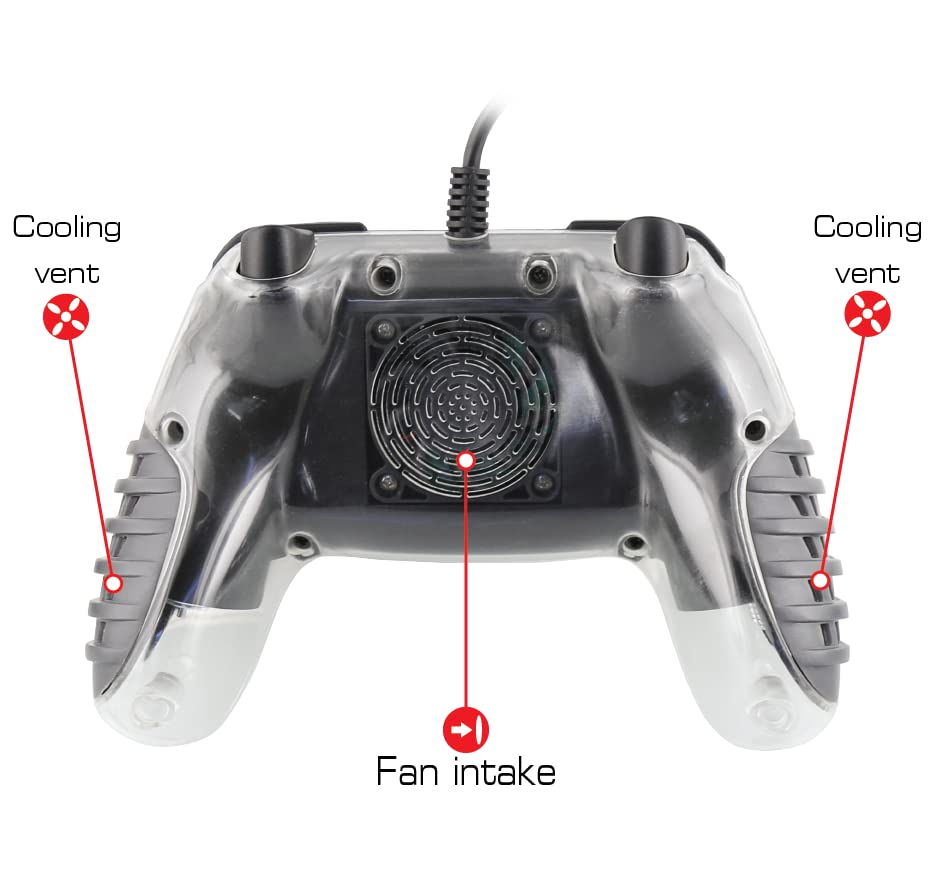
Image: Diagram illustrating the fan intake at the back of the controller and the cooling vents located on the grips.
Turbo Functionality:
To activate the programmable turbo function, press and hold the Turbo button, then press the desired face button or trigger. This will assign turbo functionality to that button. Pressing the assigned button will now result in rapid, repeated inputs. To deactivate turbo for a specific button, repeat the process: press and hold the Turbo button, then press the assigned button again.
Rumble Feedback:
The controller features dual-motor rumble with two interchangeable settings. The intensity of the rumble can be adjusted to suit user preference. Refer to the controller's labeled diagram for the rumble adjustment control.
Maintenance
- Cleaning: Use a soft, dry cloth to clean the exterior of the controller. For stubborn dirt, a slightly damp cloth can be used, followed by immediate drying. Avoid using harsh chemicals or abrasive materials.
- Storage: Store the controller in a cool, dry place away from direct sunlight and extreme temperatures.
- Cable Care: Avoid sharply bending or twisting the USB cable. Do not pull the cable to disconnect the controller; always grasp the plug.
Troubleshooting
- Controller Not Responding on Nintendo Switch: Ensure "Pro Controller Wired Communication" is enabled in the Nintendo Switch System Settings (System Settings > Controllers and Sensors > Pro Controller Wired Communication).
- No Power/Lights: Verify the USB cable is securely connected to both the controller and the console/PC. Try a different USB port.
- Fan Not Working: Check if the fan button has been pressed to activate the fan. Ensure the controller is receiving power.
- Input Lag/Unresponsive Buttons: As a wired controller, input lag should be minimal. Ensure the cable is not damaged and is fully inserted. Test on another USB port or device if possible.
Specifications
| Model Number | 87303 |
| Brand | Nyko |
| Connectivity | Wired USB (10-foot cable) |
| Compatibility | Nintendo Switch, PlayStation 3, PC |
| Features | Multi-color LED lighting, 2-speed cooling fan, programmable turbo, dual-motor rumble |
| Product Dimensions | 3.03 x 7.32 x 6.34 inches |
| Item Weight | 14.9 ounces |
Warranty and Support
For warranty information and technical support, please visit the official Nyko website or contact their customer service department. Keep your proof of purchase for any warranty claims.
Official Nyko Website: www.nyko.com
