1. Introduction
This manual provides essential information for the safe and efficient use of your THOMSON NEO14 laptop. Please read this guide thoroughly before operating your device to ensure proper setup, operation, and maintenance. Keep this manual for future reference.

Image 1.1: The THOMSON NEO14 laptop displaying the Windows 10 desktop interface.
2. Setup
2.1 Unpacking
Carefully remove the laptop and all accessories from the packaging. Ensure the following items are present:
- THOMSON NEO14 Laptop
- Power Adapter
- User Manual (this document)
2.2 Connecting the Power Adapter
Before initial use, fully charge the laptop battery. Connect the power adapter to the charging port on the laptop and then plug the adapter into a power outlet. The charging indicator light will illuminate.
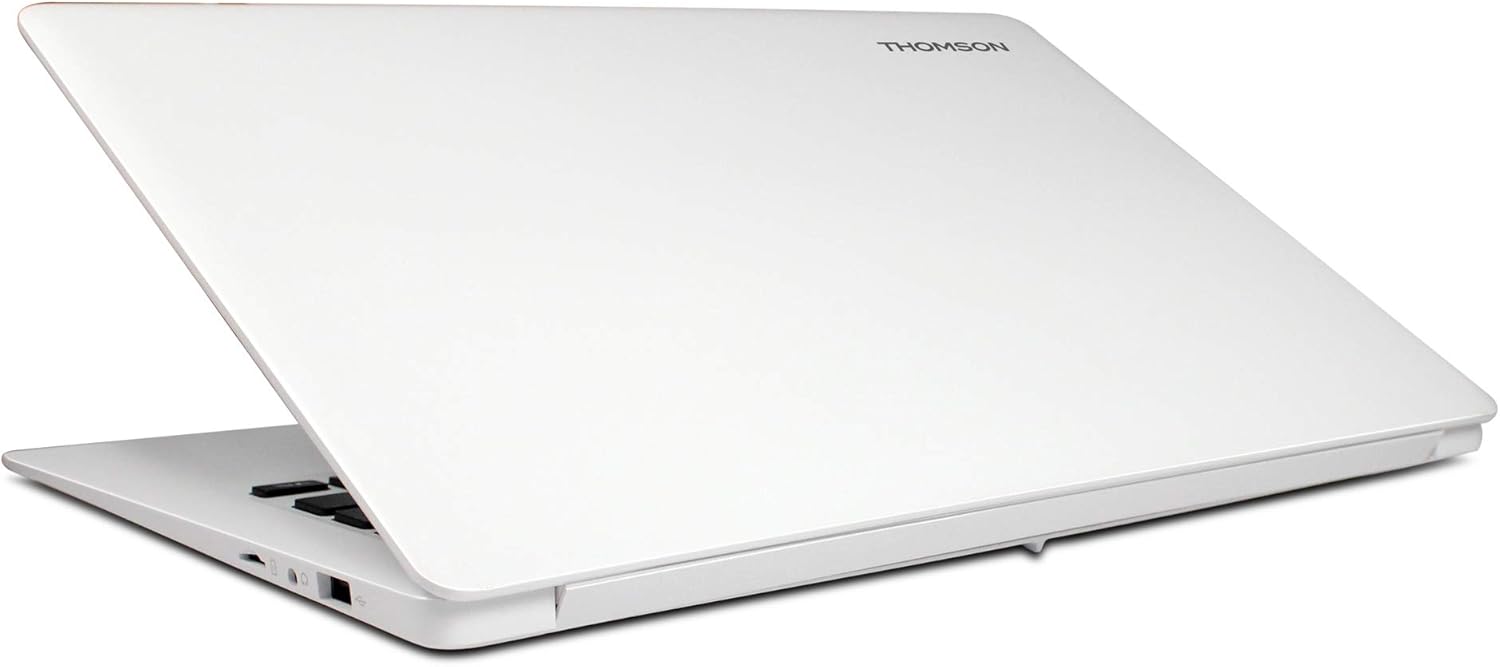
Image 2.1: Side view of the laptop, illustrating the location of various ports, including the power input.
2.3 Initial Boot-up and Windows 10 Setup
Press the power button to turn on the laptop. Follow the on-screen instructions to complete the Windows 10 initial setup, which includes selecting your region, language, creating a user account, and accepting the license agreement.
2.4 Connecting to Wi-Fi
During the Windows 10 setup or after logging in, you will be prompted to connect to a Wi-Fi network. Select your desired network from the list and enter the password if required. This laptop supports Wi-Fi 5 (802.11ac).
3. Operating Instructions
3.1 Power On/Off and Sleep Mode
- Power On: Press the power button located on the top right of the keyboard.
- Power Off: Click the Start button, then Power, and select "Shut down."
- Sleep Mode: Click the Start button, then Power, and select "Sleep," or close the laptop lid.
3.2 Using the Keyboard and Touchpad
The laptop features a full-size keyboard and a multi-touch touchpad. The touchpad supports gestures for navigation, such as two-finger scrolling and pinch-to-zoom.

Image 3.1: The laptop open, highlighting the keyboard layout and the integrated touchpad.
3.3 Connecting Peripherals
The NEO14A is equipped with various ports for connecting external devices:
- USB Ports: For connecting USB devices like mice, keyboards, or external storage.
- Mini HDMI Port: To extend your display to a larger screen or projector.
- MicroSD Card Slot: For expanding storage up to 128GB.
- Audio Jack: For headphones or external speakers.
3.4 Storage Management
The laptop comes with 64GB eMMC storage. To expand storage, insert a MicroSD card into the dedicated slot. Ensure the card is properly formatted for use with Windows 10.
4. Maintenance
4.1 Cleaning the Laptop
Use a soft, lint-free cloth to clean the screen and exterior surfaces. For stubborn marks, slightly dampen the cloth with water or a screen-safe cleaner. Avoid harsh chemicals or abrasive materials.
4.2 Battery Care
To prolong battery life:
- Avoid extreme temperatures.
- Do not fully discharge the battery frequently.
- Store the laptop with a partial charge (around 50%) if not used for extended periods.
4.3 Software Updates
Regularly check for and install Windows updates to ensure system stability, security, and optimal performance. Go to Settings > Update & Security > Windows Update.
5. Troubleshooting
5.1 Common Issues and Solutions
| Issue | Possible Solution |
|---|---|
| Laptop does not power on | Ensure the power adapter is securely connected and the battery is charged. Try a different power outlet. |
| Slow performance | Close unnecessary applications. Check for available storage space. Run a disk cleanup. Install Windows updates. |
| Wi-Fi connectivity problems | Restart the laptop and your Wi-Fi router. Check Wi-Fi settings and ensure the correct password is entered. |
| Screen is blank or flickering | Restart the laptop. Ensure external displays are properly connected if in use. Update graphics drivers. |
If problems persist after attempting these solutions, please refer to the Support section.
6. Specifications
| Feature | Detail |
|---|---|
| Model Name | THOMSON NEO14 (NEO14A) |
| Screen Size | 14.1 Inches |
| Screen Resolution | 1366 x 768 pixels |
| Processor | Intel Atom (1.44 GHz) |
| RAM | 4 GB DDR3 |
| Hard Drive | 64 GB eMMC (Solid State) |
| Expandable Storage | Up to 128GB via MicroSD card |
| Operating System | Windows 10 Home |
| Wireless Connectivity | 802.11ac Wi-Fi, Bluetooth 4.0 |
| Ports | USB, Mini HDMI, Audio Jack, MicroSD Card Slot |
| Average Battery Life | 6 Hours |
| Item Weight | 2.87 pounds |
| Product Dimensions | 18.99 x 16.99 x 5.49 inches |
7. Warranty Information
THOMSON products are covered by a limited warranty. For detailed information regarding the warranty period, terms, and conditions applicable to your NEO14A laptop, please refer to the warranty card included in your product packaging or visit the official THOMSON website. Keep your proof of purchase for warranty claims.
8. Support
For technical assistance, troubleshooting beyond this manual, or service inquiries, please contact THOMSON customer support. Contact information can typically be found on the official THOMSON website or on the product packaging. When contacting support, please have your laptop's model number (NEO14A) and serial number ready.


