
1. Introduction
Thank you for purchasing the iFreGo 1 DIN Bluetooth Car Radio, Model JSD530. This manual provides detailed instructions for the installation, operation, and maintenance of your new car radio. Please read this manual thoroughly before using the product to ensure proper operation and to prevent damage.
Safety Information
- Do not operate the unit in a way that distracts you from driving safely.
- Ensure all wiring is correctly connected to prevent short circuits or damage.
- Do not expose the unit to extreme temperatures, direct sunlight, or moisture.
- Refer to a qualified technician for installation if you are unsure.
2. Package Contents
Please check the contents of your package against the list below:
- 1x iFreGo Car Radio
- 1x Radio Antenna
- 1x Speaker Cable
- 1x Power Cable
- 1x User Manual
- 2x Installation Keys
- 1x Wireless Remote Control (battery not included)
- 1x Steering Wheel Remote Control (battery not included)

Image: All components included in the iFreGo car radio package.
3. Product Overview
Familiarize yourself with the front panel controls and rear panel connections.
Front Panel

Image: Front view of the iFreGo car radio.
- MIC: Microphone for hands-free calls.
- Power/Mode Button: Short press to change mode (FM/USB/SD/AUX/BT), long press to power on/off.
- Rotary Knob (Volume/Select): Rotate to adjust volume, press to select menu options.
- EQ/LOUD Button: Press to cycle through equalizer presets, long press for Loudness function.
- Band/AMS Button: In FM mode, press to select radio band (FM1/FM2/FM3). Long press for automatic station search and store.
- Display: Shows current status, frequency, track information.
- USB Ports: One for media playback, one for fast charging.
- SD/TF Card Slot: For media playback.
- AUX Input: 3.5mm jack for external audio devices.
- Preset Buttons (1-6): Store and recall FM radio stations.
Rear Panel

Image: Rear view of the iFreGo car radio with ISO wiring harness connections.
The rear panel features standard ISO connectors for power and speakers, along with the antenna input.
4. Installation
Dimensions
Before installation, ensure the unit fits your vehicle's dashboard opening.
- Unit Dimensions: 178 mm (W) x 50 mm (H)
- Mounting Dimensions: 188 mm (W) x 58 mm (H)

Image: Dimensions of the car radio unit.
Wiring Diagram (ISO Connection)
Connect the provided ISO wiring harness to your vehicle's wiring. Ensure correct polarity to prevent damage.
Image: ISO wiring diagram for speaker and power connections.
| Wire Color | Function |
|---|---|
| Green | Rear Left Speaker + |
| Green/Black | Rear Left Speaker - |
| White | Front Left Speaker + |
| White/Black | Front Left Speaker - |
| Grey | Front Right Speaker + |
| Grey/Black | Front Right Speaker - |
| Violet | Rear Right Speaker + |
| Violet/Black | Rear Right Speaker - |
| Wire Color | Function |
|---|---|
| Yellow | B+ (12V Constant Power) |
| Black | GND B- (Ground) |
| Blue | Automatic Antenna / Amplifier Remote (No Connection if not used) |
| Red | ACC (12V Switched Power / Ignition) |
Wiring Protection: This unit features wiring protection to prevent damage from incorrect electrical connections. If the power cable is connected incorrectly, the device will not burn out.
5. Basic Operation
Power On/Off
Long press the Power/Mode button to turn the unit ON or OFF.
Mode Selection
Short press the Power/Mode button to cycle through available modes: FM Radio, USB, SD/TF Card, AUX Input, and Bluetooth.
Volume Control
Rotate the Rotary Knob clockwise to increase volume and counter-clockwise to decrease volume.
Equalizer (EQ) and Loudness
Press the EQ/LOUD button to cycle through preset equalizer settings (e.g., Jazz, Rock, Pop, Classic). Long press the EQ/LOUD button to activate or deactivate the Loudness function, which enhances bass and treble at low volumes.
LED Color Settings
The car radio features 7 adjustable LED backlight colors. The color can be adjusted using the rotary knob or a dedicated button (refer to specific model controls if available, otherwise it cycles automatically or via menu). Available colors include Green, Blue, Red, Yellow, White, Turquoise Green, and Purple.

Image: Illustration of the seven adjustable LED backlight colors.
6. Radio (FM) Operation
The unit features a high-quality digital stereo FM radio tuner.

Image: FM radio interface showing frequency display.
Selecting FM Band
In FM mode, press the Band/AMS button to switch between FM1, FM2, and FM3 bands.
Automatic Station Search and Store (AMS)
Long press the Band/AMS button. The radio will automatically scan for strong stations and store them into the preset memory buttons (1-6) for the current band.
Manual Tuning
Short press the Seek/Track buttons (<< or >>) to manually tune to the next available station.
Saving and Recalling Presets
- To Save: Tune to your desired station. Long press one of the preset buttons (1-6) until you hear a beep or see the preset number flash on the display. The station is now saved.
- To Recall: Short press the corresponding preset button (1-6) to recall a saved station.
7. Bluetooth Operation
The unit features Bluetooth 5.0 for hands-free calling and audio streaming.
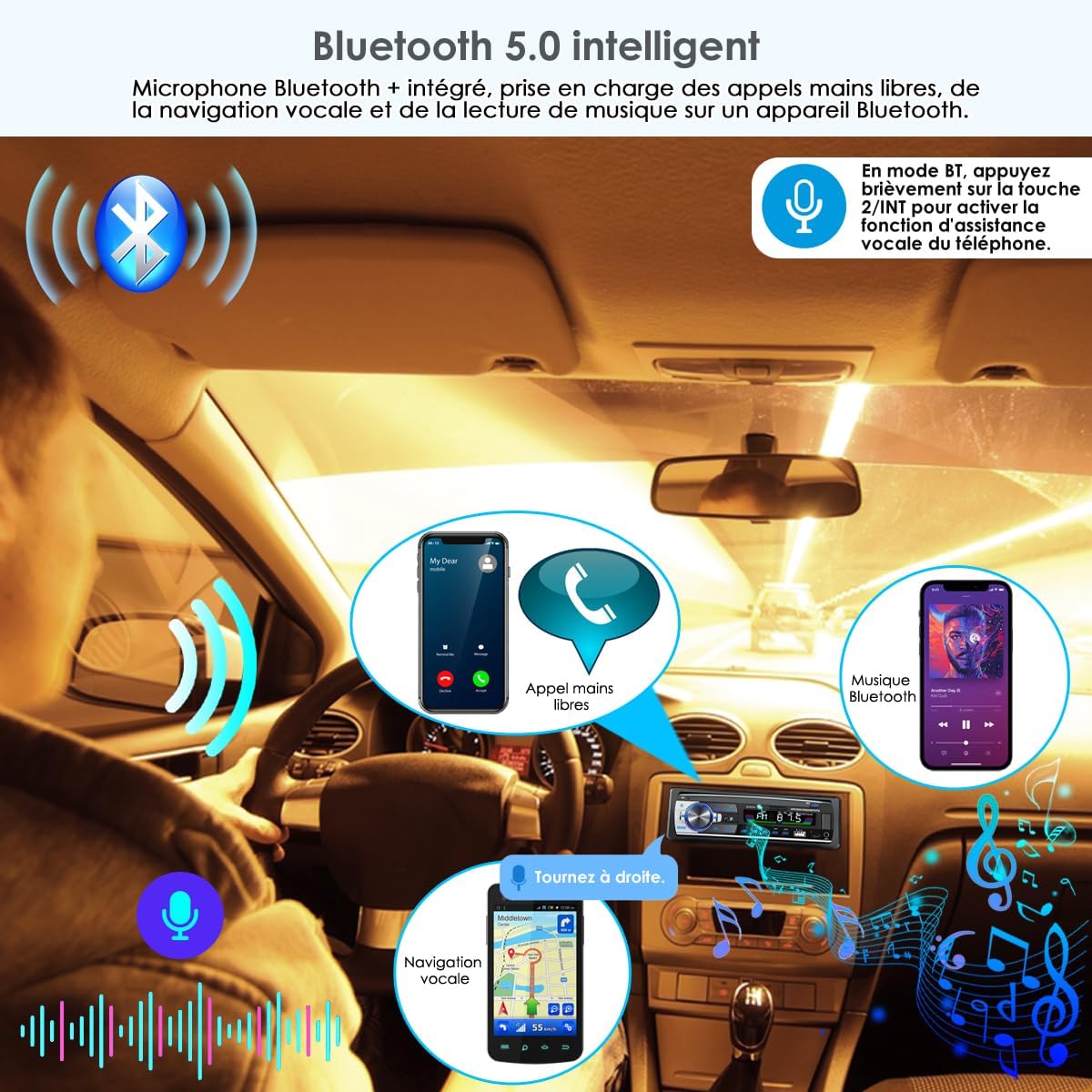
Image: Bluetooth 5.0 intelligent features.
Pairing Your Device
- Turn on the car radio and switch to Bluetooth mode. The display will show "BT" or "PAIRING".
- Enable Bluetooth on your mobile phone and search for available devices.
- Select "BT MP3" or similar name from the list of devices.
- If prompted for a password, enter "0000" or "1234".
- Once paired, the display will show "CONNECTED" and you can now use Bluetooth functions.
Hands-Free Calling
- Answering a Call: When a call comes in, press the Answer button (usually the green phone icon or a dedicated button) on the unit or remote.
- Ending a Call: Press the End Call button (usually the red phone icon or a dedicated button).
- Dialing: Dial numbers from your phone. The audio will automatically transfer to the car speakers.
Bluetooth Audio Streaming (A2DP)
After pairing, you can play music from your phone through the car speakers. Use your phone to control playback (play/pause, next/previous track) or use the corresponding buttons on the car radio.
Voice Assistant Activation
After connecting your mobile phone via Bluetooth, short press the "2" button on the car radio to activate your phone's voice assistant (e.g., Siri, Google Assistant).
8. Multimedia Playback
The unit supports various media sources for music playback.

Image: Multiple playback modes and fast charging feature.
USB/SD/TF Card Playback
- Insert a USB drive or SD/TF card into the respective slot. The unit will automatically switch to USB/SD mode and begin playing compatible audio files.
- Use the Seek/Track buttons (<< or >>) to skip tracks.
- Press the Play/Pause button to pause or resume playback.
- Supported audio formats: MP3, WMA, WAV.
- Maximum TF card capacity: 32GB.
AUX Input
Connect an external audio device (e.g., MP3 player, smartphone) to the 3.5mm AUX input jack on the front panel using an audio cable. Switch the unit to AUX mode to play audio from the connected device.
USB Fast Charging
The USB port marked with a lightning bolt symbol provides fast charging for your mobile devices, which is useful for long journeys or when using GPS navigation.
9. Remote Control
The unit comes with two remote controls for convenient operation.
Image: Steering wheel remote control in use.
Wireless Remote Control
This standard remote allows control of volume, mode, track selection, play/pause, and other functions from a distance. Ensure a CR2025 battery (not included) is installed correctly.
Steering Wheel Remote Control
This remote can be attached to your steering wheel for easy access to common functions like volume adjustment, track skipping, and call handling, allowing you to keep your hands on the wheel. Ensure a CR2025 battery (not included) is installed correctly.
10. App Control and Car Location Function
Control your car radio and locate your parked vehicle using a dedicated smartphone application.

Image: Smartphone app control and car location feature.
Downloading the App
Scan the QR code provided in the image or use the links below to download the "SWT Car Link" app:
Note: The phone's Bluetooth function must be connected before starting the engine for the app to function correctly.
Car Location Function
After connecting via the app, you can easily find your parked car. The app records the parking location, helping you quickly locate your vehicle in large parking lots.
11. Troubleshooting
If you encounter any issues with your car radio, please refer to the following common problems and solutions:
| Problem | Possible Cause | Solution |
|---|---|---|
| No power | Incorrect wiring; Blown fuse; Vehicle ignition off. | Check power and ground connections; Replace fuse if blown; Turn vehicle ignition to ACC or ON. |
| No sound | Volume too low; Mute function active; Incorrect speaker wiring. | Increase volume; Deactivate mute; Check speaker connections. |
| Poor FM reception | Antenna not connected; Weak signal area; Damaged antenna. | Ensure antenna is securely connected; Try a different location; Inspect antenna for damage. |
| Bluetooth not connecting | Bluetooth not enabled on phone; Incorrect pairing; Device already connected. | Enable Bluetooth on phone; Re-attempt pairing; Disconnect from other devices. |
| USB/SD card not playing | Unsupported file format; Corrupted files; Card not inserted correctly. | Ensure files are MP3/WMA/WAV; Check card for errors; Reinsert card. |
12. Specifications
| Feature | Specification |
|---|---|
| Brand | iFreGo |
| Model Number | JSD530 |
| Connectivity Technology | Auxiliary, Bluetooth, USB |
| Special Features | Integrated Bluetooth, Voice Control, 7-Color LED, Music Streaming, FM Tuner, USB Fast Charging |
| Audio Output Mode | Stereo |
| Surround Sound Channel Configuration | 4.0 |
| Output Power | 4 x 60 Watts |
| Number of Channels | 4 |
| Control Method | Remote Control |
| Digital Media Format | MP3, WAV, WMA |
| Wireless Technology | Bluetooth |
| UPC | 706696635075 |
| Weight | 380 Grams |
| Dimensions (Unit) | 178 x 50 mm (approx.) |
| Dimensions (Mounting) | 188 x 58 mm (approx.) |
13. Warranty and Support
Warranty
This iFreGo car radio comes with a 2-year replacement/refund warranty for defects. Please retain your proof of purchase for warranty claims.
Customer Support
For any questions, technical assistance, or warranty claims, please contact your retailer or visit the official iFreGo website for support information. You can also refer to the iFreGo Brand Store on Amazon for more details.