
1. Introduction
The Pentair Screenlogic2 EC-522104 Interface and Wireless Connection Kit is an automatic control system designed to provide remote management of your pool, spa, and lighting systems. This kit allows users to control various pool functions, including temperature, lighting, and chemical levels (when integrated with an IntelliChem chemical control system), directly from compatible mobile devices (iPhone, iPad, iPod Touch, Android) or computers (Mac or PC). It includes a Protocol Interface Adapter for seamless integration with your existing Pentair control panel.
2. What's Included
The Pentair Screenlogic2 EC-522104 kit typically includes the following components:
- ScreenLogic Interface Protocol Adapter
- Wireless Ethernet Board
- Indoor Transceiver Unit
- Outdoor Transceiver Unit
- Power Adapter
- Ethernet Cable
- Communication Cables (for panel connection)
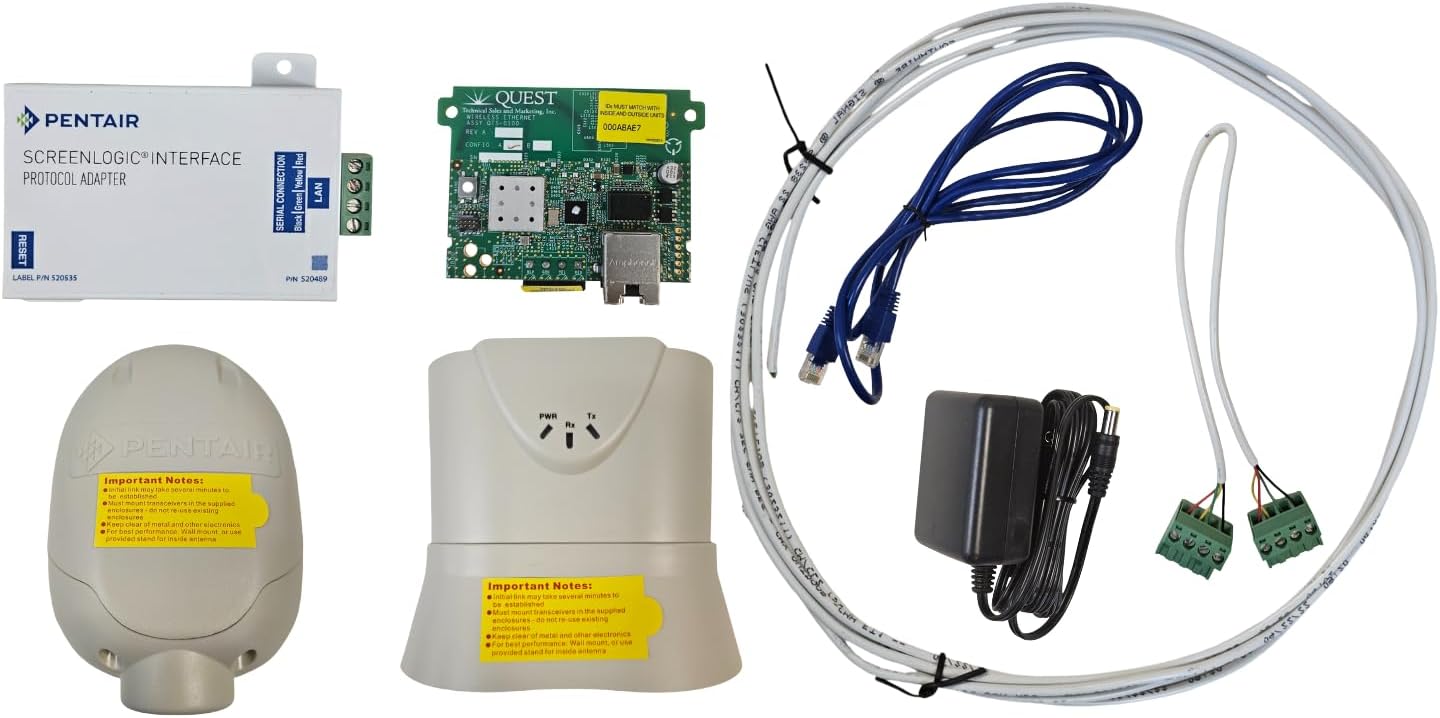
Figure 2.1: Overview of all components included in the Pentair Screenlogic2 EC-522104 Interface and Wireless Connection Kit.
3. Setup and Installation
Installation of the Screenlogic2 system involves connecting the interface to your existing Pentair control panel and establishing a wireless connection to your home network. The system operates as a two-part setup: an outdoor unit connected to your pool panel and an indoor unit connected to your internet router.
- Outdoor Unit Installation:
- Affix the outdoor transceiver unit to a suitable location near your pool's service box. Ensure it is mounted securely and clear of metal or other electronics that could interfere with the wireless signal.
- Wire the provided communication cable from the outdoor transceiver to the COM 1 port within your Pentair control panel's service box.
- Connect the Protocol Interface Adapter to the outdoor transceiver unit.

Figure 3.1: Outdoor Transceiver Unit.

Figure 3.2: ScreenLogic Interface Protocol Adapter.
- Indoor Unit Installation:
- Place the indoor transceiver unit in a climate-controlled spot within your house, ideally near your internet router.
- Connect the indoor transceiver unit to your internet router using the provided Ethernet cable.
- Plug the power adapter into the indoor transceiver unit and then into a standard electrical outlet.

Figure 3.3: Indoor Transceiver Unit.

Figure 3.4: Cables and Power Adapter.
- Software/App Installation:
- Download and install the official Pentair ScreenLogic app on your iPhone, iPad, iPod Touch, or Android device from their respective app stores.
- For PC or Mac, download the ScreenLogic software from the official Pentair website.
- Follow the on-screen instructions within the app or software to connect to your newly installed Screenlogic2 system. The system is often pre-configured for ease of setup.
Note: Initial link establishment between the indoor and outdoor units may take several minutes. Ensure proper wiring and power connections for optimal performance.
4. Operating the System
Once successfully set up, the Pentair Screenlogic2 system allows for comprehensive remote control of your pool and spa equipment. The mobile app or desktop software mirrors the functionality of your physical Pentair control panel, providing convenient access from anywhere with an internet connection.
- Remote Control: Adjust pool and spa settings, including pumps, heaters, and lighting, directly from your device.
- Temperature Management: Monitor and change water temperature settings. This is particularly useful for energy saving when away from home, allowing you to adjust the temperature before your return.
- Chemical Monitoring: If you have an IntelliChem chemical control system connected, you can monitor and adjust pH and ORP levels remotely.
- Lighting Control: Manage pool, spa, and landscape lighting schedules and colors.
- System Status: View real-time status of all connected equipment.

Figure 4.1: ScreenLogic Interface displayed on a laptop, showing remote control capabilities.
5. Maintenance
The Pentair Screenlogic2 system requires minimal direct maintenance. However, regular checks of your overall pool and spa system, as outlined in their respective manuals, are crucial for optimal performance and longevity. Ensure the physical connections to the Screenlogic2 components remain secure and free from damage. Periodically check for and install any available software or app updates to ensure compatibility and access to the latest features and security enhancements.
6. Troubleshooting
If you encounter issues with your Pentair Screenlogic2 system, consider the following troubleshooting steps:
- No Connection/System Crashes:
- Verify all power connections to both the indoor and outdoor units.
- Ensure the Ethernet cable is securely connected to your router and the indoor transceiver.
- Check the communication cable connection to the COM 1 port in your pool's service box. Incorrect communication port usage can prevent connection.
- Consider the placement of the indoor transceiver unit. If experiencing signal issues, moving the unit to a more central or less obstructed location within the house may improve reliability, especially in environments with extreme temperatures.
- App/Software Issues:
- Ensure your app or software is updated to the latest version. Outdated software can lead to bugs and compatibility problems.
- Restart the app/software and your mobile device/computer.
- Verify your internet connection is stable.
- Persistent Problems: If issues persist after basic troubleshooting, it is recommended to contact Pentair customer support or a certified pool technician for assistance. Complex system malfunctions may require professional diagnosis and repair.
7. Specifications
| Feature | Detail |
|---|---|
| Product Dimensions | 9.5 x 15.5 x 4.5 inches |
| Item Weight | 3.2 pounds |
| Manufacturer | Pentair |
| Model Number | EC-522104 |
| ASIN | B08MVCZB6R |
| Compatibility | iPhone, iPad, iPod Touch, Android devices, Mac, PC (with IntelliTouch and EasyTouch systems) |
8. Warranty and Support
For specific warranty information regarding your Pentair Screenlogic2 EC-522104 Interface and Wireless Connection Kit, please refer to the documentation provided with your purchase or visit the official Pentair website. For technical support, troubleshooting assistance beyond this manual, or to inquire about service, please contact Pentair Customer Service directly. You can find contact information on the Pentair website or through your product's original packaging.
Pentair Official Website: www.pentair.com