
1. Introduction
Welcome to the user manual for your new HP Pavilion x360 2-in-1 Touch-Screen Laptop. This versatile device combines the functionality of a traditional laptop with the flexibility of a tablet, adapting to your needs for work, study, or entertainment. Featuring an Intel Core i5 processor, 8GB of RAM, a 256GB SSD, and a vibrant 14-inch Full HD touch display, this laptop is designed for efficient performance and intuitive interaction. This manual provides essential information on setting up, operating, maintaining, and troubleshooting your device.
2. Initial Setup
2.1 Unboxing Your Laptop
Carefully remove your HP Pavilion x360 laptop and its accessories from the packaging. Ensure all components are present:
- HP Pavilion x360 Laptop
- 45W AC Power Adapter
- Setup Instructions and Warranty Information
Video: HP Pavilion x360 Laptop Unboxing and First Impression. This video demonstrates the unboxing process and initial look at the laptop and its included accessories.
2.2 Connecting the Power Adapter
Before first use, it is recommended to fully charge your laptop. Connect the 45W AC power adapter to the power port on the right side of the laptop and then plug it into a wall outlet.
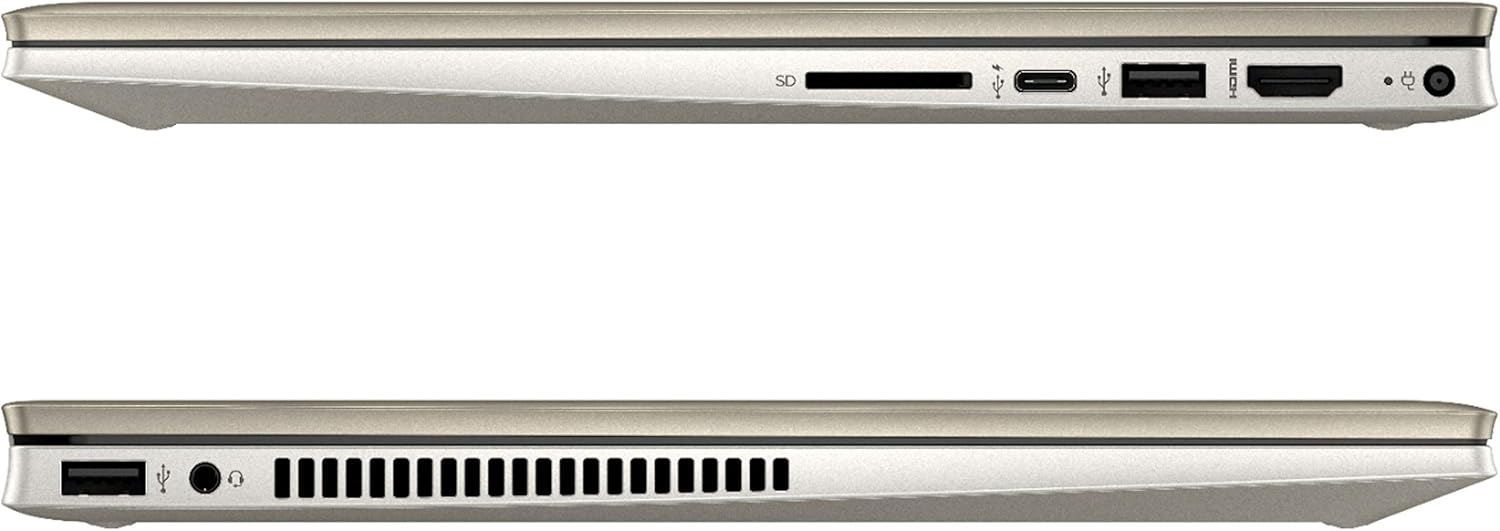
Image: Right side view of the HP Pavilion x360 laptop, highlighting the power port, HDMI output, USB 3.0 Type-A port, USB 3.1 Type-C port, and SD card reader.
2.3 First Boot and Windows Setup
Press the power button to turn on your laptop. Follow the on-screen instructions to complete the Windows 11 Home setup, including language selection, network connection, and user account creation.
3. Components and Features
3.1 Display and Touchscreen
Your HP Pavilion x360 features a 14.0-inch diagonal Full HD (1920 x 1080) touch display. This allows for direct interaction with the screen using your fingers, enhancing navigation and creative tasks.

Image: The HP Pavilion x360 in stand mode, showcasing its Full HD touch display with the Windows Start menu visible.
3.2 Keyboard and Trackpad
The laptop is equipped with a comfortable keyboard and a responsive trackpad for precise cursor control. A fingerprint reader is integrated for secure and quick login.

Image: An angled view of the open HP Pavilion x360, highlighting the keyboard, large trackpad, and the integrated fingerprint reader.
3.3 Ports and Connectivity
The laptop offers various ports for connecting peripherals and external displays:
- Right Side: 1x HDMI Output, 2x USB 3.0 Type-A Ports, 1x USB 3.1 Type-C Port, SD Card Reader, Power Port.
- Left Side: 1x USB 3.0 Type-A Port, Headphone/Microphone Combo Jack.
Wireless connectivity includes Wi-Fi (Wireless-AX) and Bluetooth 5 for seamless internet access and device pairing.
3.4 HP Wide Vision HD Camera
The integrated HP Wide Vision HD Camera is ideal for video calls and online meetings.
Video: HP Pavilion Touch screen convertible laptop. This video demonstrates the laptop's features, including the functionality of the built-in camera and its convertible modes.
3.5 Audio by B&O
Experience enhanced audio quality with speakers tuned by B&O.
4. Operating Your Laptop
4.1 Convertible Modes
The HP Pavilion x360 offers four versatile modes:
- Laptop Mode: Traditional laptop use for typing and productivity.
- Tent Mode: Ideal for watching videos or presentations in confined spaces.
- Stand Mode: Perfect for touch-enabled applications and entertainment.
- Tablet Mode: Fold the screen back completely for a full tablet experience.

Image: The HP Pavilion x360 in tablet mode, demonstrating its flexibility for touch-based interactions.
4.2 Using the Touchscreen
Interact with your laptop directly on the screen. Use gestures like tapping, swiping, pinching, and zooming for intuitive navigation within Windows 11 and applications.
4.3 Fingerprint Reader Login
To set up fingerprint login, navigate to Windows Settings > Accounts > Sign-in options. Follow the prompts to register your fingerprint for quick and secure access to your laptop.
5. Maintenance and Care
5.1 Cleaning Your Laptop
Regularly clean the screen and keyboard with a soft, lint-free cloth. For the screen, use a specialized screen cleaner. Avoid harsh chemicals or abrasive materials.
5.2 Battery Care
To maximize battery lifespan, avoid extreme temperatures and try to keep the battery charge between 20% and 80% when possible. Store the laptop in a cool, dry place if not used for extended periods.
5.3 Software Updates
Keep your Windows operating system and drivers updated to ensure optimal performance and security. You can check for updates via Windows Settings > Windows Update.
6. Troubleshooting
This section addresses common issues you might encounter with your HP Pavilion x360.
6.1 Power Issues
- Laptop won't turn on: Ensure the power adapter is securely connected and the battery has sufficient charge. Try holding the power button for 15 seconds to perform a hard reset.
- Battery not charging: Verify the power adapter is working and connected correctly. Check for any damage to the cable or port.
6.2 Display Problems
- Screen is blank: Press F5 or F7 (or the display toggle key) to ensure the display is not turned off. Connect to an external monitor to check if the issue is with the laptop's screen.
- Touchscreen unresponsive: Restart the laptop. Ensure display drivers are up to date.
6.3 Connectivity Issues
- Wi-Fi not connecting: Check if Wi-Fi is enabled in Windows settings. Restart your router and laptop.
- Bluetooth device not pairing: Ensure Bluetooth is enabled on both devices and they are in pairing mode.
7. Technical Specifications
| Feature | Detail |
|---|---|
| Brand | HP |
| Model Name | HP Pavilion x360 14m-dw1023dx |
| Screen Size | 14 Inches |
| Display Resolution | 1920 x 1080 (Full HD) |
| Processor | Intel 11th Generation Core i5-1155G7 |
| Graphics | Intel Iris Xe Graphics (Integrated) |
| RAM Memory | 8GB DDR4 3200 MHz |
| Storage | 256 GB PCIe NVMe M.2 SSD |
| Operating System | Windows 11 Home |
| Special Features | Fingerprint Reader, 2-in-1 Convertible, Touchscreen |
| Ports | 1x HDMI, 2x USB 3.0 Type-A, 1x USB 3.1 Type-C, SD Card Reader, Headphone/Mic Combo |
| Wireless Connectivity | Wi-Fi (Wireless-AX), Bluetooth 5 |
| Weight | 3.33 lb (1.61 kg) |
| Camera | HP Wide Vision HD Camera |
| Audio | Audio by B&O |
8. Warranty and Support
Your HP Pavilion x360 laptop comes with a standard manufacturer's warranty. For detailed warranty terms and conditions, please refer to the documentation included in your product packaging or visit the official HP support website.
For technical assistance, driver downloads, or further support, please visit support.hp.com. You may also find helpful resources and community forums there.


