
1. Product Overview
The GALAWAY S1200-1 is a 1200Mbps WiFi Repeater designed to extend the range of your existing wireless network. It supports IEEE 802.11ac/a/b/g/n wireless standards and operates on dual bands (2.4GHz and 5GHz) to provide stable and high-speed internet access in areas with weak signal.
Package Contents:
- 1 x GALAWAY S1200-1 1200Mbps WiFi Range Extender
- 1 x RJ-45 Networking Cable
- 1 x Quick Installation Guide
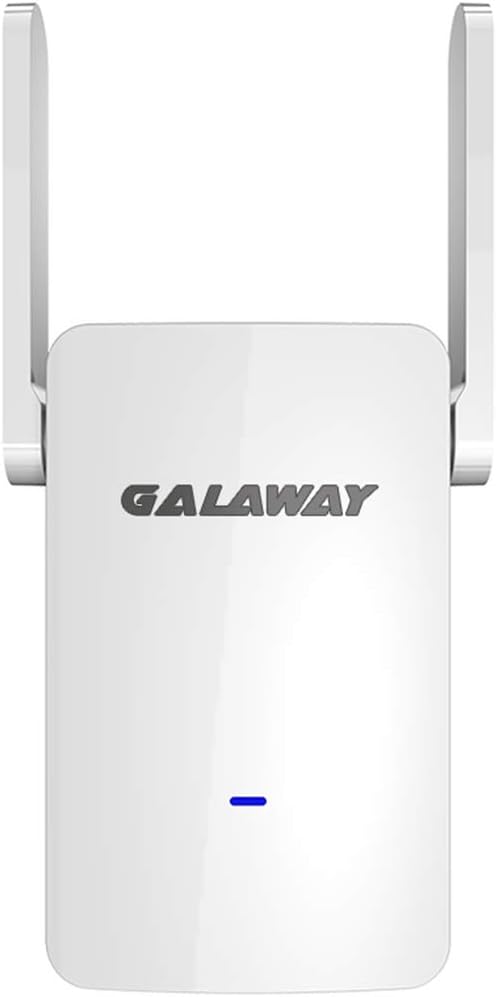
Figure 1: Front view of the GALAWAY S1200-1 WiFi Repeater, showing the GALAWAY logo and an indicator light.
2. Device Features and Components

Figure 2: Detailed view of the GALAWAY S1200-1 WiFi Repeater, highlighting key components such as folding high gain antennas, indicator light, WPS/RST button, EU/US plug, thermal design, and RJ45 port.
The GALAWAY S1200-1 features a compact design with essential components for network extension:
- Folding High Gain Antennas: Two external 4dBi antennas for enhanced signal coverage.
- Indicator Light: Provides visual feedback on the device's status and signal strength.
- WPS/RST Button: Used for WPS setup or to reset the device to factory defaults.
- EU/US Plug: Integrated power plug for direct wall outlet connection.
- Thermal Design: Side ventilation for efficient heat dissipation, ensuring stable performance.
- RJ45 Port: One 10/100Mbps LAN Ethernet port for wired connections.
3. Setup Instructions
Follow these steps to set up your GALAWAY S1200-1 WiFi Repeater:
- Power On: Plug the WiFi repeater into a power outlet near your main router.
- Connect to Repeater: On your computer or mobile device, connect to the WiFi network broadcasted by the repeater (e.g., "GALAWAY_XXXX").
- Access Setup Page: Open a web browser and enter the default IP address
192.168.10.1in the address bar. - Configure Repeater Mode: Follow the on-screen instructions to set the device to repeater mode.
- Select Network: Choose the WiFi network you wish to extend from the list of available networks.
- Enter Password: Input the password for your main WiFi network. Ensure it is correct.
- Complete Setup: Click "Set" or "Apply". Wait approximately 5 seconds for the setup to complete. The indicator light will turn blue upon successful configuration.

Figure 3: Visual guide illustrating the three-step setup process for extending WiFi signal using a smartphone interface.
Note: The device supports browser-based configuration, accessible from almost any device, including iOS and Android mobile platforms.
4. Operating the Repeater
Once configured, the GALAWAY S1200-1 will automatically extend your WiFi network. You can move the repeater to an optimal location within range of your main router to maximize coverage.
Intelligent Signal Indicator:
The indicator light on the device provides crucial information about its operational status and signal strength:
- Blue Light: Indicates a good signal connection between the repeater and your main router, signifying optimal performance.
- Yellow Light: Suggests the device is too far from the main router. Relocate the repeater closer to the router for better signal reception.
- Red Light: Indicates that the expansion was not successful, or there is no connection to the main router. Review your setup or troubleshoot the connection.

Figure 4: Illustration of the repeater's high transmission rate and signal strength, showing 1200Mbps speed and dual-band capabilities.
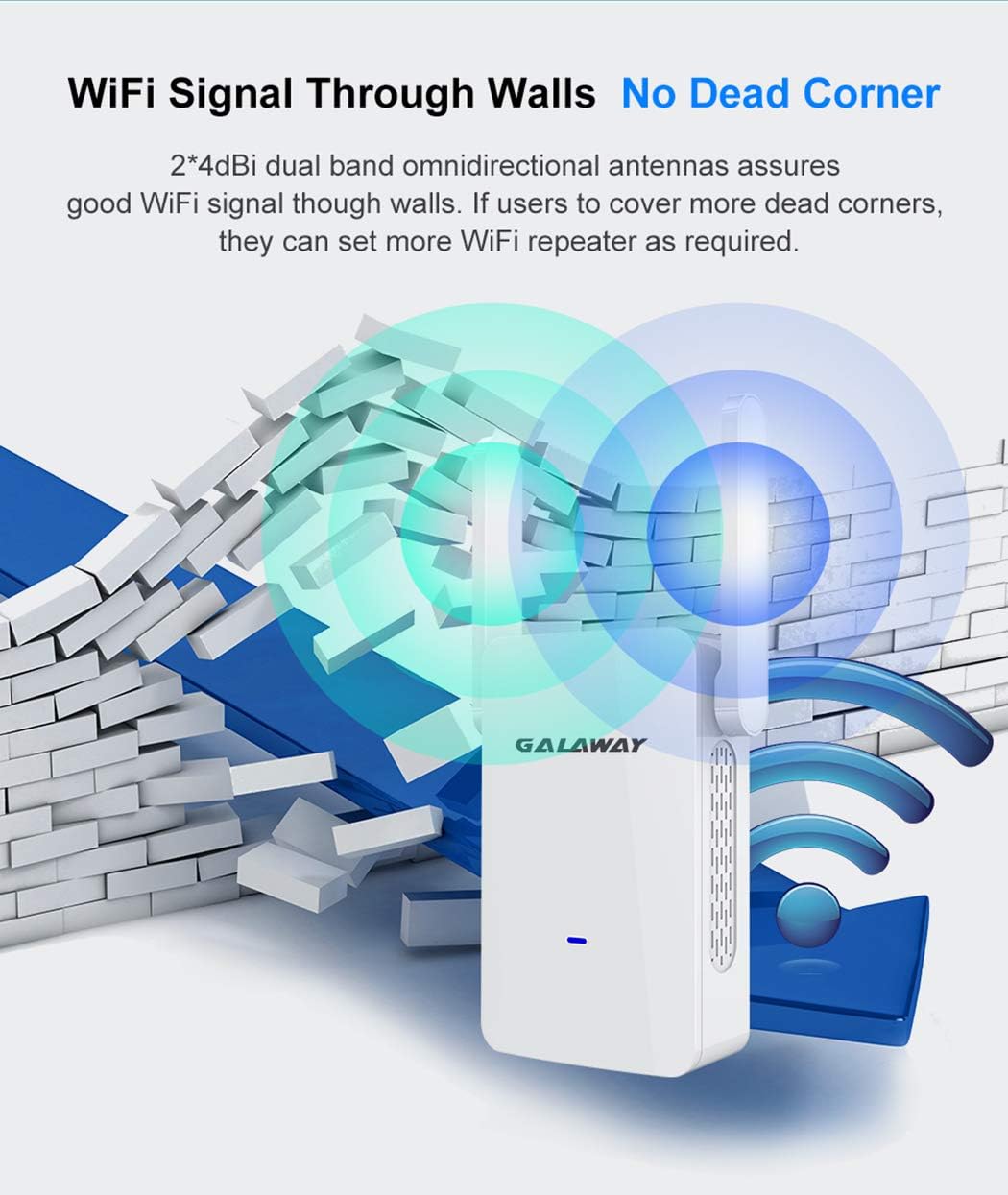
Figure 5: Diagram illustrating the repeater's ability to extend WiFi signal through walls, helping to eliminate dead zones.

Figure 6: Representation of the repeater's "One-stop setup" and automatic memory feature, showing extended WiFi coverage to different areas of a home like the kitchen, bedroom, living room, balcony, and toilet.
5. Maintenance
The GALAWAY S1200-1 WiFi Repeater is designed for low maintenance. To ensure optimal performance:
- Keep the device in a well-ventilated area to prevent overheating. The device features a side thermal design for quick thermal dissipation.
- Avoid placing the device near sources of strong electromagnetic interference.
- Periodically check for firmware updates on the manufacturer's website (if available) to ensure the latest features and security patches.
- Clean the exterior of the device with a soft, dry cloth as needed. Do not use liquid cleaners.

Figure 7: Illustration of the repeater's thermal design, showing airflow for stable performance and prolonged working life.
6. Troubleshooting
This section addresses common issues you might encounter with your WiFi Repeater.
Q1. Why can't I open the IP address: 192.168.10.1?
- Ensure your computer or device is connected to the Extended network SSID broadcasted by the repeater, or connect your computer directly to the device using an Ethernet cable.
- Verify that your computer is set to obtain an IP address automatically.
- Confirm that
192.168.10.1is correctly entered in your web browser's address bar, then press Enter.
Q2. Why can't I access the network after successful setting?
- You might have entered the router's password incorrectly during the extender setup. The password for the router and the WiFi extender must be identical. Please reset the WiFi extender and repeat the configuration process.
- The WiFi extender may be out of range of your main router. Move it closer to the router; it should ideally be less than 35 feet away.
- Try changing your main router's WiFi channel to channel 11 and then reset the extender.
Q3. How to change the channel of my router?
To change your router's channel:
- Using a wireless device, connect to your router's WiFi network.
- Open a web browser on this device.
- Enter your router's IP address in the browser's address bar (this is often
192.168.1.1or192.168.0.1, consult your router's manual). - Navigate to "Wireless Settings" and then "Channel".
- Select "Channel 11" and save the settings.
7. Specifications
| Feature | Detail |
|---|---|
| Chipset | MT7620A+MT7612E |
| RAM | 64MB |
| FLASH | 8MB |
| Antenna | 2*4dBi External Antenna (Fixed) |
| Wireless Standard | IEEE802.11ac/a/b/g/n |
| Buttons | 1*WPS/RST Button |
| Physical Ports | 1*10/100Mbps LAN RJ45 Ethernet Port |
| Power | 100~240V, 50/60Hz |
| Channel Bandwidth | 20/40/80 MHz Auto |
| Encryption | WPA-PSK / WPA2-PSK; WPA/WPA2 |
| Data Transfer Rate | 1200 Megabits Per Second (300Mbps 2.4GHz + 867Mbps 5GHz) |
| Frequency Band Class | Dual-Band |
| Dimensions | 5.35 x 4.41 x 3.5 inches |
| Item Weight | 14 ounces |
8. Warranty and Support
For warranty information and technical support, please refer to the official GALAWAY-US website or contact their customer service directly. Keep your purchase receipt for warranty claims.
Manufacturer: GALAWAY-US
Model Number: S1200-1


