1. Introduction
The MOES WiFi RF IR Smart Home Universal Remote Controller is designed to centralize control of various infrared (IR) and radio frequency (RF) home appliances. This device integrates with the Smart Life/Tuya app, allowing for remote control and voice command capabilities through platforms like Amazon Alexa and Google Home. It supports a wide range of devices, including TVs, air conditioners, fans, DVD players, set-top boxes, and RF-controlled lights, switches, and roller blinds.
Video 1: An overview of MOES smart home products and their functionalities, demonstrating various smart home integrations including lighting, security, and appliance control. This video provides context for the universal remote's role within a smart home ecosystem.
2. Product Overview
This universal remote controller combines IR and RF functionalities into a single compact device. It is designed to simplify your home automation by replacing multiple traditional remote controls.
Key Features:
- All-in-One Control: Manages IR devices (TVs, ACs, fans, DVD players, STBs) and RF appliances (lights, switches, roller blinds).
- Wide Compatibility: Stores thousands of IR codes (38 KHz) and supports RF 433/315 MHz.
- Remote Access: Control appliances from anywhere via the Smart Life/Tuya app using WiFi or 4G.
- Voice Control: Compatible with Amazon Alexa and Google Home for hands-free operation.
- DIY Learning Function: Customize control by copying functions from original IR remotes for unsupported devices.

Image 1: This diagram illustrates the comprehensive control capabilities of the MOES Universal Remote, showing its ability to manage a wide array of IR and RF devices, and its integration with voice assistants.
3. Setup Instructions
3.1 App Installation
- Download the Smart Life or Tuya Smart app from your mobile device's app store (iOS or Android).
- Register or log in to your account.
3.2 Device Pairing (WiFi Connection)
- Plug in the MOES Universal Remote Controller. Ensure it is within range of your 2.4GHz WiFi network.
- Open the Smart Life/Tuya app and tap the "+" icon to add a new device.
- Select the appropriate device type (e.g., "Universal Remote Control" or "IR Remote Control").
- Follow the in-app instructions to connect the device to your WiFi network. This typically involves putting the device into pairing mode (often indicated by a blinking LED) and entering your WiFi credentials.
3.3 Adding IR/RF Appliances
Once the remote controller is connected to the app, you can add your home appliances.
- In the app, select your newly added universal remote controller.
- Choose to add an "IR Remote" or "RF Remote" based on the appliance type.
- For IR devices (e.g., TV, AC): The app will guide you through selecting the brand and model, or using a DIY learning function. Point your original remote at the universal controller to teach it commands.
- For RF devices (e.g., RF lights, roller blinds): The app will prompt you to press buttons on your original RF remote to learn the signals. Ensure the universal remote is close to the RF appliance during this process.

Image 2: This image displays the Smart Life app interface, demonstrating how to add and configure both IR and RF remote-controlled devices, with various appliance categories available for selection.
4. Operating Instructions
4.1 App Control
After successfully adding your appliances, you can control them directly from the Smart Life/Tuya app on your smartphone.
- Open the app and select the universal remote controller.
- Choose the specific appliance you wish to control (e.g., TV, AC).
- Use the virtual remote interface in the app to send commands (e.g., power on/off, change channel, adjust temperature).

Image 3: This image illustrates the convenience of controlling multiple home appliances remotely using the Smart Life app on a smartphone, highlighting the universal remote's central role.

Image 4: This image demonstrates the remote control feature, showing a user adjusting their home's air conditioner via their mobile phone while away, emphasizing convenience and connectivity.

Image 5: This image highlights the preset air conditioner mode feature within the app, allowing users to schedule temperature adjustments and operational modes for convenience and energy saving.
4.2 Voice Control
Integrate your MOES Universal Remote Controller with Amazon Alexa or Google Home for hands-free control.
- Ensure your Alexa or Google Home device is set up and linked to your Smart Life/Tuya account.
- Use voice commands such as:
- "Alexa, turn on the TV."
- "Google, set A/C to 77 degrees."
- "Alexa, turn off the light."

Image 6: This image illustrates how voice commands via Amazon Alexa and Google Home can control both IR devices like a TV and RF devices like lights, providing hands-free operation.
4.3 Functionality Overview
The following table summarizes the main functions supported by the MOES Universal Remote Controller when used with a smartphone, Amazon Echo, and Google Home.
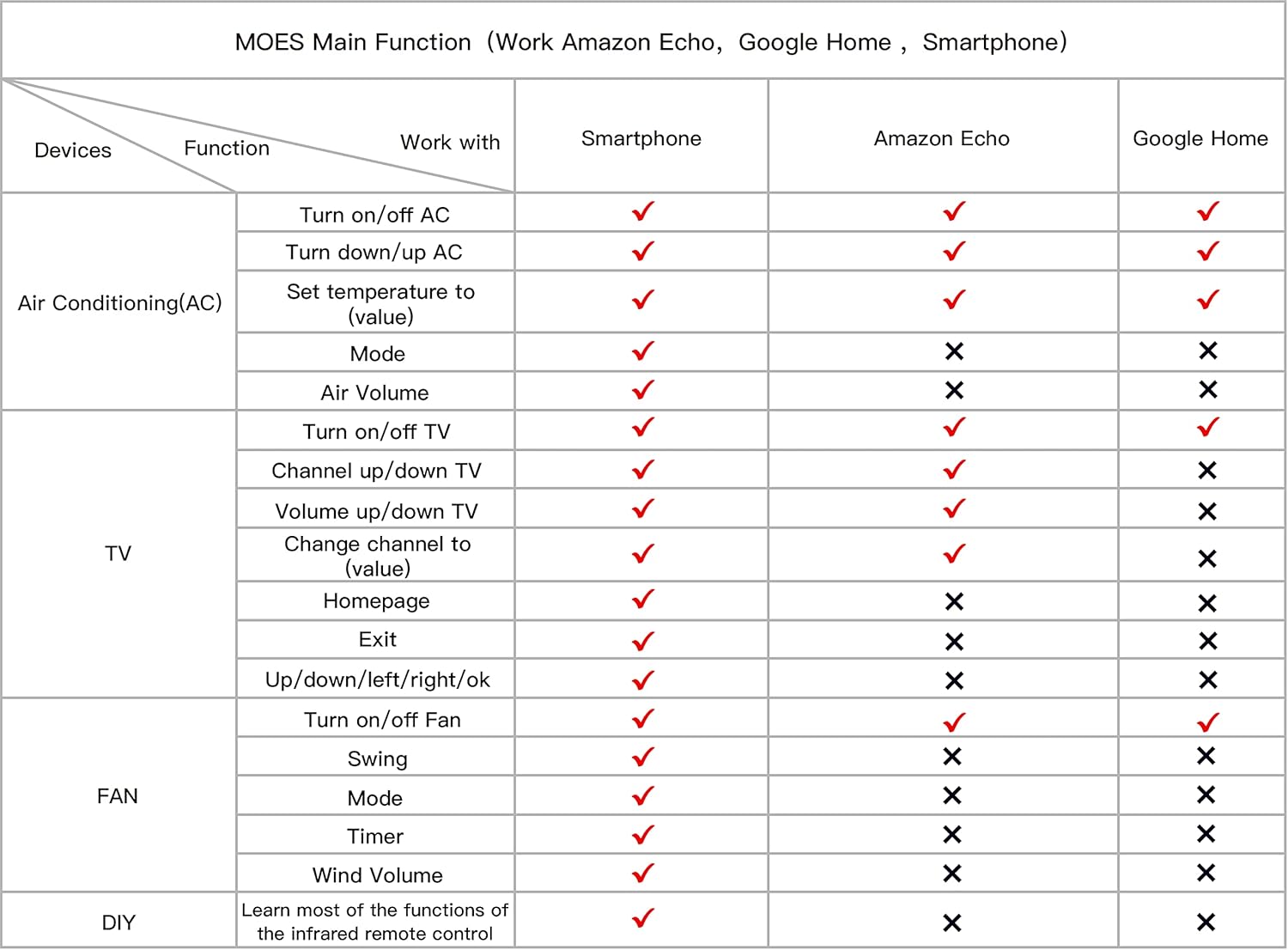
Image 7: This table provides a clear overview of the MOES Universal Remote's main functions, detailing which actions are supported by smartphones, Amazon Echo, and Google Home for various appliances like AC, TV, and fans.
5. Maintenance
To ensure optimal performance and longevity of your MOES Universal Remote Controller, follow these maintenance guidelines:
- Cleaning: Use a soft, dry cloth to clean the device. Avoid abrasive cleaners or solvents.
- Placement: Place the device in a central location within your home, ensuring a clear line of sight to IR-controlled devices and good signal strength for RF devices. Avoid placing it near heat sources or in direct sunlight.
- Power: Use the provided power adapter or a compatible 5V DC 1A Micro USB power source.
- Firmware Updates: Regularly check the Smart Life/Tuya app for any available firmware updates to ensure the device has the latest features and bug fixes.
6. Troubleshooting
If you encounter issues with your MOES Universal Remote Controller, refer to the following common troubleshooting steps:
- Device Not Connecting to WiFi:
- Ensure your WiFi network is 2.4GHz. The device does not support 5GHz WiFi.
- Check your WiFi password for accuracy.
- Move the device closer to your WiFi router.
- Restart your router and the universal remote controller.
- IR Device Not Responding:
- Ensure there is a clear line of sight between the universal remote and the IR appliance. Obstructions can block the IR signal.
- Verify that the correct IR code or DIY learned function is assigned to the appliance in the app.
- Try the DIY learning function again, ensuring the original remote is close to the universal remote during the learning process.
- RF Device Not Responding:
- Confirm the RF frequency (433MHz or 315MHz) of your appliance is supported.
- Ensure the universal remote is close to the RF appliance during the learning process.
- Some RF devices may require specific pairing procedures (e.g., pressing a button on the device itself) in addition to learning the remote signal. Consult your RF appliance's manual.
- Voice Control Not Working:
- Check if your Alexa/Google Home account is correctly linked to your Smart Life/Tuya account.
- Ensure the device names in the Smart Life/Tuya app are recognized by your voice assistant. Try simple, clear names.
- Verify your voice commands are phrased correctly.
7. Specifications
| Parameter | Value |
|---|---|
| Product Name | WiFi IR+RF Remote Control |
| Product Model | d9212d76-c108-47c0-98f5-950b2652419d |
| Power Input | 5V DC 1A (Micro USB) |
| Connection Type | 2.4GHz 802.11b/g/n |
| IR Distance | < 8m |
| RF Frequency | 433 / 315 MHz |
| Work Temperature | 0-50°C |
| Work Humidity | < 85% RH |
| Package Dimensions | 2.83 x 2.8 x 1.97 inches |
| Item Weight | 3.52 ounces |

Image 8: This image provides a visual representation of the device's dimensions and a detailed table of its technical specifications, including power requirements, connectivity, and operational ranges.
8. Warranty and Support
MOES products are designed for reliability and performance. For warranty information, technical support, or service inquiries, please refer to the official MOES website or contact their customer support directly. Keep your purchase receipt for warranty claims.