
1. Product Overview
The PXN V9 Gaming Racing Wheel is a multi-platform steering wheel designed for an immersive racing simulation experience. It is compatible with PC, PS4, Xbox One, Xbox Series X|S, and Nintendo Switch. The wheel features adjustable rotation, a 3-in-1 linear pedal set (clutch, brake, accelerator), and a 6-in-1 manual gear shift lever.

Image 1: The PXN V9 Gaming Racing Wheel, illustrating its compatibility across multiple gaming platforms including PC, Xbox One, PS3, PS4, Xbox Series X|S, and Switch.
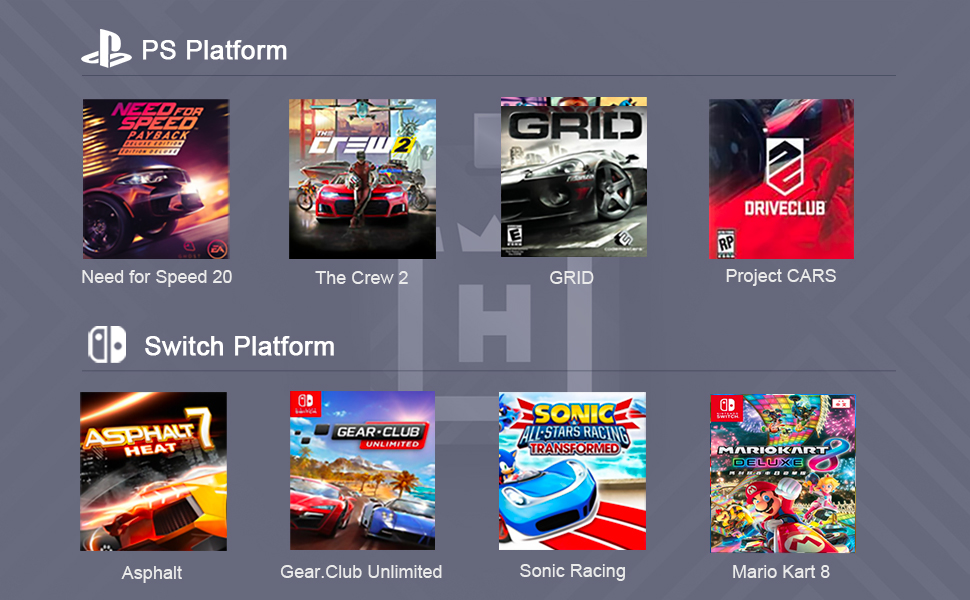
Image 2: Key components of the PXN V9 Gaming Racing Wheel system, including the steering wheel with D-pad, ABXY buttons, paddles, and function buttons, alongside the 3-pedal unit (clutch, brake, accelerator) and the 6+1 gear shifter.
2. Setup Instructions
2.1 Connecting to Xbox One/Xbox Series X|S
- Ensure the original Xbox One/Xbox Series X|S controller is turned off.
- Connect the Micro USB cable (with transfer function) to the original Xbox controller.
- Plug the other end of the Micro USB cable into the designated USB port on the PXN V9 steering wheel.
- Connect the main data cable from the PXN V9 steering wheel into a USB port on the Xbox One/Xbox Series X|S console.
- The indicator light on both the Xbox controller and the PXN V9 steering wheel will remain ON, indicating a successful connection.
- Press the MODE button on the PXN V9 twice to activate the menu selection.
- Use the D-Pad or turn the steering wheel to navigate the console menu.
Video 1: This video demonstrates the step-by-step process of connecting the PXN V9 Gaming Racing Wheel to an Xbox One console, including connecting the original controller for authentication and navigating the console menu.
2.2 Connecting to PC, PS4, Switch
For PC, PS4, and Switch platforms, connect the main data cable from the PXN V9 steering wheel directly to the console or PC's USB port. Refer to the PXN Wheel App for specific configuration and button mapping.
3. Operating Instructions
3.1 Steering Wheel Rotation Adjustment
The PXN V9 offers adjustable rotation angles to suit different racing game styles. A toggle switch located at the bottom of the wheel base allows you to switch between 270 degrees for competitive racing games and 900 degrees for simulator driving games.

Image 3: Illustration of the PXN V9 Steering Wheel's adjustable rotation, allowing users to switch between 270-degree and 900-degree turning angles for different game types.
3.2 Using the Shifter
The included 6-in-1 manual gear shift lever supports forward and reverse gears. It also features handbrake and high-low performance modes. The shifter is primarily available in truck simulation modes.

Image 4: This image clarifies that the shifter is not supported in 270-degree steering wheel mode for competitive racing games, but is supported in 900-degree steering wheel mode for simulator driving games.
3.3 Setting Manual/Automatic Shifting Modes (Example: Forza Horizon 5)
To set manual or automatic shifting modes in games like Forza Horizon 5, you can use the PXN Wheel app or adjust settings within the game's options. Ensure the game's difficulty settings are configured to allow manual shifting if desired.
Video 2: This video demonstrates how to configure manual/automatic shifting modes for the PXN V9 steering wheel within Forza Horizon 5, highlighting in-game settings adjustments.
4. Features
- Multi-Platform Compatibility: PC, PS4, Xbox One, Xbox Series X|S, Switch.
- Adjustable Rotation: Switch between 270° and 900° rotation for different game types.
- 3-in-1 Linear Pedal: Includes clutch, brake, and accelerator pedals for realistic control.
- 6-in-1 Manual Gear Shifter: Features 6 forward gears, 1 reverse gear, handbrake, and high-low performance modes.
- Dual Vibration Motors: Provides immersive force feedback during gameplay.
- Secure Mounting: Equipped with 5 strong suction cups and 2 C-shaped fixing brackets for stable desktop mounting.
- PXN Wheel App: Dedicated application for testing functions and mapping buttons, available on Google Play and Apple App Store.

Image 5: The PXN Wheel application interface, demonstrating options for adjusting steering wheel sensitivity and vibration feedback.
5. Specifications
| Feature | Detail |
|---|---|
| Model Number | V9 |
| Product Dimensions | 13.38 x 11.22 x 11.02 inches |
| Item Weight | 7.23 pounds |
| Rotation Angle | 270° / 900° (switchable) |
| Pedal Unit | 3-in-1 Linear Pedal (Clutch, Brake, Accelerator) |
| Shifter | 6+1 Manual Gear Shift Lever |
| Vibration Feedback | Dual Vibration Motors |
| Mounting | 5 Suction Cups, 2 C-shaped Fixing Brackets |
| Compatibility | PC (Windows 7/8/10/11), PS4, Xbox One, Xbox Series X|S, Switch |

Image 6: A diagram illustrating the physical dimensions of the PXN V9 steering wheel, the 3-pedal unit, and the separate shifter, along with the mounting clamps and suction cups.
6. Game Compatibility
The PXN V9 Gaming Racing Wheel supports a wide range of racing games across various platforms:
6.1 PC Platform
- Forza Horizon 4/5
- iRacing
- European Truck Simulation
- Farming Simulator
- F1 2023/2024
- Assetto Corsa

Image 7: A selection of PC game titles that are compatible with the PXN V9 Gaming Racing Wheel, such as Euro Truck Simulator, Truck Life, CTS, and Assetto Corsa.
6.2 Xbox Platform
- Forza Horizon 4/5
- Dirt 2.0
- Forza Motorsport series
- Racing Project 2
- Need for Speed Rivals

Image 8: A selection of Xbox game titles that are compatible with the PXN V9 Gaming Racing Wheel, such as Forza Horizon 4, Dirt 2.0, Forza Horizon series, and Project Cars 2.
6.3 PS4 Platform
- Need for Speed 20
- WRC 8/9
- Super Touring Car
- Driving Club
- Snow Runner
- The Crew 2

Image 9: A selection of PlayStation game titles that are compatible with the PXN V9 Gaming Racing Wheel, such as Need for Speed 20, The Crew 2, GRID, and Project CARS.
6.4 Switch Platform
- Asphalt
- Sonic Racing
- Mario Kart
7. Maintenance
To ensure the longevity and optimal performance of your PXN V9 Gaming Racing Wheel, follow these maintenance guidelines:
- Keep the device clean by wiping it with a soft, dry cloth. Avoid using harsh chemicals or abrasive cleaners.
- Store the wheel, pedals, and shifter in a dry, dust-free environment when not in use.
- Avoid exposing the device to extreme temperatures or direct sunlight.
- Handle cables with care to prevent fraying or damage.
8. Troubleshooting
If you encounter issues with your PXN V9 Gaming Racing Wheel, consider the following troubleshooting steps:
- Connection Issues: Ensure all cables are securely connected. For Xbox, verify the original controller is off and connected via the Micro USB cable to the wheel.
- Functionality Check: Use the "PXN Wheel" app to test button functionality, adjust sensitivity, and vibration settings.
- Game Settings: Verify in-game control settings. Some games may require specific configurations for steering wheels or manual shifting.
- Driver Updates: For PC, ensure you have the latest drivers installed for the PXN V9. Check the official PXN website for driver downloads.
- Power Cycle: Disconnect the wheel from the console/PC, restart the console/PC, and then reconnect the wheel.
9. Warranty and Support
For warranty information, technical support, or service inquiries, please refer to the official PXN website or contact PXN customer service directly. Keep your proof of purchase for warranty claims.


