
Introduction
This manual provides instructions for the Cable Matters 48Gbps Unidirectional USB C to HDMI 2.1 Adapter, Model 201388-A. This adapter facilitates the connection of a USB-C enabled source device to an HDMI 2.1 compatible display, supporting high-resolution video and advanced features.

Image: The Cable Matters USB C to HDMI 2.1 Adapter, featuring a gray braided cable and a compact gray adapter housing with a USB-C connector on one end and an HDMI port on the other.
Setup
- Identify Compatible Ports: Ensure your source device (laptop, tablet, smartphone) has a USB-C port that supports DisplayPort Alternate Mode (DP Alt Mode), Thunderbolt 3, Thunderbolt 4, Thunderbolt 5, or USB4. The adapter is unidirectional, meaning it converts USB-C to HDMI only.
- Connect to Source: Insert the USB-C connector of the adapter into the compatible USB-C port on your source device.
- Connect to Display: Connect a standard HDMI 2.1 cable (not included) from the HDMI port on the adapter to the HDMI input on your display (monitor, projector, TV).
- Power On Devices: Ensure both your source device and display are powered on.
- Configure Display Settings: Your operating system should automatically detect the external display. If not, manually configure display settings (e.g., resolution, refresh rate, display mode like extend or duplicate) through your device's display settings.
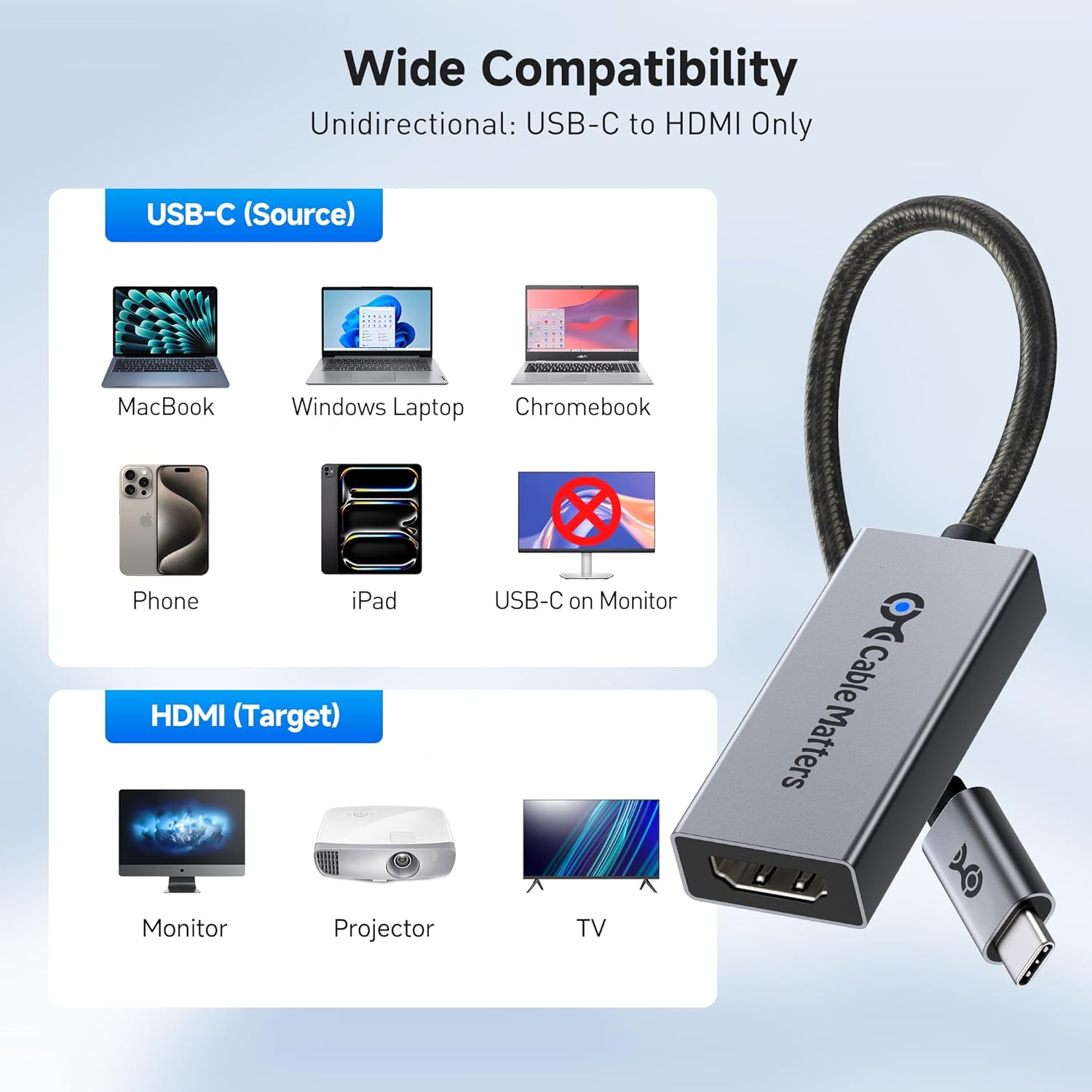
Image: A diagram illustrating wide compatibility, showing various USB-C source devices (MacBook, Windows Laptop, Chromebook, Phone, iPad) connecting to the adapter, which then connects to HDMI target devices (Monitor, Projector, TV). It emphasizes unidirectional flow from USB-C to HDMI.

Image: A detailed compatibility guide for USB-C ports, showing icons for Thunderbolt 3/4/5, DP Alt Mode, and USB4 (20Gbps & 40Gbps) as compatible. It also shows incompatible ports for "Data Transfer Only" and "Charging Only," and reiterates the one-way transmission from USB-C to HDMI.
Operating Instructions
The adapter supports various video resolutions and features:
- High Resolution Support: Supports up to 8K at 60Hz and 4K at 240Hz. Ensure your source device and HDMI cable also support these resolutions and refresh rates.
- High Dynamic Range (HDR): Compatible with HDR for enhanced color depth and contrast.
- Audio Support: Transmits surround sound audio.
- Auto Low Latency Mode (ALLM): Supports ALLM for optimized gaming experiences.
- macOS Compatibility Note: For macOS devices, the adapter supports up to 4K at 60Hz.

Image: A graphic highlighting the adapter's capabilities: Video Resolution 4K@240Hz, Video Resolution 8K@60Hz, and Color Depth Support HDR.

Image: A laptop connected to an ultrawide monitor displaying a racing game, illustrating high frame-rate performance. A comparison graphic shows 4K@240Hz with many frames versus 4K@60Hz with fewer frames. A note indicates that this product supports up to 4K@60Hz on all MacBook series.

Image: A person working on a laptop connected to a large monitor displaying graphic design software, emphasizing the enhanced visual experience with HDR. Labels indicate "Dynamic HDR 12Bit Color" and "HDR High Dynamic Range."
Specifications
| Feature | Detail |
|---|---|
| Model Number | 201388-A |
| Connector Type | USB Type C (Source) to HDMI 2.1 (Target) |
| Bandwidth | 48Gbps |
| Max Resolution (General) | 8K@60Hz, 4K@240Hz (RGB 4:4:4) |
| Max Resolution (macOS) | 4K@60Hz |
| HDR Support | Yes (Dynamic HDR, 12-bit color) |
| Audio Support | Surround Sound |
| Gaming Features | Auto Low Latency Mode (ALLM) |
| Compatibility (Source) | USB-C with DP Alt Mode, Thunderbolt 3/4/5, USB4 |
| Compatibility (Target) | HDMI 2.1 Monitors, Projectors, TVs |
| Design | Aluminum enclosure, braided cable, Power LED light |
| Item Weight | 0.634 ounces |
| Dimensions | 7.72 x 3.35 x 0.43 inches (Package) |

Image: A graphic illustrating the superior 48Gbps bandwidth of the adapter compared to 18Gbps and 10.2Gbps, showing its capability to support HDMI 8K resolutions.

Image: A breakdown of the adapter's premium construction, showing details of the aluminum cooling armor, the power LED light, and the nylon braided cable for durability.
Troubleshooting
- No Display/Signal:
- Ensure both source and display devices are powered on and correctly connected.
- Verify that your USB-C port on the source device supports DisplayPort Alternate Mode (DP Alt Mode) or Thunderbolt. Not all USB-C ports support video output.
- Try a different HDMI cable, especially a certified HDMI 2.1 cable for high resolutions.
- Check your display's input source selection to ensure the correct HDMI input is chosen.
- Restart your source device.
- Incorrect Resolution/Refresh Rate:
- Confirm that your source device, display, and HDMI cable all support the desired resolution and refresh rate (e.g., 8K@60Hz or 4K@240Hz).
- Adjust display settings on your source device (e.g., Windows Display Settings, macOS System Settings > Displays) to select the desired resolution and refresh rate.
- For macOS, note that the adapter supports up to 4K@60Hz.
- No Audio:
- Check your source device's sound settings to ensure the HDMI output is selected as the default audio device.
- Verify the volume levels on both your source device and display.
- Ensure the HDMI cable is fully seated.
- Flickering/Unstable Picture:
- Reduce the resolution or refresh rate in your display settings to see if stability improves.
- Ensure all cables are securely connected.
- Update graphics drivers on your source device.
Maintenance
- Cleaning: Use a soft, dry cloth to clean the adapter. Avoid liquid cleaners or solvents.
- Storage: Store the adapter in a cool, dry place away from direct sunlight and extreme temperatures.
- Handling: Avoid bending or twisting the cable excessively. Do not apply undue force when connecting or disconnecting.
Warranty and Support
For warranty information and technical support, please visit the official Cable Matters website or contact their customer service. Details are typically available on the product packaging or the manufacturer's website.
Manufacturer: Cable Matters
Website: www.cablematters.com


