
Laserliner 082.425A
Laserliner ThermoControl Air Wireless Thermometer User Manual
Model: 082.425A
Introduction
The Laserliner ThermoControl Air is a wireless thermometer designed to achieve perfect cooking results for various types of meat, poultry, and fish. It precisely measures the core temperature and the temperature of the cooking chamber. Data is conveniently transmitted via a dedicated app compatible with both iOS and Android devices. The app provides clear warnings to prevent overcooking or burning your food.
This manual provides detailed instructions on how to set up, operate, and maintain your ThermoControl Air thermometer to ensure optimal performance and longevity.
Safety Information
- Always handle the probe with care as it can be sharp.
- Do not expose the main unit to direct heat or flames. The probe is designed for high temperatures, but the main unit is not.
- Keep the device out of reach of children.
- Ensure the probe is fully inserted into the thickest part of the meat, avoiding bones, for accurate readings.
- Clean the probe thoroughly after each use to prevent bacterial contamination.
- Do not immerse the main unit in water. The device has an IP66 rating, meaning it is protected against powerful water jets, but not full immersion.
- Use only the specified battery type (1 x 1.5V LR03 AAA).
Package Contents
Please check that all items are present in your package:
- 1 x Laserliner ThermoControl Air Main Unit
- 1 x Temperature Probe
- 1 x AAA Battery

Image: The ThermoControl Air main unit and its detachable temperature probe.
Product Overview
Familiarize yourself with the components of your ThermoControl Air thermometer:
- Main Unit: Houses the electronics, battery compartment, and Bluetooth module. It features a magnetic back for convenient attachment to metal surfaces.
- Temperature Probe: A durable, stainless steel probe designed to withstand high temperatures, used for measuring internal food temperature and ambient cooking chamber temperature.
- TEST Button: Located on the main unit, used for checking connectivity or status.
- LED Indicator: Provides visual feedback on device status (e.g., power, connection).
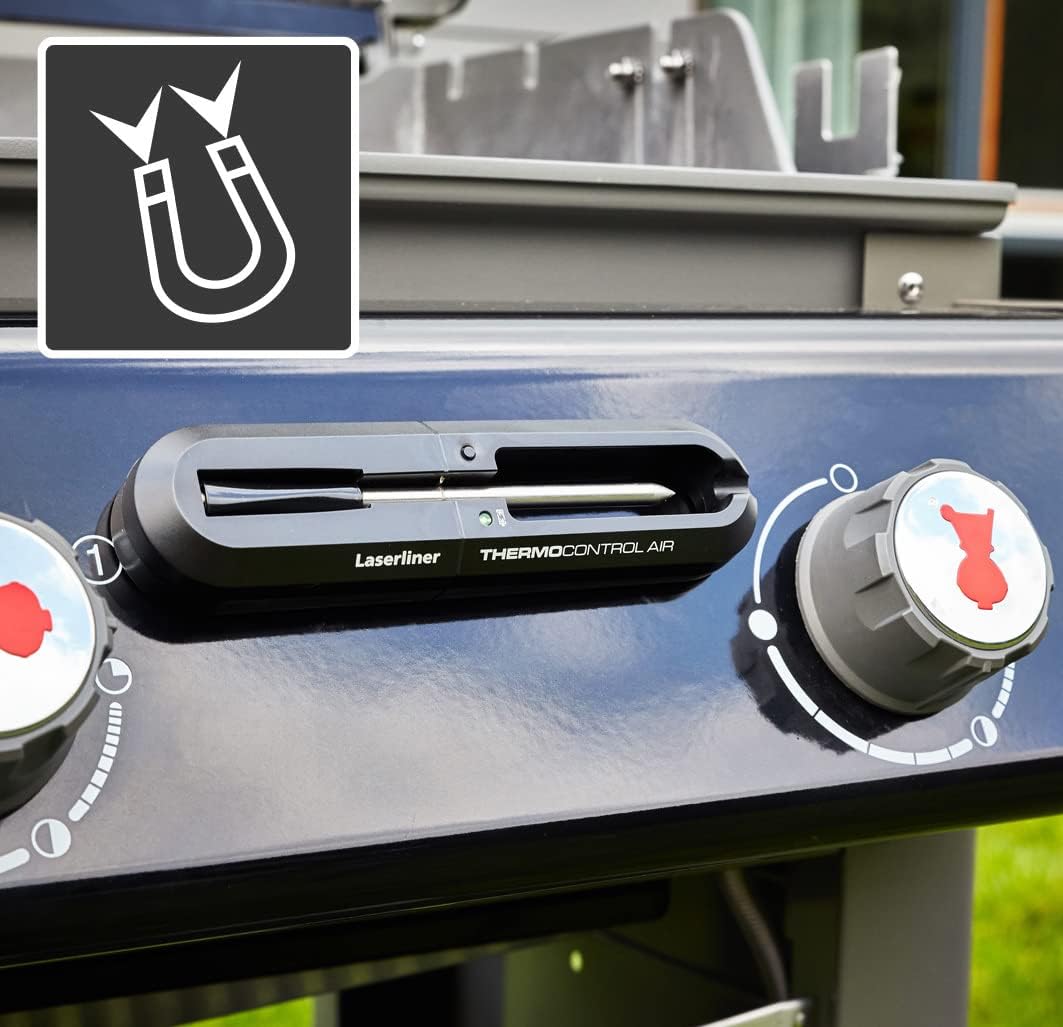
Image: The ThermoControl Air main unit magnetically attached to the side of a grill, demonstrating its convenient placement.
Setup
1. Battery Installation
- Locate the battery compartment on the back of the ThermoControl Air main unit.
- Open the compartment cover.
- Insert the provided 1.5V AAA battery, ensuring correct polarity (+/-).
- Close the battery compartment cover securely.

Image: The ThermoControl Air main unit with an illustration of an AAA battery, indicating the required battery type for operation.
2. App Download and Connection
- Download the "Grill ProbeE" app from your device's app store (available for iOS and Android).
- Ensure Bluetooth is enabled on your smartphone or tablet.
- Open the "Grill ProbeE" app.
- The app will automatically search for and connect to your ThermoControl Air device. If prompted, allow necessary permissions for the app to function correctly (e.g., Bluetooth access).
- Once connected, the LED indicator on the ThermoControl Air unit may change color or state, and the app will display a connected status.
Operating Instructions
1. Preparing for Measurement
- Insert the temperature probe firmly into the jack on the ThermoControl Air main unit.
- For meat, insert the probe into the thickest part, avoiding bones. For ambient temperature, position the probe in the cooking chamber without touching the food or heating elements.
- Place the ThermoControl Air main unit outside the cooking chamber, ideally attached magnetically to a metal surface nearby, ensuring it is not exposed to excessive heat.
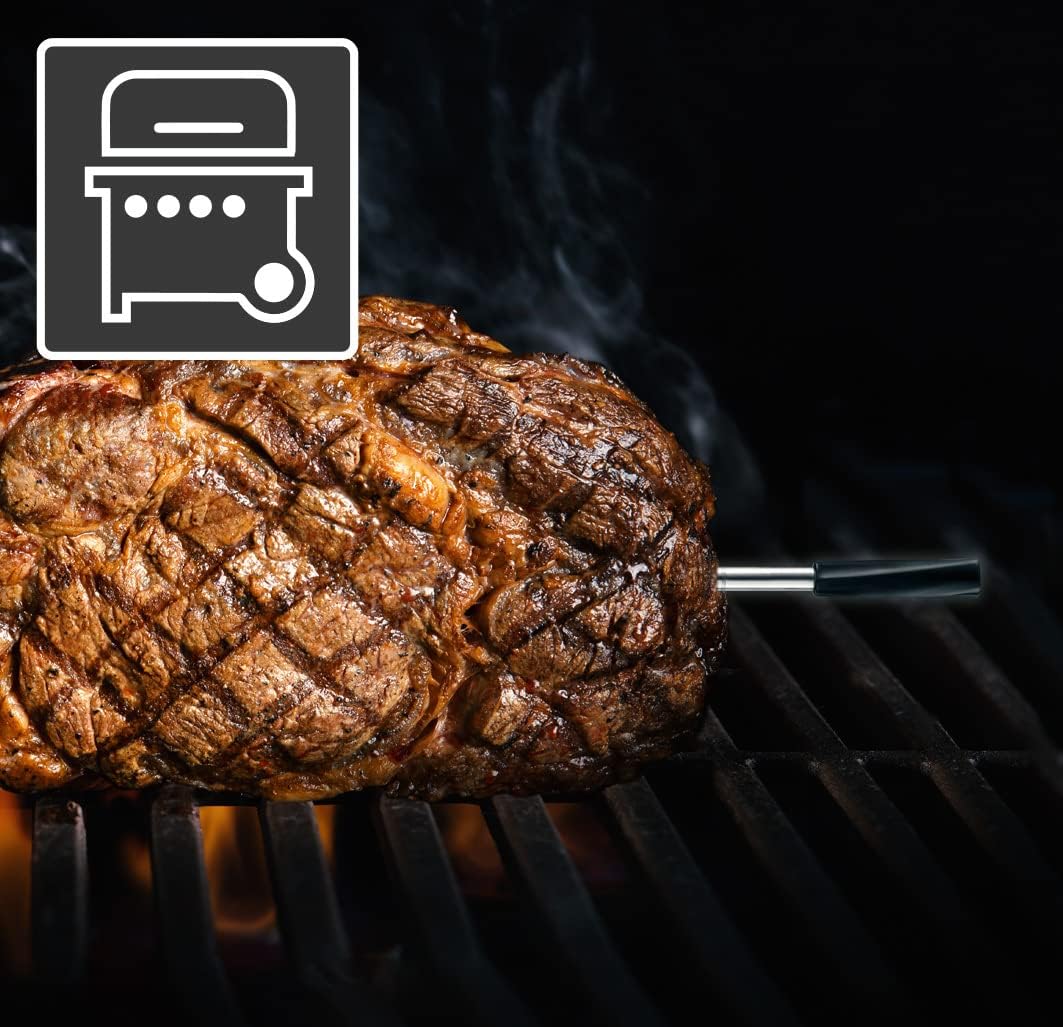
Image: A piece of meat cooking on a grill with the ThermoControl Air probe accurately inserted to monitor its internal temperature.
2. Using the App for Cooking
- Open the "Grill ProbeE" app on your connected device.
- Select the type of meat or food you are cooking from the app's menu.
- Choose your desired doneness level (e.g., rare, medium, well-done). The app will automatically set the target internal temperature.
- Monitor the real-time temperature readings on the app. The app displays both the current internal temperature of the food and, if applicable, the ambient temperature of the cooking environment.
- The app will provide visual and audible alerts when the target temperature is reached, or if the temperature deviates significantly.
- You can also set custom temperature alarms or timers within the app.

Image: A smartphone screen showing the "Grill ProbeE" app interface, displaying real-time temperature data for a chicken being cooked on a rotisserie.

Image: An illustrative view of the ThermoControl Air probe inserted into a chicken roasting in an oven, with a smartphone displaying the app's cooking level options and temperature monitoring.
Maintenance
Cleaning
- After each use, allow the temperature probe to cool down.
- Wash the probe with warm, soapy water. Do not use abrasive cleaners or scouring pads.
- Wipe the main unit with a damp cloth. Do not immerse the main unit in water or place it in a dishwasher.
- Ensure both the probe and the main unit are completely dry before storage.
Storage
- Store the ThermoControl Air and its probe in a clean, dry place when not in use.
- If storing for an extended period, it is recommended to remove the battery to prevent leakage.
Troubleshooting
| Problem | Possible Cause | Solution |
|---|---|---|
| Device not turning on. | Battery is dead or incorrectly inserted. | Replace the AAA battery or check its polarity. |
| App not connecting to the device. | Bluetooth is off; device is out of range; app permissions not granted; device not active. | Ensure Bluetooth is on. Move closer to the device. Check app permissions in phone settings. Press the TEST button on the device to activate it. |
| Inaccurate temperature readings. | Probe not fully inserted; probe damaged; probe tip touching bone. | Re-insert the probe into the thickest part of the food, avoiding bones. If damaged, replace the probe. |
| App crashes or freezes. | Software glitch; outdated app version. | Restart the app and your phone. Check for app updates in your app store. |
Specifications
| Feature | Detail |
|---|---|
| Model | 082.425A |
| Temperature Range | 0°C to 300°C (32°F to 572°F) |
| Connectivity | Bluetooth (App controlled) |
| App Compatibility | iOS and Android |
| Power Supply | 1 x 1.5V AAA Battery (included) |
| Dimensions (Main Unit) | Approx. 16.8 x 2.4 x 4 cm (6.6 x 0.9 x 1.6 inches) |
| Weight | Approx. 200 g (0.44 lbs) |
| Protection Class | IP66 (Dust tight and protected against powerful water jets) |
Warranty and Support
Laserliner products are manufactured with high quality standards. For information regarding warranty terms and conditions, please refer to the warranty card included with your product or visit the official Laserliner website.
For technical support, troubleshooting assistance, or spare parts, please contact Laserliner customer service. Contact details can typically be found on the product packaging or the official Laserliner website:
Laserliner Official Website: www.laserliner.com
Please have your model number (082.425A) and purchase date ready when contacting support.
Related documents082.425A


Ask a question about this manual
Ask about setup, troubleshooting, compatibility, parts, safety, or missing instructions. Manuals+ will review the question and use this page’s manual context to help answer it.