
LENTION CF53
LENTION USB C to Dual HDMI Adapter User Manual
Model: CF53
1. Product Overview
The LENTION USB C to Dual HDMI Adapter (Model CF53) is designed to expand your display capabilities by connecting two external HDMI monitors to your USB-C enabled device. This adapter supports high-resolution video output, making it ideal for productivity, presentations, and entertainment.

Image 1.1: The LENTION USB C to Dual HDMI Adapter, a compact device with a USB-C connector and two HDMI ports, designed for connecting multiple displays.
Key features include:
- Dual HDMI Output: Connect two independent HDMI displays.
- High Resolution: Supports up to 4K (3840x2160) at 60Hz for single display output, and 4K (3840x2160) at 30Hz for dual display output.
- Wide Compatibility: Compatible with USB-C devices supporting DP Alt Mode, including MacBook Pro/Air, iPad Pro, Dell XPS, Surface Pro, Chromebooks, and more.
- Signal Shielding: Incorporates technology to prevent interference with 2.4GHz Wi-Fi.
- Durable Design: Features a cable sink design, anti-slip connector, and reinforced braided nylon cable.
2. Setup and Connection
Follow these steps to set up your LENTION USB C to Dual HDMI Adapter:
- Prepare Your Devices: Ensure your host device (laptop, tablet) has a USB-C port that supports DisplayPort Alternate Mode (DP Alt Mode). Prepare your HDMI monitors and HDMI 2.0 (or higher) cables.
- Connect HDMI Cables: Plug one or two HDMI cables into the HDMI ports on the LENTION adapter.
- Connect to Monitors: Connect the other end of the HDMI cables to the HDMI input ports on your external monitors.
- Connect to Host Device: Insert the USB-C connector of the LENTION adapter into the USB-C port of your host device.
- Power On: Power on your host device and external monitors. The displays should automatically detect the connection.

Image 2.1: This diagram illustrates the supported resolutions for single and dual HDMI output. For single HDMI output, the adapter supports up to 4K (3840x2160) at 60Hz. For dual HDMI output, it supports up to 4K (3840x2160) at 30Hz for each monitor.

Image 2.2: This image displays the universal compatibility of the adapter, showing various host devices like MacBooks, Dell XPS, Chromebook Pixel, Samsung S9, and Huawei P20, along with external devices such as HDTVs, monitors, and projectors.
3. Operating the Adapter
Once connected, your operating system will manage the display settings. Here's how different operating systems handle multiple displays:
3.1. Windows OS (ABC / ABB / AAA Modes)
Windows operating systems support various display modes, including:
- Extend Mode (ABC): Your laptop screen (A) and two external monitors (B and C) can display different content, extending your desktop across three screens. This is also known as Multi-Stream Transport (MST).
- Duplicate Mode (ABB or AAA):
- ABB: Your laptop screen (A) displays one content, while both external monitors (B and B) duplicate each other's content.
- AAA: All three screens (laptop and two external monitors) display the same content.

Image 3.1: This image illustrates the display modes supported by Windows and Mac OS. Windows supports triple screens and duplicate display (AAA, ABB, or ABC), allowing for extended desktops. Mac OS only supports extend mode or mirror mode (ABB or AAA), meaning both external monitors will display the same content or mirror the primary display.
3.2. macOS / iPadOS / ChromeOS (ABB / AAA Modes)
Due to operating system limitations, Mac, iPad, and ChromeOS devices will display the same content on both external monitors when using this adapter. This means:
- Extend Mode (ABB): Your laptop screen (A) can display different content from the two external monitors (B and B), which will mirror each other.
- Mirror Mode (AAA): All three screens (laptop and two external monitors) will display the same content.
It is not possible to have three independent displays (ABC) on macOS, iPadOS, or ChromeOS with this adapter.
3.3. Resolution and Cable Requirements
To achieve optimal resolution, especially 4K at 60Hz for single display or 4K at 30Hz for dual displays, ensure you use high-quality HDMI 2.0 (or higher) cables. Lower quality or older HDMI cables may limit the resolution or refresh rate.
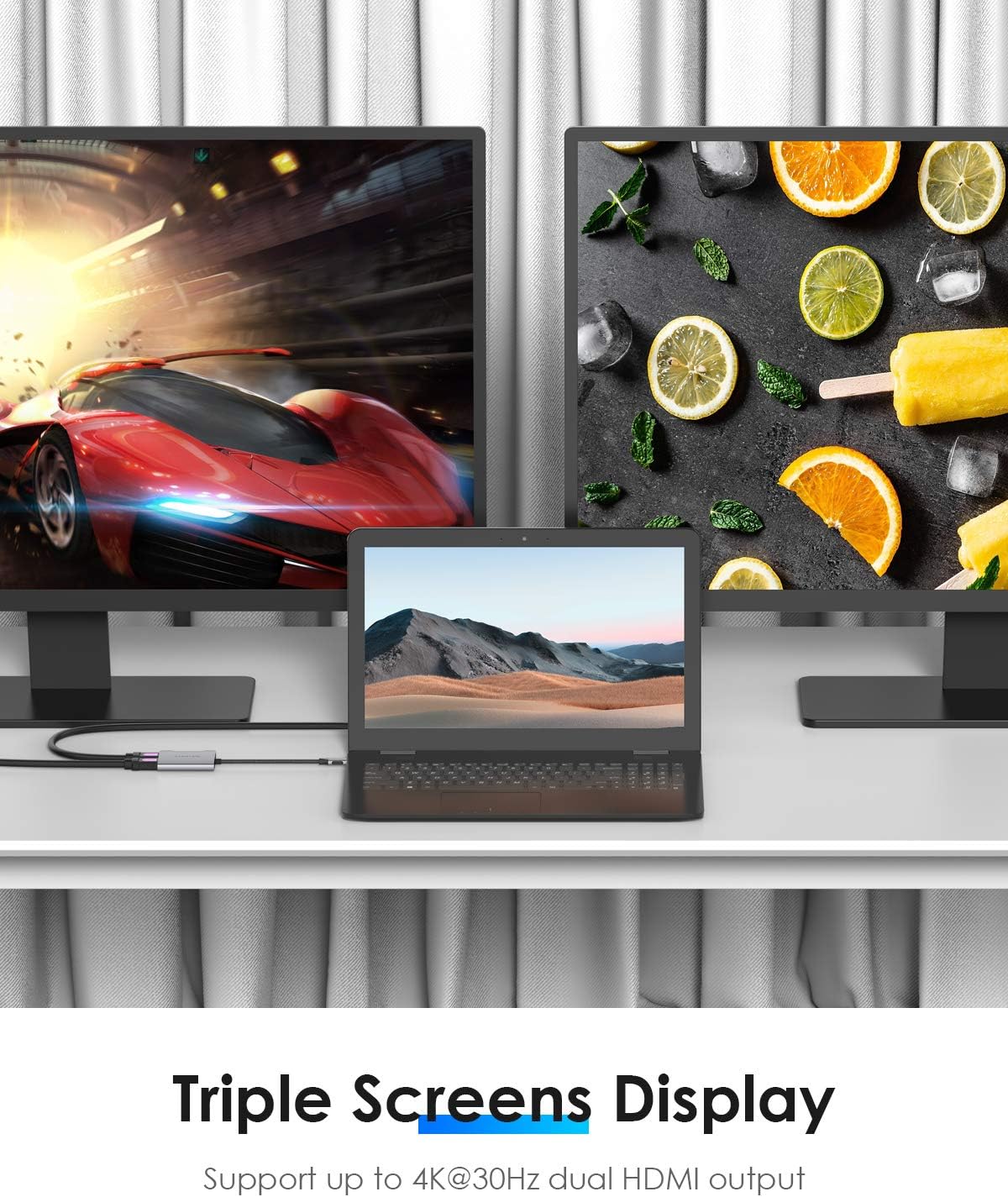
Image 3.2: This image shows a laptop connected to two external monitors via the LENTION adapter, demonstrating a triple screen display setup. This configuration supports up to 4K@30Hz dual HDMI output, providing an expanded workspace.

Image 3.3: A laptop connected to a large 4K Ultra HD television via the LENTION adapter, illustrating the ability to connect the device to a bigger screen for enhanced viewing experiences.
4. Maintenance
To ensure the longevity and optimal performance of your LENTION USB C to Dual HDMI Adapter, follow these maintenance guidelines:
- Cleaning: Use a soft, dry cloth to clean the adapter. Avoid using liquid cleaners or aerosols, as they may damage the device.
- Storage: When not in use, store the adapter in a cool, dry place away from direct sunlight and extreme temperatures.
- Handling: Avoid bending or twisting the cable excessively. Do not drop the adapter or subject it to strong impacts. The cable sink design helps protect the cable from accidental damage.
- Connectivity: Ensure the USB-C connector is inserted correctly and fully into your device's port to prevent damage to the port or adapter. The anti-slip connector is designed for easier plugging and unplugging.

Image 4.1: This image highlights the sleek and portable design of the adapter, emphasizing its 2-in-1 functionality. It also points out key features like the USB-C connector, plug-and-play capability, and HDMI ports, along with the cable sink design for better usability.

Image 4.2: A detailed cross-section view of the adapter's cable, illustrating its robust construction for USB-IF & VESA Standard compliance. Components shown include braided nylon soft wire, ground wire, aluminum foil shield, and tinned copper, all contributing to signal integrity and durability.
5. Troubleshooting
If you encounter issues while using your LENTION USB C to Dual HDMI Adapter, refer to the following common problems and their solutions:
| Problem | Possible Cause | Solution |
|---|---|---|
| No display on external monitor(s). |
|
|
| Resolution is lower than expected. |
|
|
| External monitors mirror each other on Mac/iPad/ChromeOS. | Operating system limitation. | This is expected behavior for these operating systems. The adapter cannot bypass this OS limitation to provide independent extended displays on both external monitors. |
| Flickering or unstable display. |
|
|
6. Specifications
| Feature | Detail |
|---|---|
| Model | CF53 |
| Brand | LENTION |
| Input | USB-C (DP Alt Mode required) |
| Output | 2 x HDMI |
| Single HDMI Output Resolution | Up to 3840 x 2160 @ 60Hz |
| Dual HDMI Output Resolution | Up to 3840 x 2160 @ 30Hz (per monitor) |
| HDCP Support | HDCP 2.2 |
| Dimensions (Package) | 18 x 12.3 x 1.6 cm |
| Item Weight | 110 grams |
| Material | Aluminum alloy (monocoque casing) |
| Cable Type | Reinforced braided nylon |
| Signal Shielding | Yes, to prevent 2.4GHz Wi-Fi interference |
7. Warranty and Support
LENTION products are designed for reliability and performance. For any questions, technical support, or warranty inquiries regarding your LENTION USB C to Dual HDMI Adapter (Model CF53), please contact LENTION customer support through their official website or the platform where you purchased the product.
Please note that spare parts availability information is not provided. Refer to your purchase documentation for specific return and warranty policies.
Related documentsCF53

Ask a question about this manual
Ask about setup, troubleshooting, compatibility, parts, safety, or missing instructions. Manuals+ will review the question and use this page’s manual context to help answer it.