
WAINLUX K4
WAINLUX K4 Mini Laser Engraving Machine User Manual
Model: K4
Introduction
The WAINLUX K4 Mini Laser Engraving Machine is a compact and versatile desktop device designed for amateur laser engraving. It offers functions for black and white, discrete, and grayscale engraving, making it suitable for various DIY projects and personal customization. This manual provides essential information for setting up, operating, maintaining, and troubleshooting your K4 engraver to ensure safe and efficient use.

Figure 1: WAINLUX K4 Mini Laser Engraving Machine. This image shows the compact black unit with a green transparent laser shield at the front.
Safety Information
Please read and understand all safety instructions before operating the WAINLUX K4. Failure to follow these instructions may result in injury or damage to the device.
- Eye Protection: Always wear the provided eye protective plate or equivalent laser safety glasses when the machine is operating. The laser can cause permanent eye damage.
- Ventilation: Operate the machine in a well-ventilated area. Laser engraving can produce smoke and fumes, which should not be inhaled.
- Flammable Materials: Do not engrave highly flammable materials. Keep flammable liquids, gases, and other materials away from the engraving area.
- Supervision: Never leave the machine unattended while it is operating.
- Stable Surface: Ensure the machine is placed on a stable, level, and non-combustible surface during operation.
- Avoid Movement: Do not touch or move the device or the engraving material while the machine is working. Keep them still to prevent errors and ensure safety.
- Children and Pets: Keep children and pets away from the engraving machine and its operating area.
- Power Supply: Use only the provided power supply. Disconnect power before cleaning or performing maintenance.
Package Contents
Upon unpacking, please verify that all items listed below are included in your package:
- 1 x Mini Engraver Machine (3000mW)
- 1 x Eye Protective Plate
- 1 x USB Disk (containing driver and software)
- 1 x Power Supply
- 1 x Data Cable (USB)
- 1 x Black Pen
- 5 x Wooden Boards (for testing/practice)
- 1 x User Manual (this document)
Product Overview and Features
The WAINLUX K4 is designed for ease of use and versatility in personal engraving projects. Its compact size and robust features make it an excellent tool for hobbyists and DIY enthusiasts.
Engraving Capabilities
The K4 can engrave a wide range of etchable surfaces. The engraving range is approximately 3.15 inches by 3.15 inches (80mm x 80mm). It supports black and white, discrete, and grayscale engraving modes.
- Supported Materials: Wood, cardboard, bamboo, plastic, leather, bone, rubber, acrylic.
- Examples: Mobile phone cases, greeting cards, decorations, pendants, and other surface carved logos.
- Note: Transparent materials, reflective materials, and other transparent surfaces require black painting first for proper engraving.
- Non-Supported Materials: Metal, glass, stainless steel, gems, ceramics.

Figure 2: Engravable Materials. This image displays various materials such as bamboo, rubber, paper, wood, leather, and plastic, indicating their compatibility with the engraving machine.
Design and Portability
The K4 features a compact design without a lower base, allowing it to be placed directly on the surface of objects for engraving at any angle. This eliminates restrictions on special size, height, and direction of engraving.

Figure 3: Product Dimensions. This image illustrates the compact size of the WAINLUX K4, showing its dimensions as approximately 6.1 inches (width) x 6.5 inches (depth) x 5.6 inches (height).
Software and Connectivity
The machine connects via Bluetooth to Android or iOS phones, and via USB to PCs and laptops. It uses self-developed software for easy operation.
- PC Support: Windows 7/8/10/Vista/XP. (Temporarily does not support Unix, Linux).
- Supported Image Formats: JPEG/JPG/GIF/BMP/PNG.

Figure 4: System Compatibility. This image shows that the WAINLUX K4 supports Android, iPhone (iOS), and Windows operating systems, along with various image file formats like JPEG, JPG, PNG, and BMP.
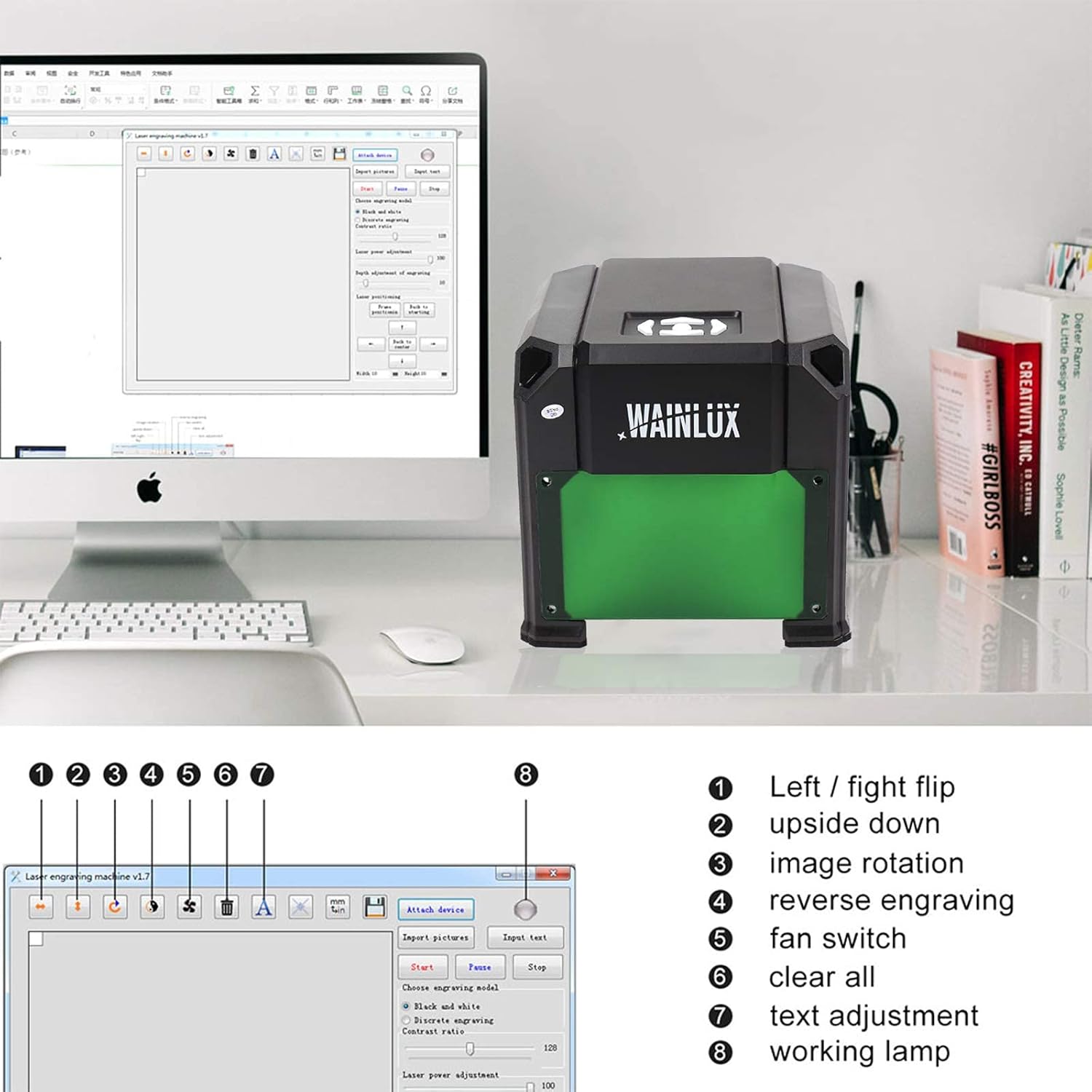
Figure 5: Software Interface. This image displays the user interface of the engraving software, highlighting controls for image manipulation, engraving modes, and laser power adjustment.
Key Components and Features

Figure 6: Detailed Features. This image highlights key components: the filter glare laser shield for checking progress, physical buttons for laser head movement (Start/Pause, Move Right, Move Down, Move Left, Move Up), and an exhaust fan for smoke and dust removal.
- Laser Focus Knob: Allows adjustment of the focus point to determine engraving precision.
- Cooling Fan: Helps cool the machine temperature during operation, extending service life.
- Eye Guard: Provides safety during operation.
- Physical Buttons: For controlling laser head movement (Start/Pause, Move Right, Move Down, Move Left, Move Up).
Setup Guide
Follow these steps to set up your WAINLUX K4 Mini Laser Engraving Machine for the first time.
- Copy USB Disk Files: First, copy all files from the provided USB DISK to your computer. This step is crucial for the machine's operation.
- Select Operating System Folder: On the USB DISK, you will find three folders: "MAC", "WIN", and "Picture". Select either "MAC" or "WIN" based on your computer's operating system.
- Install Driver:
- For MAC System: Open the "CH341SER_MAC" folder. Double-click the file "CH34x_Install_V1.4.pkg" to install the driver.
- For WIN System: Double-click the "driver" file within the "WIN" folder to install the necessary driver.
- Connect Cables:
- Connect the Power Cable Line to a power outlet.
- Connect the USB Data Line from the machine to your PC.
- Launch Software: Open the software file located in the "MAC" or "WIN" folder (depending on your OS) to start working with the engraver.
Important Note: Please read the Instruction Manual, watch the Work Video, and review the FAQ Document provided on the USB STICK carefully before using the machine for the first time.
Operating Instructions
Once the machine is set up and the software is launched, you can begin your engraving projects.
Software Interface Overview
The software allows you to control the engraving process. Refer to Figure 5 for a visual guide to the interface.
- Image/Text Import: Directly import images or text into the software. The K4 does not require G-code generation.
- Engraving Modes: Select between Black and White, Discrete, or Grayscale engraving modes based on your desired output.
- Laser Power Adjustment: Adjust the laser power settings within the software for different materials and engraving depths.
- Focus Adjustment: Use the laser focus knob on the machine to fine-tune the focus point for optimal precision. Rotate the knob until the laser dot is at its smallest and sharpest point on the material surface.
- Start/Pause: Initiate or pause the engraving process using the software controls or the physical buttons on the machine.
Engraving Process
- Prepare your material and place it on a stable surface. Ensure the machine is positioned correctly over the material.
- Connect the machine to your computer and power supply.
- Launch the WAINLUX engraving software.
- Import your desired image or text into the software.
- Adjust the image size, position, and engraving mode (Black and White, Discrete, Grayscale).
- Adjust the laser power and other settings as needed for your material.
- Put on your eye protective plate.
- Initiate a test run or frame preview (if available in software) to ensure correct positioning.
- Start the engraving process. Do not touch the device or the material during engraving.
- Monitor the engraving process. The exhaust fan will help remove smoke.
- Once complete, the machine will stop. Carefully remove the engraved material.

Figure 7: Engraving Examples. This image showcases various items successfully engraved by the WAINLUX K4, including phone cases, wooden boards, battery packs, and passport covers, demonstrating the machine's versatility.
Maintenance
Regular maintenance ensures the longevity and optimal performance of your WAINLUX K4.
- Cleaning: Regularly clean the machine, especially the engraving area, to remove dust, debris, and smoke residue. Use a soft, dry cloth. For stubborn residue, a slightly damp cloth can be used, ensuring no liquid enters the internal components.
- Laser Lens: Periodically inspect the laser lens for any dust or smudges. Clean it gently with a lens cleaning cloth and appropriate lens cleaning solution if necessary. A dirty lens can reduce engraving quality.
- Exhaust Fan: Ensure the exhaust fan is clear of obstructions and dust buildup to maintain proper cooling and smoke extraction.
- Storage: When not in use, store the machine in a clean, dry, and dust-free environment.
Troubleshooting
This section addresses common issues you might encounter with your WAINLUX K4.
| Problem | Possible Cause | Solution |
|---|---|---|
| Machine not powering on. | Power cable not connected properly; faulty power supply; power outlet issue. | Check power cable connections. Try a different power outlet. Ensure the power supply is functioning. |
| Software not detecting the machine. | Driver not installed; USB cable issue; incorrect port selected in software. | Ensure the correct driver is installed (refer to Setup Guide). Try a different USB port or cable. Restart the software and computer. |
| Engraving quality is poor/blurry. | Incorrect focus; dirty laser lens; material not flat; incorrect power/speed settings. | Adjust the laser focus knob. Clean the laser lens. Ensure the material is flat and stable. Adjust laser power and speed settings in the software. |
| Machine stops mid-engraving. | Loose connection; software crash; overheating. | Check all cable connections. Restart software. Ensure adequate ventilation and that the cooling fan is working. |
| Smoke/fumes are excessive. | Poor ventilation; material type; exhaust fan obstructed. | Ensure operation in a well-ventilated area. Check if the exhaust fan is clear and functioning. Adjust laser power if too high for the material. |
Specifications
Detailed technical specifications for the WAINLUX K4 Mini Laser Engraving Machine.
| Brand | WAINLUX |
| Model Number | K4 |
| Laser Power | 3000mW |
| Engraving Range | 3.15" x 3.15" (80mm x 80mm) |
| Material Type | Acrylonitrile Butadiene Styrene (ABS) |
| Color | Black |
| Input Voltage | 100-240V 50-60Hz |
| Output Voltage | 12V/2A |
| Communication Port | USB, Bluetooth 4.2 |
| Supported OS | Windows 7/8/10/Vista/XP, Android, iOS |
| Supported Image Formats | JPEG/JPG/GIF/BMP/PNG |
| Product Dimensions | Approx. 6.1" x 6.5" x 5.6" (15.5cm x 16.5cm x 14.2cm) |
| Product Weight | 560 Grams |
| UPC | 762027666392 |

Figure 8: Product and Package Dimensions. This image provides a visual representation of both the product's physical dimensions and the dimensions of its retail packaging.
Warranty and Support
For warranty information, technical support, or any inquiries regarding your WAINLUX K4 Mini Laser Engraving Machine, please refer to the contact information provided on the product packaging or the official WAINLUX website. Keep your purchase receipt as proof of purchase for warranty claims.
For the most up-to-date information, drivers, software updates, and frequently asked questions, please visit the official WAINLUX support page or contact their customer service directly.
Related documentsK4


Ask a question about this manual
Ask about setup, troubleshooting, compatibility, parts, safety, or missing instructions. Manuals+ will review the question and use this page’s manual context to help answer it.