
PXN 0082
PXN Arcade Fight Stick 0082 User Manual
Model: 0082
Brand: PXN
Introduction
Thank you for purchasing the PXN Arcade Fight Stick 0082. This manual provides detailed instructions for setup, operation, maintenance, and troubleshooting to ensure optimal performance and longevity of your device. The PXN 0082 is designed to bring an authentic arcade experience to your home, offering wide compatibility and advanced features for fighting games and more.
Product Overview
The PXN 0082 Arcade Fight Stick features a classic layout with a joystick and eight action buttons, along with additional function buttons for enhanced control.

Figure 1: Top view of the PXN Arcade Fight Stick 0082, showing the joystick, eight main action buttons, and control buttons at the top.

Figure 2: Dimensions of the PXN Arcade Fight Stick 0082, indicating its compact size for easy placement.

Figure 3: Close-up view of the 360-degree rotating joystick, highlighting its robust design for precise control.
Setup and Connection
The PXN 0082 offers wide compatibility across various gaming platforms. Follow the instructions below for connecting your fight stick.
Connecting to PS4 / Xbox One / Xbox Series X|S
For PlayStation 4, Xbox One, and Xbox Series X|S consoles, the PXN 0082 requires connection via an original gamepad. Ensure the console's controller is turned off before initiating the connection.
- Use a Micro USB cable with transfer function to connect the PXN 0082 to the original controller of your PS4/Xbox console.
- Plug the data cable from the PXN 0082 into the USB port of your console.
- Press the HOME button on the PXN 0082. The light on the fight stick and the connected console controller will remain ON, indicating a successful connection.
- Press any button on the PXN 0082 to confirm the connection is successful and begin gameplay.
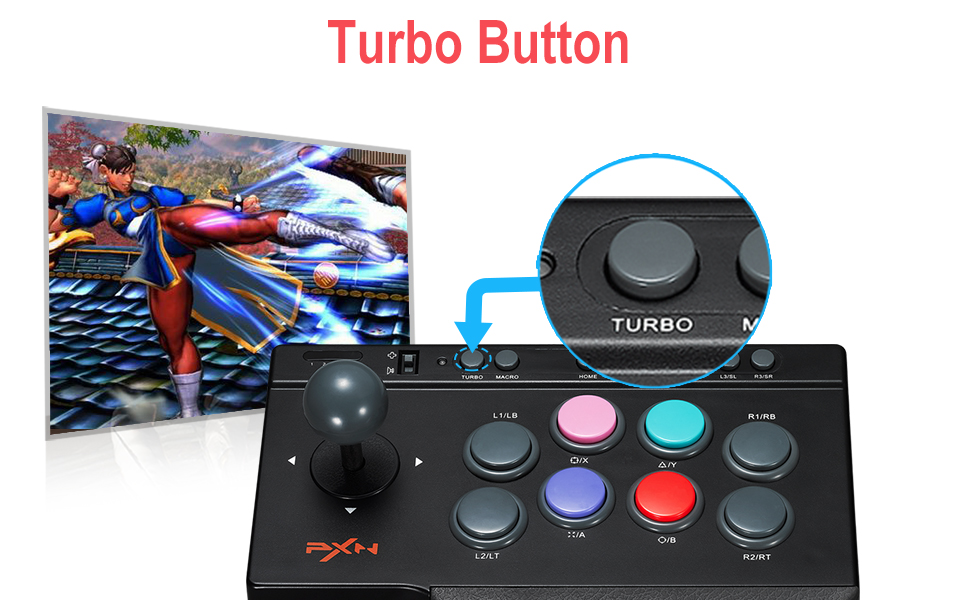
Figure 4: Connection diagram for PS4 and Xbox Series X|S, illustrating the required original gamepad connection.
Video 1: A tutorial demonstrating the connection process of the PXN 0082 Arcade Fight Stick to a PS4 console. It shows how to connect the PS4 controller to the fight stick and then the fight stick to the console, followed by testing in a game.
Connecting to PC / Android TV Box / Switch
For PC (Windows XP/7/8/10/11), Android TV, and Nintendo Switch, the PXN 0082 supports direct plug-and-play functionality.
- Simply plug the USB cable of the PXN 0082 into an available USB port on your PC, Android TV Box, or Nintendo Switch dock.
- The system should automatically recognize the device.
- For Android devices, an OTG converter may be required (sold separately).

Figure 5: Illustration of the PXN 0082's plug-and-play compatibility with various systems including PC, PS3/PS4, Switch, and Android devices.
Operating Instructions
Turbo Function
The Turbo function allows for rapid, continuous input of a button press, useful for quick attacks or repetitive actions in games.
- To activate Turbo: Press and hold the TURBO button, then press the desired action button (e.g., A, B, X, Y, L1, R1, L2, R2). The button will now rapidly repeat its input when held down.
- To deactivate Turbo: Press and hold the TURBO button again, then press the same action button. The Turbo function for that button will be turned off.

Figure 6: Close-up of the Turbo button on the PXN 0082, indicating its location for quick access.
Macro Function
The Macro function allows you to record a sequence of button presses and execute them with a single button press, enabling complex combos or moves.
- To record a Macro: Press and hold the MACRO button, then press the desired action button to assign the macro to. The indicator light will flash.
- Perform the sequence of button presses you wish to record.
- Press the MACRO button again to save the sequence. The indicator light will stop flashing.
- To execute the Macro: Press the assigned action button.
- To clear a Macro: Press and hold the MACRO button, then press the action button assigned to the macro you wish to clear. The indicator light will flash. Press the MACRO button again without pressing any other buttons to clear it.

Figure 7: Close-up of the Macro button on the PXN 0082, showing its position for programming custom sequences.
Switchable Joystick Mode
The joystick can be switched between direction stick mode and D-Pad mode, offering flexibility depending on the game or user preference.
- To switch modes: Locate the switch near the joystick (often labeled with a joystick icon and a D-Pad icon). Toggle the switch to select your desired mode.
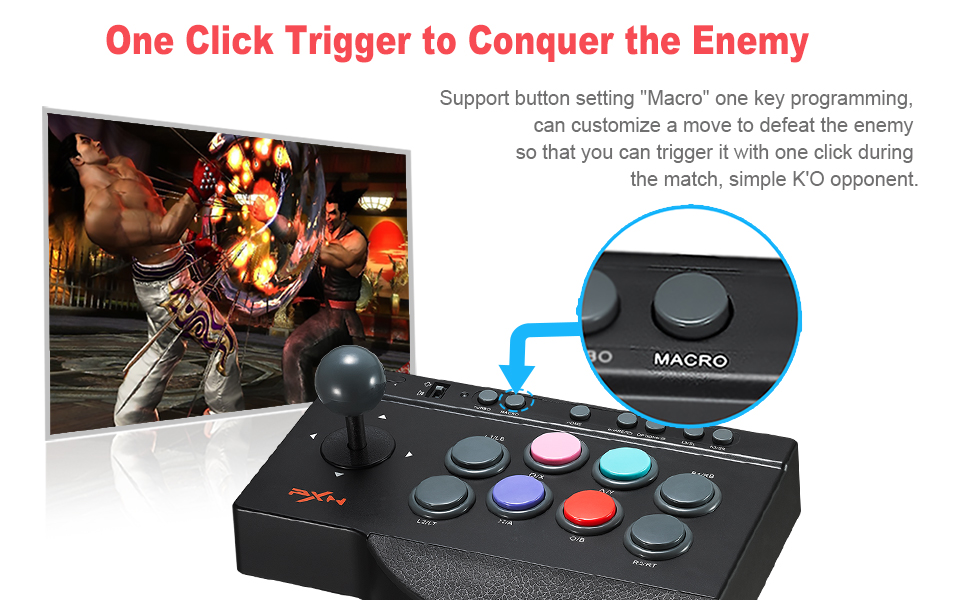
Figure 8: Diagram illustrating the switchable joystick mode, allowing users to toggle between directional input and D-Pad functionality.
Video 2: A demonstration of the PXN Arcade Fight Stick in action, showcasing its features like Turbo, Macro, and joystick interchangeability during gameplay.
Compatibility
The PXN 0082 Arcade Fight Stick is designed for broad compatibility across various gaming platforms:
- Consoles: PlayStation 4 (PS4), PlayStation 3 (PS3), Xbox One, Xbox Series X|S, Nintendo Switch.
- PC: Compatible with Windows XP, Windows 7, Windows 8, Windows 10, and Windows 11. Supports X-input and D-input modes.
- Android: Android phones, tablets, TV, and set-top boxes. An OTG converter may be required for some Android devices.
- Games: Compatible with most arcade fighting games such as Street Fighter, King of Fighting, Mortal Kombat, Iron Fist, and many more.
Specifications
| Feature | Detail |
|---|---|
| Model Number | 0082 |
| Dimensions | 9.85 x 6.9 x 4.14 inches |
| Weight | 2.2 pounds |
| Connectivity | Wired USB |
| Buttons | 8 standard arcade buttons, Turbo, Macro, Home, Share, Options, L3/SL, R3/SR |
| Joystick | High wear-resistant steel joystick, 8-direction, switchable to D-Pad |
| Base | 4 powerful slip-resistant suction cups |
| Manufacturer | PXN |
| Country of Origin | China |
Troubleshooting
- Device not recognized: Ensure all cables are securely connected. For PS4/Xbox, confirm the original controller is turned off before connecting. Try a different USB port on your console/PC.
- Buttons/Joystick unresponsive: Check if the device is properly powered and connected. Ensure the correct joystick mode (direction stick or D-Pad) is selected for your game.
- Input lag: Ensure you are using a high-quality USB cable. For consoles, ensure the original controller is fully charged or connected via cable to avoid wireless interference.
- Macro/Turbo not working: Review the operating instructions for proper activation and deactivation of these functions. Ensure you are pressing the correct combination of buttons.
- PC compatibility issues: Ensure your PC operating system is supported (Windows XP/7/8/10/11). You may need to update your PC's USB drivers.
Maintenance
To ensure the longevity and optimal performance of your PXN Arcade Fight Stick 0082, follow these simple maintenance guidelines:
- Cleaning: Use a soft, dry cloth to wipe down the surface of the fight stick. For stubborn dirt, slightly dampen the cloth with water. Avoid using harsh chemicals or abrasive cleaners.
- Storage: Store the fight stick in a cool, dry place away from direct sunlight and extreme temperatures.
- Handling: Avoid dropping the device or subjecting it to strong impacts. Do not pull on the cable excessively.
Warranty and Support
PXN provides customer service and support for its products. For detailed warranty information, please refer to the official user manual PDF or contact PXN customer service directly.
- User Manual (PDF): For a comprehensive guide, you can download the official user manual here.
- Customer Service: PXN offers 24-hour customer service, 30 days of worry-free refunds, and 365 days of exchange service. For support, please contact the seller, PXN YY, or refer to the contact information provided with your purchase.
Related documents0082


Ask a question about this manual
Ask about setup, troubleshooting, compatibility, parts, safety, or missing instructions. Manuals+ will review the question and use this page’s manual context to help answer it.