1. Introduction
This manual provides essential information for the safe and efficient operation of your iFFALCON 40F2A 40-inch Full HD Android Smart LED TV. Please read these instructions thoroughly before using the television and retain them for future reference.
The iFFALCON 40F2A is a 40-inch Full High Definition (1920x1080) Smart LED TV powered by Android, offering a rich entertainment experience with built-in Google Assistant, HDR10 support, and integrated streaming services.

Image: Front view of the iFFALCON 40F2A 40-inch Full HD Android Smart LED TV.
2. Setup
2.1 Unboxing and Package Contents
Carefully remove the television from its packaging. Ensure all components are present:
- 1 x iFFALCON 40F2A LED TV
- 1 x Table Top Stand
- 1 x User Manual (this document)
- 1 x Warranty Card
- 1 x Remote Control
- 2 x AAA Batteries
2.2 Stand Installation
If using the table-top stand:
- Place the TV screen-down on a soft, flat surface to prevent damage.
- Align the stand brackets with the screw holes on the bottom of the TV.
- Secure the stand using the provided screws.
- Carefully lift the TV to an upright position on a stable, level surface.
2.3 Wall Mounting (Optional)
For wall mounting, consult a professional installer and refer to the wall mount kit's instructions. Ensure the wall mount is compatible with the TV's VESA mounting pattern.
2.4 Connecting External Devices
Connect your external devices (e.g., set-top box, gaming console, Blu-ray player) to the TV's ports. The TV features HDMI, USB, VGA, and Headphone ports.
- HDMI: For high-definition audio and video.
- USB: For connecting USB storage devices.
- Ethernet: For wired internet connection.
- Headphone: For audio output to headphones.
2.5 Power Connection and Initial Setup
- Insert the provided AAA batteries into the remote control.
- Connect the power cord to the TV and then to a power outlet.
- Press the power button on the remote control to turn on the TV.
- Follow the on-screen instructions to complete the initial setup, including language selection, network connection (Wi-Fi or Ethernet), and Google account sign-in.
3. Operating the TV
3.1 Remote Control Functions
The remote control provides access to all TV functions. It includes dedicated buttons for popular streaming services like Netflix, Amazon Prime Video, and Zee5, as well as a Google Assistant button for voice commands.

Image: The iFFALCON 40F2A Smart Remote Control, highlighting the Google Assistant and Netflix hotkey buttons.
3.2 Android TV Interface
Navigate the Android TV interface using the remote's directional pad and OK button. The home screen displays recommended content, installed applications, and settings.

Image: The Android TV home screen on the iFFALCON 40F2A, showing various apps and features.
3.3 Google Assistant
Press the Google Assistant button on your remote and speak into the microphone to control your TV, search for content, get answers, and manage smart home devices.
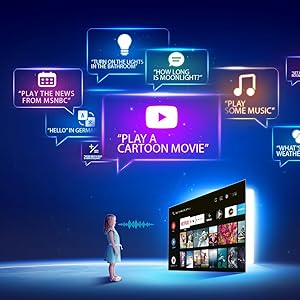
Image: Illustration of using Google Assistant voice commands with the TV.
3.4 Streaming Applications
Access a wide range of pre-installed streaming applications such as Netflix, Amazon Prime Video, YouTube, Disney+Hotstar, Zee5, and more. Additional apps can be downloaded from the Google Play Store.

Image: The iFFALCON 40F2A displaying various streaming application logos.
3.5 Chromecast Built-in
Use the built-in Chromecast feature to cast content from your compatible smartphone, tablet, or computer directly to your TV screen.

Image: A smartphone casting content to the iFFALCON 40F2A TV via Chromecast.
4. Features
4.1 Full HD Display with HDR10
Experience clear and vibrant visuals with Full HD (1920x1080) resolution. HDR10 support enhances contrast and color accuracy, providing a more dynamic picture.

Image: A side-by-side comparison of a scene without HDR10 and with HDR10, showing enhanced detail and color.
4.2 Micro Dimming
Micro Dimming analyzes video content in hundreds of separate zones to adjust brightness and darkness independently, improving contrast and picture quality.
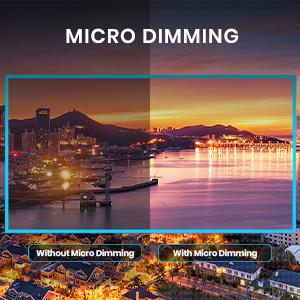
Image: A comparison showing a city skyline without Micro Dimming and with Micro Dimming, highlighting improved contrast.
4.3 iPQ Engine
The iPQ Engine intelligently processes image quality, optimizing brightness, color range, and other visual parameters for a superior viewing experience.

Image: Visual representation of the iPQ Engine's high brightness precision and intelligent color range control technologies.
4.4 Dolby Audio
Enjoy immersive sound with Dolby Audio. The TV features 20 Watts speakers (10W + 10W) for clear and powerful audio output.

Image: Graphic illustrating the 10W + 10W Dolby Audio speakers for enhanced sound.
4.5 Slim Design
The iFFALCON 40F2A features a sleek and slim design, allowing it to blend seamlessly into any living space.

Image: A hand demonstrating the slim profile of the iFFALCON TV.
5. Maintenance
5.1 Cleaning the Screen
Gently wipe the screen with a soft, lint-free cloth. For stubborn marks, slightly dampen the cloth with water or a specialized screen cleaner. Avoid using harsh chemicals or abrasive materials.
5.2 Cleaning the TV Body
Wipe the TV's frame and stand with a soft, dry cloth. Do not use liquid cleaners directly on the TV.
5.3 General Care
- Avoid exposing the TV to direct sunlight or extreme temperatures.
- Ensure adequate ventilation around the TV to prevent overheating.
- Unplug the TV during lightning storms or when it will be unused for extended periods.
6. Troubleshooting
If you encounter issues with your TV, refer to the following common problems and solutions:
| Problem | Possible Cause | Solution |
|---|---|---|
| No power | Power cord disconnected; Power outlet issue | Check power cord connection; Try a different outlet; Press power button on TV/remote |
| No picture, but sound is present | Incorrect input source; Loose HDMI/AV cable | Select correct input source; Reconnect cables securely |
| No sound, but picture is present | Volume muted or too low; Audio cable issue | Unmute or increase volume; Check audio settings; Reconnect audio cables |
| Remote control not working | Dead batteries; Obstruction; Remote not paired | Replace batteries; Remove obstructions; Re-pair remote if necessary |
| Cannot connect to Wi-Fi | Incorrect password; Router issue; TV too far from router | Verify password; Restart router; Move TV closer or use Ethernet |
| Apps are slow or freezing | Insufficient memory; Network issue; App malfunction | Close unused apps; Check internet connection; Clear app cache/data or reinstall app |
If the problem persists after trying these solutions, please contact customer support.
7. Specifications
Detailed technical specifications for the iFFALCON 40F2A Smart LED TV:

Image: Diagram showing the dimensions of the iFFALCON 40F2A TV.
| Feature | Specification |
|---|---|
| Brand | iFFALCON |
| Model | 40F2A |
| Screen Size | 40 Inches (102 cm) |
| Display Technology | LED, A+ Grade Panel |
| Resolution | Full HD (1920 x 1080 Pixels) |
| Refresh Rate | 60 Hz |
| Response Time | 8.5 Milliseconds |
| Viewing Angle | 178 Degrees |
| Image Aspect Ratio | 16:09 |
| Image Contrast Ratio | 5000:1 |
| Operating System | Android |
| RAM Memory Installed Size | 1 GB |
| Digital Storage Capacity | 8 GB |
| Graphics Coprocessor | Mali470x2 |
| Audio Output | 20 Watts (Dolby Audio) |
| Connectivity Technology | Ethernet, HDMI, USB, Wi-Fi, Bluetooth |
| Hardware Interface | HDMI, Headphone, USB, VGA |
| Total USB Ports | 1 |
| Power Source | AC |
| Wattage | 75 Watts (On-mode power consumption) |
| Product Dimensions (LxWxH) | 90.5 x 18.5 x 57.7 cm (with stand) |
| Item Weight | 6.1 kg |
| Batteries | 2 AAA batteries (included for remote) |
8. Warranty and Support
8.1 Warranty Information
Your iFFALCON 40F2A TV comes with a 1 Year Warranty from the date of purchase. Please refer to the included Warranty Card for detailed terms and conditions. Retain your purchase receipt as proof of purchase for warranty claims.
8.2 Customer Support
For technical assistance, service requests, or any inquiries regarding your iFFALCON TV, please contact the manufacturer's customer support. Contact details can typically be found on the warranty card or the official iFFALCON website.


