
LONGRUF T20
LONGRUF 9-Inch GPS Navigator User Manual
Model: T20
Introduction
This manual provides comprehensive instructions for the LONGRUF 9-inch GPS Navigator, designed for cars, trucks, and RVs. It covers setup, operation, maintenance, and troubleshooting to ensure optimal performance and a smooth navigation experience.

Figure 1: LONGRUF 9-inch GPS Navigator with map display.
What's in the Box
Upon unboxing your LONGRUF GPS Navigator, please verify that all the following components are included:
- 1 x 9" Touch Screen GPS Navigation Unit
- 1 x Car Charger
- 1 x MINI USB cable
- 1 x User Manual
- 1 x Car Bracket (Suction Cup Mount)
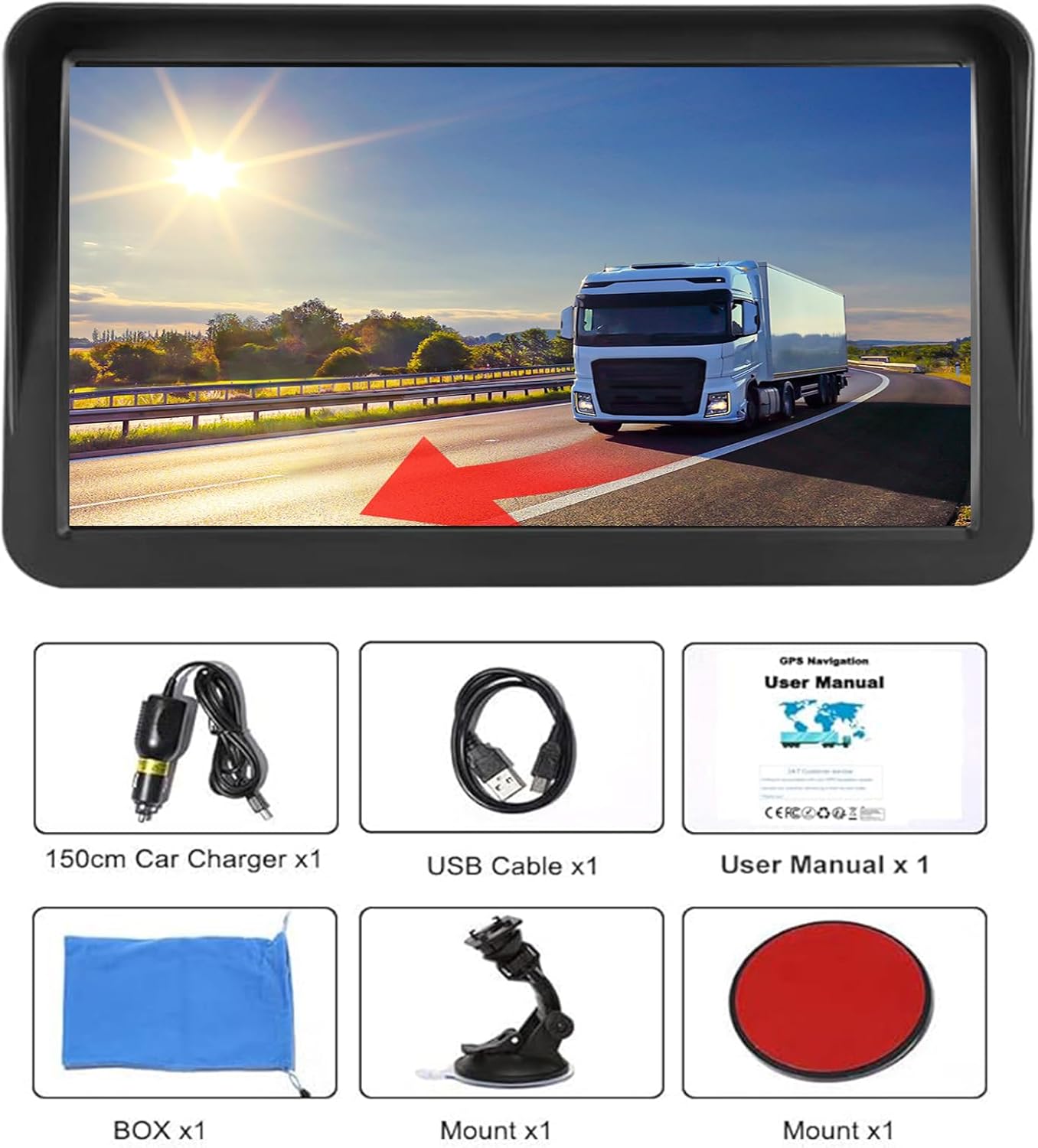
Figure 2: All components included in the LONGRUF GPS Navigator package.
Setup and Installation
Mounting the Device
The LONGRUF GPS Navigator offers two primary installation methods: on the windshield glass or on the dashboard.
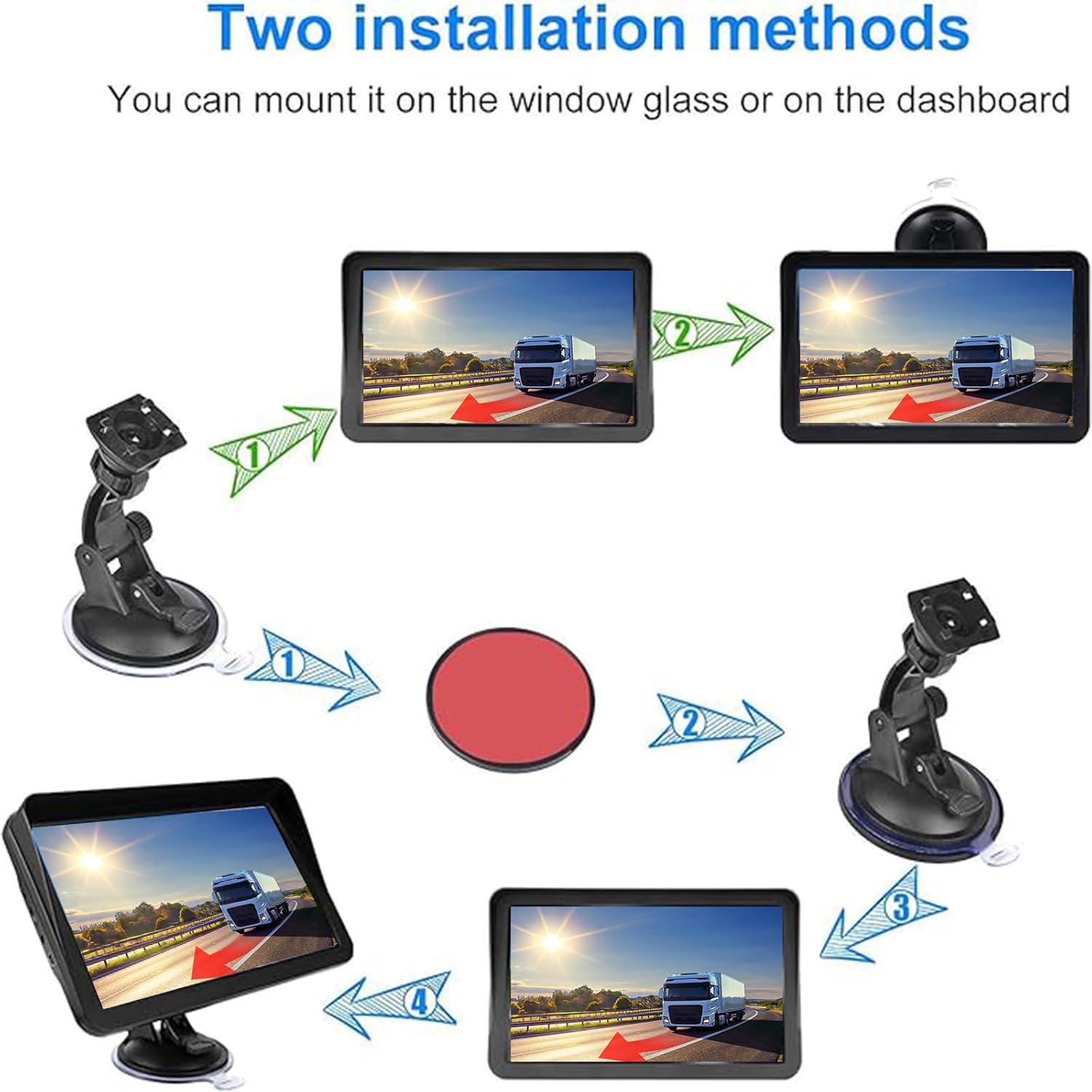
Figure 3: Two installation methods for the GPS unit.
Method 1: Dashboard Installation (with adhesive disc)
- Clean the desired area on your dashboard where you intend to place the GPS.
- Peel off the protective film from the adhesive disc.
- Press the adhesive disc firmly onto the cleaned dashboard surface.
- Attach the suction cup mount to the adhesive disc.
Method 2: Windshield Installation (direct suction)
- Clean the windshield area where you wish to mount the GPS.
- Fix the suction cup directly to the cleaned windshield surface.

Figure 4: Visual guide for GPS installation methods.
Initial Power On and GPS Signal Acquisition
Connect the GPS unit to your vehicle's power source using the provided car charger. Upon first use or after a long period of inactivity, the device will need to acquire a GPS signal. This process can take between 5 to 30 minutes. Ensure the device is in an open area with a clear view of the sky for best signal reception.
For optimal performance, ensure at least 3 green bars are displayed in the "GPS Viewer" before beginning navigation.

Figure 5: The GPS unit features a sun hood to reduce glare for clear visibility.
Operating Instructions
Vehicle Mode Selection
The GPS navigation system supports 7 vehicle types: car, pedestrian, bicycle, emergency, bus, taxi, and truck. To change the vehicle mode, navigate to: Navigation > Settings > Route Settings > Vehicles, then select your desired vehicle type (e.g., Truck).

Figure 6: The GPS supports various vehicle modes for tailored navigation.
Navigation Features
- Route Options: Choose from Fast, Green, Short, or Easy routes.
- Search Functions: Support Postcode, Address, Coordinates, Favorite locations, and Points of Interest (POI) search.
- Voice Guidance: Clear, easy-to-understand male and female voice guiding in 44 languages.
- FM Broadcast: Transfer GPS sound to your car's audio system via FM. Note: This is for sound transfer, not FM radio functionality.
- Safety Alerts: Intelligent Current Speed Camera Alerts, Sound Warning, Speed monitoring, and memory of speed exceeding.
- Lane Assist: Provides guidance for lane changes.
- Real-time Information: Displays Current Speed, Estimated Arrival Time (ETA), and Remaining Distance.
- Custom Truck Routing: Customize routes based on your vehicle's weight, length, height, and width to avoid restricted roads.

Figure 7: Speed camera and warning display on the GPS screen.
Map Updates
The device comes pre-installed with the latest 2025 maps for North America (US, Canada, Mexico) and offers free lifetime map updates. Maps for Europe, UK, Ireland, Australia, South America, Africa, the Middle East, and Asia are also available.
To update maps, you must connect your LONGRUF GPS Navigator to a Windows PC. An external SD card may be required if the system is not compatible with Mac. Map updates are not automatic and require manual download from the official website (address found in the user manual). You will receive a RAR file; unpack it to get the [NAVI] folder. Delete the original map on the GPS and copy the new map. It is highly recommended to back up your old map before updating to prevent data loss in case of update failure.

Figure 8: Visual representation of the map update process.
Maintenance
- Cleaning: Use a soft, lint-free cloth to clean the screen and exterior of the device. Avoid abrasive cleaners or solvents.
- Storage: Store the device in a cool, dry place away from direct sunlight and extreme temperatures when not in use.
- Battery Care: To prolong battery life, avoid fully discharging the battery frequently. Charge the device regularly.
- Software Updates: Regularly check for and install map updates as described in the "Operating Instructions" section to ensure the most accurate navigation data.
Troubleshooting
| Problem | Possible Cause / Solution |
|---|---|
| GPS not acquiring signal or slow acquisition |
|
| Map update fails or new maps not appearing |
|
| FM broadcast not working |
|
| Short battery life |
|
Specifications
| Feature | Detail |
|---|---|
| Display Screen | 9 inch capacitive touch screen |
| Screen Resolution | 800 x 480 |
| Memory | 8GB ROM & 256MB RAM |
| Operating System | Windows CE 6.0 |
| USB Interface | USB 2.0 |
| Voltage Support | 12 V to 24 V (for cars, trucks, ambulances, buses, taxis, etc.) |
| GPS Channels | 12 GPS channels for position search |
| Map Coverage | Pre-installed 52 countries in Europe, North America (US, Canada, Mexico). Available for South America, Africa, Middle East, Australia, Asia. |
| Map Updates | Lifetime Free Updates |
| Multilingual Support | English, French, German, Italian, Portuguese, Russian, Spanish, Finnish, Polish, Ukrainian, Hungarian, Romanian, etc. (44 languages) |
| Item Weight | 1.1 pounds |
| Product Dimensions | 0.77 x 0.46 x 0.05 inches |
| Battery Type | 1 Lithium Polymer battery (included) |
| Battery Life | Approximately 30 minutes |
| Model Name | T20 256-16GB |
Warranty Information
The LONGRUF GPS Navigator comes with a 1-year manufacturer's warranty.
Additionally, LONGRUF offers a 30-day Money-Back Guarantee and 12-month Replacement for product issues.
Customer Support
For any questions regarding your LONGRUF GPS Navigator, technical assistance, or warranty claims, please contact our professional technical team. We offer life-time Technical Support.
You can reach us via Amazon message, and we will reply within 24 hours.
For map updates, please refer to the official website address provided in your physical user manual.
Ask a question about this manual
Ask about setup, troubleshooting, compatibility, parts, safety, or missing instructions. Manuals+ will review the question and use this page’s manual context to help answer it.