
1. Introduction
Thank you for choosing the Douself Portable Mini Thermal Printer. This compact and versatile device allows you to print photos, memos, lists, and more directly from your smartphone or tablet via Bluetooth. This manual provides essential information for setting up, operating, maintaining, and troubleshooting your printer to ensure optimal performance.
2. Product Features
- Compact and Portable Design: Small, square design for easy carrying.
- High-Resolution Printing: 203 DPI resolution for clear and sharp prints on 53mm wide thermal paper.
- Inkless Thermal Technology: Utilizes advanced thermal printing, eliminating the need for ink cartridges or consumables.
- Long Battery Life: Built-in 1000mAh lithium battery supports printing up to 6 rolls of paper on a single charge.
- Wireless Connectivity: Connects via Bluetooth to the 'Phomemo' application, compatible with Android and iOS devices.
- Versatile Printing: Supports printing of photos, memos, work plans, shopping lists, web pages, and more.
- Anti-Jam Limiter: Designed to prevent paper swelling and jams, ensuring smooth operation.

Image: The Douself Portable Mini Thermal Printer, showing its compact size with dimensions of 8.4cm (3.3in) x 8.1cm (3.2in) x 4cm (1.6in). A printed image of a flower is shown emerging from the printer.
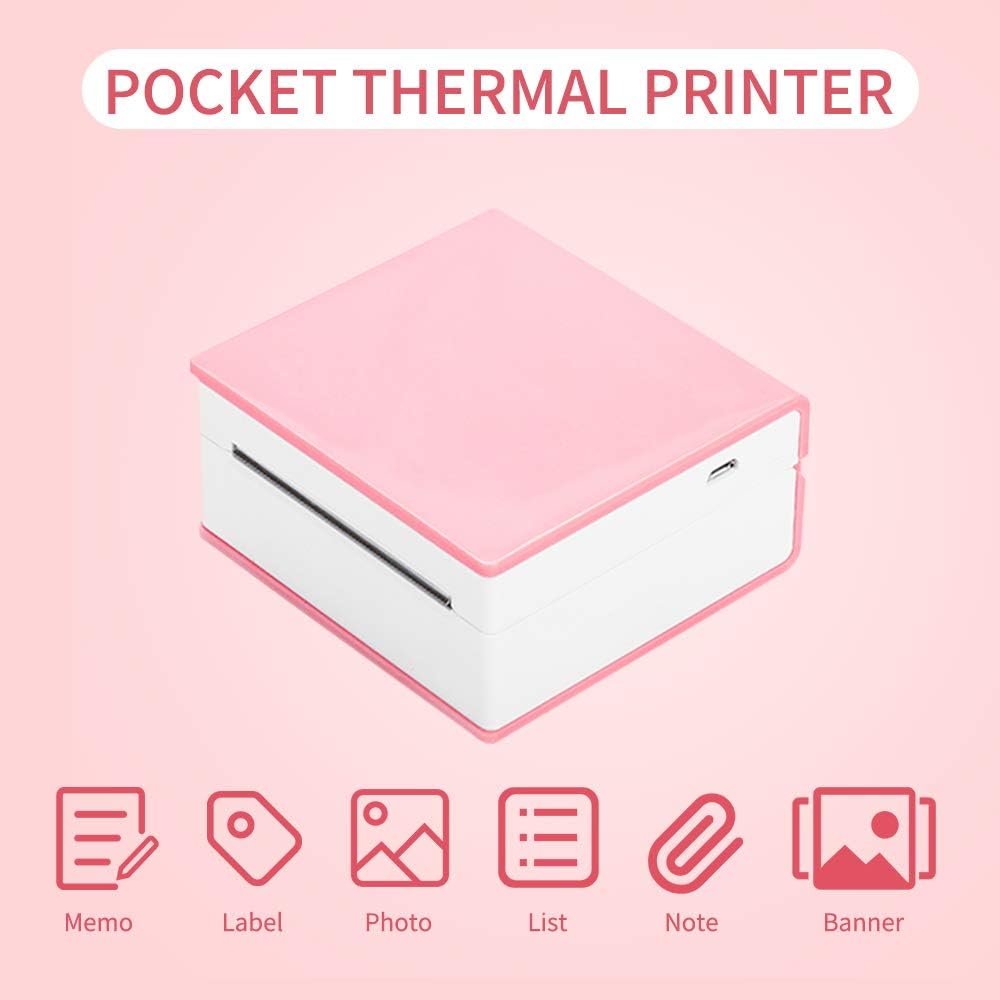
Image: The Douself Pocket Thermal Printer, highlighting its various printing capabilities including Memo, Label, Photo, List, Note, and Banner printing, represented by icons.
3. Package Contents
Please check the package for the following items:
- Douself Portable Mini Thermal Printer
- USB Charging Cable
- Thermal Paper Roll (pre-installed or included separately)
- User Manual
4. Setup Guide
4.1. Initial Charging
Before first use, fully charge the printer. Connect the provided USB cable to the printer's charging port and a standard USB power adapter (not included). The indicator light will show charging status and turn off when fully charged.

Image: The Douself printer, illustrating its 1000mAh lithium battery capacity, capable of printing 6 rolls of paper continuously on a full charge.
4.2. Loading Thermal Paper
- Gently open the printer cover.
- Insert the thermal paper roll with the printing surface facing outwards. Ensure the roll is seated correctly within the paper compartment.
- Pull a small length of paper out beyond the cutting edge.
- Close the printer cover firmly until it clicks into place.

Image: An open Douself printer showing the paper loading mechanism and the integrated anti-jam limiter, designed to prevent paper issues.
4.3. App Installation and Bluetooth Connection
- Download the App: Search for 'Phomemo' in your device's app store (App Store for iOS or Google Play Store for Android) and install it.
- Power On Printer: Press and hold the power button on the printer until the indicator light turns on.
- Enable Bluetooth: On your smartphone or tablet, go to your device's settings and ensure Bluetooth is enabled.
- Connect in App: Open the 'Phomemo' app. Follow the in-app instructions to search for and connect to your printer. The printer will typically appear as a device name like 'Phomemo' or a similar identifier.
5. Operating Instructions
5.1. Power On/Off
- To Power On: Press and hold the power button for approximately 3 seconds until the indicator light illuminates.
- To Power Off: Press and hold the power button for approximately 3 seconds until the indicator light turns off.
5.2. Basic Printing
- Ensure the printer is powered on and connected to the 'Phomemo' app via Bluetooth.
- Open the 'Phomemo' app on your device.
- Select the desired function (e.g., 'Image Printing', 'Text Editing', 'Memo', 'List').
- Create or select the content you wish to print.
- Adjust print settings within the app if necessary (e.g., density, rotation).
- Tap the 'Print' button in the app to initiate printing.

Image: A person using the Douself printer to add printed elements to a journal, demonstrating its application in creative and organizational tasks.
6. Maintenance
6.1. Cleaning the Print Head
To maintain print quality, clean the print head periodically:
- Ensure the printer is powered off.
- Open the printer cover.
- Gently wipe the print head with a cotton swab lightly dampened with isopropyl alcohol.
- Allow the print head to dry completely before closing the cover and powering on the printer.
6.2. Storage
- Store the printer in a cool, dry place away from direct sunlight and extreme temperatures.
- Avoid exposing the printer to dust or moisture.
- If storing for an extended period, ensure the battery is partially charged (around 50%) to prolong its lifespan.
7. Troubleshooting
| Problem | Possible Cause | Solution |
|---|---|---|
| Printer does not turn on | Low battery; Power button not pressed correctly | Charge the printer; Press and hold the power button for 3 seconds |
| Cannot connect via Bluetooth | Bluetooth off; App not recognizing printer; Printer too far | Ensure Bluetooth is on; Restart app and printer; Move printer closer to device |
| Poor print quality | Dirty print head; Low battery; Incorrect paper loading | Clean print head (see Section 6.1); Charge printer; Re-load paper correctly |
| Paper jam | Improper paper loading; Paper roll too tight | Open cover, remove jammed paper, re-load paper correctly; Ensure paper roll is not too tight |
| Printer not printing | No paper; App error; Connection lost | Load paper; Restart app; Re-establish Bluetooth connection |
8. Specifications
| Feature | Detail |
|---|---|
| Brand | Douself |
| Model | 203 DPI 53mm Thermal Printer |
| Printing Technology | Thermal |
| Resolution | 203 DPI |
| Paper Width | 53 mm |
| Connectivity | Bluetooth, USB (for charging) |
| Battery | 1000mAh Lithium Battery |
| Printer Output | Monochrome |
| Compatible OS | Android, iOS |
| Available Colors | Green, Pink |
| ASIN | B08MKTCZVW |
| UPC/GTIN | 787850423059 |

Image: The Douself Portable Mini Thermal Printer is available in two color options: Green and Pink.
9. Safety Information
- Do not disassemble, repair, or modify the printer yourself.
- Keep the printer away from water, fire, and high temperatures.
- Use only the specified charging cable.
- Keep out of reach of children.
- Avoid touching the print head immediately after printing, as it may be hot.
10. Warranty and Support
This product comes with a standard manufacturer's warranty. For detailed warranty information, please refer to the warranty card included in your package or contact Douself customer support.
If you encounter any issues or have questions not covered in this manual, please contact our customer support team through the retailer's platform or the official Douself website for assistance.


