Introduction
This manual provides comprehensive instructions for the GUY-TECH AC Adapter, designed as a compatible replacement power supply for the Xfinity XiD-P Comcast Pace PXD01ANI X1 Cable Box. It covers setup, operation, maintenance, troubleshooting, and detailed specifications to ensure proper and safe use of your power adapter.
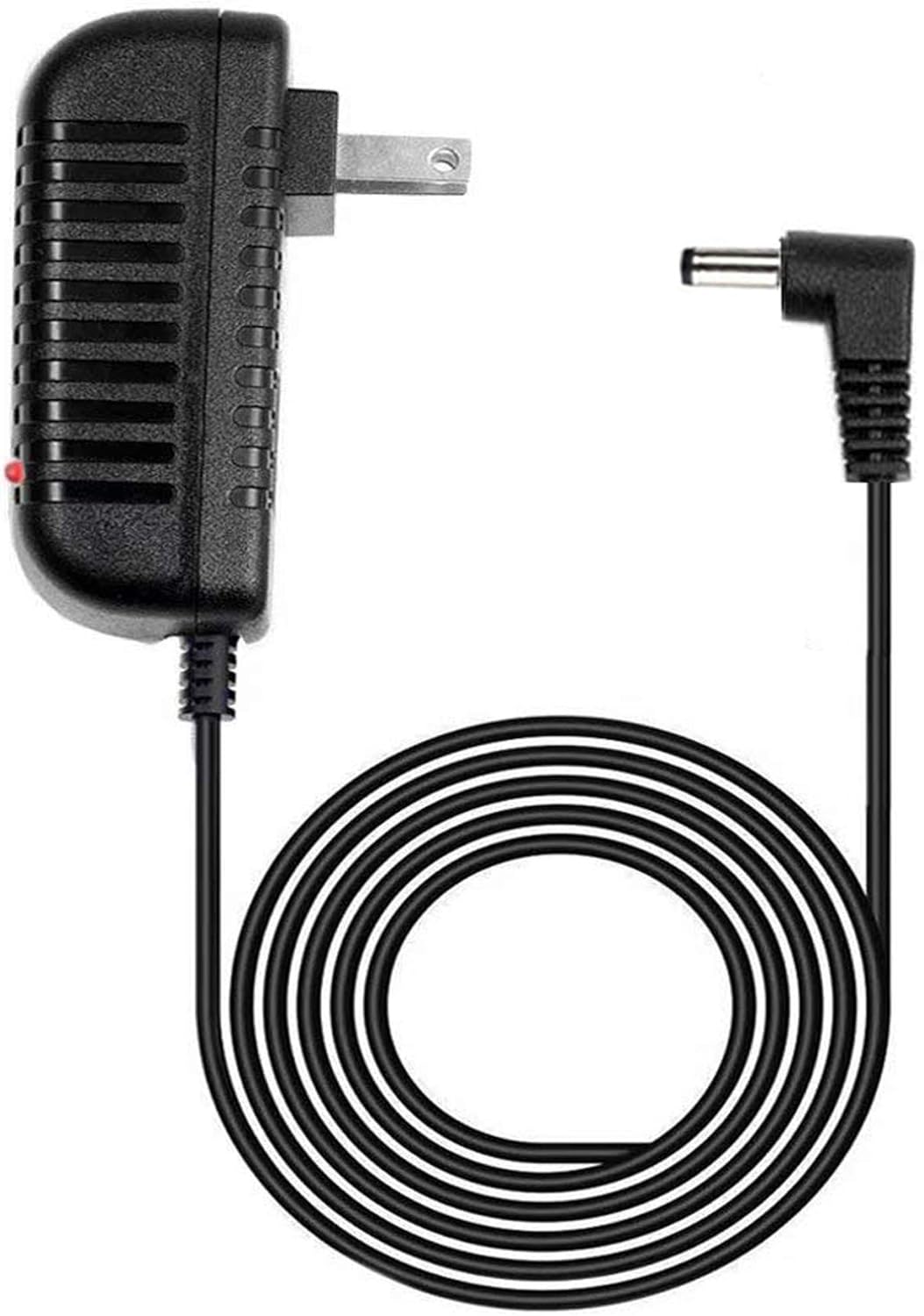
An image showing the GUY-TECH AC Adapter, featuring a black rectangular power brick with a standard US two-prong plug, and an attached black power cord terminating in a right-angle barrel connector. A small red LED indicator is visible on the adapter body.
What's in the Box
The package for your GUY-TECH AC Adapter includes the following item:
- 1 x Power Adapter
Setup Instructions
Follow these steps to properly set up your AC Adapter:
- Verify Compatibility: Before connecting, ensure that your device, specifically the Xfinity XiD-P Comcast Pace PXD01ANI X1 Cable Box, is compatible with this power adapter. If your model is not explicitly listed, please confirm compatibility to avoid damage.
- Connect to Device: Insert the barrel connector end of the power adapter cord firmly into the DC input port of your Xfinity XiD-P Comcast Pace PXD01ANI X1 Cable Box.
- Connect to Power Outlet: Plug the AC adapter's two-prong plug into a standard 100V - 240V AC wall outlet. Ensure the outlet is easily accessible.
- Power Indicator: Once connected to a live power outlet, the LED indicator on the adapter body should illuminate, signifying that the adapter is receiving power and is ready to supply power to your device.

A graphic with two orange-bordered white ovals. The top oval contains the text '5 FEET', indicating the length of the power cord. The bottom oval contains the text 'LED light', indicating the presence of an LED power indicator on the adapter.
Operating Instructions
The GUY-TECH AC Adapter operates automatically once connected to a power source and a compatible device.
- Power Supply: The adapter provides a stable DC power supply to your Xfinity cable box.
- LED Indicator: The integrated LED light on the adapter serves as a visual confirmation that the unit is powered on and functioning correctly. If the LED is not lit, check the power connections.
- Continuous Operation: The adapter is designed for continuous operation. Disconnect from the power outlet when not in use for extended periods.
Care and Maintenance
To ensure the longevity and optimal performance of your AC adapter, follow these maintenance guidelines:
- Keep Dry: Avoid exposing the adapter to moisture, water, or high humidity.
- Temperature Control: Do not operate the adapter in extremely hot or cold environments. Ensure adequate ventilation around the adapter to prevent overheating.
- Handle with Care: Do not drop, strike, or disassemble the adapter. Avoid bending or crimping the power cord excessively, especially near the connectors.
- Cleaning: Disconnect the adapter from the power outlet before cleaning. Use a soft, dry cloth to wipe the surface. Do not use liquid cleaners or aerosols.
- Storage: When not in use, store the adapter in a cool, dry place, away from direct sunlight.
Troubleshooting
If you encounter issues with your GUY-TECH AC Adapter, refer to the following common problems and solutions:
- No Power to Device / LED Indicator Off:
- Ensure the adapter is securely plugged into a working wall outlet.
- Verify that the barrel connector is fully inserted into the device's power input port.
- Test the wall outlet with another device to confirm it is supplying power.
- Device Not Functioning Correctly:
- Confirm that the adapter's specifications (voltage, amperage) match the requirements of your Xfinity cable box.
- Ensure the cable box itself is functioning correctly by testing with its original power supply if available, or by checking its own troubleshooting guide.
- Adapter Overheating:
- Ensure the adapter is not covered and has adequate airflow around it.
- Avoid placing the adapter on soft surfaces like carpets or blankets that can block ventilation.
- If overheating persists, discontinue use and contact support.
The adapter features built-in protections for over voltage, over current, and short circuit, which help prevent damage to both the adapter and your connected device.
Specifications
| Feature | Detail |
|---|---|
| Brand | GUY-TECH |
| Model Number | PXD01ANI |
| Input Voltage | 100V - 240V (Worldwide Compatible) |
| Amperage | 0.04 Amps |
| Connectivity Technology | Barrel Connector |
| Connector Type | Barrel Connector |
| Compatible Devices | Adapter |
| Compatible Phone Models | Xfinity XiD-P Comcast Pace PXD01ANI X1 Cable Box |
| Item Weight | 3.52 ounces |
| Package Dimensions | 6.34 x 4.69 x 2.05 inches |
| Manufacturer | Guy-Tech |
| Special Feature | Short Circuit Protection |
| Mounting Type | Wall Mount |
Warranty and Support
This GUY-TECH AC Adapter is provided as a high-quality, 100% compatible replacement. For any inquiries, technical assistance, or support regarding this product, please contact GUY-TECH customer service through the retailer's platform or the official GUY-TECH website. Please refer to your purchase documentation for specific warranty details, if applicable.