
FoMaKo FMK12UH
FoMaKo FMK12UH 20x AI PTZ Camera Instruction Manual
Model: FMK12UH
1. Introduction
Thank you for choosing the FoMaKo FMK12UH 20x AI PTZ Camera. This manual provides essential information for setting up, operating, and maintaining your camera to ensure optimal performance. Please read this manual thoroughly before use.
What's in the Box:
- FoMaKo AI Tracking PTZ Camera (20x optical zoom)
- IR Remote Controller
- Wall Mount, Ceiling Bracket
- USB Cable
- Power Adapter 12V 2A
- User Manual

Image 1.1: FoMaKo FMK12UH 20x AI PTZ Camera with included accessories including the remote control, wall mount, ceiling bracket, and cables.
2. Key Features
- Advanced AI Auto-Tracking (Gen 3): The camera features third-generation AI tracking for customized tracking. Users can adjust tracking modes (real-time, regional), sensitivity, figure size, character position, and lost target action. Automatic tracking can be activated by pressing F2 on the remote control, and F4 switches the tracking target.
- 20x Optical Zoom with 15x Digital Zoom: Provides clear Full 1080P video output up to 60fps with true-to-life colors. Compatible with video mixer switchers, PTZ controllers, and live streaming software like vMix and OBS for multi-camera productions.
- Multiple Video Output Interfaces: Simultaneous HDMI, LAN/Ethernet, and USB3.0 live streaming. Supports H.264/H.265 encoding for efficient bandwidth usage. High SNR CMOS with 2D & 3D noise reduction ensures performance in low light. NDI upgradeable (license key sold separately).
- Leading Auto-Focus (AF) Technology: Fast, accurate, and stable auto-focus with Auto/Manual/One Push Focus modes. Maintains clear HD images during movement and zooming.
- Power Over Ethernet (PoE) Support: Simplifies setup by allowing a single Ethernet cable to provide power, control, and HD video/audio streaming.
- Flexible Installation Methods: Built-in Gravity Sensor supports PTZ auto-flip function. Compatible with Desktop, Tripod, Wall mounting, and Ceiling mounting.
- Remote Control & Presets: Supports up to 255 presets (10 accessible via IR remote control). Control interfaces include RS232/RS485. Supports TCP/IP, RTSP, RTMP, VISCA OVER IP, VISCA, SRT, and automatic identification protocols.

Image 2.1: The camera's AI auto-tracking feature in action, highlighting its ability to follow a subject.
Video 2.2: Official FoMaKo video demonstrating the HDMI PTZ Camera's auto-tracking capabilities for live streaming.
3. Setup
3.1 Physical Connections
Connect the necessary cables to the rear panel of the camera:
- DC 12V Power: Connect the included 12V 2A power adapter.
- LAN (Ethernet/PoE): Connect an Ethernet cable for network control, video streaming, and Power over Ethernet (if using a PoE-enabled switch).
- HDMI: Connect an HDMI cable for video output to a display or capture device.
- USB3.0: Connect the USB cable to a computer for USB video output.
- RS232/RS485: For serial control from a PTZ controller.
- Line In: For external audio input.

Image 3.1: Detailed view of the camera's rear panel, showing USB 3.0, HDMI, Line In, RS232/RS485, LAN (PoE), DC 12V, and On/Off switch ports.
Video 3.2: Official FoMaKo video demonstrating the live streaming system connection for the PTZ camera.
3.2 Installation Methods
The camera can be installed in various ways:
- Desktop: Place the camera on a flat, stable surface.
- Tripod Mounting: Attach the camera to a standard tripod using the mounting screw hole on the base.
- Wall Mounting: Use the provided wall mount bracket and screws to secure the camera to a wall.
- Ceiling Mounting: Use the provided ceiling bracket and screws to mount the camera to the ceiling. The auto-flip function will automatically adjust the image orientation.
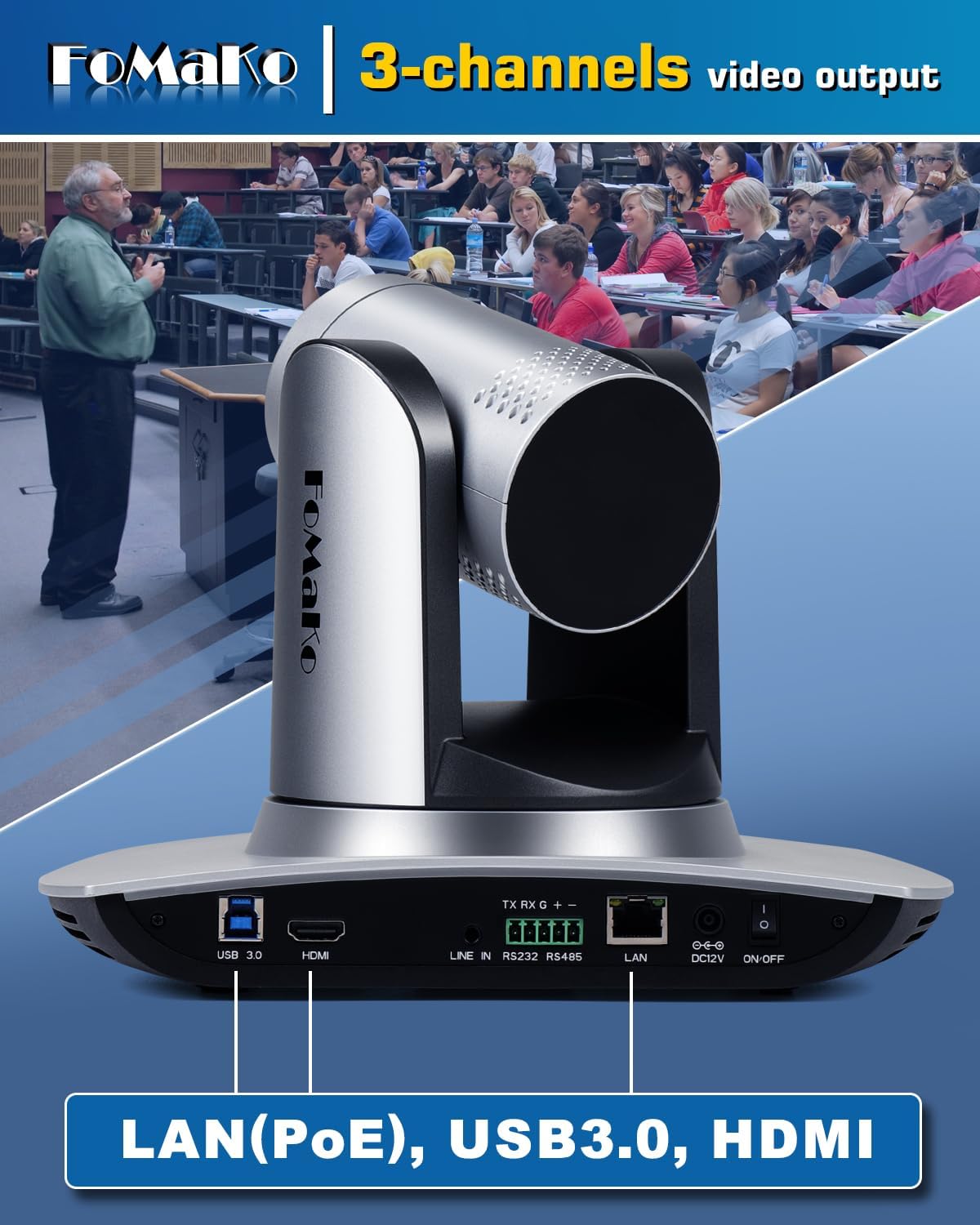
Image 3.3: Illustration of the camera installed via wall mount, tripod mount, and ceiling mount.
4. Operating
4.1 PTZ Control and Speed Adjustment
The camera's Pan, Tilt, and Zoom (PTZ) functions can be controlled and their speeds adjusted using three methods:
- On-Screen Menu: Access the camera's menu using the remote control. Navigate to the P/T/Z settings to adjust Zoom Speed, Preset Speed, PTZ Speed, and Preset Zoom Speed. Ensure 'Speed by zoom' is set to ON for stable image during zoom and movement.
- IR Remote Control: Use the dedicated buttons on the IR remote control to directly adjust PTZ speed, preset speed, and zoom speed.
- PTZ Controller: For professional setups, connect a compatible PTZ joystick controller via RS232/RS485 or IP. The controller allows precise adjustment of PTZ functions and speeds.
Video 4.1: Official FoMaKo video demonstrating how to change PTZ speed and preset speed settings.
4.2 AI Auto-Tracking
To activate AI auto-tracking, press the F2 button on the remote control. To switch tracking targets, press F4. The camera will automatically detect and follow the subject, maintaining focus and framing.
4.3 Web Browser Control
You can set up, preview, and control the PTZ camera from a web browser by entering its IP address. The default password is 'admin'. This interface provides comprehensive control over all camera settings.
5. Connectivity & NDI
The FoMaKo FMK12UH offers versatile connectivity options for various professional AV and live streaming applications.
- HDMI Output: For direct connection to displays, video switchers, or capture cards.
- USB3.0 Output: For high-speed connection to computers, enabling the camera to function as a webcam for conferencing and streaming software.
- LAN/Ethernet (PoE): Provides network connectivity for IP control, NDI (with optional license), and Power over Ethernet. This allows for a single cable solution for power, control, and video/audio transmission.
- NDI (Optional Upgrade): The camera is NDI upgradeable, allowing for high-quality, low-latency video transmission over standard network infrastructure. An NDI license key requires additional purchase.
Video 5.1: Official FoMaKo video explaining NDI advantages, tools, and usage guidelines.
6. Application Scenarios
This camera is designed for professional AV production and live streaming in various environments:
- Church services and worship events
- Educational institutions (schools, universities)
- Live streaming and broadcasting
- Video conferencing
- Hospitals and medical training
- Weddings and event coverage
- Studio productions
- Sports clubs, eSports, dance clubs
- Training classrooms and large conferences
- Theater and concert live streaming
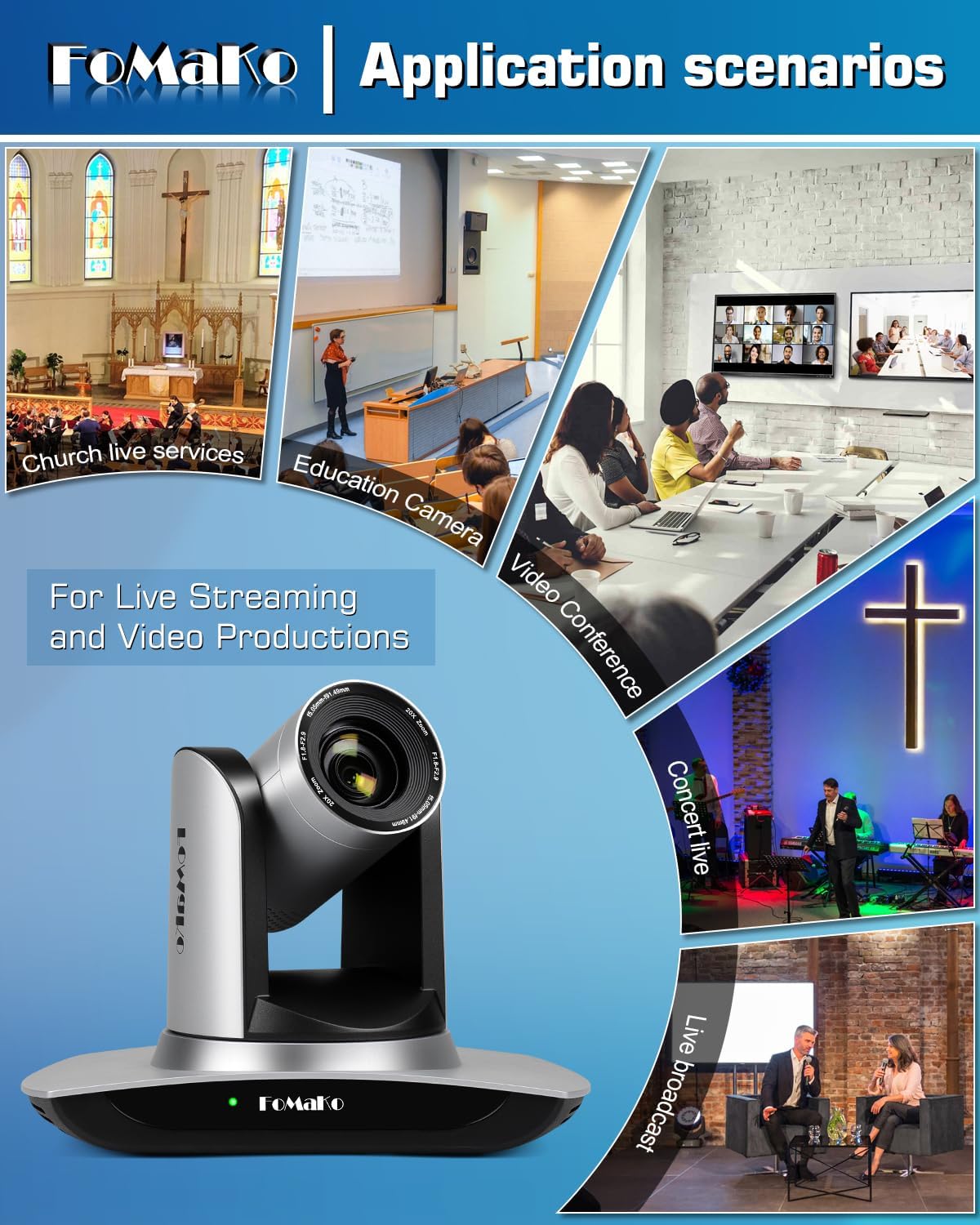
Image 6.1: Examples of the camera's use in church live services, education, video conferences, concerts, and live broadcasts.
7. Troubleshooting
Here are some common issues and potential solutions:
- Presets or AI Tracking Not Working After Power-On: After turning the camera on, pan or tilt the camera slightly with the remote control to activate presets and AI tracking functions.
- Auto-Tracking Zooms Out and Centers View: When auto-tracking is turned off, the camera may zoom out and center. To customize this, access the camera's web interface and set 'Preset 0' to your desired default view. The camera will then return to this preset when auto-tracking is disengaged.
- Focus Issues at Long Distances: Ensure proper lighting conditions. Experiment with Auto/Manual/One Push Focus modes. If issues persist, verify cable quality and network stability.
- Remote Control Responsiveness: Ensure line of sight to the camera's IR receiver. Check battery levels in the remote control.
- Image Quality Issues: Verify all cables (HDMI, USB, Ethernet) are securely connected and of high quality. Check network bandwidth if streaming over IP. Adjust camera settings like exposure, white balance, and noise reduction via the on-screen menu or web interface.
8. Specifications
| Feature | Detail |
|---|---|
| Product Dimensions | 5.67 x 9.98 x 6.65 inches |
| Item Weight | 3.04 pounds |
| Photo Sensor Technology | CMOS |
| Video Capture Resolution | 1080p |
| Maximum Focal Length | 91.49 Millimeters |
| Maximum Aperture | 2.9 f |
| Video Capture Format | MP4 |
| Supported Audio Format | AAC |
| Connectivity Technology | LAN, HDMI, USB3.0 |
9. Warranty & Support
- 3-Year Limited Warranty: Shop with confidence.
- 30-Day Money-Back Guarantee: Risk-free purchase.
- Free Online Training: Get started easily.
- 24/7 Expert Assistance: Responses within 24 hours (please include your Order ID). Remote assistance for setup is available if necessary.
- Lifetime Customer Technical Support: Your satisfaction is our priority.
Related documentsFMK12UH


Ask a question about this manual
Ask about setup, troubleshooting, compatibility, parts, safety, or missing instructions. Manuals+ will review the question and use this page’s manual context to help answer it.