
1. Product Overview
The BroadLink TC3-2Gang Smart Light Switch is designed for convenient control of your home lighting. This switch operates without a neutral wire, making it suitable for a wide range of electrical installations. It integrates with smart home ecosystems for app and voice control.
Key Features:
- No Neutral Wire Required: Compatible with installations that only provide live wire connections.
- App Control: Manage lights remotely via the BroadLink app.
- Voice Control: Works with Alexa, Google Assistant, and Siri Shortcuts.
- Scheduling and Routines: Automate lighting based on schedules or custom routines.
- Touch Interface: Modern touch-sensitive control panel.
Important Note: A BroadLink S3 Hub is required for the smart functionalities of this switch. For initial setup, consider purchasing a kit that includes the S3 Hub.
2. Setup and Installation
2.1 Safety Precautions
- Always turn off power at the circuit breaker before beginning any electrical work.
- If you are unsure about electrical installations, consult a qualified electrician.
- Ensure the switch is installed in a dry indoor environment.
2.2 Wiring Diagram and Dimensions
The BroadLink TC3-2Gang switch is designed for easy installation in systems without a neutral wire. The modularized design facilitates quick setup.

Image: Wiring diagram and physical dimensions of the BroadLink Smart Light Switch. It shows connections for L-in, L-out, and ground, along with measurements of 4.02 x 2.83 x 1.38 inches.
Unlike some other no-neutral switches, the BroadLink TC3-2Gang typically does not require an external capacitor for stable operation with most LED and incandescent loads (up to 100W for LED, 200W for incandescent per gang).

Image: A comparison illustrating wiring for other no-neutral switches (requiring a capacitor) versus BroadLink switches (typically not requiring a capacitor).
2.3 Installation Steps
- Power Off: Locate your circuit breaker and turn off the power to the light switch you are replacing. Verify power is off using a voltage tester.
- Remove Old Switch: Carefully remove the existing wall plate and light switch. Disconnect the wires.
- Wire the BroadLink Switch: Connect the Live-in (L-in) wire to the 'L' terminal on the BroadLink switch. Connect the Live-out (L-out) wires to the 'L1' and 'L2' terminals for the respective gangs. If a ground wire is present, connect it to the 'NG' terminal.
- Mount the Switch: Secure the BroadLink switch into the wall box. Ensure wires are neatly tucked away.
- Attach Faceplate: Snap the glass faceplate onto the switch module.
- Power On: Restore power at the circuit breaker.
2.4 App Pairing (Requires BroadLink S3 Hub)
Before pairing the switch, ensure your BroadLink S3 Hub is already set up and connected to your 2.4GHz Wi-Fi network. The BroadLink app is required for pairing and control.
- Download the BroadLink app from your device's app store.
- Open the app and log in or create an account.
- Follow the in-app instructions to add your BroadLink S3 Hub if not already done.
- Once the hub is connected, select the option to add a new device and choose the Smart Light Switch.
- Follow the on-screen prompts to put the switch into pairing mode (usually by pressing and holding a button on the switch until an indicator light flashes).
- Complete the pairing process within the app.
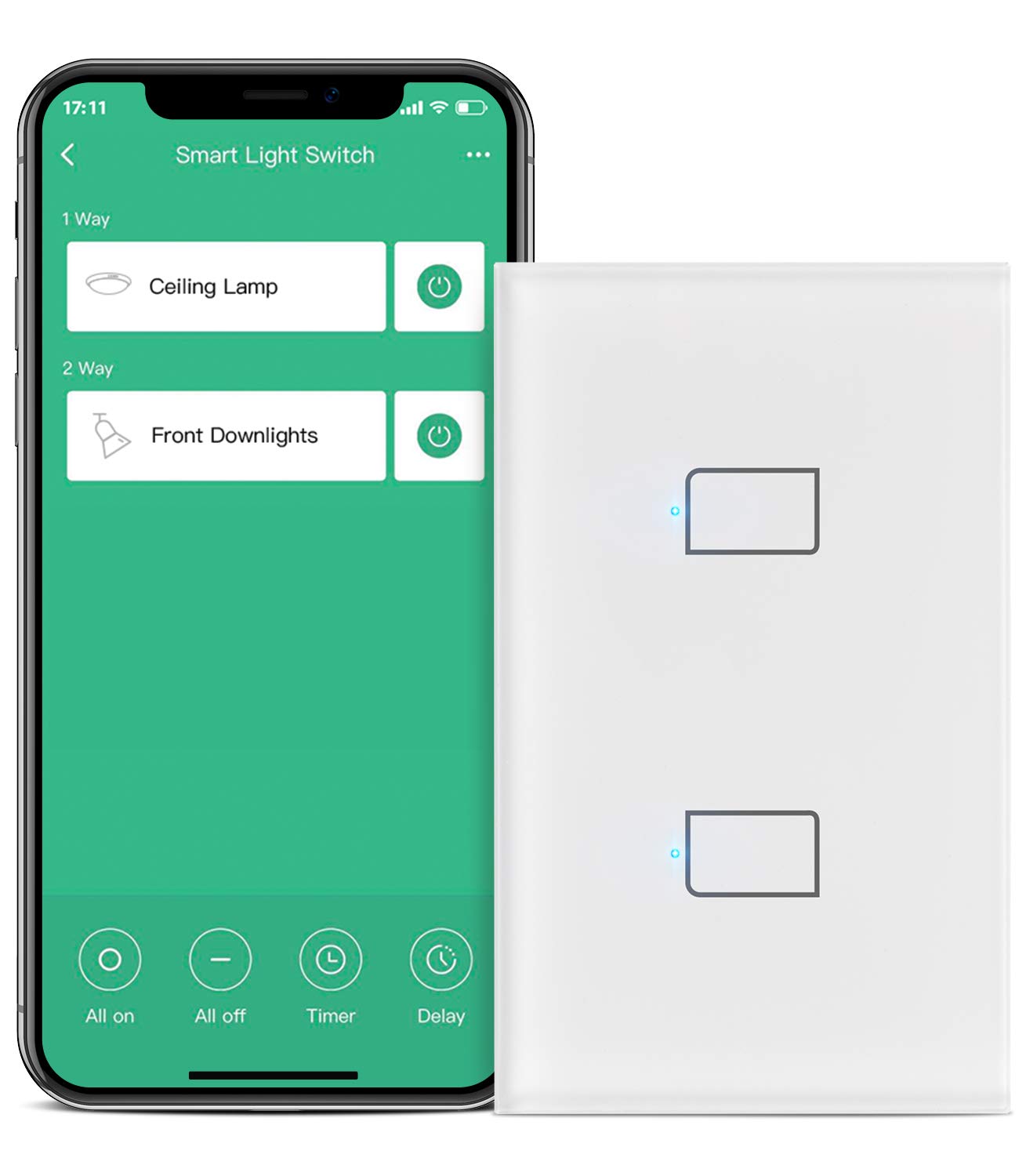
Image: The BroadLink Smart Light Switch alongside a smartphone displaying the BroadLink app interface, showing controls for 'Ceiling Lamp' and 'Front Downlights'.
3. Operating the Smart Light Switch
3.1 Manual Control
The switch features a touch-sensitive panel. Simply tap the designated areas on the glass faceplate to turn the connected lights on or off.
3.2 App Remote Control
Once paired with the BroadLink app and S3 Hub, you can control your lights from anywhere using your smartphone.

Image: A smartphone displaying the BroadLink app, showing remote control of lights in a house, with lights turned on before arrival home.
3.3 Voice Control
The BroadLink Smart Light Switch is compatible with popular voice assistants.
- Alexa: Enable the 'BroadLink' skill in the Alexa app. Then, use commands like "Alexa, turn on [light name]."
- Google Assistant: Link your BroadLink account in the Google Home app. Use commands like "Hey Google, turn off [light name]."
- Siri Shortcuts: Configure custom Siri Shortcuts within the BroadLink app for voice control via Apple devices.

Image: A person in a bedroom using voice commands with an Amazon Echo device to control lights connected to the BroadLink Smart Light Switch.
3.4 Scheduling and Timers
Set up schedules to automatically turn lights on or off at specific times. The app supports single timers, repeated timers, delay timers, and random timers.

Image: A smartphone displaying the BroadLink app's 'Timing Set' interface, showing a regular timer set to turn on a light at 07:00 every day.
3.5 Scenes and Routines
Create custom scenes and routines within the BroadLink app or through integrated platforms like Alexa and IFTTT.
- Scenes: Configure a single command to control multiple lights or devices simultaneously (e.g., a 'Movie Night' scene that dims lights).
- Routines: Automate actions based on triggers (e.g., turn on lights when a door sensor is opened, or use 'Away Mode' to turn off all lights when you leave home).
- Smart Home Controller: The switch buttons can be configured in routines to trigger other smart home devices or scenes, extending its functionality beyond just lighting.

Image: An illustration demonstrating smart home routines, such as turning on lights when a person arrives home or turning them off when a person leaves, using Google Assistant, Alexa, or IFTTT.
4. Maintenance
- Cleaning: Use a soft, dry cloth to clean the glass faceplate. Avoid abrasive cleaners or solvents.
- Firmware Updates: Periodically check the BroadLink app for available firmware updates for your switch and S3 Hub to ensure optimal performance and security.
- Environmental Conditions: Ensure the switch is not exposed to excessive moisture or extreme temperatures.
5. Troubleshooting
5.1 Connectivity Issues
- Hub Not Connecting: Ensure your BroadLink S3 Hub is powered on and within range of your Wi-Fi router. Verify your Wi-Fi network is 2.4GHz, as 5GHz networks are not supported.
- Switch Not Pairing: Confirm the S3 Hub is successfully connected to the app. Ensure the switch is in pairing mode (indicator light flashing). Try moving the hub closer to the switch during the pairing process.
- Frequent Disconnections: Check your Wi-Fi signal strength in the area of the switch and hub. Ensure there are no obstructions or interference. Restarting your Wi-Fi router and the BroadLink S3 Hub may resolve intermittent connection issues.
5.2 Switch Not Responding
- No Power: Check the circuit breaker to ensure power is supplied to the switch.
- Manual Control Failure: If the touch panel does not respond, try cycling the power to the switch at the circuit breaker.
- App/Voice Control Failure: Verify the switch is connected to the S3 Hub and the hub is online in the BroadLink app. Check your internet connection.
5.3 Physical Installation Challenges
- Fitting into Wall Box: In older homes, metal electrical boxes may be smaller or have different dimensions. If the switch does not fit, a wall box extender may be required. Do not force the switch into an incompatible box.
6. Specifications
- Model Number: TC3-2Gang
- Product Dimensions: 4.02 x 2.83 x 1.38 inches
- Operating Voltage: 120 Volts (AC)
- Max Load (per gang): 100W (LED) or 200W (Incandescent)
- Connectivity: Wi-Fi (2.4GHz only)
- Controller Type: Amazon Alexa, Google Assistant, IFTTT
- Actuator Type: Touch
- International Protection Rating: IP65
- Manufacturer: Hangzhou BroadLink Technology Co., Ltd.
7. Warranty and Support
For detailed warranty information, please refer to the documentation included with your product packaging or visit the official BroadLink website. BroadLink provides customer support for product inquiries, technical assistance, and warranty claims.
Contact Support:
- Refer to the BroadLink app for support options.
- Visit the official BroadLink website for FAQs and contact information.


