1. Introduction
The Woox R7060 Zigbee Smart Garden Irrigation Control is designed to automate your garden watering system, providing flexible and efficient irrigation based on your plants' needs. This device integrates with your smart home ecosystem via Zigbee protocol, allowing for remote control and scheduling through the Woox Home Smart application.
Key Features:
- Automated water flow control for garden irrigation.
- Smartphone/tablet control via Woox Home Smart app.
- Compatibility with Google Assistant and Amazon Alexa for voice control.
- Zigbee protocol for smart home integration (requires Woox Zigbee Gateway R7070, sold separately).
- Powered by 4 AA batteries with an approximate 6-month lifespan.
2. Package Contents
Please ensure all items are present upon unboxing:
- Woox R7060 Smart Garden Irrigation Control Unit
- 4 x AA Batteries
- User Manual (this document)
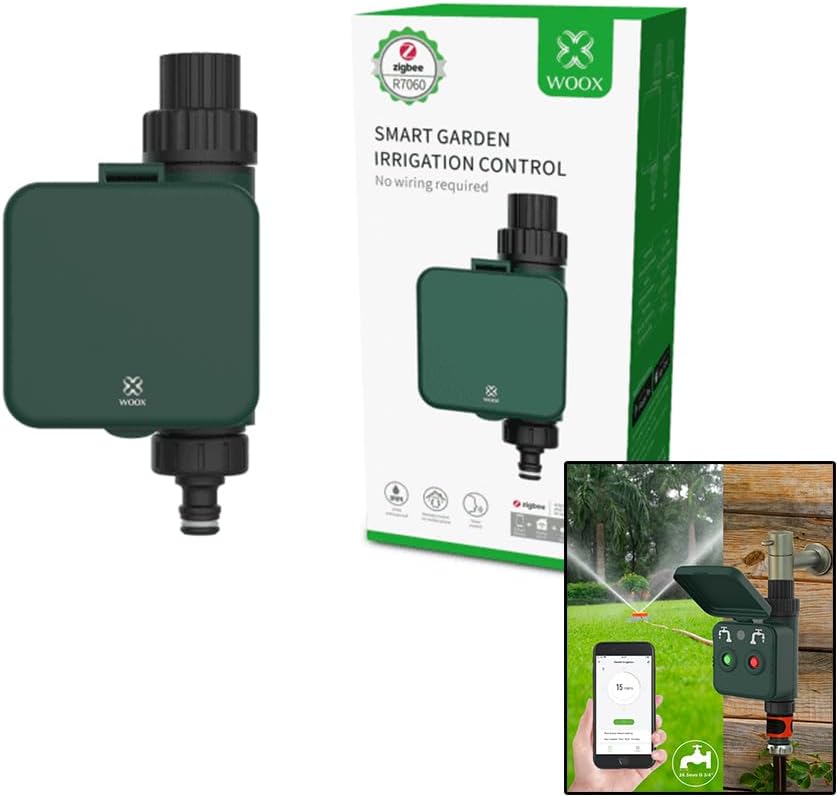
Image: Woox R7060 Smart Garden Irrigation Control unit shown with its retail packaging. The device is dark green with a black input connector at the top and an output connector at the bottom. The packaging highlights "Zigbee R7060 Smart Garden Irrigation Control".
3. Product Overview
Familiarize yourself with the components of your Woox R7060 device.

Image: A detailed diagram of the Woox R7060 device. Key components are labeled: Input (3/4" Female faucet connector with O-ring), LED Indicator, Stop button/Reset button (red), Start button (green), Output (3/4" Male connector), and Male Quick-Click connector. The diagram also notes that the Male Quick-Click connector can be changed if necessary.
- Input Connector: 3/4" Female faucet connector with O-ring for connecting to a standard garden tap.
- LED Indicator: Provides status feedback (e.g., pairing mode, watering status).
- Start Button (Green): Initiates manual watering or confirms settings.
- Stop/Reset Button (Red): Stops manual watering or resets the device for pairing.
- Output Connector: 3/4" Male connector for connecting to a hose or irrigation system.
- Quick-Click Connector: Male quick-click connector for easy hose attachment. This can be changed if required.
4. Setup
4.1. Battery Installation
- Locate the battery compartment on the back of the device.
- Open the battery compartment cover.
- Insert the 4 AA batteries, ensuring correct polarity (+/-).
- Close the battery compartment cover securely to ensure water resistance.
Note: The device is powered by 4 AA batteries, which typically last for 6 months. Replace them when the battery indicator in the app shows low power.
4.2. Physical Installation
- Screw the Woox R7060 irrigation control unit onto your outdoor garden tap. Ensure the connection is tight to prevent leaks.
- Connect your garden hose or irrigation system to the output connector at the bottom of the R7060 unit.

Image: The Woox R7060 Smart Garden Irrigation Control unit is shown installed on a standard outdoor garden tap. A garden hose is connected to the output, leading to a sprinkler system in a lush green lawn. A smartphone displaying the Woox Home app interface is also visible, indicating smart control capabilities.
4.3. App Installation and Zigbee Pairing
The Woox R7060 operates using the Zigbee protocol and requires a Woox Zigbee Gateway (e.g., R7070, sold separately) to function with the Woox Home Smart app.
- Download the Woox Home Smart application from your smartphone's app store (available for iOS and Android).
- Register or log in to your Woox Home account.
- Ensure your Woox Zigbee Gateway (R7070 or similar) is already set up and connected to your Woox Home app.
- In the Woox Home app, tap the "+" icon to add a new device.
- Select "Smart Irrigation Control" or search for the R7060 model.
- Follow the on-screen instructions to put the R7060 into pairing mode. This usually involves pressing and holding the Reset button (red) until the LED indicator flashes.
- The app will detect and connect to the R7060. Once paired, you can rename the device and configure its settings.
For detailed instructions on setting up your Woox Zigbee Gateway, please refer to its specific user manual.
5. Operating the Device
5.1. Manual Control
- To Start Watering Manually: Press the Start button (green) once. The device will begin watering for a default period or the last set manual duration.
- To Stop Watering Manually: Press the Stop button (red) once. The water flow will cease.
5.2. App Control and Scheduling
The Woox Home Smart app provides comprehensive control over your irrigation system.
- Open the Woox Home Smart app and select your R7060 device.
- You can manually turn the water flow ON/OFF directly from the app interface.
- Create Watering Schedules:
- Navigate to the scheduling section within the device settings.
- Set specific start times, durations, and days of the week for watering.
- You can create multiple schedules to suit different zones or plant types.
- Automation: The app allows you to create automation rules with other Woox Home devices. For example, you could set up watering to pause if a smart rain sensor detects precipitation.
- Voice Control: Integrate with Google Assistant or Amazon Alexa by linking your Woox Home account in their respective apps. You can then use voice commands like "Hey Google, turn on garden watering" or "Alexa, start irrigation."
6. Maintenance
- Battery Replacement: Replace the 4 AA batteries approximately every 6 months or when the app indicates low battery. Always use new, high-quality alkaline batteries.
- Cleaning: Periodically clean the exterior of the device with a soft, damp cloth. Do not use abrasive cleaners or solvents.
- Filter Cleaning: The input connector may contain a filter to prevent debris from entering the unit. Periodically check and clean this filter to ensure optimal water flow. Remove the unit from the tap, unscrew the input connector, and rinse the filter under running water.
- Winter Storage: Before the first frost, disconnect the R7060 from the tap and store it indoors in a dry, frost-free location. Remove the batteries if storing for an extended period.
- Leak Checks: Regularly inspect all connections (tap to unit, unit to hose) for leaks. Tighten connections or replace O-rings/washers if necessary.
7. Troubleshooting
| Problem | Possible Cause | Solution |
|---|---|---|
| Device does not turn on/respond. | Dead or incorrectly installed batteries. | Check battery polarity. Replace with new AA batteries. |
| Cannot pair with Woox Home app. |
|
|
| Water leaks from connections. |
|
|
| No water flow or low pressure. |
|
|
8. Specifications
| Feature | Detail |
|---|---|
| Model | R7060 |
| Brand | Woox |
| Connectivity | Zigbee (requires Woox Zigbee Gateway R7070 or similar) |
| Power Supply | 4 x AA Batteries (included) |
| Battery Life | Approximately 6 months |
| Input Voltage | 6 Volts |
| Product Dimensions | 19.1 cm (L) x 10 cm (W) x 7.7 cm (H) |
| Display Type | LED Indicator |
| Color | Green |
| GTIN (Global Trade Item Number) | 08435606701198 |
| Included Components | Woox R7060 Smart Garden Irrigation Control, 4x AA Batteries, User Manual |
9. Warranty and Support
For warranty information and technical support, please refer to the official Woox website or contact your local retailer. Keep your purchase receipt as proof of purchase.
Online Resources:
- Woox Official Website: www.wooxhome.com
- Woox Home App Support: Refer to the "Help & Feedback" section within the application.


